Make Your Own Booking Widget: Difference between revisions
No edit summary |
No edit summary |
||
| (13 intermediate revisions by 2 users not shown) | |||
| Line 2: | Line 2: | ||
[[Category:Booking Page]] | [[Category:Booking Page]] | ||
[[Category:How to]] | [[Category:How to]] | ||
[[Category:Developers]] | |||
[[Category:Widgets]] | |||
<div class="heading">Create a custom booking widget</div> | |||
This page explains how to create your own booking widget | |||
<div class="warning">{{#fas:exclamation-triangle}} Check the options the widget designer {{#fas:cog}} (SETTINGS) BOOKING ENGINE > BOOKING WIDGETS first. </div> | |||
__TOC__ | |||
<span style="color: #f3e504; font-size: 250%;" >{{#fas:lightbulb}} </span> '''Required Skills''': Basic understanding of HTML | |||
== Introduction == | == Introduction == | ||
Making your own booking widget is not hard. It only involves opening the booking page and optionally passing some information to it. | Making your own booking widget is not hard. It only involves opening the booking page and optionally passing some information to it. | ||
Common ways to open the booking page are using an HTML <A> link or using a <FORM> with selectors and inputs. | Common ways to open the booking page are using an HTML <A> link or using a <FORM> with selectors and inputs. | ||
We will only focus on the technical aspects of getting the form to submit information, we will not show any styling, labels, | We will only focus on the technical aspects of getting the form to submit information, we will not show any styling, labels, Javascript and CSS, that is completely up to you to create any style you need. | ||
Modify to suit and paste the samples into your web page. | Modify to suit and paste the samples into your web page. | ||
== Create a Widget == | |||
'''Create a Form''' | '''Create a Form''' | ||
| Line 22: | Line 26: | ||
A basic HTML FORM can be created like this | A basic HTML FORM can be created like this | ||
<FORM METHOD="POST" ACTION="https:// | <FORM METHOD="POST" ACTION="https://beds24.com/booking2.php"> | ||
<input type="hidden" name="propid" value="2035"> | <input type="hidden" name="propid" value="2035"> | ||
<input type="submit" value="Book Now"> | <input type="submit" value="Book Now"> | ||
| Line 40: | Line 44: | ||
It is possible using jQuery or javascript to keep the select options up-to-date with the current month/year but that is beyond the scope of this How To. | It is possible using jQuery or javascript to keep the select options up-to-date with the current month/year but that is beyond the scope of this How To. | ||
<FORM METHOD="POST" ACTION="https:// | <FORM METHOD="POST" ACTION="https://beds24.com/booking2.php"> | ||
<select name='fdate_date'> | <select name='fdate_date'> | ||
<option value='1'>1</option> | <option value='1'>1</option> | ||
| Line 109: | Line 113: | ||
We can add selectors for the length of stay and number of guests as follows | We can add selectors for the length of stay and number of guests as follows | ||
<FORM METHOD="POST" ACTION="https:// | <FORM METHOD="POST" ACTION="https://beds24.com/booking2.php"> | ||
<select name='fdate_date'> | <select name='fdate_date'> | ||
<option value='1'>1</option> | <option value='1'>1</option> | ||
| Line 220: | Line 224: | ||
1. Customise widget, then generate code. | 1. Customise widget, then generate code. | ||
[[Image:Custom-Widget1.png| | [[Image:Custom-Widget1.png|600px|link=]] | ||
[[Media:Custom-Widget1.png|view large]] | [[Media:Custom-Widget1.png|view large]] | ||
[[Image:Custom- | [[Image:Custom-Widget3.png|600px|link=]] | ||
[[Media:Custom- | [[Media:Custom-Widget3.png|view large]] | ||
2. The code consists of three parts. Identify the <script></script> and delete it. | 2. The code consists of three parts. Identify the <script></script> and delete it. | ||
[[Image:Custom- | [[Image:Custom-Widget4.png|600px|link=]] | ||
[[Media:Custom- | [[Media:Custom-Widget4.png|view large]] | ||
3. Customise the content of the selects to only contain the dates you want to offer. In this example is for a booking strip for December 1st 2015 3 nights. | 3. Customise the content of the selects to only contain the dates you want to offer. In this example is for a booking strip for December 1st 2015 3 nights. | ||
You can also use a the [[Special_Rate_for_Agents_or_Referer|referer functions]] to apply special prices. Look for the referer in the widget code (in this example referer=BookingStrip) and replace it with your custom [[Special_Rate_for_Agents_or_Referer|referer code]]. | |||
[[Image:Custom-Widget2.png|600px|link=]] | |||
[[Media:Custom-Widget2.png|view large]] | |||
4. Paste the code into the source code of your web site | 4. Paste the code into the source code of your web site | ||
<nowiki><div style="color: #2f2f2f; font-size:14px; width: 100%; padding-top: 5px; padding-bottom: 5px; text-align: center; background: #339900; background: -moz-linear-gradient(top, #66cc00, #339900); background: -webkit-gradient(linear, left top, left bottom, from(#66cc00), to(#339900)); background: -webkit-linear-gradient(top, #66cc00, #339900); background: -o-linear-gradient(top, #66cc00, #339900); background: linear-gradient(top, #66cc00, #339900); filter: progid:DXImageTransform.Microsoft.gradient(startColorstr='#66cc00', endColorstr='#339900');" class="b24bookingstrip"><form method='GET' target='_blank' action='https://beds24.com/booking.php' style='margin:0; padding:0;'><span style='padding-right: 10px; display: inline-block;'><a style='color: #2f2f2f;text-decoration:none;' target='_blank' href='https://beds24.com/booking.php?propid=3103&page=getdates&type=0&referer=BookingStrip'></a></span><span style='display: inline-block; padding-right: 10px;'> | |||
<select id='fdate550775_date_propid3103' name='fdate_date' style='font-size:inherit; margin:0; padding:0;color: #2f2f2f'<option value='1'>1</option><br></select> | |||
<select id='fdate550775_monthyear_propid3103' name='fdate_monthyear' style='font-size:inherit; margin:0; padding:0;color: #2f2f2f;'> | |||
<option value='2016-12'>Dec 2016</option> | |||
</select></span> | |||
<div style='display:inline;'><span style='display: inline-block; padding-right: 10px;'><select name='numnight' style='font-size:inherit; margin:0; padding:0;color: #2f2f2f;'> | |||
<option value='3'>3 Nights</option> | |||
</select></span></div><span style='display: inline-block;'><input type='submit' name='subcheck' value='Book Now' style='font-size:inherit;color: #2f2f2f;'><input type='hidden' name='propid' value='3103'><input type='hidden' name='subgetdates' value='1'> | |||
<input type='hidden' name='type' value='0'><input type='hidden' name='page' value='showprice'><input type='hidden' name='referer' value='BookingStrip'></span></form></div> | |||
</nowiki> | |||
Result: | Result: | ||
[[Image:Custom-Widget5.png| | [[Image:Custom-Widget5.png|600px|link=]] | ||
[[Media:Custom-Widget5.png|view large]] | [[Media:Custom-Widget5.png|view large]] | ||
== Create a booking form for a preselected room and dates == | |||
Create a URL like this: | |||
https://beds24.com/booking2.php?propid=13434&checkin_hide=2016-11-24&numnight=2&numadult=1&br1-32906=Book | |||
You need to define: | |||
1) propid | |||
2) one of checkin or checkin_hide (different date formats) | |||
3) one of checkout, checkout_hide or numnight | |||
4) numadult and/or numchild | |||
5) br1-32906=Book where "br1 is offer 1, br2 is offer 2 etc. and 32906 is the room to book. | |||
== Redirect to your own property landing page == | |||
You can do this with the menu SETTINGS->BOOKING ENGINE->BEHAVIOUR. | |||
Set "Booking Redirect" = Immediately | |||
Set "Booking Redirect Url" = your landing page for the property. The landing page can contain can iframe with the property booking page. If you do have an Iframe embedded make sure you do not set the number of nights or people in the URL. | |||
Latest revision as of 11:24, 9 September 2020
This page explains how to create your own booking widget
Required Skills: Basic understanding of HTML
Introduction
Making your own booking widget is not hard. It only involves opening the booking page and optionally passing some information to it.
Common ways to open the booking page are using an HTML <A> link or using a <FORM> with selectors and inputs.
We will only focus on the technical aspects of getting the form to submit information, we will not show any styling, labels, Javascript and CSS, that is completely up to you to create any style you need.
Modify to suit and paste the samples into your web page.
Create a Widget
Create a Form
A basic HTML FORM can be created like this
<FORM METHOD="POST" ACTION="https://beds24.com/booking2.php">
<input type="hidden" name="propid" value="2035">
<input type="submit" value="Book Now">
</FORM>
It is very simple and will show a "Book Now" button and open the property with the specified propid.
You could alternatively use ownerid to show all properties in an account or roomid to show only one room.
Collect Check-in Date
The Check-in date can be sent to the booking page using any of the paramentes at Developers
There are some very nice jQuery ways to collect a date but this example will use a standard HTML selector for the day and a selector for the month and year.
It is possible using jQuery or javascript to keep the select options up-to-date with the current month/year but that is beyond the scope of this How To.
<FORM METHOD="POST" ACTION="https://beds24.com/booking2.php">
<select name='fdate_date'>
<option value='1'>1</option>
<option value='2'>2</option>
<option value='3'>3</option>
<option value='4'>4</option>
<option value='5'>5</option>
<option value='6'>6</option>
<option value='7'>7</option>
<option value='8'>8</option>
<option value='9'>9</option>
<option value='10'>10</option>
<option value='11'>11</option>
<option value='12'>12</option>
<option value='13'>13</option>
<option value='14'>14</option>
<option value='15'>15</option>
<option value='16'>16</option>
<option value='17'>17</option>
<option value='18'>18</option>
<option value='19'>19</option>
<option value='20'>20</option>
<option value='21'>21</option>
<option value='22'>22</option>
<option value='23'>23</option>
<option value='24'>24</option>
<option value='25'>25</option>
<option value='26'>26</option>
<option value='27'>27</option>
<option value='28'>28</option>
<option value='29'>29</option>
<option value='30'>30</option>
<option value='31'>31</option>
</select>
<select name='fdate_monthyear'>
<option value='2014-08'>Aug 2014</option>
<option value='2014-09'>Sep 2014</option>
<option value='2014-10'>Oct 2014</option>
<option value='2014-11'>Nov 2014</option>
<option value='2014-12'>Dec 2014</option>
<option value='2015-01'>Jan 2015</option>
<option value='2015-02'>Feb 2015</option>
<option value='2015-03'>Mar 2015</option>
<option value='2015-04'>Apr 2015</option>
<option value='2015-05'>May 2015</option>
<option value='2015-06'>Jun 2015</option>
<option value='2015-07'>Jul 2015</option>
<option value='2015-08'>Aug 2015</option>
<option value='2015-09'>Sep 2015</option>
<option value='2015-10'>Oct 2015</option>
<option value='2015-11'>Nov 2015</option>
<option value='2015-12'>Dec 2015</option>
<option value='2016-01'>Jan 2016</option>
<option value='2016-02'>Feb 2016</option>
<option value='2016-03'>Mar 2016</option>
<option value='2016-04'>Apr 2016</option>
<option value='2016-05'>May 2016</option>
<option value='2016-06'>Jun 2016</option>
<option value='2016-07'>Jul 2016</option>
</select>
<input type="hidden" name="propid" value="2035">
<input type="submit" value="Book Now">
</FORM>
Collect Number of nights and guests
We can add selectors for the length of stay and number of guests as follows
<FORM METHOD="POST" ACTION="https://beds24.com/booking2.php">
<select name='fdate_date'>
<option value='1'>1</option>
<option value='2'>2</option>
<option value='3'>3</option>
<option value='4'>4</option>
<option value='5'>5</option>
<option value='6'>6</option>
<option value='7'>7</option>
<option value='8'>8</option>
<option value='9'>9</option>
<option value='10'>10</option>
<option value='11'>11</option>
<option value='12'>12</option>
<option value='13'>13</option>
<option value='14'>14</option>
<option value='15'>15</option>
<option value='16'>16</option>
<option value='17'>17</option>
<option value='18'>18</option>
<option value='19'>19</option>
<option value='20'>20</option>
<option value='21'>21</option>
<option value='22'>22</option>
<option value='23'>23</option>
<option value='24'>24</option>
<option value='25'>25</option>
<option value='26'>26</option>
<option value='27'>27</option>
<option value='28'>28</option>
<option value='29'>29</option>
<option value='30'>30</option>
<option value='31'>31</option>
</select>
<select name='fdate_monthyear'>
<option value='2014-08'>Aug 2014</option>
<option value='2014-09'>Sep 2014</option>
<option value='2014-10'>Oct 2014</option>
<option value='2014-11'>Nov 2014</option>
<option value='2014-12'>Dec 2014</option>
<option value='2015-01'>Jan 2015</option>
<option value='2015-02'>Feb 2015</option>
<option value='2015-03'>Mar 2015</option>
<option value='2015-04'>Apr 2015</option>
<option value='2015-05'>May 2015</option>
<option value='2015-06'>Jun 2015</option>
<option value='2015-07'>Jul 2015</option>
<option value='2015-08'>Aug 2015</option>
<option value='2015-09'>Sep 2015</option>
<option value='2015-10'>Oct 2015</option>
<option value='2015-11'>Nov 2015</option>
<option value='2015-12'>Dec 2015</option>
<option value='2016-01'>Jan 2016</option>
<option value='2016-02'>Feb 2016</option>
<option value='2016-03'>Mar 2016</option>
<option value='2016-04'>Apr 2016</option>
<option value='2016-05'>May 2016</option>
<option value='2016-06'>Jun 2016</option>
<option value='2016-07'>Jul 2016</option>
</select>
<select name='numnight'>
<option value='1' selected>1</option>
<option value='2'>2</option>
<option value='3'>3</option>
<option value='4'>4</option>
<option value='5'>5</option>
<option value='6'>6</option>
<option value='7'>7</option>
<option value='8'>8</option>
<option value='9'>9</option>
<option value='10'>10</option>
<option value='11'>11</option>
<option value='12'>12</option>
<option value='13'>13</option>
<option value='14'>14</option>
<option value='15'>15</option>
<option value='16'>16</option>
<option value='17'>17</option>
<option value='18'>18</option>
<option value='19'>19</option>
<option value='20'>20</option>
<option value='21'>21</option>
<option value='22'>22</option>
<option value='23'>23</option>
<option value='24'>24</option>
<option value='25'>25</option>
<option value='26'>26</option>
<option value='27'>27</option>
<option value='28'>28</option>
<option value='29'>29</option>
<option value='30'>30</option>
<option value='31'>31</option>
</select>
<select name='numadult'>
<option value='1'>1</option>
<option value='2' selected>2</option>
<option value='3'>3</option>
<option value='4'>4</option>
<option value='5'>5</option>
<option value='6'>6</option>
<option value='7'>7</option>
<option value='8'>8</option>
</select>
<input type="hidden" name="propid" value="2035">
<input type="submit" value="Book Now">
</FORM>
Widget for specific dates
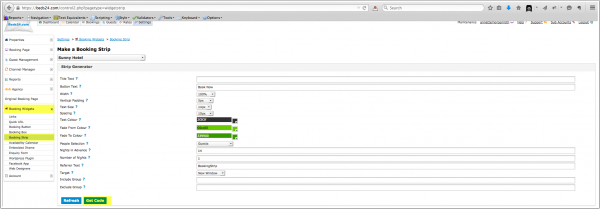
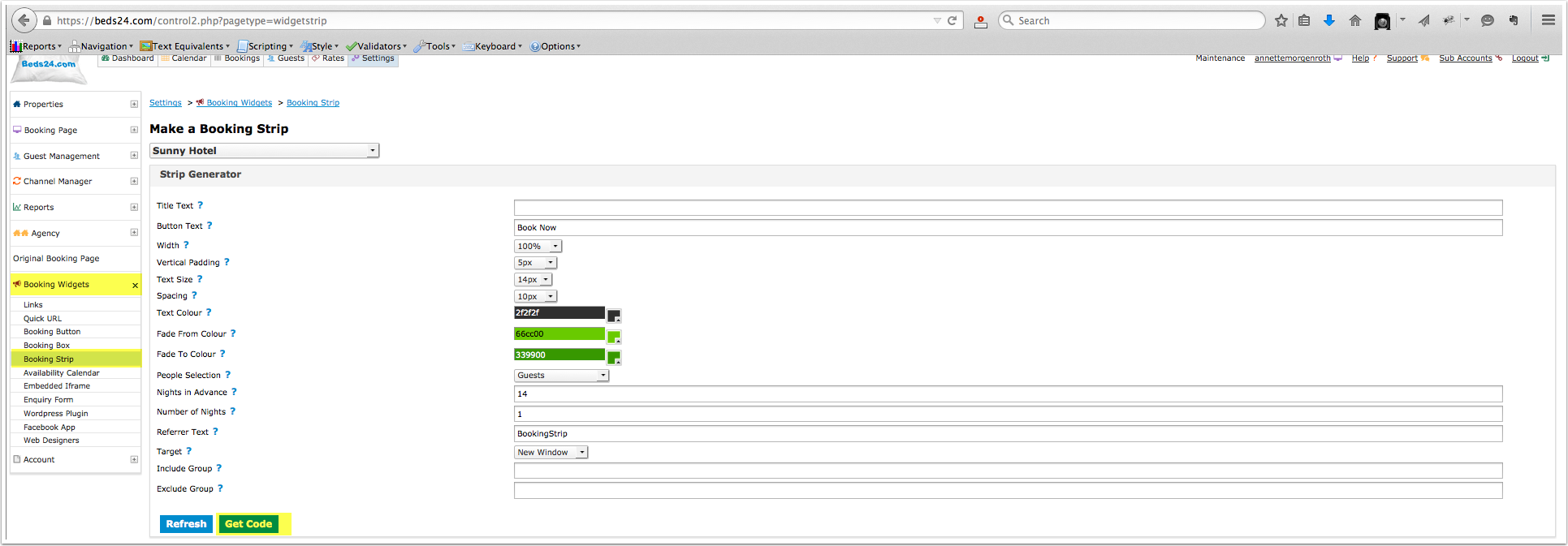
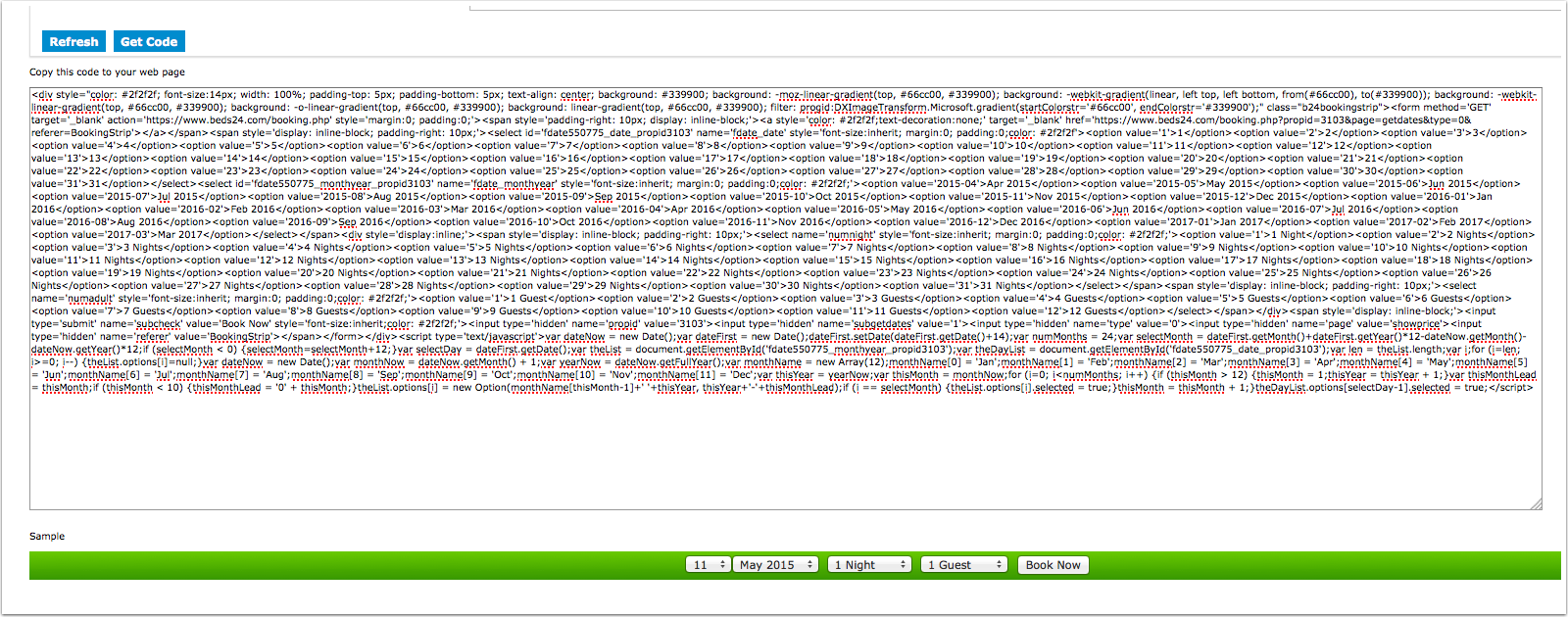
1. Customise widget, then generate code.
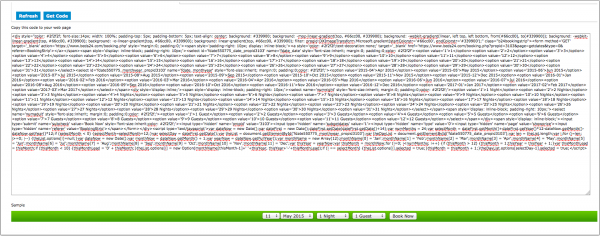
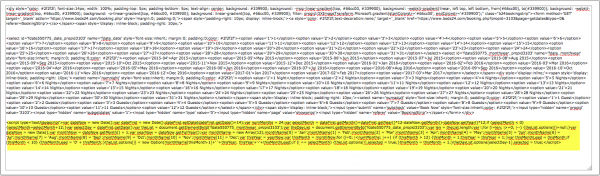
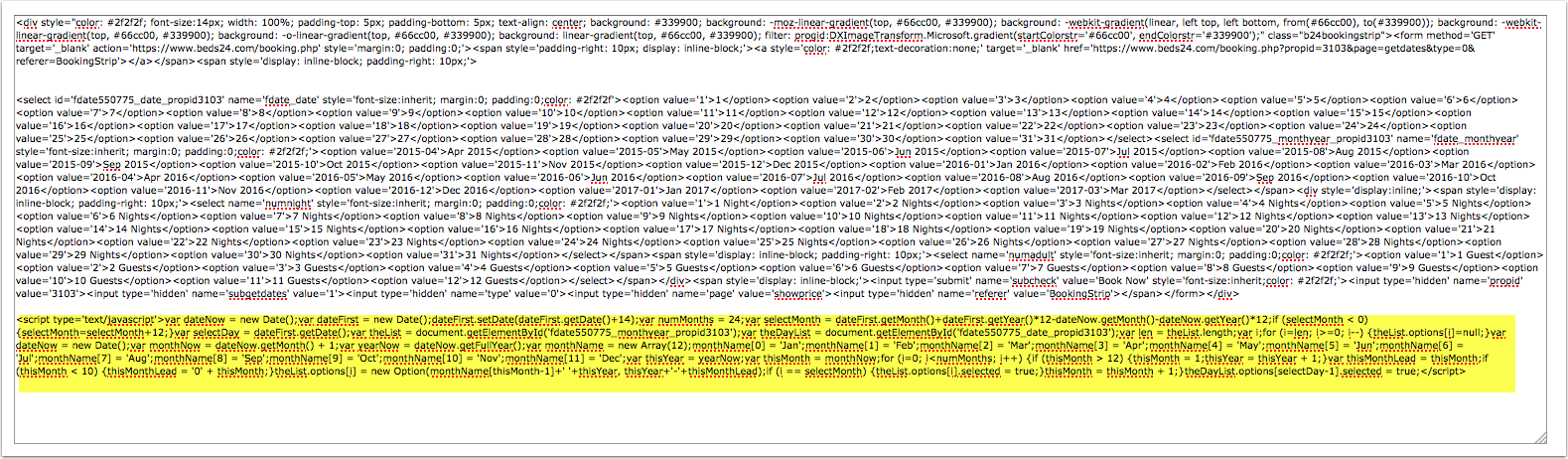
2. The code consists of three parts. Identify the <script></script> and delete it.
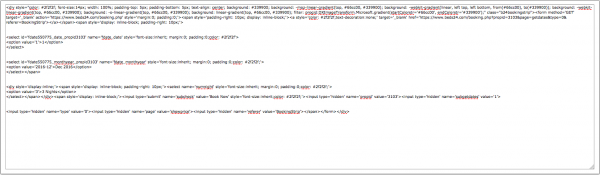
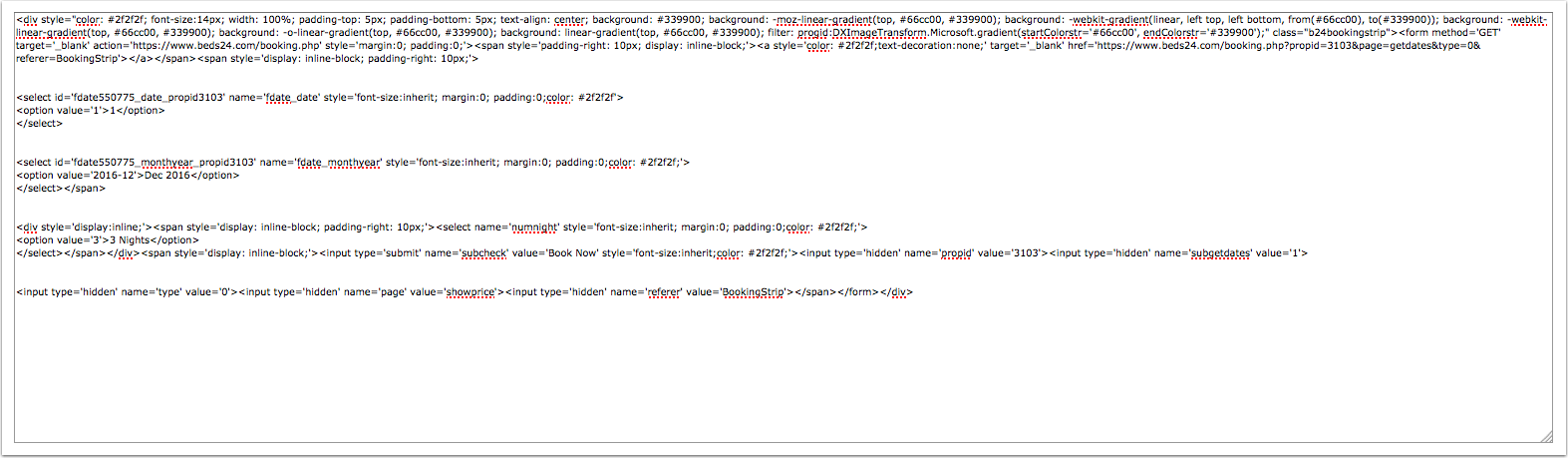
3. Customise the content of the selects to only contain the dates you want to offer. In this example is for a booking strip for December 1st 2015 3 nights. You can also use a the referer functions to apply special prices. Look for the referer in the widget code (in this example referer=BookingStrip) and replace it with your custom referer code.
4. Paste the code into the source code of your web site
<div style="color: #2f2f2f; font-size:14px; width: 100%; padding-top: 5px; padding-bottom: 5px; text-align: center; background: #339900; background: -moz-linear-gradient(top, #66cc00, #339900); background: -webkit-gradient(linear, left top, left bottom, from(#66cc00), to(#339900)); background: -webkit-linear-gradient(top, #66cc00, #339900); background: -o-linear-gradient(top, #66cc00, #339900); background: linear-gradient(top, #66cc00, #339900); filter: progid:DXImageTransform.Microsoft.gradient(startColorstr='#66cc00', endColorstr='#339900');" class="b24bookingstrip"><form method='GET' target='_blank' action='https://beds24.com/booking.php' style='margin:0; padding:0;'><span style='padding-right: 10px; display: inline-block;'><a style='color: #2f2f2f;text-decoration:none;' target='_blank' href='https://beds24.com/booking.php?propid=3103&page=getdates&type=0&referer=BookingStrip'></a></span><span style='display: inline-block; padding-right: 10px;'>
 <select id='fdate550775_date_propid3103' name='fdate_date' style='font-size:inherit; margin:0; padding:0;color: #2f2f2f'<option value='1'>1</option><br></select>
 <select id='fdate550775_monthyear_propid3103' name='fdate_monthyear' style='font-size:inherit; margin:0; padding:0;color: #2f2f2f;'>
 <option value='2016-12'>Dec 2016</option>
 </select></span>
 <div style='display:inline;'><span style='display: inline-block; padding-right: 10px;'><select name='numnight' style='font-size:inherit; margin:0; padding:0;color: #2f2f2f;'>
 <option value='3'>3 Nights</option>
 </select></span></div><span style='display: inline-block;'><input type='submit' name='subcheck' value='Book Now' style='font-size:inherit;color: #2f2f2f;'><input type='hidden' name='propid' value='3103'><input type='hidden' name='subgetdates' value='1'>
 <input type='hidden' name='type' value='0'><input type='hidden' name='page' value='showprice'><input type='hidden' name='referer' value='BookingStrip'></span></form></div>
Result:


Create a booking form for a preselected room and dates
Create a URL like this:
You need to define:
1) propid
2) one of checkin or checkin_hide (different date formats)
3) one of checkout, checkout_hide or numnight
4) numadult and/or numchild
5) br1-32906=Book where "br1 is offer 1, br2 is offer 2 etc. and 32906 is the room to book.
Redirect to your own property landing page
You can do this with the menu SETTINGS->BOOKING ENGINE->BEHAVIOUR.
Set "Booking Redirect" = Immediately
Set "Booking Redirect Url" = your landing page for the property. The landing page can contain can iframe with the property booking page. If you do have an Iframe embedded make sure you do not set the number of nights or people in the URL.