Group Bookings: Difference between revisions
Added extra details for creating a Group Booking (Split button) |
No edit summary |
||
| (15 intermediate revisions by the same user not shown) | |||
| Line 1: | Line 1: | ||
[[Category:Bookings]] | [[Category:Bookings]] | ||
''This page explains how to create and manage group bookings'' | ''This page explains how to create and manage group bookings'' | ||
__TOC__ | |||
== Add a group booking == | |||
To add a booking for multiple rooms or to check for available rooms click on "Add Booking" and then on "Price Check". | |||
Group | [[Image:Book_multiple.gif|500px|link=]] | ||
[[Media:Book_multiple.gif|see an example]] | |||
== Manage Group Bookings == | |||
You can manage and also create a group booking in the "Invoice" tab of a booking. | |||
A group booking consists of two or more linked individual bookings. | A group booking consists of two or more linked individual bookings. | ||
| Line 19: | Line 26: | ||
[[Image:Group-Invoice1.png|500px|link=]] | [[Image:Group-Invoice1.png|500px|link=]] | ||
[[Media:Group-Invoice1.png|view large]] | [[Media:Group-Invoice1.png|view large]] | ||
The template variable [BOOKGROUPNAMELIST] will return a list of all guests in the group. It can be inserted for examples in print templates to print out a list. There are more template variables available for group bookings. For a complete list see [[Template_Variables|here]] | |||
If you want to bulk check-in a group you can set up an Action. A template is available which you can further customize. Use the Auto Action help page for further instructions. | |||
<span style="color: #f3e504; font-size: 150%;" >{{#fas:lightbulb}} </span> In the new calendar group bookings are now marked with an{ {#fas:circle}} icon so that they can be recognised at a glance. | |||
Latest revision as of 18:27, 9 February 2024
This page explains how to create and manage group bookings
Add a group booking
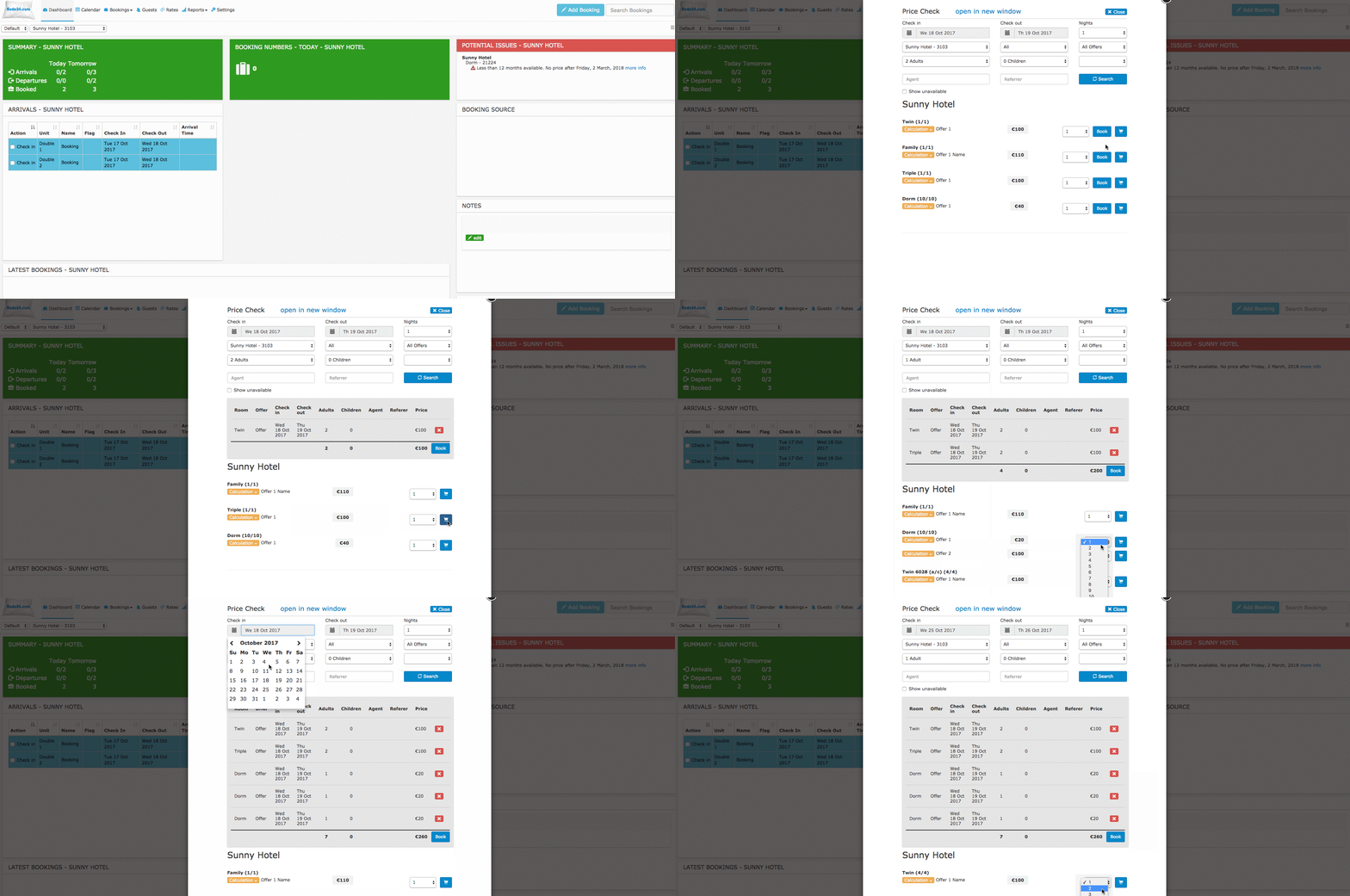
To add a booking for multiple rooms or to check for available rooms click on "Add Booking" and then on "Price Check".
Manage Group Bookings
You can manage and also create a group booking in the "Invoice" tab of a booking.
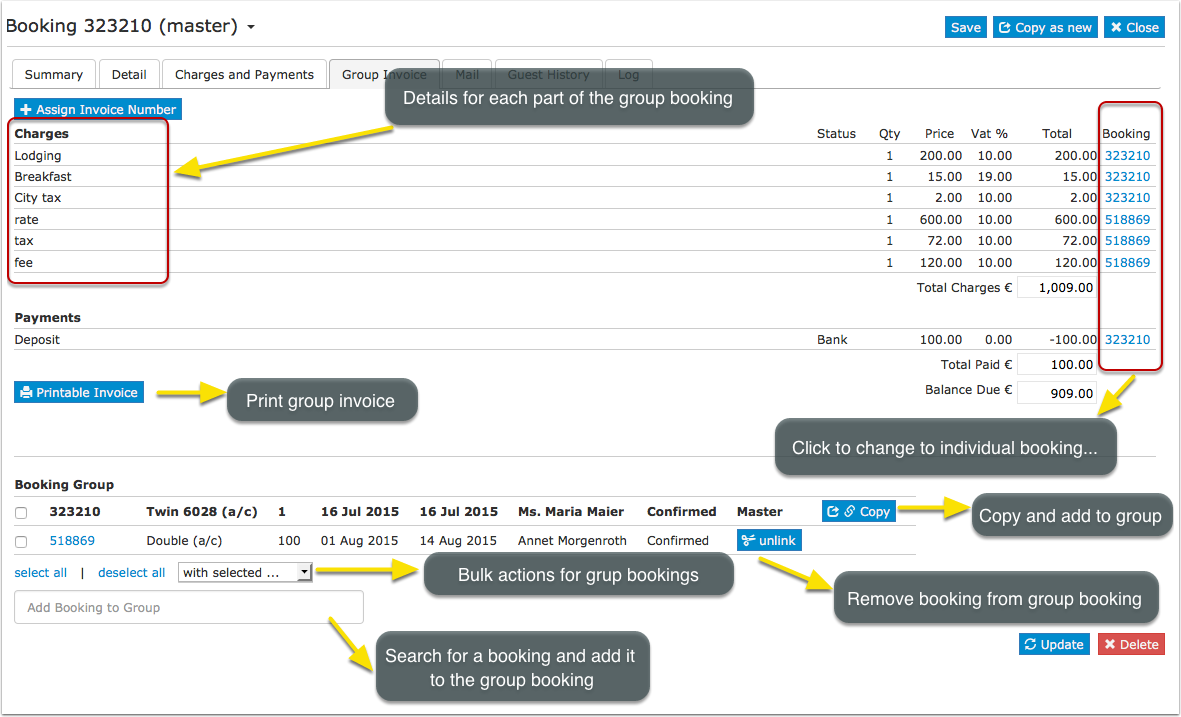
A group booking consists of two or more linked individual bookings. To create a group booking click on "Add Booking". Fill in the guest details and click "Continue". Then go to the "Details" tab of the booking and set the "Quantity", click SPLIT (blue button) and confirm if you want to copy the charges (top bar). If required you can then make individual changes to each booking.
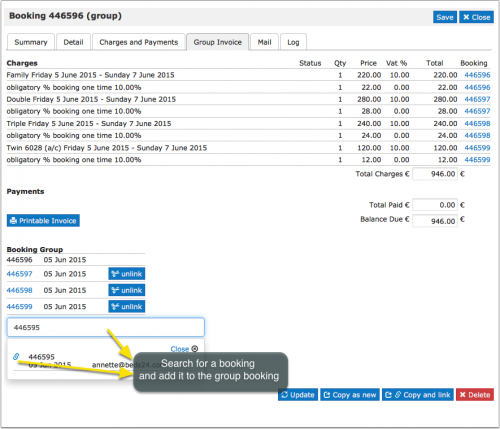
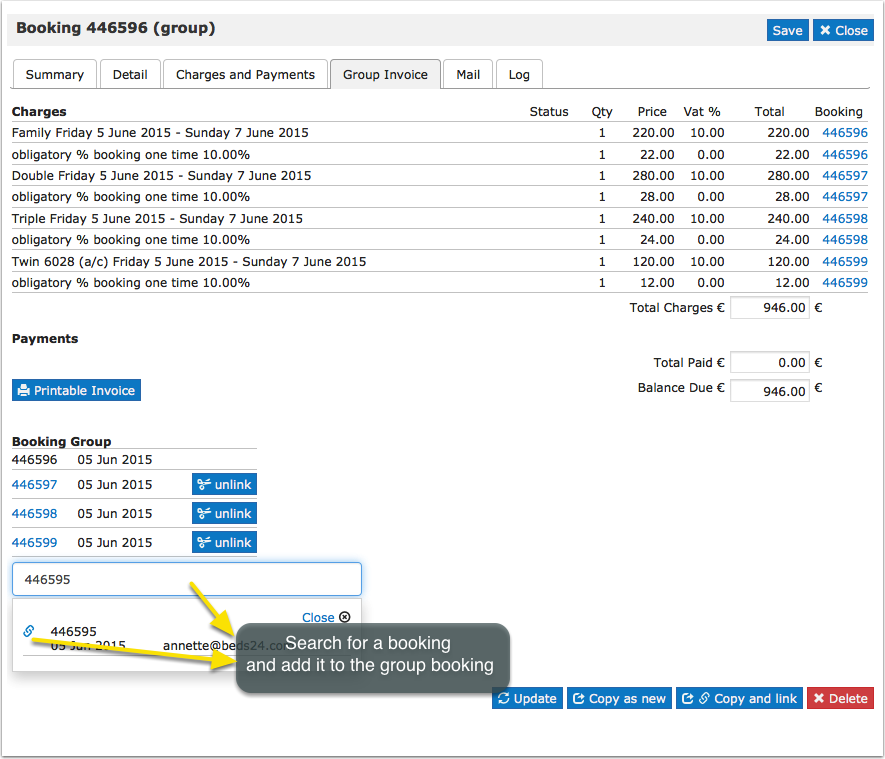
When you open one of the booking ids go to the Group Tab and you can see the individual booking ids for this Group Booking.
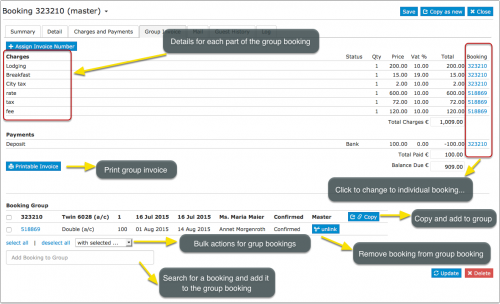
Individual bookings can be added to or removed from group bookings.
Bulk actions can be performed to apply changes to several or all bookings of a group.
The template variable [BOOKGROUPNAMELIST] will return a list of all guests in the group. It can be inserted for examples in print templates to print out a list. There are more template variables available for group bookings. For a complete list see here
If you want to bulk check-in a group you can set up an Action. A template is available which you can further customize. Use the Auto Action help page for further instructions.
In the new calendar group bookings are now marked with an{ {#fas:circle}} icon so that they can be recognised at a glance.