Channel Inventory: Difference between revisions
Jump to navigation
Jump to search
No edit summary |
No edit summary |
||
| (One intermediate revision by one other user not shown) | |||
| Line 4: | Line 4: | ||
This page is about the menu {{#fas:cog}} (SETTINGS) CHANNEL MANAGER > CHANNEL INVENTORY | This page is about the menu {{#fas:cog}} (SETTINGS) CHANNEL MANAGER > CHANNEL INVENTORY | ||
By default | By default all available rooms are sent to activated channels. This menu allows you to limit the number of accepted bookings by setting a value for "maximum bookings" accepted for a channel. This function is available for most OTAs. If an OTA you are using is missing send us a support ticket. | ||
| Line 12: | Line 12: | ||
Click to open a popup where you can set a date range select the maximum number of bookings accepted from a channel, set one or all days of the week and the channels to apply the change to. | Click to open a popup where you can set a date range select the maximum number of bookings accepted from a channel, set one or all days of the week and the channels to apply the change to. | ||
<embedvideo service="youtube">https://youtu.be/ | <embedvideo service="youtube">https://youtu.be/VEBJNiVwdqE</embedvideo> | ||
*[[:Category:Channel Manager|Click here]] for general information on how the channel manager works. | *[[:Category:Channel Manager|Click here]] for general information on how the channel manager works. | ||
*See the channel help pages for more information on specific channels. | *See the channel help pages for more information on specific channels. | ||
Latest revision as of 10:25, 2 December 2024
Channel Inventory
This page is about the menu (SETTINGS) CHANNEL MANAGER > CHANNEL INVENTORY
By default all available rooms are sent to activated channels. This menu allows you to limit the number of accepted bookings by setting a value for "maximum bookings" accepted for a channel. This function is available for most OTAs. If an OTA you are using is missing send us a support ticket.
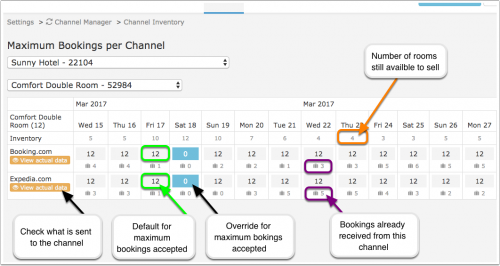
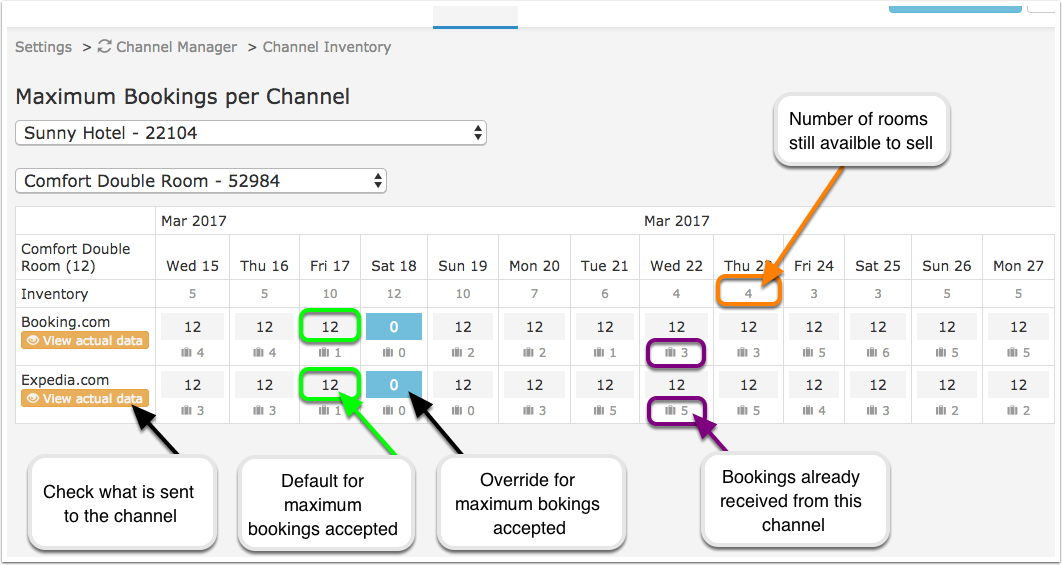
Click to open a popup where you can set a date range select the maximum number of bookings accepted from a channel, set one or all days of the week and the channels to apply the change to.
- Click here for general information on how the channel manager works.
- See the channel help pages for more information on specific channels.