Invoicees: Difference between revisions
| (5 intermediate revisions by 2 users not shown) | |||
| Line 3: | Line 3: | ||
[[Category:Invoice]] | [[Category:Invoice]] | ||
<div class="heading">Invoicees</div> | <div class="heading">Invoicees</div> | ||
This page is about the menu {#fas:cog}} (SETTINGS) GUEST MANAGEMENT > INVOICEES. | This page is about the menu {{#fas:cog}} (SETTINGS) GUEST MANAGEMENT > INVOICEES. | ||
__TOC__ | __TOC__ | ||
=Functionality= | =Functionality= | ||
| Line 18: | Line 18: | ||
*Give the invoicee a name. | *Give the invoicee a name. | ||
*Set "Enabled"= "Yes" or "Yes with booking page" | *Set "Enabled"= "Yes" or "Yes with booking page" | ||
*You can assign one of the invoice templates you have set up in {#fas:cog}} (SETTINGS) GUEST MANAGEMENT > INVOICING to be used for this invoicee. | *You can assign one of the invoice templates you have set up in {{#fas:cog}} (SETTINGS) GUEST MANAGEMENT > INVOICING to be used for this invoicee. | ||
*A code is optional for example if you need this for an accounting system. | *A code is optional for example if you need this for an accounting system. | ||
*You can | *You can have up to 8 invoicee templates fields to insert address, tax number or other information into the invoice template. | ||
If you use sub accounts you can choose to make invoicees available in sub accounts. | If you use sub accounts you can choose to make invoicees available in sub accounts. | ||
| Line 46: | Line 46: | ||
== Special prices for an invoicee == | == Special prices for an invoicee == | ||
Each invoicee can be allowed to access their own | Each invoicee can be allowed to access their own prices. | ||
The invoicee is connected to a | The invoicee is connected to a Daily Price or Fixed Price by a agent code, this can be a code word of your choice. | ||
1) In the Invoicee > Code setting, enter one or more agent codes separated by spaces. | 1) In the Invoicee > Code setting, enter one or more agent codes separated by spaces. | ||
2) In the | 2) In the Daily Price or Fixed Price, add this Agent Code to the setting on the Channels section. | ||
3) In the | 3) In the Daily Price or Fixed Price, disable Beds24 direct bookings and enable Agent bookings on the channels tick boxes. | ||
4) When adding a new booking via the add booking wizard, select an Invoicee and click Calculate Room Price. The price will be calculated including Agent | 4) When adding a new booking via the add booking wizard, select an Invoicee and click Calculate Room Price. The price will be calculated including Agent price which match this Invoicee. | ||
== Manually added bookings == | == Manually added bookings == | ||
| Line 81: | Line 81: | ||
== Invoices == | == Invoices == | ||
In {#fas:cog}} (SETTINGS) GUEST MANAGEMENT > INVOICING you can set up three invoice templates. The template variables representing invoicee are: | In {{#fas:cog}} (SETTINGS) GUEST MANAGEMENT > INVOICING you can set up three invoice templates. The template variables representing invoicee are: | ||
[INVOICEACCOUNTNAME] | [INVOICEACCOUNTNAME] | ||
Latest revision as of 08:55, 6 December 2024
This page is about the menu (SETTINGS) GUEST MANAGEMENT > INVOICEES.
Functionality
By default every booking (or group booking) has one invoice. This function allows you to assign some or all of the invoice items to a specific invoicee or create multiple invoices per booking. For example:
- Agents make bookings and pay for accommodation and guests pay for any extra items
- Companies making bookings and pay for bookings for employees
- To issue a second invoice with a new invoice number i.E. for a refund
- Guests making multiple and or repeat bookings.
- To manage bookings in multiple currencies.
How it works
Create invoicees
- Give the invoicee a name.
- Set "Enabled"= "Yes" or "Yes with booking page"
- You can assign one of the invoice templates you have set up in (SETTINGS) GUEST MANAGEMENT > INVOICING to be used for this invoicee.
- A code is optional for example if you need this for an accounting system.
- You can have up to 8 invoicee templates fields to insert address, tax number or other information into the invoice template.
If you use sub accounts you can choose to make invoicees available in sub accounts.
Delete invoicees
For technical reasons an invoicee cannot be deleted. However, you can set "Enabled" = "No" which has the same effect.
Assign invoice items either to the guest or an invoicee
After you have created one or more invoicees:
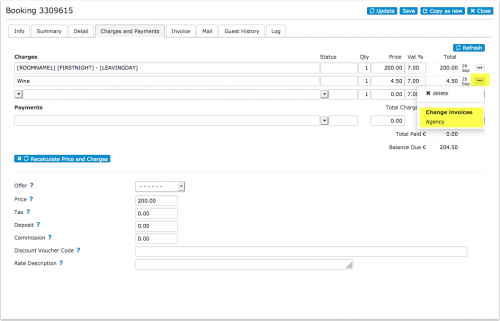
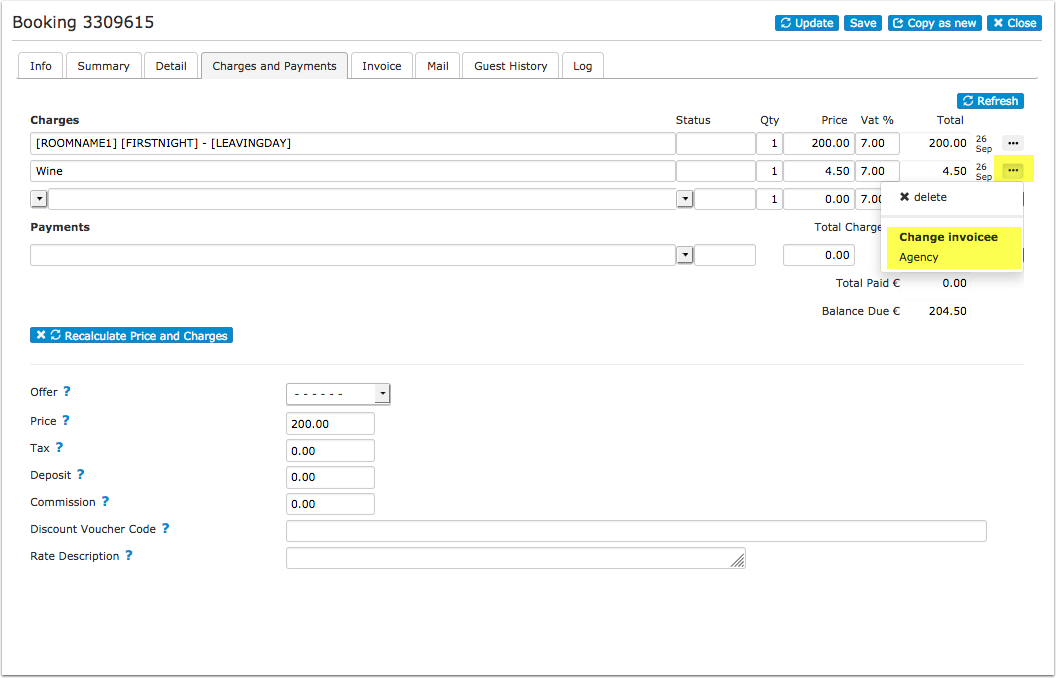
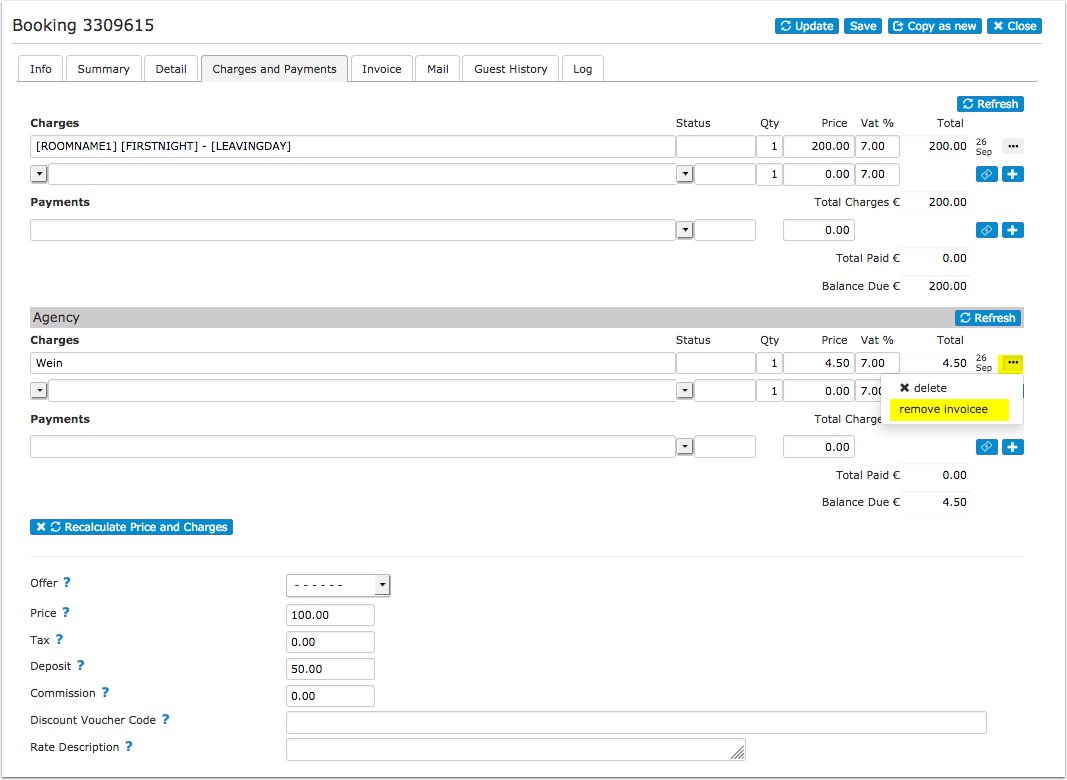
1) Under 'Charges and payments' you will be able to assign charges a different invoicee.
To assign charges to an invoicee you have to first add a charge.
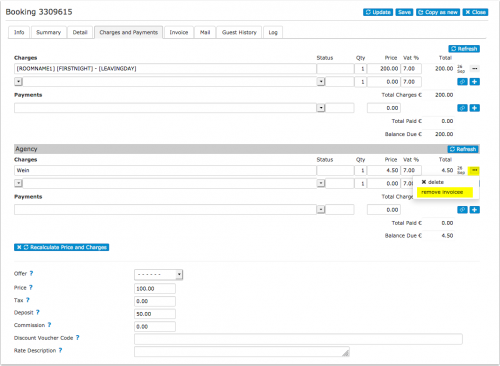
If you remove the invoicee the charge will be set back to the guest.
2) The invoice tab will allow assigning an invoice number to each invoicee in the invoice and printing the invoices separately.
Special prices for an invoicee
Each invoicee can be allowed to access their own prices.
The invoicee is connected to a Daily Price or Fixed Price by a agent code, this can be a code word of your choice.
1) In the Invoicee > Code setting, enter one or more agent codes separated by spaces.
2) In the Daily Price or Fixed Price, add this Agent Code to the setting on the Channels section.
3) In the Daily Price or Fixed Price, disable Beds24 direct bookings and enable Agent bookings on the channels tick boxes.
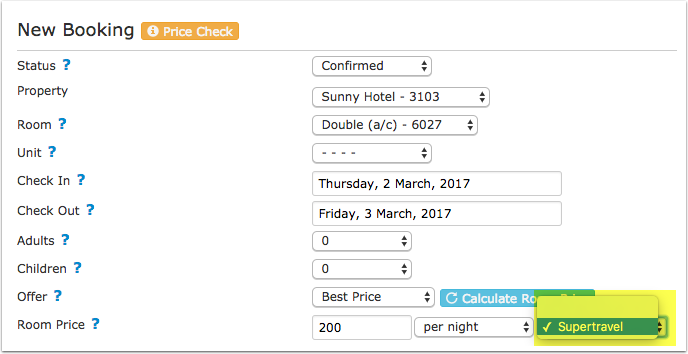
4) When adding a new booking via the add booking wizard, select an Invoicee and click Calculate Room Price. The price will be calculated including Agent price which match this Invoicee.
Manually added bookings
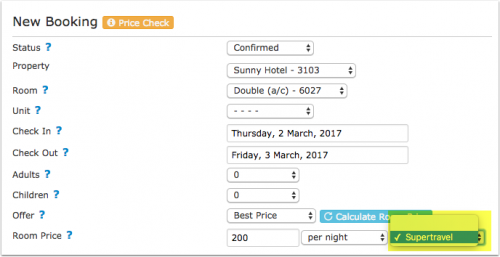
After you have added invoicees you can choose to assign the charges to them instead of the guest.
Online bookings
You can create a booking link for invoicees by adding the invoicee ID to the URL of your booking page. To use this function set "Enabled"= "Yes with booking page"
An example link to your booking page could be in this format
http://beds24.com/booking2.php?propid=13437&invoicee=3
When a guest clicks this link, the charges will automatically assign to invoicee 3.
Channel bookings
If you need a different invoice template for the bookings from a certain channel enter the ID number of the invoicee in the channel manager settings for the channel so all incoming bookings from the channel will be assigned to this invoicee (note that this does not change existing bookings).
You can specify the Invoicee for Hotel collect and Channel collect separately by adding a H or C in front of the number.
For example: if you want Invoicee 1234 to only apply to Channel collect bookings, specify it like this: C1234
Invoices
In (SETTINGS) GUEST MANAGEMENT > INVOICING you can set up three invoice templates. The template variables representing invoicee are:
[INVOICEACCOUNTNAME]
[INVOICEACCOUNTCODE]
[INVOICEACCOUNTTEMPLATE1]
[INVOICEACCOUNTTEMPLATE2]
[INVOICEACCOUNTTEMPLATE3]
[INVOICEACCOUNTTEMPLATE4]
For invoice numbers use the template variable [INVOICENUMBERS]
Dashboard
Columns for "Invoicee Name" and "Invoice Code" can be added to the dashboard modules if required.
Reports
The "Invoicees" filter allows you to generate custom reports for specific invoicees.