HostelWorld.com: Difference between revisions
No edit summary |
|||
| (26 intermediate revisions by 3 users not shown) | |||
| Line 1: | Line 1: | ||
[[Category:Channel Manager]] | [[Category:Channel Manager]] | ||
[[Category:Error Messages from Channels]] | [[Category:Error Messages from Channels]] | ||
[[Category: | [[Category:Troubleshooting]] | ||
<div class="heading">Hostelworld</div> | |||
This page is about the menu {{#fas:cog}} (SETTINGS) CHANNEL MANAGER > HOSTELWORLD and explains how the connection with Hostelworld group (HostelWorld.com, HostelBookers.com, Hostels.com, Bedandbreakfastworld.com) works and how to set it up. | |||
==General== | ==General== | ||
*[[:Category:Channel Manager|Click here]] for general information on how the channel manager works. | *[[:Category:Channel Manager|Click here]] for general information on how the channel manager works. | ||
| Line 12: | Line 12: | ||
*Beds24.com can export multiple prices | *Beds24.com can export multiple prices | ||
*Beds24.com can apply a price multiplier to prices | *Beds24.com can apply a price multiplier to prices | ||
*Beds24 can send minimum stays | |||
*Beds24.com can import Bookings | *Beds24.com can import Bookings | ||
| Line 25: | Line 26: | ||
'''Prices''' | '''Prices''' | ||
*We can only send availability if you have set up prices which are activated for this channel. This tutorial gives general information how to [[Setting_Prices_for_Booking_Channels|set prices for channels]]. | *We can only send availability if you have set up prices which are activated for this channel. This tutorial gives general information how to [[Setting_Prices_for_Booking_Channels|set prices for channels]]. | ||
*Beds24 can map a different Beds24 | *Beds24 can map a different Beds24 price to each Hostelworld rate code. Currently Hostelworld only supports refundable and non-refundable rates. | ||
*Prices for "Extra Person", "Extra child" and discounts set in the "Discounts" tab of the | *Prices for "Extra Person", "Extra child" and discounts set in the "Discounts" tab of the Fixed Prices can not be sent. | ||
*If you use daily prices with "Extra Person" prices your daily price needs to be set for the max occupancy and the "Extra Person" price needs to be added with a negative value. | *If you use daily prices with "Extra Person" prices your daily price needs to be set for the max occupancy and the "Extra Person" price needs to be added with a negative value so the price for the full occupancy can send. | ||
*The maximum stay accepted by HostelWorld is 14 days. | |||
'''Private Rooms''' | '''Private Rooms''' | ||
| Line 81: | Line 83: | ||
*Choose the Hostelwrold standard rate for this room and click on it | *Choose the Hostelwrold standard rate for this room and click on it | ||
*When the correct rate plan id has copied to the rate plan id setting. | *When the correct rate plan id has copied to the rate plan id setting. | ||
[[Image:agoda_standard_rate_mapping.png|500px|link=]] | [[Image:agoda_standard_rate_mapping.png|500px|link=]] | ||
[[Media:agoda_standard_rate_mapping.png|view large]] | [[Media:agoda_standard_rate_mapping.png|view large]] | ||
4) Activate: | 4) Number of Beds: | ||
*select the number of beds in the room if they are different from the Max number of guests. Ensure you set the same number of beds in Beds24 as you have specified at Hostelworld, you can check the details when you click 'Get the HostelWorld.com Room Codes for this Property Code'. | |||
*Click SAVE | |||
<span style="color: #f3e504; font-size: 150%;" >{{#fas:lightbulb}} </span>If the room has a double bed, this will be 1 bed, not 2 to match the number of guests. | |||
5) Activate: | |||
*Tick "Inventory", "Prices" and "Bookings" | *Tick "Inventory", "Prices" and "Bookings" | ||
*Save | *Save | ||
| Line 111: | Line 119: | ||
<span | To send prices to Hostelworld, open Calendar, select the Daily Price you want to send, and scroll down to the Hostelworld section. Click Get Codes, map the correct rate plan code, and save. | ||
If you use multiple Hostelworld rate plan codes, you must create a separate Daily Price for each code and map it individually using Get Codes. | |||
If you have several Daily Prices but do not want all of them to be sent to Hostelworld, open the relevant Daily Price, scroll to the Hostelworld section, uncheck the box, and save. | |||
<span style="color: #f3e504; font-size: 250%;" >{{#fas:lightbulb}} </span>Click on the "View Actual Data" Button to check which prices and availability will send. | |||
===Multiple Rates=== | ===Multiple Rates=== | ||
| Line 129: | Line 144: | ||
Example: *[CONVERT:IDR-EUR] will convert Indonesian Rupees to Euros. | Example: *[CONVERT:IDR-EUR] will convert Indonesian Rupees to Euros. | ||
== Check Connection == | == Check Connection == | ||
The connection is working if you are not receiving error messages and the display in the channel is correct. If you are receiving error messages check in the "Common Errors" section why you are receiving the error and how to fix it. | The connection is working if you are not receiving error messages and the display in the channel is correct. If you are receiving error messages check in the "Common Errors" section why you are receiving the error and how to fix it. | ||
== Updates == | == Updates and Changes== | ||
Changes to availability and prices will be instantly sent to the channel. Changes for settings for example minimum stays, or | Changes to availability and prices will be instantly sent to the channel. Changes for settings for example minimum stays, the multiplier or number of rooms will send with the next update. Click on "Update" if you want to push them through instantly. | ||
==Common Errors== | ==Common Errors== | ||
| Line 166: | Line 172: | ||
Check if the username is correct and and the password entered is your Hostelworld API password provided by your Hostelworld account manager. | Check if the username is correct and and the password entered is your Hostelworld API password provided by your Hostelworld account manager. | ||
If username and Hostelworld API password are correctly entered please check with your Hostelworld account manager whether the connection is activated. | If username and Hostelworld API password are correctly entered please check with your Hostelworld account manager whether the connection is activated. | ||
'''Non existing room type''' | |||
You have mapped a code for a room which does not exist in Hostelworld. Go to SETTINGS->CHANNEL MANAGER->HOSTELWORLD and check your mapping. You can only map codes which show up when you click on "Get Codes". | |||
'''Date ranges overlap''' | '''Date ranges overlap''' | ||
| Line 175: | Line 185: | ||
'''Incorrect Price, Invalid rate plan(s)''' | '''Incorrect Price, Invalid rate plan(s)''' | ||
You have added a number which is not a valid Hostelworld rate id into the field in the "Channels" tab of a rate/daily price. | You have added a number which is not a valid Hostelworld rate id into the field in the "Channels" tab of a rate/daily price. | ||
*Open your | *Open your fixed prices (Channel Tab) and make sure the correct rate id is selected from the 'get codes' list. | ||
*Open your daily prices (Enable list) and make sure the correct rate id is selected from the 'get codes' list. | *Open your daily prices (Enable list) and make sure the correct rate id is selected from the 'get codes' list. | ||
*Go to Prices > Channel Mapping enter the Rate id in the Search box and click on the Rate and make sure the correct rate id is selected from the 'get codes' list. | |||
'''Missing Rate. Add a rate before adding beds''' | |||
You have a Beds24 Price with a missing Hostelworld rate id or you have rate plans at Hostelworld that have no price. | |||
*Open your fixed prices (Channel Tab) and select the correct rate id from the 'get codes' list. | |||
*Open your daily prices (Enable list) and select the correct rate id from the 'get codes' list. | |||
*Check your rate plans in Hostelworld as they may have expired and a new rate plan id is required for dates in the future. | |||
*Make sure all active rate plans are mapped and have prices. | |||
'''1112 - Rate plan not existing for given roomtypeid''' and '''Invalid rate plan(s) for requested property ''' | |||
You have mapped a rate code which does not exist at Hostelworld | |||
*Please double check your rates and daily prices and select a valid rate id from the list in 'get codes'. | |||
*Open your rates (Channel Tab) and make sure the correct rate id is selected from the 'get codes' list. | |||
*Open your daily prices (Enable list) and make sure the correct booking.com rate id is selected from the 'get codes' list. | |||
*Go to Prices > Channel Mapping enter the Rate id in the Search box and click on the Rate and make sure the correct rate id is selected from the 'get codes' list. | |||
==Notes== | ==Notes== | ||
*The password is a special API password not your regular Hostelword password. Changing the password will break the connection. | *The password is a special API password not your regular Hostelword password. Changing the password will break the connection. | ||
*To sell a complete room at Hostelworld set it to a "Private" room type in their system. | *To sell a complete room at Hostelworld set it to a "Private" room type in their system. We will still send the bed price as per a dorm but Private rooms will only be sold if all the beds in the room are booked together. | ||
We will still send the bed price as per a dorm but Private rooms will only be sold if all the beds in the room are booked together. | *Hostelworld can send credit card details but they will not send a CCV. | ||
*Hostelworld can send credit card details but they will not send a CCV. | |||
==Disconnect== | ==Disconnect== | ||
| Line 196: | Line 220: | ||
Bookings coming from a channel should be modified by the channel. Cancelling a booking in Beds24 will not cancel the booking in the channel and can cause a double booking. | Bookings coming from a channel should be modified by the channel. Cancelling a booking in Beds24 will not cancel the booking in the channel and can cause a double booking. | ||
If for some reason you need to make a change in Beds24 and do not want the channel to override it, you can set "Allow Channel Modifications" = No ("Details" tab of the booking"). | If for some reason you need to make a change in Beds24 and do not want an update from the channel to override it, you can set "Allow Channel Modifications" = No ("Details" tab of the booking"). | ||
=== How do I add a promotion or special price?=== | === How do I add a promotion or special price?=== | ||
Latest revision as of 12:54, 9 January 2026
This page is about the menu (SETTINGS) CHANNEL MANAGER > HOSTELWORLD and explains how the connection with Hostelworld group (HostelWorld.com, HostelBookers.com, Hostels.com, Bedandbreakfastworld.com) works and how to set it up.
General
- Click here for general information on how the channel manager works.
- This tutorial explains how to set prices for channels.
Capabilities
- Beds24.com can export Inventory
- Beds24.com can export multiple prices
- Beds24.com can apply a price multiplier to prices
- Beds24 can send minimum stays
- Beds24.com can import Bookings
Hostelworld group use per bed pricing and inventory. A double would be two beds in the Hostelworld group system and a triple three beds.
For details please click here
Limitations
- "Extra Person" prices cannot be exported.
- Hostelworld will reserve inventory for a booking as soon as the guest starts the booking process. We can not close the room once a booking is in progress even if the availability changed during this period.
Before you connect
Prices
- We can only send availability if you have set up prices which are activated for this channel. This tutorial gives general information how to set prices for channels.
- Beds24 can map a different Beds24 price to each Hostelworld rate code. Currently Hostelworld only supports refundable and non-refundable rates.
- Prices for "Extra Person", "Extra child" and discounts set in the "Discounts" tab of the Fixed Prices can not be sent.
- If you use daily prices with "Extra Person" prices your daily price needs to be set for the max occupancy and the "Extra Person" price needs to be added with a negative value so the price for the full occupancy can send.
- The maximum stay accepted by HostelWorld is 14 days.
Private Rooms
To sell a complete room at Hostelworld set it to a "Private" room type in their system. We will still send the bed price as per a bed but Private rooms will only be sold if all the beds in the room are booked together.
Bookings
New Bookings are imported.
Existing bookings are not automatically imported when the connection is established and should be entered into Beds24 manually.
Extras and Taxes
"Upsell Items" can not be exported.
Rooms and room types
If you sell rooms individually at another channel or your own web site and want to sell them here as a "roomtype" with a quantity of more than one you can set up virtual roooms.
You need
- Hostelworld group property ID
- Hostelworld API password
Beds24.com
1. Connection request
Contact your Hostelworld account manager and ask to set up a connection with Beds24 channel manager and an API password.
2. Setup
Hostelworld will notify you when the connection is enabled and send you a special API password. NOTE: You can not use your normal Hostelworld password.
1) Enter your Hostelworld Id, your Hostelworld API password and if necessary adjust the currency to the currency you are using on Hostelword then SAVE.
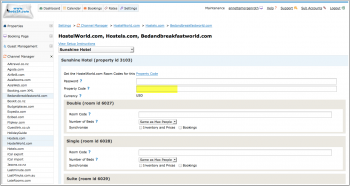
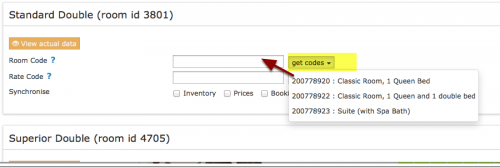
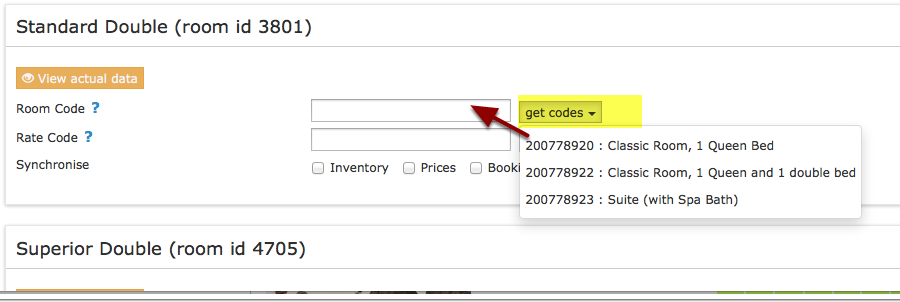
2) Map Rooms:
- Click on the "Get Code" link next to the room type id setting.
- Choose theHostelworld room id you want to map to each Beds24 room and click on it.
- When the correct room id has copied to the room type id setting, click Save.
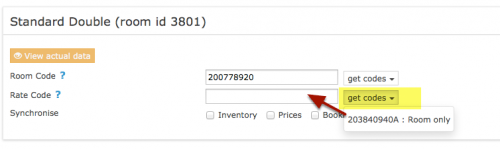
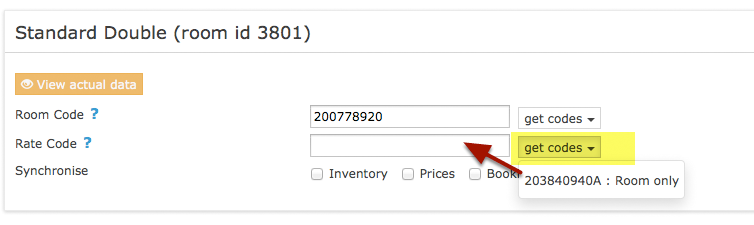
3) Map Rates:
- Click on the "Get Code" link next to the rate plan id setting.
- Choose the Hostelwrold standard rate for this room and click on it
- When the correct rate plan id has copied to the rate plan id setting.

4) Number of Beds:
- select the number of beds in the room if they are different from the Max number of guests. Ensure you set the same number of beds in Beds24 as you have specified at Hostelworld, you can check the details when you click 'Get the HostelWorld.com Room Codes for this Property Code'.
- Click SAVE
If the room has a double bed, this will be 1 bed, not 2 to match the number of guests.
5) Activate:
- Tick "Inventory", "Prices" and "Bookings"
- Save
Prices
For dorms Beds24 checks the prices in this order:
1. single price:
2. double price: if no single price is found the system will look for a double price and send this to Hostelworld group
3. room price: if no single or double price are found the system will look for a room price and send this to Hostelworld group. This includes the export price.
For private rooms Beds24 checks the prices in this order:
1. room price
2. double price: if no room price is found the system will look for a double price, divide it by 2 and send this to Hostelworld group as the price per bed for the private room.
3. single price: if no room price and no double price are found the system will send the single price as bed price to Hostelworld group.
The price paid by the guest is the bed price multiplied by the number of beds in the private room.
To send prices to Hostelworld, open Calendar, select the Daily Price you want to send, and scroll down to the Hostelworld section. Click Get Codes, map the correct rate plan code, and save.
If you use multiple Hostelworld rate plan codes, you must create a separate Daily Price for each code and map it individually using Get Codes.
If you have several Daily Prices but do not want all of them to be sent to Hostelworld, open the relevant Daily Price, scroll to the Hostelworld section, uncheck the box, and save.
Click on the "View Actual Data" Button to check which prices and availability will send.
Multiple Rates
Hostelworld support multiple rate codes.
Beds24 can map a different Beds24 rate or offer to each Hostelworld rate code. Currently Hostelworld only supports refundable and non-refundable rates. Please use these instructions.
If you do not have the appropriate rate ids you need to request Hostelwrold to add them.
Price Multiplier
If you want to add a multiplier to your prices, for example because Hostelworld requires a different currency to your Beds24 currency, add a * followed by the multiplier number to your hotel id.
For example a hotel id setting 123456*1.23 will multiply all prices by 1.23 sent for hotel id 123456. (i.e. raised by 23%) Lower prices can be sent with a multiplier less than 1, i.e. 123456*0.85 will send a price 85% of the normal price (i.e. lowered by 15%)
You can also use currency conversion template variable. All currencies supported by the booking page currency selector can be used.
Example: *[CONVERT:IDR-EUR] will convert Indonesian Rupees to Euros.
Check Connection
The connection is working if you are not receiving error messages and the display in the channel is correct. If you are receiving error messages check in the "Common Errors" section why you are receiving the error and how to fix it.
Updates and Changes
Changes to availability and prices will be instantly sent to the channel. Changes for settings for example minimum stays, the multiplier or number of rooms will send with the next update. Click on "Update" if you want to push them through instantly.
Common Errors
Any errors occurring during updates will be emailed to you with the error message . Below are common error messages and how to fix them.
Incorrect beds for Private room type
The number of beds available for a private room must be the same as the number of beds in the room. Hostelworld will not accept partial availability.
Make sure the number of beds set up in Hostelworld is the same as in Beds24.
If this is not possible Use the setting "Number of Beds" for this room (SETTINGS-> CHANNEL MANAGER->HOSTELWORLD)
Rooms marked as <inactive>1</inactive> are inactive.
Inactive rooms can not be synronised.
This is the advice Hostelword gives for these cases:
There is no need to do anything with that room unless they want to add and use that room again.
If that is the case they will need to add this room again with the same settings to reactivate it, otherwise they can leave it inactive. There is no availability for this room type so they will not get any bookings for that room.
Property's currency doesn't match with the currency which allocation is being uploaded with
Please check the currency selected is the currency you are using on Hostelworld and adjust the setting. If it is not you might want to double check the currency you set in SETTINGS->PROPERTIES->DESCRIPTION is correct.
Signature Invalid
Check if the username is correct and and the password entered is your Hostelworld API password provided by your Hostelworld account manager.
If username and Hostelworld API password are correctly entered please check with your Hostelworld account manager whether the connection is activated.
 Non existing room type
You have mapped a code for a room which does not exist in Hostelworld. Go to SETTINGS->CHANNEL MANAGER->HOSTELWORLD and check your mapping. You can only map codes which show up when you click on "Get Codes".
Date ranges overlap
You have two rooms mapped to the same  Hostelworld room code. Each Hostelworld room code can only be mapped to one room in Beds24. Please correct your mapping.
roomtypeid="1234" code=
If the room has been deleted in Hostelworld untick "Prices", "Inventory" and "Bookings". If the room has not been deleted in Hostelworld please check if it is properly set up there.
Incorrect Price, Invalid rate plan(s)
You have added a number which is not a valid Hostelworld rate id into the field in the "Channels" tab of a rate/daily price.
*Open your fixed prices (Channel Tab) and make sure the correct rate id is selected from the 'get codes' list.
*Open your daily prices (Enable list) and make sure the correct rate id is selected from the 'get codes' list.
*Go to Prices > Channel Mapping enter the Rate id in the Search box and click on the Rate and make sure the correct rate id is selected from the 'get codes' list.
Missing Rate. Add a rate before adding beds
You have a Beds24 Price with a missing Hostelworld rate id or you have rate plans at Hostelworld that have no price.
*Open your fixed prices (Channel Tab) and select the correct rate id from the 'get codes' list.
*Open your daily prices (Enable list) and select the correct rate id from the 'get codes' list.
*Check your rate plans in Hostelworld as they may have expired and a new rate plan id is required for dates in the future.
*Make sure all active rate plans are mapped and have prices.
 1112 - Rate plan not existing for given roomtypeid and Invalid rate plan(s) for requested property
You have mapped a rate code which does not exist at Hostelworld
*Please double check your rates and daily prices and select a valid  rate id from the list in 'get codes'.
*Open your rates (Channel Tab) and make sure the correct  rate id is selected from the 'get codes' list.
*Open your daily prices (Enable list) and make sure the correct booking.com rate id is selected from the 'get codes' list.
*Go to Prices > Channel Mapping enter the Rate id in the Search box and click on the Rate and make sure the correct rate id is selected from the 'get codes' list.
Notes
- The password is a special API password not your regular Hostelword password. Changing the password will break the connection.
- To sell a complete room at Hostelworld set it to a "Private" room type in their system. We will still send the bed price as per a dorm but Private rooms will only be sold if all the beds in the room are booked together.
- Hostelworld can send credit card details but they will not send a CCV.
Disconnect
- Unticking "Inventory and "Prices" and "Bookings" will stop the synchronisation for a room.
- To completely disconnect the channel manager you might need to contact Hostelworld and ask them to disconnect you.
FAQ
Will I receive notifications on new bookings?
After you activate the channel manager the channel will stop sending notifications. You will receive them from Beds24 instead.
How do I modify or cancel a booking?
Bookings coming from a channel should be modified by the channel. Cancelling a booking in Beds24 will not cancel the booking in the channel and can cause a double booking.
If for some reason you need to make a change in Beds24 and do not want an update from the channel to override it, you can set "Allow Channel Modifications" = No ("Details" tab of the booking").
How do I add a promotion or special price?
Special offers do not send from the channel manager. All special offers must be managed manually in the channels extranet.
I have multiple properties. How do I set this up?
The system can handle multiple properties in one account. Each Hostelworld property requires one property in Beds24.
What to do when I receive an overbooking?
- Check if you are receiving error messages by email or in the potential issues menu. Error messages need to be addressed immediately because they can mean the channel manger is able to make updates.
- Entering the same room code in multiple rooms in Beds24 can cause overbookings. Check your set up for warnings.
If you can not see a problem in your set up send us a support ticket with the booking numbers and dates.
Why did a booking not import?
- Check if the room for which you received the booking is properly mapped.
If you can not see a problem in your set up send us a support ticket with the booking number and the date the booking was made.
Why is the price for the booking wrong?
- A special offer set up in the channel may have reduced the price the channel manager sent.
- Your prices are not set up as you expect.
What do I do when I have a no show?
Contact Hostelworld if you need to report a no-show.