Tax: Difference between revisions
No edit summary |
|||
| (11 intermediate revisions by 3 users not shown) | |||
| Line 2: | Line 2: | ||
[[Category:How to]] | [[Category:How to]] | ||
[[Category:Invoice]] | [[Category:Invoice]] | ||
<div class="heading">Taxes</div> | |||
This page explains how to set taxes. | |||
Sales taxes and other taxes which are added to the price of the lodging are "Upsell Items" which can be added in | = Taxes which are added to the price = | ||
Sales taxes and other taxes which are added to the price of the lodging are "Upsell Items" which can be added in {{#fas:cog}} (SETTINGS) BOOKING ENGINE >UPSELL ITEMS. | |||
==Obligatory Percentage Tax== | |||
You can create one or more "obligatory percentage tax" upsell items to add one or more sales taxes in SETTINGS | You can create one or more "obligatory percentage tax" upsell items to add one or more sales taxes in {{#fas:cog}} (SETTINGS) BOOKING ENGINE > UPSELL ITEMS. | ||
The setting "Per Room" means the value is calculated as a percentage of the room price and not other upsell items. In this example it will not be applied to the breakfast. | The setting "Per Room" means the value is calculated as a percentage of the room price and not other upsell items. In this example it will not be applied to the breakfast. | ||
| Line 24: | Line 25: | ||
The value will be added to the "Price" field and the "Tax" field in the "Charges and Payments" tab the booking. | The value will be added to the "Price" field and the "Tax" field in the "Charges and Payments" tab the booking. | ||
==Obligatory Fixed Amount Tax== | |||
You can create one or more "obligatory" upsell items to add one or more sales taxes in SETTINGS | You can create one or more "obligatory" upsell items to add one or more sales taxes in {{#fas:cog}} (SETTINGS) BOOKING ENGINE > UPSELL ITEMS. | ||
Additional taxes like city or bed taxes which a fixed amount per stay or per night are set up as "obligatory" upsell items. Depending on how they are calculated the period setting is "per day" or "one time" and the per setting can be "per room", "per adult", "per person" etc. | Additional taxes like city or bed taxes which a fixed amount per stay or per night are set up as "obligatory" upsell items. Depending on how they are calculated the period setting is "per day" or "one time" and the per setting can be "per room", "per adult", "per person" etc. | ||
= VAT - tax which is included in the price = | |||
If your prices include VAT you can set the VAT rate in {{#fas:cog}} (SETTINGS) PROPERTIES > DESCRIPTION. | |||
To show included taxes in the invoice use the template variables [INVOICETABLEVAT] or [INVOICETABLEVAT2] . | |||
== VAT - on extras == | |||
If VAT applies on an upsell item you can set it in the "VAT" field in {{#fas:cog}} (SETTINGS) BOOKING ENGINE > UPSELL ITEMS. | |||
If VAT applies on an upsell item you can set it in the "VAT" field in SETTINGS | |||
[[Image:tax4.png|550px|link=]] | [[Image:tax4.png|550px|link=]] | ||
| Line 53: | Line 53: | ||
Invoicebalance net [INVOICEPAYMENTS] [/.2] 1.08 | Invoicebalance net [INVOICEPAYMENTS] [/.2] 1.08 | ||
= Reports = | |||
In REPORTS->CUSTOM REPORTS you can create custom reports which show Upsell Items (additional taxes) and VAT. | In REPORTS->CUSTOM REPORTS you can create custom reports which show Upsell Items (additional taxes) and VAT. | ||
= Examples = | |||
'''Example 1''': 7% VAT are included in the room price. | '''Example 1''': 7% VAT are included in the room price. | ||
Go to SETTINGS | Go to {{#fas:cog}} (SETTINGS) PROPERTIES-> DESCRIPTION and set "Vat Rate %" = 7 | ||
If you have extras in which VAT is also included go to SETTINGS | If you have extras in which VAT is also included go to {{#fas:cog}} (SETTINGS) BOOKING ENGINE > UPSELL ITEMS and enter 7 in the VAT% setting. | ||
'''Example 2''': A lodging needs to charge 5% city tax on all bookings. | '''Example 2''': A lodging needs to charge 5% city tax on all bookings. | ||
Go to SETTINGS | Go to {{#fas:cog}} (SETTINGS) BOOKING ENGINE->UPSELL ITEMS and add the tax as an "Upsell Item" with the settings | ||
Type = obligatory % tax | Type = obligatory % tax | ||
| Line 83: | Line 83: | ||
'''Example 3''': 7% VAT are included in the room price. The lodging offers breakfast as an extra. 19% VAT are included in the price for the breakfast. Additionally the lodging needs to charge 5% city tax on which 7% VAT applies | '''Example 3''': 7% VAT are included in the room price. The lodging offers breakfast as an extra. 19% VAT are included in the price for the breakfast. Additionally the lodging needs to charge 5% city tax on which 7% VAT applies | ||
Go to SETTINGS | Go to {{#fas:cog}} (SETTINGS) PROPERTIES-> DESCRIPTION and set "Vat Rate %" = 7 | ||
Go to SETTINGS | Go to {{#fas:cog}} (SETTINGS) BOOKING ENGINE->UPSELL ITEMS and | ||
1) add breakfast as an "Upsell Item" with "Vat %" = 19 | 1) add breakfast as an "Upsell Item" with "Vat %" = 19 | ||
| Line 91: | Line 91: | ||
2) add city tax as an obligatory % tax "Upsell Item" with Amount = 5 and Vat = 7 | 2) add city tax as an obligatory % tax "Upsell Item" with Amount = 5 and Vat = 7 | ||
To show VAT change your confirmations (SETTINGS | To show VAT change your confirmations ({{#fas:cog}} (SETTINGS) GUEST MANAGEMENT > CONFIRMATION MESSAGES) and invoice template ({{#fas:cog}} (SETTINGS) GUEST MANAGEMENT > INVOICING) to use the template variable [INVOICETABLEVAT]. | ||
'''Example 4''': City tax only applies to children over 10 years of age. | '''Example 4''': City tax only applies to children over 10 years of age. | ||
Go to SETTINGS | Go to {{#fas:cog}} (SETTINGS) BOOKING ENGINE > PROPERTY BOOKING PAGE > DEVELOPERS "Custom Text" and exchange the default text for children: | ||
Children|Children under 10 | Children|Children under 10 | ||
Latest revision as of 09:26, 10 January 2024
This page explains how to set taxes.
Taxes which are added to the price
Sales taxes and other taxes which are added to the price of the lodging are "Upsell Items" which can be added in (SETTINGS) BOOKING ENGINE >UPSELL ITEMS.
Obligatory Percentage Tax
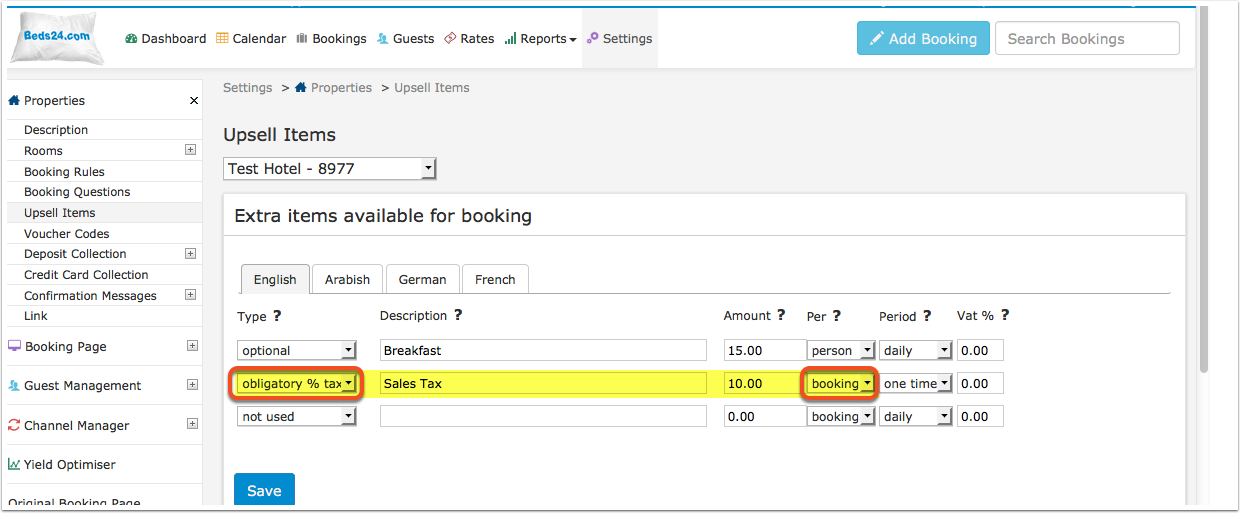
You can create one or more "obligatory percentage tax" upsell items to add one or more sales taxes in (SETTINGS) BOOKING ENGINE > UPSELL ITEMS.
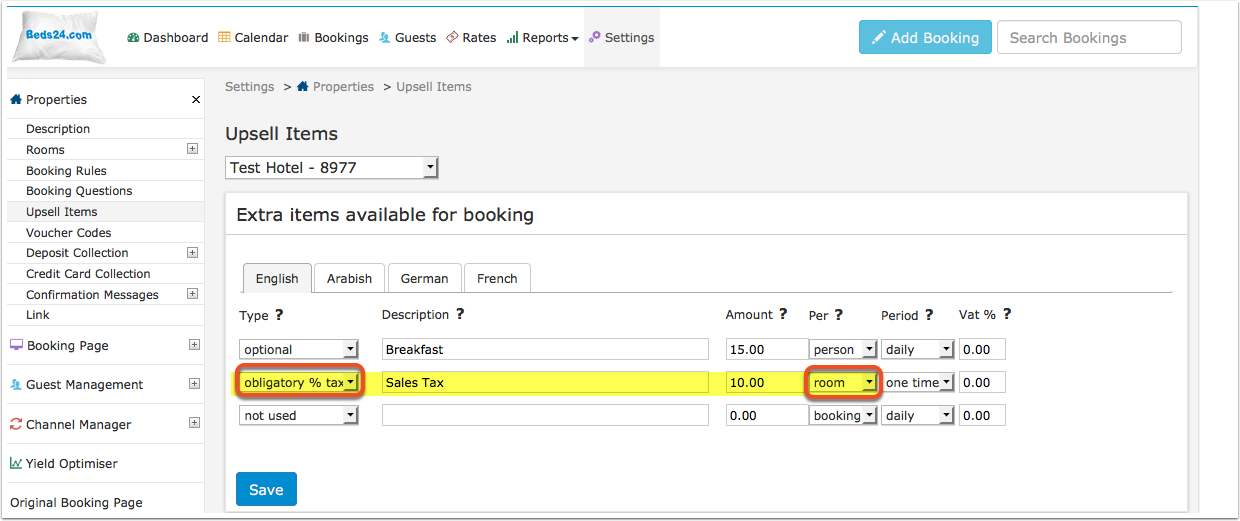
The setting "Per Room" means the value is calculated as a percentage of the room price and not other upsell items. In this example it will not be applied to the breakfast.
Multiple "Per Room" taxes can be defined and each will be applied, for example a city tax and a sales tax.
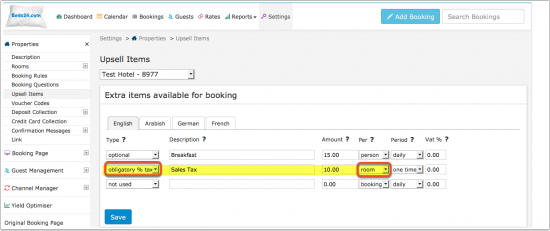
The setting Per Booking means the value is calculated as a percentage of the room price plus all selected items appearing before this one. In this example it will be applied to the breakfast.
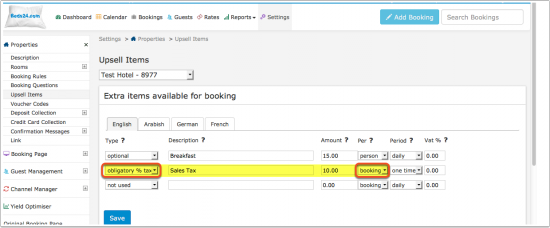
The value will be added to the "Price" field and the "Tax" field in the "Charges and Payments" tab the booking.
Obligatory Fixed Amount Tax
You can create one or more "obligatory" upsell items to add one or more sales taxes in (SETTINGS) BOOKING ENGINE > UPSELL ITEMS.
Additional taxes like city or bed taxes which a fixed amount per stay or per night are set up as "obligatory" upsell items. Depending on how they are calculated the period setting is "per day" or "one time" and the per setting can be "per room", "per adult", "per person" etc.
VAT - tax which is included in the price
If your prices include VAT you can set the VAT rate in (SETTINGS) PROPERTIES > DESCRIPTION.
To show included taxes in the invoice use the template variables [INVOICETABLEVAT] or [INVOICETABLEVAT2] .
VAT - on extras
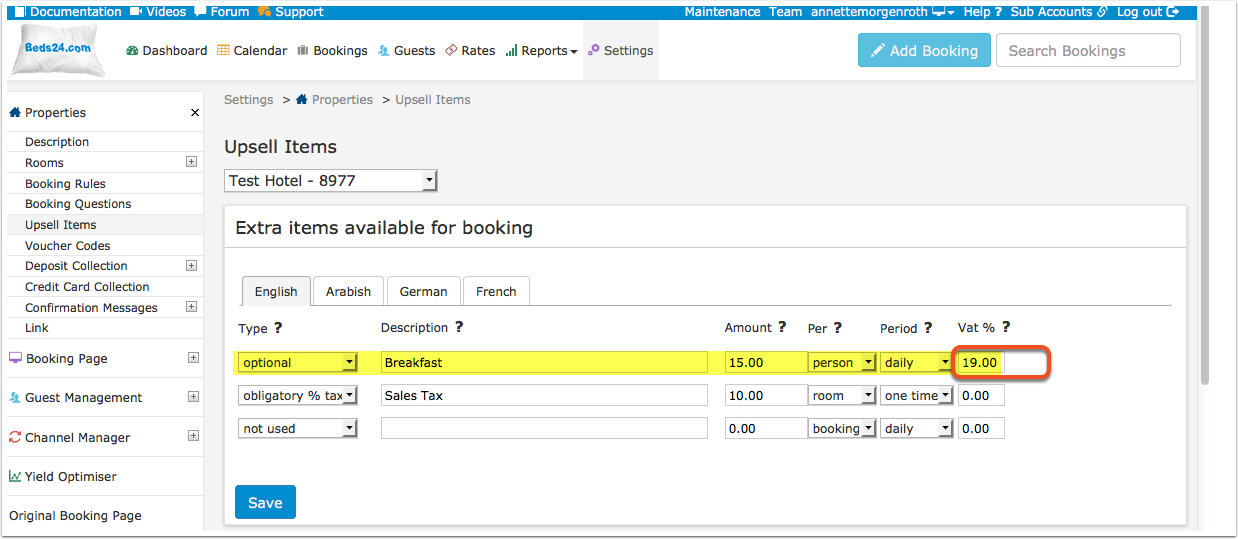
If VAT applies on an upsell item you can set it in the "VAT" field in (SETTINGS) BOOKING ENGINE > UPSELL ITEMS.
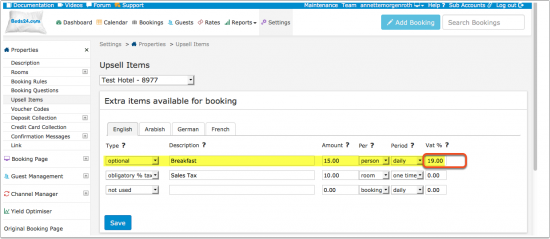
You can use math template variables to show the VAT amount included in certain values of the booking.
Example:
The VAT rate is 8%
Vat included in the invoicebalance [INVOICEBALANCE] [-.2] [INVOICEBALANCE] [/.2] 1.08 Invoicebalance net [INVOICEBALANCE] [/.2] 1.08
Vat included in the payments [INVOICEPAYMENTS] [-.2] [INVOICEPAYMENTS] [/.2] 1.08 Invoicebalance net [INVOICEPAYMENTS] [/.2] 1.08
Reports
In REPORTS->CUSTOM REPORTS you can create custom reports which show Upsell Items (additional taxes) and VAT.
Examples
Example 1: 7% VAT are included in the room price.
Go to (SETTINGS) PROPERTIES-> DESCRIPTION and set "Vat Rate %" = 7
If you have extras in which VAT is also included go to (SETTINGS) BOOKING ENGINE > UPSELL ITEMS and enter 7 in the VAT% setting.
Example 2: A lodging needs to charge 5% city tax on all bookings.
Go to (SETTINGS) BOOKING ENGINE->UPSELL ITEMS and add the tax as an "Upsell Item" with the settings
Type = obligatory % tax
Description = City Tax (if multiple languages are activated enter the description in all languages)
Amount = 5
Per = booking
Period = one time
Vat % = if applicable enter the VAT rate
Example 3: 7% VAT are included in the room price. The lodging offers breakfast as an extra. 19% VAT are included in the price for the breakfast. Additionally the lodging needs to charge 5% city tax on which 7% VAT applies
Go to (SETTINGS) PROPERTIES-> DESCRIPTION and set "Vat Rate %" = 7
Go to (SETTINGS) BOOKING ENGINE->UPSELL ITEMS and
1) add breakfast as an "Upsell Item" with "Vat %" = 19
2) add city tax as an obligatory % tax "Upsell Item" with Amount = 5 and Vat = 7
To show VAT change your confirmations ( (SETTINGS) GUEST MANAGEMENT > CONFIRMATION MESSAGES) and invoice template ( (SETTINGS) GUEST MANAGEMENT > INVOICING) to use the template variable [INVOICETABLEVAT].
Example 4: City tax only applies to children over 10 years of age.
Go to (SETTINGS) BOOKING ENGINE > PROPERTY BOOKING PAGE > DEVELOPERS "Custom Text" and exchange the default text for children:
Children|Children under 10 Child|Child under 10
Then set your tax as "obligatory" "per day" or "per booking" "per adult".