Card Number Collection: Difference between revisions
No edit summary |
|||
| (32 intermediate revisions by 2 users not shown) | |||
| Line 4: | Line 4: | ||
[[Category:Payments]] | [[Category:Payments]] | ||
<div class="heading">Credit Card Collection</div> | <div class="heading">Credit Card Collection</div> | ||
This page is about the menu {{#fas:cog}} (SETTINGS) PAYMENTS > CREDIT CARD COLLECTION | This page is about the menu {{#fas:cog}} (SETTINGS) PAYMENTS > PAYMENT GATEWAYS > CREDIT CARD COLLECTION | ||
= | =Summary= | ||
You can collect credit card details | <div class="summarybox"> | ||
You can collect credit card details when a guest books directly on your booking page or send requests to securely submit credit card details. | |||
<div class="warning">{{#fas:exclamation-triangle}} '''Payment Collection''' and '''Credit Card Collection are two different methods'''. You can use both but not at the same time. If you want to automatically collect a payment go to {{#fas:cog}} (SETTINGS) | Collected credit card details are available for '''manual''' processing in in Stripe (if used) or your own terminal. | ||
For cards issued in Europe, Australia and other areas where an extra levels of authentication is required for card payments, you might not be able to charge cards. If you have guests from such areas we recommend to automatically collect payments via one of our integrated payment providers, if you can Stripe. | |||
<div class="warning">{{#fas:exclamation-triangle}} '''Payment Collection''' and '''Credit Card Collection are two different methods'''. You can use both but not at the same time. If you want to automatically collect a payment for direct bookings from the booking page go to {{#fas:cog}} (SETTINGS) BOOKING ENGINE > DEPOSIT COLLECTION DIRECT BOOKINGS</div> | |||
</div> | |||
= Collect Credit Card Details for Bookings from your own website = | = Collect Credit Card Details for Bookings from your own website = | ||
| Line 16: | Line 22: | ||
When you activate this option guests will be asked to enter their credit card details with their details. | When you activate this option guests will be asked to enter their credit card details with their details. | ||
[[Image:creditcard. | [[Image:creditcard.jpg|400px|link=]] | ||
[[Media:creditcard. | [[Media:creditcard.jpg|view large]] | ||
Credit card collection rules can be set for automatically confirmed or request only booking status. | Credit card collection rules can be set for automatically confirmed or request only booking status. | ||
Set your general booking rule in {{#fas:cog}} (SETTINGS) | Set your general booking rule in {{#fas:cog}} (SETTINGS) BOOKING ENGINE > NORMAL BOOKINGS / NEAR TERM BOOKINGS. | ||
[[ | [[Image:CreditCardCollect.jpg|550px|link=]] | ||
[[Media:CreditCardCollect.jpg|view large]] | |||
Set which cards you accept. You also have the option to require the Credit Card Security Number to be entered. | Set which cards you accept. You also have the option to require the Credit Card Security Number to be entered. | ||
[[Image:creditcardcollect.jpg|550px|link=]] | |||
[[ | [[Media:creditcardcollect.jpg|view large]] | ||
When guests make a booking he will have to enter their credit card details to complete a booking. With the number you can process payments in your merchant account. | When guests make a booking he will have to enter their credit card details to complete a booking. With the number you can process payments in your merchant account. | ||
| Line 39: | Line 43: | ||
If you want to you can add a message on how you use the card: | If you want to you can add a message on how you use the card: | ||
* {{#fas:cog}} (SETTINGS) BOOKING ENGINE > BOOKING PAGE > CONTENT "Guest Details Header" - content will appear only on the booking page showing the upsell items and guest booking questions. It will appear at the top of the page under the property header information. | *{{#fas:cog}} (SETTINGS) BOOKING ENGINE > PROPERTY BOOKING PAGE > CONTENT "Guest Details Header" - content will appear only on the booking page showing the upsell items and guest booking questions. It will appear at the top of the page under the property header information. | ||
*{{#fas:cog}} (SETTINGS) BOOKING ENGINE > BOOKING PAGE > CONTENT "Confirm Booking Button Message" - Text entered in this field will appear on the booking page in the area above the Confirm Booking button. | *{{#fas:cog}} (SETTINGS) BOOKING ENGINE > PROPERTY BOOKING PAGE > CONTENT "Confirm Booking Button Message" - Text entered in this field will appear on the booking page in the area above the Confirm Booking button. | ||
= Credit Card Details from Channels = | = Credit Card Details from Channels = | ||
| Line 48: | Line 52: | ||
You can set up an Auto Action with a request to submit credit card details. Guests will be able to submit their card details on a secure form. | You can set up an Auto Action with a request to submit credit card details. Guests will be able to submit their card details on a secure form. | ||
Go to {{#fas:cog}} SETTINGS > PAYMENTS > PAYMENT GATEWAYS > CREDIT CARD COLLECTION | |||
*Activate this option setting the Enable / Priority selector to a number. | |||
* | *Enter the information how their card will be used in the "Instructions" settings. This message will also be shown to the guest as part of the confirmation message on the screen and will be included in the Email confirmation message to the guest. | ||
*Go to {{#fas:cog}} (SETTINGS) GUEST MANAGEMENT > AUTO ACTIONS and create an Auto Action. A template is for a "Payment Request" is available which you can customize for this purpose or start from scatch. Use the context help (?Icons) in the Auto Action and on the help page (click on HELP in the top right menu) for further instructions. | |||
Template variables are used to link to the form. | Template variables are used to link to the form. | ||
| Line 67: | Line 71: | ||
You can also use a direct link. The link uses the booking number plus the parameter &g=cc | You can also use a direct link. The link uses the booking number plus the parameter &g=cc | ||
https:// | https://.beds24.com/bookpay.php?bookid=1234567&g=cc | ||
https:// | https://beds24.com/bookpay.php?bookid=[BOOKID]&g=cc | ||
= Access Credit Card Details = | = Access Credit Card Details = | ||
| Line 81: | Line 85: | ||
2) The login must be using secure https: not http: | 2) The login must be using secure https: not http: | ||
3) Credit card details can only be viewed if the password has been changed in the last 90 days. To change the password to to SETTINGS | 3) Credit card details can only be viewed if the password has been changed in the last 90 days. To change the password to to {{#fas:cog}} (SETTINGS) ACCOUNT > ACCOUNT ACCESS. | ||
4) Viewing credit card details will require your password entry. | 4) Viewing credit card details will require your password entry. | ||
5) Credit card details collected via the Credit Card payment gateway will only be displayed once and then deleted once viewed. Be sure to store the details securely offline if required. | |||
'''View CVC''' | '''View CVC''' | ||
| Line 131: | Line 136: | ||
= Trouble Shooting = | = Trouble Shooting = | ||
With credit card collection auto calculation of amounts is not possible. | |||
'''If credit card details are not collected check booking rules are correct:''' | '''If credit card details are not collected check booking rules are correct:''' | ||
{{#fas:cog}} (SETTINGS) | {{#fas:cog}} (SETTINGS) BOOKING ENGINE "Booking Type" = Request CC or Collect CC | ||
{{#fas:cog}} (SETTINGS) PROPERTIES | {{#fas:cog}} (SETTINGS) PROPERTIES > OFFERS "Booking Type"= Default or Request CC or Collect CC | ||
Setting for "Booking Type" set in the "Summary" tab of your | Setting for "Booking Type" set in the "Summary" tab of your Fixed Prices = Default or Request CC or Collect CC | ||
'''Credit card collection is not visible on the booking page :''' | '''Credit card collection is not visible on the booking page :''' | ||
{{#fas:cog}} (SETTINGS) BOOKING ENGINE "Booking Type" = Request CC or Collect CC | |||
{{#fas:cog}} (SETTINGS) PROPERTIES | {{#fas:cog}} (SETTINGS) PROPERTIES > OFFERS "Booking Type"= Default or Request CC or Collect CC | ||
Setting for "Booking Type" set in the "Summary" tab of your | Setting for "Booking Type" set in the "Summary" tab of your Fixed Prices = Default or Request CC or Collect CC | ||
'''Credit cards are not visible in the booking :''' | '''Credit cards are not visible in the booking :''' | ||
{{#fas:cog}} (SETTINGS) ACCOUNT > PREFERENCES "Bookings" and set Credit Card Security = 'Email CCV' | {{#fas:cog}} (SETTINGS) ACCOUNT > PREFERENCES "Bookings" and set Credit Card Security = 'Email CCV' | ||
Latest revision as of 15:00, 14 October 2025
This page is about the menu (SETTINGS) PAYMENTS > PAYMENT GATEWAYS > CREDIT CARD COLLECTION
Summary
You can collect credit card details when a guest books directly on your booking page or send requests to securely submit credit card details.
Collected credit card details are available for manual processing in in Stripe (if used) or your own terminal.
For cards issued in Europe, Australia and other areas where an extra levels of authentication is required for card payments, you might not be able to charge cards. If you have guests from such areas we recommend to automatically collect payments via one of our integrated payment providers, if you can Stripe.
Collect Credit Card Details for Bookings from your own website
Go to (SETTINGS) > ACCOUNT > PREFERENCES > BOOKINGS and set Credit Card Security = 'Email CCV' otherwise the system will not store or pass any credit card details.
When you activate this option guests will be asked to enter their credit card details with their details.
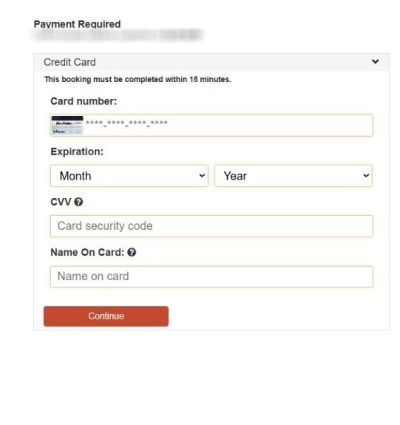
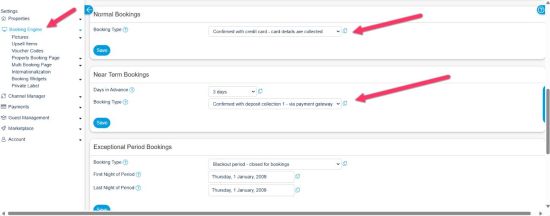
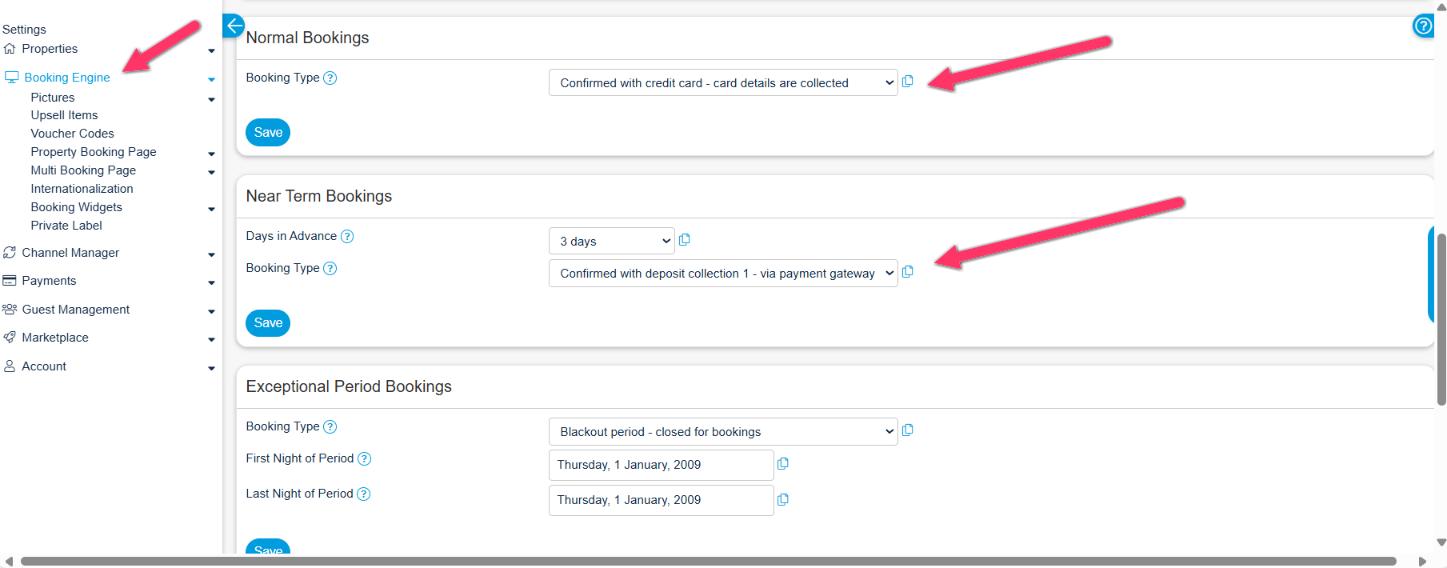
Credit card collection rules can be set for automatically confirmed or request only booking status.
Set your general booking rule in (SETTINGS) BOOKING ENGINE > NORMAL BOOKINGS / NEAR TERM BOOKINGS.
Set which cards you accept. You also have the option to require the Credit Card Security Number to be entered.



When guests make a booking he will have to enter their credit card details to complete a booking. With the number you can process payments in your merchant account.
Credit card details are stored in the system until the guest checks out. They will be deleted a few days after check-out.
If you want to you can add a message on how you use the card:
- (SETTINGS) BOOKING ENGINE > PROPERTY BOOKING PAGE > CONTENT "Guest Details Header" - content will appear only on the booking page showing the upsell items and guest booking questions. It will appear at the top of the page under the property header information.
- (SETTINGS) BOOKING ENGINE > PROPERTY BOOKING PAGE > CONTENT "Confirm Booking Button Message" - Text entered in this field will appear on the booking page in the area above the Confirm Booking button.
Credit Card Details from Channels
Some channels send credit card details to Beds24. If they do we make them available to you. If the channel did not send credit card details for one booking or all bookings contact the channels support team and ask them to only accept bookings with credit card details and always send these to Beds24.
Request Guests to Submit Credit Card Details
You can set up an Auto Action with a request to submit credit card details. Guests will be able to submit their card details on a secure form.
Go to SETTINGS > PAYMENTS > PAYMENT GATEWAYS > CREDIT CARD COLLECTION
- Activate this option setting the Enable / Priority selector to a number.
- Enter the information how their card will be used in the "Instructions" settings. This message will also be shown to the guest as part of the confirmation message on the screen and will be included in the Email confirmation message to the guest.
- Go to (SETTINGS) GUEST MANAGEMENT > AUTO ACTIONS and create an Auto Action. A template is for a "Payment Request" is available which you can customize for this purpose or start from scatch. Use the context help (?Icons) in the Auto Action and on the help page (click on HELP in the top right menu) for further instructions.
Template variables are used to link to the form.
In the "Email" tab click on "Edit" and enter your text. Template variables are used to specify the requested amount:
- The template variable [PAYLINK:NA:CC] creates link to the form where guest can securely enter their credit card details.
- The template variable [PAYURL:NA:CC] creates URL for the form where guest can securely enter their credit card details.
- The template variable [PAYBUTTON:NA:CC] creates button with a link to the form where guest can securely enter their credit card details.
You can show a custom message in header section of the payment request and in the confirmation which the guest sees after they have entered their details. The settings are SETTINGS->PAYMENTS->PAYMENT COLLECTION " Payment Request Header" and "Payment Request Confirmation".
You can also use a direct link. The link uses the booking number plus the parameter &g=cc
https://.beds24.com/bookpay.php?bookid=1234567&g=cc
https://beds24.com/bookpay.php?bookid=[BOOKID]&g=cc
Access Credit Card Details
For security reasons we never send credit card details via email. Owner accounts can always access the credit cards information of a property. Sub accounts can view credit cards when this is activated in the property settings in sub accounts.
There are following restrictions to view cards:
1) The user must login with the primary account password (your Beds24 password), the additional secondary password can not view cards.
2) The login must be using secure https: not http:
3) Credit card details can only be viewed if the password has been changed in the last 90 days. To change the password to to (SETTINGS) ACCOUNT > ACCOUNT ACCESS.
4) Viewing credit card details will require your password entry.
5) Credit card details collected via the Credit Card payment gateway will only be displayed once and then deleted once viewed. Be sure to store the details securely offline if required.
View CVC
The encrypted CVC code is in the booking notification email sent to the host. It is a line that looks like this:
Security Code = SBPA
1. Open the Email booking confirmation for this booking
2. In the booking confirmation you will find the code: Security Code= ---
3. Copy the code
4. Go to BOOKINGS in your control panel
5. Open the booking and click on the tab "Charges and Payments"
6. Cick on "Show" and if asked enter your password
7. Click on "Show"
8. Enter the code in the CVC field for decoding
Note for bookings from OTAs: If there is no code for the ccv in the email the channel did not send the ccv to Beds24.
Allow sub accounts to view credit card information
You can allow sub accounts to view credit card details on a per property basis.
Click on the 'User' icon on the top right and then on 'Account Management (in the old control panel SUB ACCOUNT in the top right) then
- click on "Manage Account" for the account which owns the property to open the property lis
- click on "Manage Property" and set "View Credit Cards" = Owner and Linked Accounts
If you allow sub accounts to access to view credit card details accounts with the roles "Admin", "Read Only", "Back Office" and "Front Desk" will be able to access credit card details. To prohibit credit card access enter the word creditcard in "Hide menu pages" in SUB ACCOUNT "Manage Account".
Validate card
We perform a Luhn check which mathematically checks for typos in the card number, it does not check the date except that it is in the future and there is no way to check the CVV except with your bank at processing time.
If you use Stripe as Payment gateway you can set that cards are sent to Stripe. Stripe will the validate the card.
If the expiry date of the card is before check-in the info code CARDEXPIRES is added to the "Info" tab of the booking. If the card gets updated the info item gets deleted.
You have the option to set up a report which you can add to your dashboard.
Trouble Shooting
With credit card collection auto calculation of amounts is not possible.
If credit card details are not collected check booking rules are correct:
 (SETTINGS) BOOKING ENGINE "Booking Type" = Request CC or Collect CC
 (SETTINGS) PROPERTIES > OFFERS "Booking Type"= Default or  Request CC or Collect CC
Setting for "Booking Type" set in the "Summary" tab of your Fixed Prices = Default or Request CC or Collect CC
Credit card collection is not visible on the booking page :
 (SETTINGS) BOOKING ENGINE "Booking Type" = Request CC or Collect CC
 (SETTINGS) PROPERTIES > OFFERS "Booking Type"= Default or  Request CC or Collect CC
Setting for "Booking Type" set in the "Summary" tab of your Fixed Prices = Default or Request CC or Collect CC
Credit cards are not visible in the booking :
  (SETTINGS) ACCOUNT > PREFERENCES "Bookings" and set Credit Card Security = 'Email CCV'