Pictures: Difference between revisions
No edit summary |
|||
| (10 intermediate revisions by 2 users not shown) | |||
| Line 5: | Line 5: | ||
[[Category:Content]] | [[Category:Content]] | ||
<div class="heading">Pictures</div> | <div class="heading">Pictures</div> | ||
This page is about the menu {{#fas:cog}} (SETTINGS) BOOKING ENGINE >PICTURES and explains how to add pictures for the booking page and how to send pictures to OTAs which support this function. | This page is about the menu {{#fas:cog}} (SETTINGS) BOOKING ENGINE > PICTURES and explains how to add pictures for the booking page and how to send pictures to OTAs which support this function. | ||
__TOC__ | __TOC__ | ||
= Add Pictures = | = Add Pictures = | ||
== Upload Pictures == | == Upload Pictures == | ||
The picture must be a .png file type and uploaded in the control panel. | The picture must be a .png file type and uploaded in the control panel. | ||
| Line 22: | Line 21: | ||
[[Media:pic_upload.png|view large]] | [[Media:pic_upload.png|view large]] | ||
The number of pictures that can be uploaded is limited to | The number of pictures that can be uploaded is limited to 99 per property. If you need more you can use external pictures as explained below. | ||
<span style="color: #f3e504; font-size: 250%;" >{{#fas:lightbulb}} </span> Pictures should be used in the smallest possible size. You can | <span style="color: #f3e504; font-size: 250%;" >{{#fas:lightbulb}} </span> Pictures for the booking page should be used in the smallest possible size. You can adjust the picture size for the booking page in the "Manage picture" menu to be small as possible but still has adequate quality. If you send pictures to channels they will send in the original size regardless to what you have resized them to for the booking page. | ||
If you want complete control over the images you can also host them yourself, see the PICTURES > EXTERNAL PICTURES. | |||
| Line 32: | Line 33: | ||
[[Image:pic_manage.png|300px|link=]] | [[Image:pic_manage.png|300px|link=]] | ||
[[Media:pic_manage.png|view large]] | [[Media:pic_manage.png|view large]] | ||
Adjust picture size for the booking page: | |||
[[Image:pic_manage1.png|300px|link=]] | [[Image:pic_manage1.png|300px|link=]] | ||
[[Media:pic_manage1.png|view large]] | [[Media:pic_manage1.png|view large]] | ||
To change slider settings go to {{#fas:cog}} (SETTINGS) BOOKING ENGINE > BOOKING PAGE > LAYOUT (responsive version only), | |||
== Use External Pictures == | |||
Alternatively or additionally you can use up to 20 externally hosted pictures per room. | |||
All you need to do is enter the picture URL in {{#fas:cog}} (SETTINGS) BOOKING ENGINE > PICTURES > EXTERNAL. | |||
*External pictures have to be hosted securely (https NOT http). | *External pictures have to be hosted securely (https NOT http). | ||
| Line 58: | Line 59: | ||
<span style=color:#fe746c;“ >{{#fas:exclamation-triangle}} </span> If your files are .jpg or .gif then you can use external file hosting | <span style=color:#fe746c;“ >{{#fas:exclamation-triangle}} </span> If your files are .jpg or .gif then you can use external file hosting | ||
<span style=color:#fe746c;“ >{{#fas:exclamation-triangle}} </span> The URLs must be 250 characters or less. | |||
==Update Pictures == | ==Update Pictures == | ||
| Line 78: | Line 81: | ||
<span style="color:#fe746c;“ >{{#fas:exclamation-triangle}} </span> These will only display if your layout has a "room pictures" activated. Many layouts only use "offers" and "offer pictures". Room pictures are not used on the adaptive version. | <span style="color:#fe746c;“ >{{#fas:exclamation-triangle}} </span> These will only display if your layout has a "room pictures" activated. Many layouts only use "offers" and "offer pictures". Room pictures are not used on the adaptive version. | ||
'''Offer pictures''': Set the selector to the property you want to assign pictures to. Then select the room and then the offer number. Offer 1 is the default which will always display. If you | '''Offer pictures''': Set the selector to the property you want to assign pictures to. Then select the room and then the offer number. Offer 1 is the default which will always display. If you use a slider you can also set the order of the pictures. Sliders are only available in the responsive version. | ||
[[Image:pic_offer.png|300px|link=]] | [[Image:pic_offer.png|300px|link=]] | ||
| Line 84: | Line 87: | ||
<span style="color:#fe746c;“ >{{#fas:exclamation-triangle}} </span> If have activated modules but not assigned pictures to the modules the system will try to use a picture from a higher module. | <span style="color:#fe746c;“ >{{#fas:exclamation-triangle}} </span> If have activated modules but not assigned pictures to the modules the system will try to use a picture from a higher module. | ||
'''Adaptive Version only''' | |||
Once it is uploaded you can resize it to suit the position it will be displayed. To change the picture settings go to {#fas:cog}} (SETTINGS) BOOKING ENGINE > BOOKING PAGE > CONTENT. | |||
= Send pictures to OTAs = | = Send pictures to OTAs = | ||
For some channels we can send pictures. See the dedicated help pages for each channel for further details on how pictures will send. | For some channels we can send pictures. See the dedicated help pages for each channel for further details on how pictures will send. | ||
==Add Captions== | |||
<embedvideo service="youtube">https://youtu.be/5wfIYXmC5J0</embedvideo> | |||
Latest revision as of 11:30, 5 November 2024
This page is about the menu (SETTINGS) BOOKING ENGINE > PICTURES and explains how to add pictures for the booking page and how to send pictures to OTAs which support this function.
Add Pictures
Upload Pictures
The picture must be a .png file type and uploaded in the control panel.
If your files are .jpg or .gif then you can use external file hosting, perhaps in a folder on your website and link to them.
A maximum of 10 files with a maximum of 100MB total can be uploaded at once. The recommended file size is less than 5MB.
Upload the pictures you want to use.
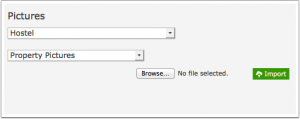
The number of pictures that can be uploaded is limited to 99 per property. If you need more you can use external pictures as explained below.
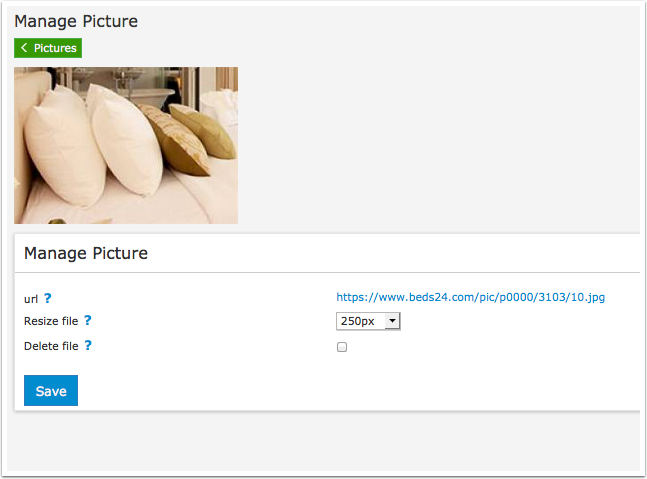
Pictures for the booking page should be used in the smallest possible size. You can adjust the picture size for the booking page in the "Manage picture" menu to be small as possible but still has adequate quality. If you send pictures to channels they will send in the original size regardless to what you have resized them to for the booking page.
If you want complete control over the images you can also host them yourself, see the PICTURES > EXTERNAL PICTURES.
Manage and resize uploaded pictures
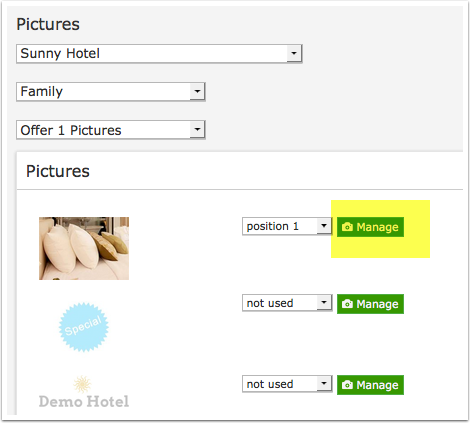
Click on "Manage picture" to delete, resize or access the picture URL
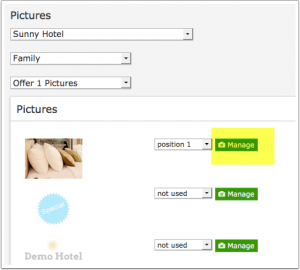
Adjust picture size for the booking page:
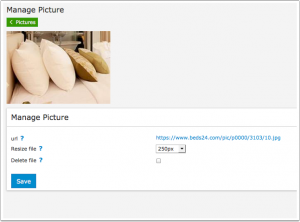
To change slider settings go to (SETTINGS) BOOKING ENGINE > BOOKING PAGE > LAYOUT (responsive version only),
Use External Pictures
Alternatively or additionally you can use up to 20 externally hosted pictures per room.
All you need to do is enter the picture URL in (SETTINGS) BOOKING ENGINE > PICTURES > EXTERNAL.
- External pictures have to be hosted securely (https NOT http).
- External pictures are used as they are. They can not be resized.
- If you are using a third party service you need to make sure your pictures are publicly available.
- Make sure to use the URL to the actual picture not the place where the picture is stored.
If your web site has SSL you can host your pictures on your own web site. If not you can use a service like imgur.com which allows you to host pictures.
You can find information on the internet on how to host pictures which you want to embed on a web site.
If you do not see a thumbnail the link is not going to the picture. You can only use a direct link to the image itself. Linking to a storage location is not possible and will cause errors when the picture is sent to channels.
If your files are .jpg or .gif then you can use external file hosting
The URLs must be 250 characters or less.
Update Pictures
For performance reasons (speed up your booking page so you get more bookings) pictures are cached for 24 hours. You will need to wait 1 hour to see the changes visible in your control panel on your booking page.
Assign Pictures for the Booking page
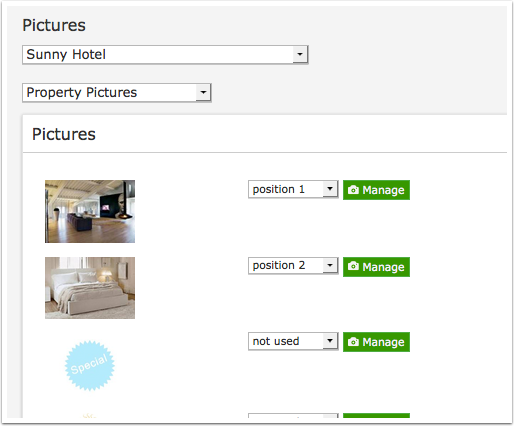
Property pictures: Set the selector to the property you want to assign pictures to. Then select "Property Pictures". If you use a slider you can also set the order of the pictures. On the adaptive booking page this image is only used for the multiple property booking page.
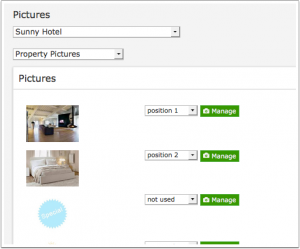
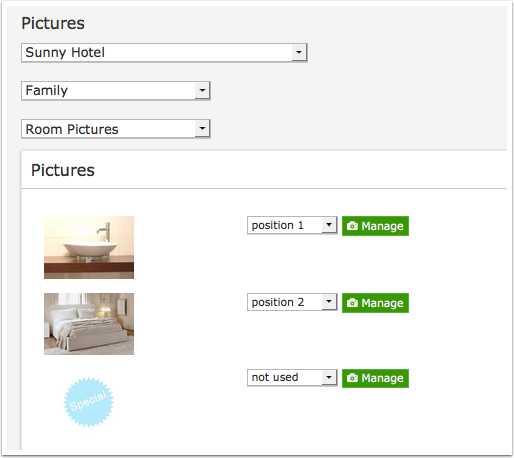
Room pictures: Set the selector to the property you want to assign pictures to. Then select the room. I If you use a slider you can also set the order of the pictures.
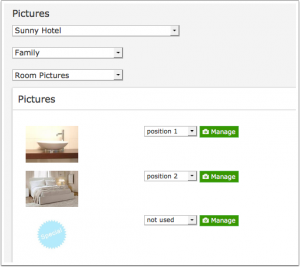
These will only display if your layout has a "room pictures" activated. Many layouts only use "offers" and "offer pictures". Room pictures are not used on the adaptive version.
Offer pictures: Set the selector to the property you want to assign pictures to. Then select the room and then the offer number. Offer 1 is the default which will always display. If you use a slider you can also set the order of the pictures. Sliders are only available in the responsive version.
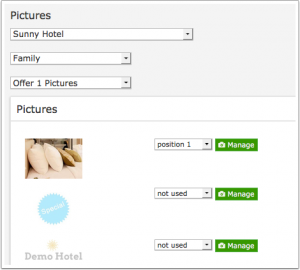

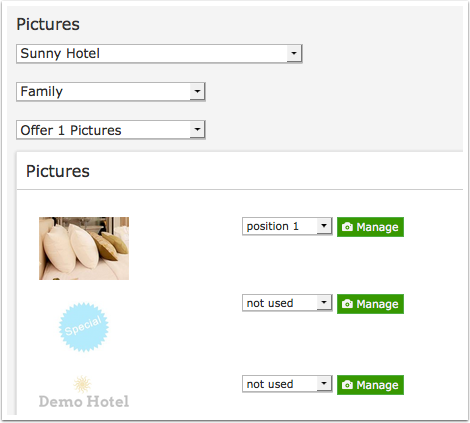
If have activated modules but not assigned pictures to the modules the system will try to use a picture from a higher module.
Adaptive Version only
Once it is uploaded you can resize it to suit the position it will be displayed. To change the picture settings go to {#fas:cog}} (SETTINGS) BOOKING ENGINE > BOOKING PAGE > CONTENT.
Send pictures to OTAs
For some channels we can send pictures. See the dedicated help pages for each channel for further details on how pictures will send.