Google Cross Domain Tracking: Difference between revisions
Jump to navigation
Jump to search
m Annette moved page Google Tag Manager to Google Cross Domain Tracking |
No edit summary |
||
| (18 intermediate revisions by 3 users not shown) | |||
| Line 4: | Line 4: | ||
[[Category:Booking_Page]] | [[Category:Booking_Page]] | ||
<div class="heading"> | <div class="heading">Cross Domain Tracking </div> | ||
This page explains how to use cross domain tracking. | This page explains how to use cross domain tracking with Google when using the booking page under your own domain. | ||
__TOC__ | |||
= Setup = | |||
'''Step 1: Create an Account at TagManager''' | |||
*Go to google tag manager https://tagmanager.google.com/?hl=en#/admin/accounts/create and create an account. | |||
*In Add New Account set: | |||
Account Name: example: Beds24 | |||
Country: Germany (example) | |||
Under Container Set up add: | |||
Container Name:Example: www.Beds24.com | |||
*Target Platform: Choose Web | |||
*Click on Create. | |||
*Agree the Terms of Use of Google | |||
[[image:Googletagmanager1.jpg|700px|link=]] | |||
[[Media:Googletagmanager1.jpg|view large]] | |||
= Beds24 Setup = | |||
*Go to (SETTINGS) > BOOKING ENGINE > PROPERTY BOOKING PAGE > DEVELOPERS under Advanced HTML Settings in Insert in HTML <HEAD> | |||
*Add the Code | |||
Example code: | |||
<code><!-- Google Tag Manager --> | |||
<script>(function(w,d,s,l,i){w[l]=w[l]||[];w[l].push({'gtm.start': | |||
new Date().getTime(),event:'gtm.js'});var f=d.getElementsByTagName(s)[0], | |||
j=d.createElement(s),dl=l!='dataLayer'?'&l='+l:'';j.async=true;j.src= | |||
'https://www.googletagmanager.com/gtm.js?id='+i+dl;f.parentNode.insertBefore(j,f); | |||
})(window,document,'script','dataLayer','GTM-123456');</script> | |||
<!-- End Google Tag Manager --></code> | |||
*Additionally, paste this code immediately after the opening <body> tag. You can add it in any field in Source code in (SETTINGS) SETTINGS > BOOKING ENGINE > BOOKING PAGE > CONTENT | |||
Example Code: | |||
<code><!-- Google Tag Manager (noscript) --> | |||
<noscript><iframe src="https://www.googletagmanager.com/ns.html?id=GTM-123456" | |||
height="0" width="0" style="display:none;visibility:hidden"></iframe></noscript> | |||
<!-- End Google Tag Manager (noscript) --></code> | |||
<div class="warning">{{#fas:exclamation-triangle}} The codes provided here are only examples. Don´t use them in your page!</div> | |||
= Google Tag Manager dashboard = | |||
*On the Workspace Overview screen, click New Tag: | |||
[[image:Googletagmanager2.jpg|700px|link=]] | |||
[[Media:Googletagmanager2.jpg|view large]] | |||
*Click Tag Configuration and choose Universal Analytics: | |||
[[image:Googletagmanager3.jpg|700px|link=]] | |||
[[Media:Googletagmanager3.jpg|view large]] | |||
[[image:Googletagmanager4.jpg|700px|link=]] | |||
[[Media:Googletagmanager4.jpg|view large]] | |||
*Select Pageview as the Track Type. | |||
*Create a new Google Analytics Settings Variable | |||
*Enter your Tracking ID: Example: UA-12345678-9 | |||
*Click More Settings -> Cross Domain Tracking | |||
*Under Auto Link Domains enter "Beds24.com" and click Save | |||
*Click Triggering | |||
* | |||
[[image:Googletagmanager5.jpg|700px|link=]] | |||
[[Media:Googletagmanager5.jpg|view large]] | |||
*Choose All Pages (or appropriate choice for your setup) | |||
* | *Click Save, Submit and Publish | ||
Latest revision as of 12:36, 15 September 2022
Cross Domain Tracking
This page explains how to use cross domain tracking with Google when using the booking page under your own domain.
Setup
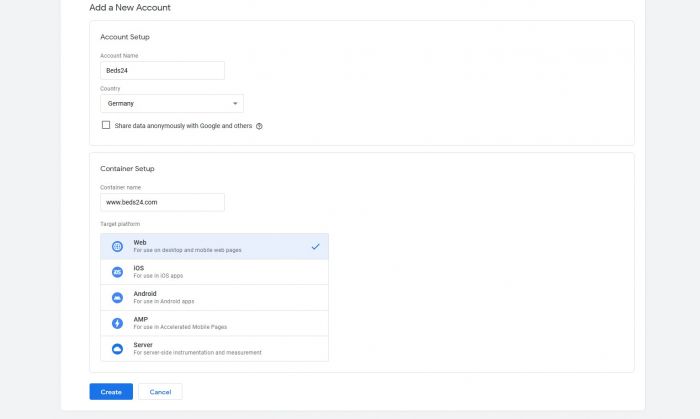
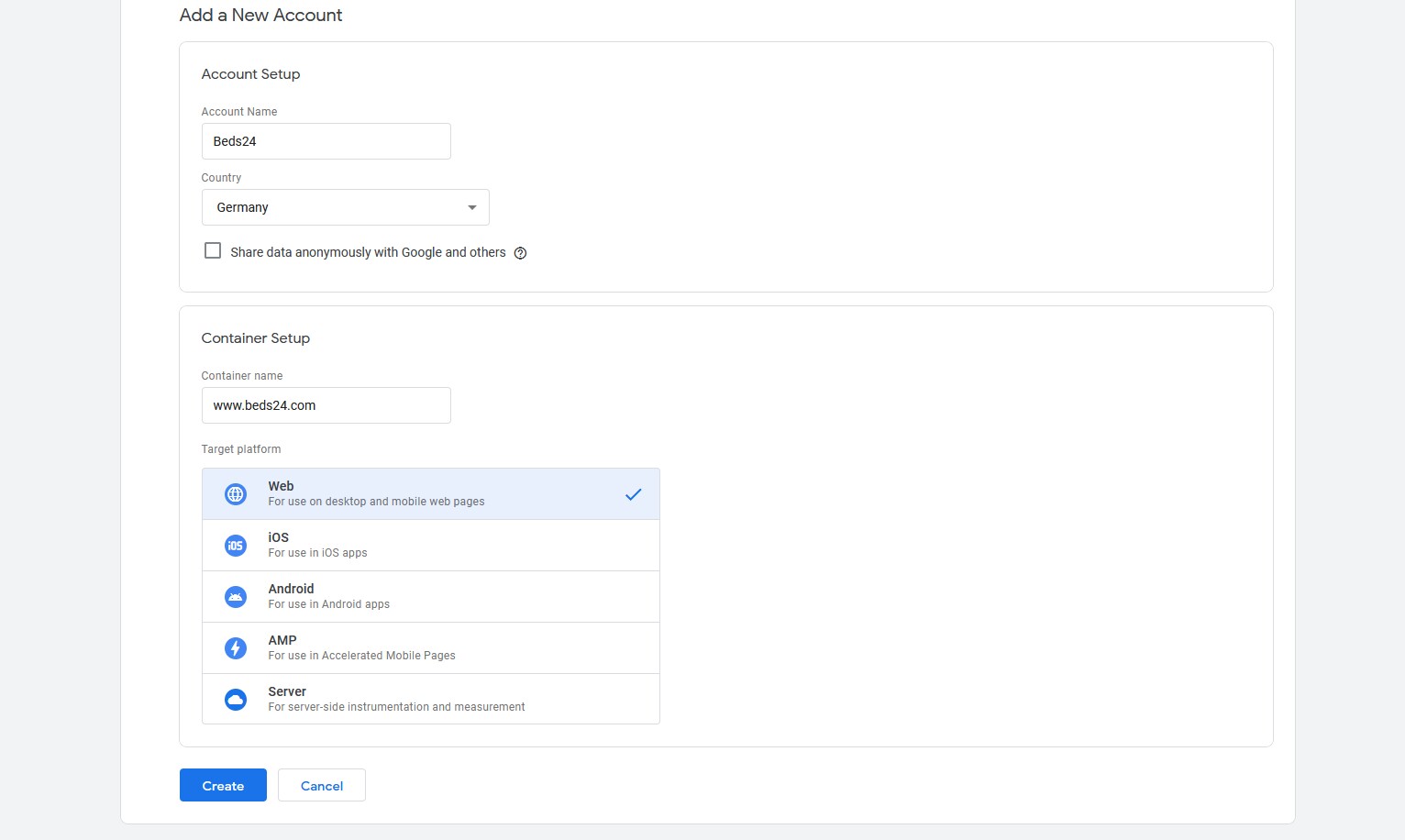
Step 1: Create an Account at TagManager
- Go to google tag manager https://tagmanager.google.com/?hl=en#/admin/accounts/create and create an account.
- In Add New Account set:
Account Name: example: Beds24
Country: Germany (example)
Under Container Set up add:
Container Name:Example: www.Beds24.com
- Target Platform: Choose Web
- Click on Create.
- Agree the Terms of Use of Google
Beds24 Setup
- Go to (SETTINGS) > BOOKING ENGINE > PROPERTY BOOKING PAGE > DEVELOPERS under Advanced HTML Settings in Insert in HTML <HEAD>
- Add the Code
Example code:
<script>(function(w,d,s,l,i){w[l]=w[l]||[];w[l].push({'gtm.start':
new Date().getTime(),event:'gtm.js'});var f=d.getElementsByTagName(s)[0],
j=d.createElement(s),dl=l!='dataLayer'?'&l='+l:;j.async=true;j.src=
'https://www.googletagmanager.com/gtm.js?id='+i+dl;f.parentNode.insertBefore(j,f);
})(window,document,'script','dataLayer','GTM-123456');</script>
- Additionally, paste this code immediately after the opening <body> tag. You can add it in any field in Source code in (SETTINGS) SETTINGS > BOOKING ENGINE > BOOKING PAGE > CONTENT
Example Code:
<noscript><iframe src="https://www.googletagmanager.com/ns.html?id=GTM-123456"
height="0" width="0" style="display:none;visibility:hidden"></iframe></noscript>
The codes provided here are only examples. Don´t use them in your page!
Google Tag Manager dashboard
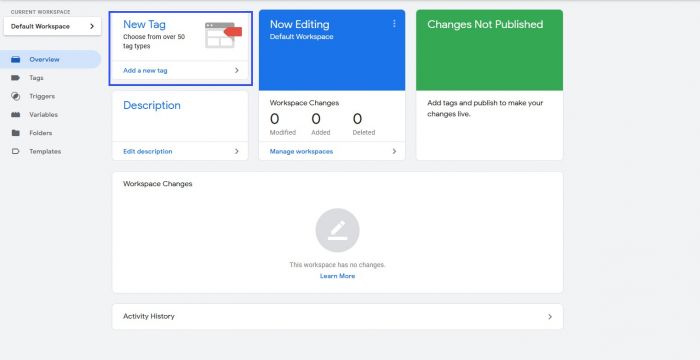
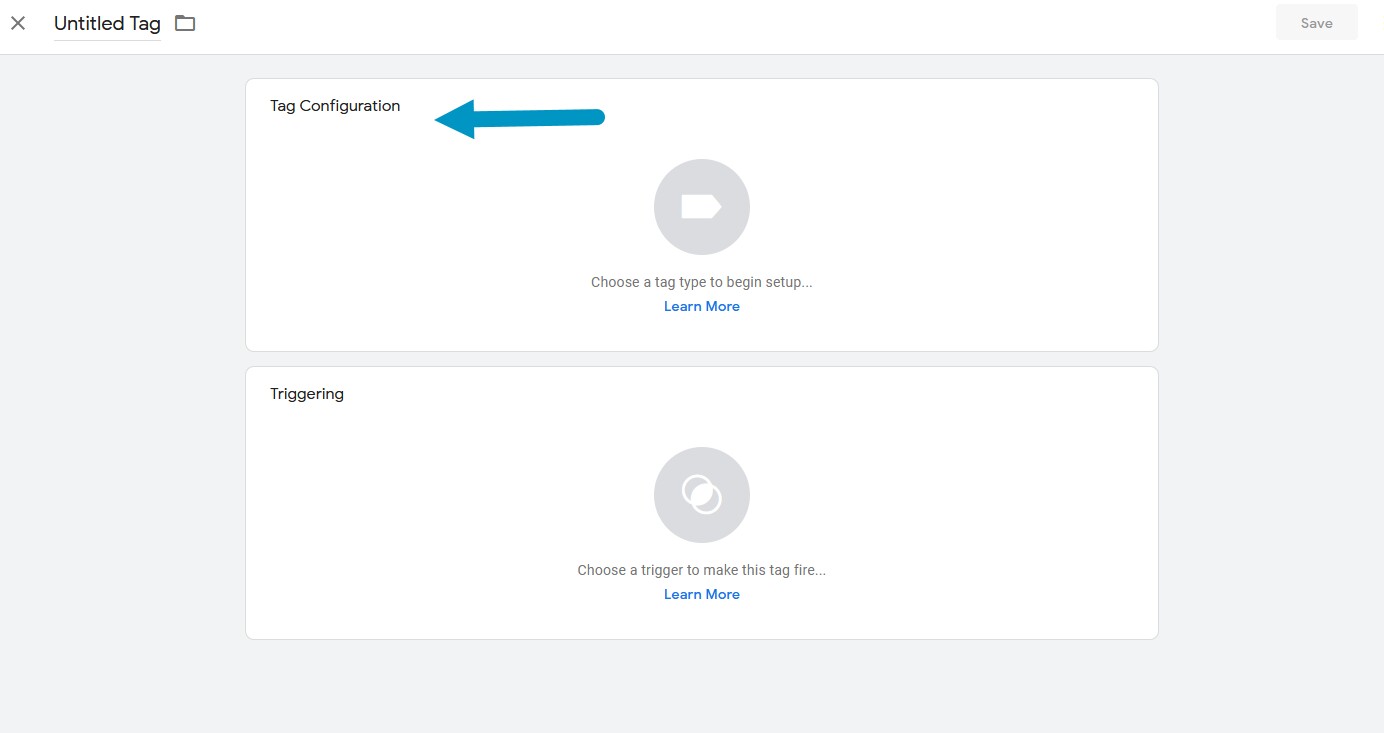
- On the Workspace Overview screen, click New Tag:
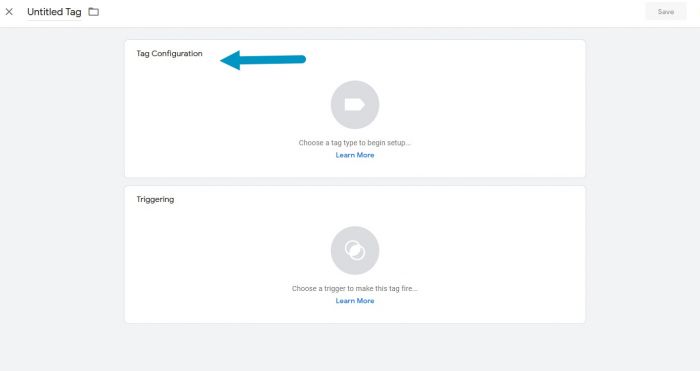
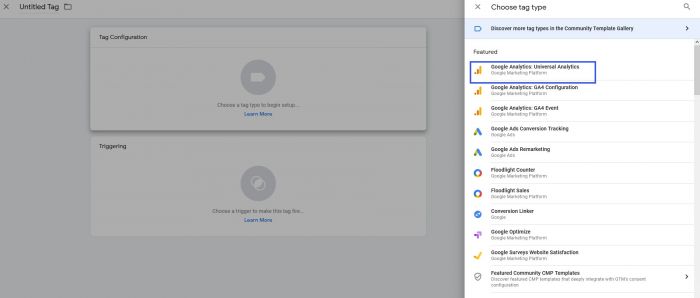
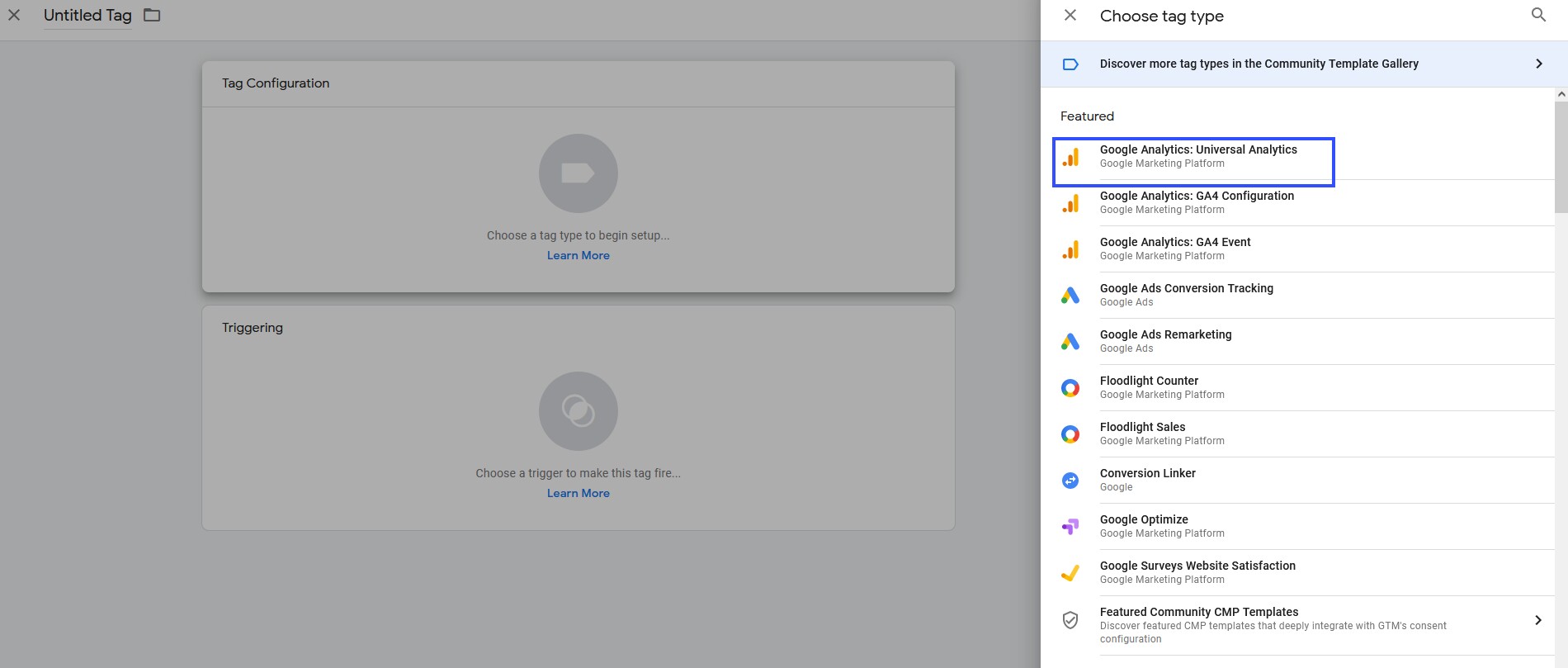
- Click Tag Configuration and choose Universal Analytics:
- Select Pageview as the Track Type.
- Create a new Google Analytics Settings Variable
- Enter your Tracking ID: Example: UA-12345678-9
- Click More Settings -> Cross Domain Tracking
- Under Auto Link Domains enter "Beds24.com" and click Save
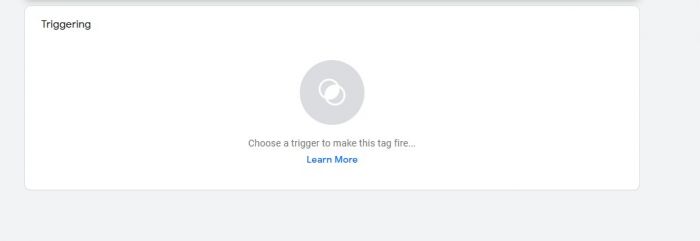
- Click Triggering

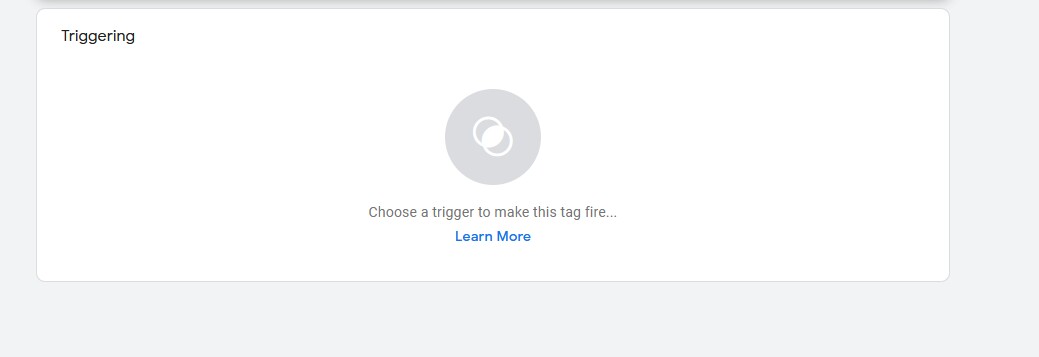
- Choose All Pages (or appropriate choice for your setup)
- Click Save, Submit and Publish