Legacy Calendar: Difference between revisions
Created page with " Category:Calendar <div class="heading">Legacy Calendar</div> This page is about the legacy Calendar. We suggest you try out the the Dynamic_Multi_Calendar|Dynamic Mult..." |
|||
| (One intermediate revision by one other user not shown) | |||
| Line 6: | Line 6: | ||
== Overview == | == Overview == | ||
This view gives you a complete overview on your bookings, | This view gives you a complete overview on your bookings, prices and occupation and inventory. By clicking on "Filter" then ticking the boxes you can select what you want to display. | ||
[[File:Calendar.mp4|640px]] | [[File:Calendar.mp4|640px]] | ||
*bookings are displayed in red (or your selected color) - hover the mouse over individual bookings to show more information or click on them to open them in a pop up. | *bookings are displayed in red (or your selected color) - hover the mouse over individual bookings to show more information or click on them to open them in a pop up. | ||
* | *Fixed Prices in green for each room - hover the mouse over individual Fixed Prices to show more information or click on them to open them in a popup. | ||
'''Inventory''': The number of rooms remaining to sell is also shown and they can be edited to quickly change your availability. (It is only possible to lower the number based on the value in {{#fas:cog}} (SETTINGS) PROPERTIES -> ROOMS-> SETUP "Quantity of this type" and any existing bookings) Click to open a popup and save the changes in your inventory. | '''Inventory''': The number of rooms remaining to sell is also shown and they can be edited to quickly change your availability. (It is only possible to lower the number based on the value in {{#fas:cog}} (SETTINGS) PROPERTIES -> ROOMS-> SETUP "Quantity of this type" and any existing bookings) Click to open a popup and save the changes in your inventory. | ||
| Line 29: | Line 29: | ||
*NONE - the booking strategy is as defined for the property | *NONE - the booking strategy is as defined for the property | ||
'''Min Stay:''' Set a minimum stay. (This can be used to '''override''' the Minimum stay in a '''RATE or Daily Price''' as long as the number is higher than that in the | '''Min Stay:''' Set a minimum stay. (This can be used to '''override''' the Minimum stay in a '''RATE or Daily Price''' as long as the number is higher than that in the prices) | ||
'''Max Stay:''' Set a maximum stay. If you have set different maximum stays in other places (room, | '''Max Stay:''' Set a maximum stay. If you have set different maximum stays in other places (room, Daily Prices,Fixed Prices) the system will use the lowest value. | ||
'''Price Multiplier:''' Adjust all | '''Price Multiplier:''' Adjust all prices by a percentage. (For an increase in price add a number in excess of 100 and for a lower price a number lower than 100). | ||
If you use | If you use Fixed Prices you can deactivate the multiplier by setting "Allow Multiplier" = No in the Summary tab of the rate. | ||
Note: There is a is a limit of 1095 data elements at a time, if they are setting 365 days and 3 rooms this would be the limit. | Note: There is a is a limit of 1095 data elements at a time, if they are setting 365 days and 3 rooms this would be the limit. | ||
| Line 71: | Line 71: | ||
This [[:Category:Bookings#Info|help page]] explains how to enhance the booking display with icons. | This [[:Category:Bookings#Info|help page]] explains how to enhance the booking display with icons. | ||
=== Customise how | === Customise how Fixed Prices display=== | ||
*In the "Summary" tab of the of the rate you can set a color for each rate. | *In the "Summary" tab of the of the rate you can set a color for each rate. | ||
*In {{#fas:cog}} (SETTINGS) ACCOUNT | *In {{#fas:cog}} (SETTINGS) ACCOUNT > PREFERENCES you can set if the only the name is displayed in the calendar or the name and the prices. | ||
===Customise how daily prices display=== | ===Customise how daily prices display=== | ||
In the settings for the daily prices you can set a background color. Go to PRICES->DAILY PRICE | In the settings for the daily prices you can set a background color. Go to PRICES->DAILY PRICE RULES. | ||
=== Customise room display=== | === Customise room display=== | ||
Latest revision as of 09:27, 9 January 2024
This page is about the legacy Calendar. We suggest you try out the the Dynamic Multi Calendar
Overview
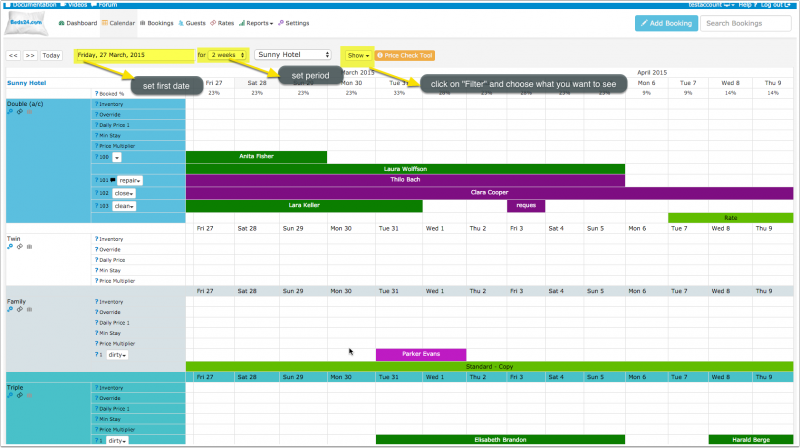
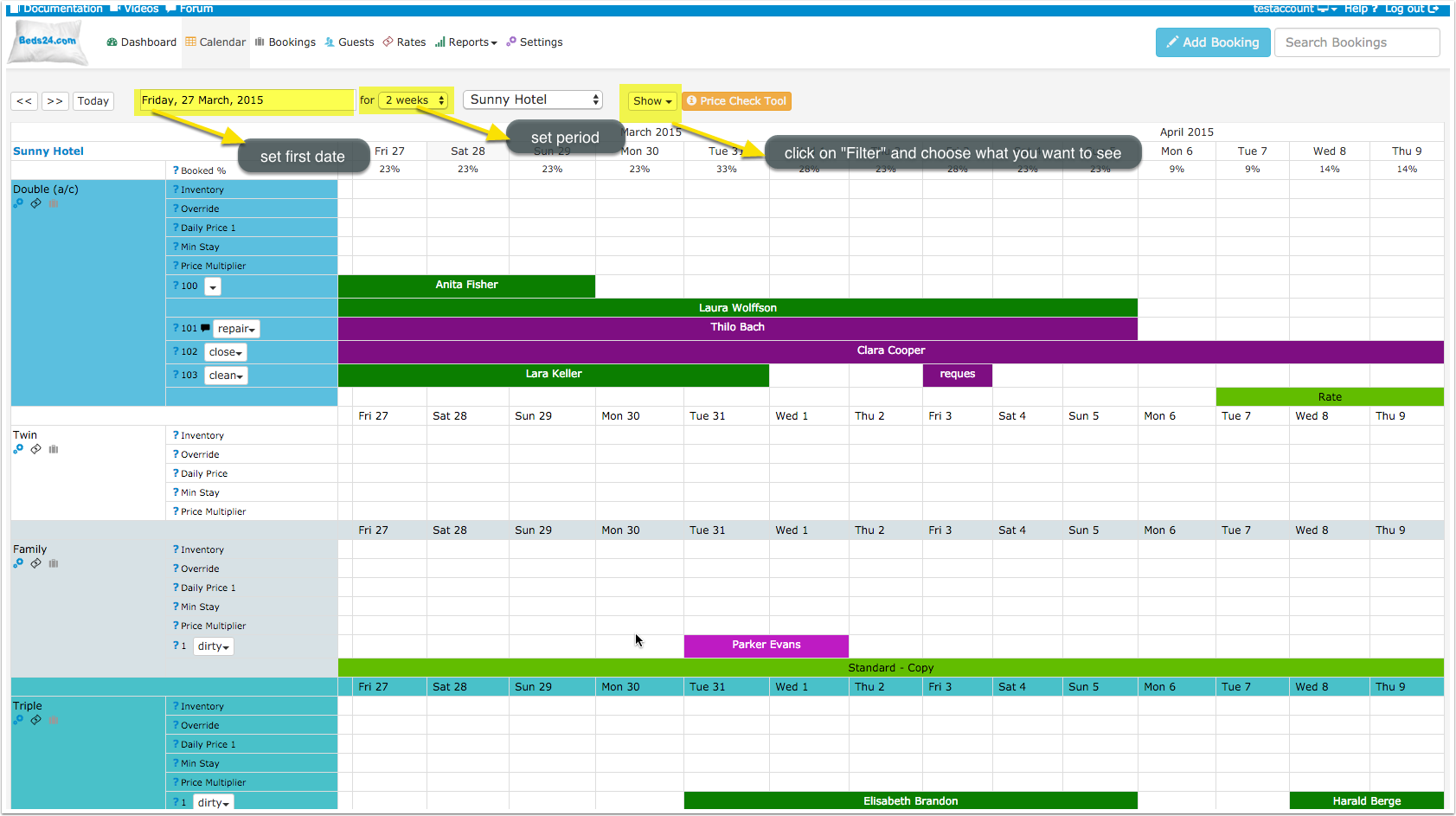
This view gives you a complete overview on your bookings, prices and occupation and inventory. By clicking on "Filter" then ticking the boxes you can select what you want to display.
- bookings are displayed in red (or your selected color) - hover the mouse over individual bookings to show more information or click on them to open them in a pop up.
- Fixed Prices in green for each room - hover the mouse over individual Fixed Prices to show more information or click on them to open them in a popup.
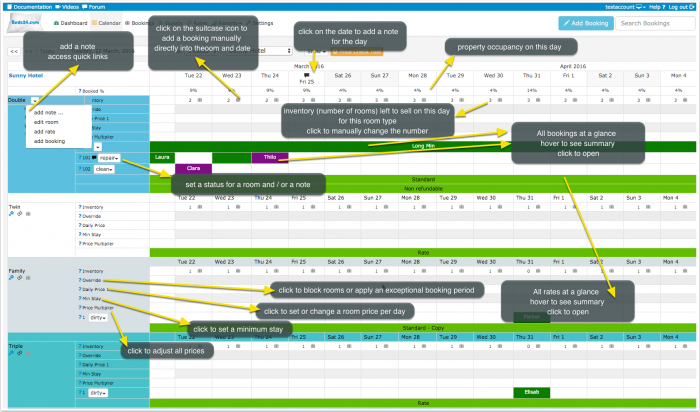
Inventory: The number of rooms remaining to sell is also shown and they can be edited to quickly change your availability. (It is only possible to lower the number based on the value in (SETTINGS) PROPERTIES -> ROOMS-> SETUP "Quantity of this type" and any existing bookings) Click to open a popup and save the changes in your inventory.
Add Booking: To add a booking click on the person+ icon.
Daily Prices: You can enter the prices here. Click in on the day the rate starts to open a popup and set the price and date range and click SAVE. You may modify individual dates as required.
To remove a price set it to 0 (numeral zero)
Override Dates
- BLACKOUT will close the room so it is not available for booking
- NO CHECK IN - guests can not check in on this day but guests checking in before can stay on this day
- NO CHECK OUT - guests can not check out on this day but guests checking in before this date can stay on this day
- NO CHECK IN AND NO CHECK OUT - guests can not check in or check out on this day but guests checking in before can stay on this day
- EXCEPTION will apply the booking rule for the "Exceptional Period" set in (SETTINGS) PROPERTIES -> BOOKING RULES
- NONE - the booking strategy is as defined for the property
Min Stay: Set a minimum stay. (This can be used to override the Minimum stay in a RATE or Daily Price as long as the number is higher than that in the prices)
Max Stay: Set a maximum stay. If you have set different maximum stays in other places (room, Daily Prices,Fixed Prices) the system will use the lowest value.
Price Multiplier: Adjust all prices by a percentage. (For an increase in price add a number in excess of 100 and for a lower price a number lower than 100). If you use Fixed Prices you can deactivate the multiplier by setting "Allow Multiplier" = No in the Summary tab of the rate.
Note: There is a is a limit of 1095 data elements at a time, if they are setting 365 days and 3 rooms this would be the limit.
Diary and notes Function
You can add notes for a property a room or a specific unit. When you have added a note a note icon will display on which you can hover.
Click on a date to add a diary note for this day. When you have a diary note you will see a bubble in the date field of the CALENDAR. Click on the icon will show the diary note.
Diary notes will also display in the "Diary"on the DASHBOARD on the day.
Customise Display
You can set what is shown directly on the CALENDAR page.
Set preferences
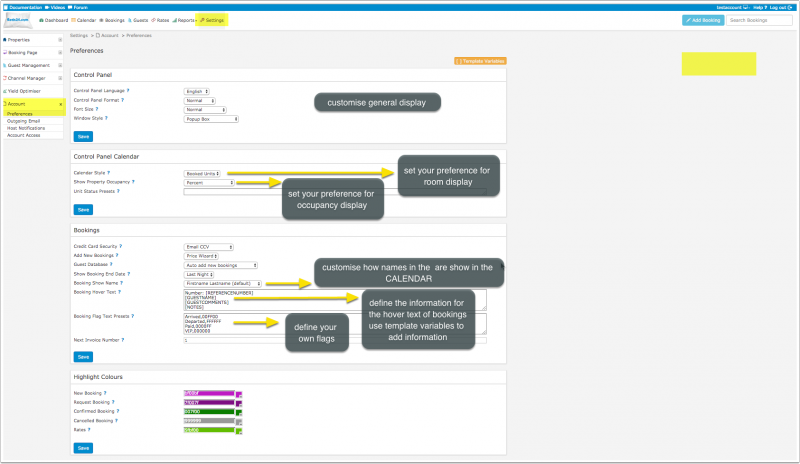
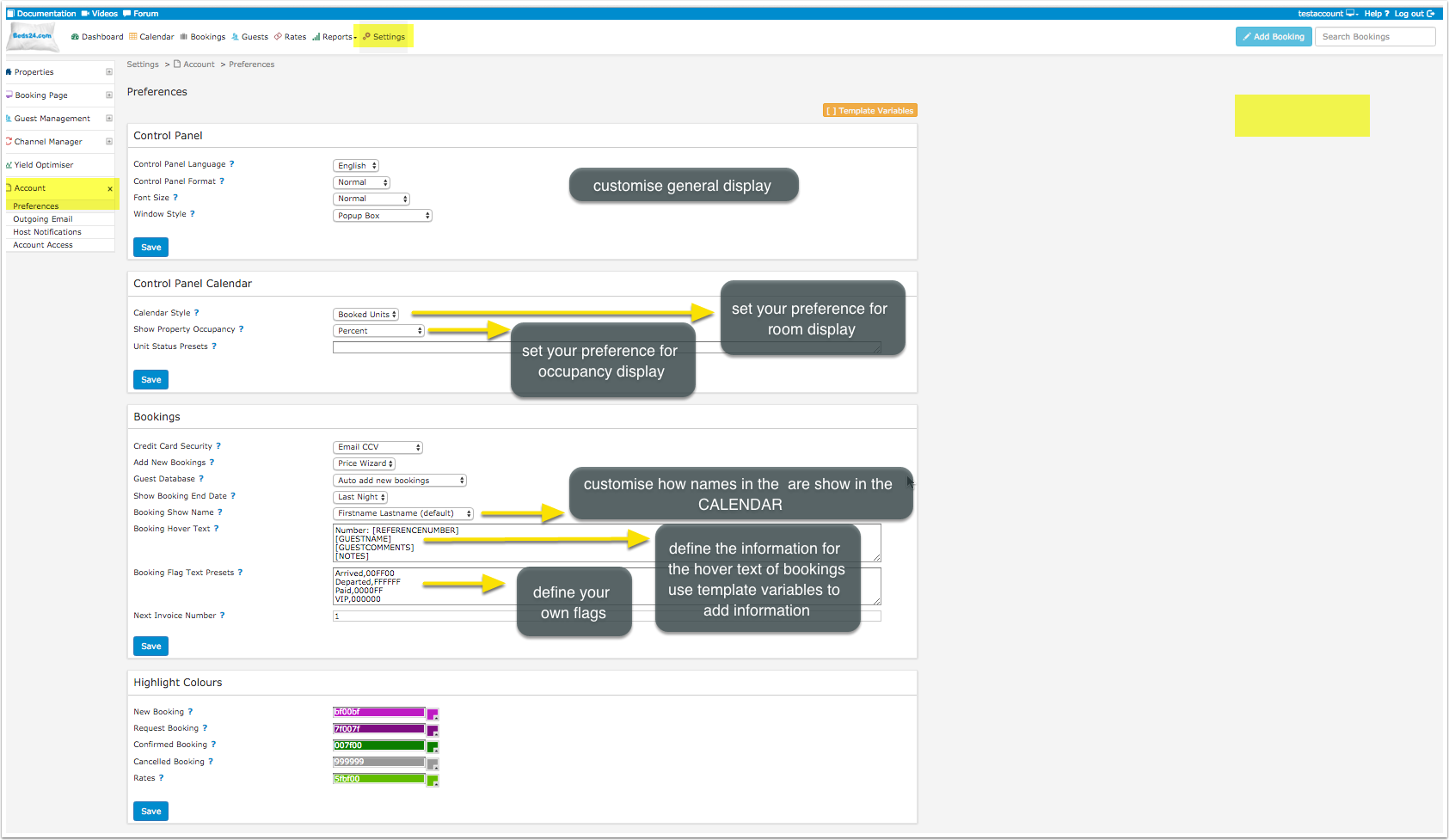
In (SETTINGS) ACCOUNT->PREFERENCES you have a number of general settings to customise the look of your CALENDAR.
Customise how bookings display
In the "Bookings" section in (SETTINGS) ACCOUNT->PREFERENCES you can customise how bookings are displayed. You can set
- the guests name is displayed (Booking Show Name)
- a text which shows when you hover on a booking (Booking Hover Text)
- presets for flags which you can use to mark certain bookings (Booking Flag Text Presets)
- presets for booking info codes
Use the context help (?icons) next to the settings for details.
Use icons
This help page explains how to enhance the booking display with icons.
Customise how Fixed Prices display
- In the "Summary" tab of the of the rate you can set a color for each rate.
- In (SETTINGS) ACCOUNT > PREFERENCES you can set if the only the name is displayed in the calendar or the name and the prices.
Customise how daily prices display
In the settings for the daily prices you can set a background color. Go to PRICES->DAILY PRICE RULES.
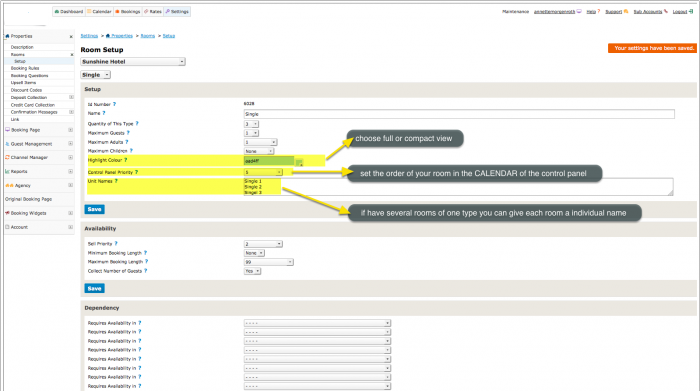
Customise room display

Show Groups of Properties
Properties can be opened as groups in the calendar. Use the (SETTINGS) BOOKING ENGINE-> MULTI BOOKING PAGE-> PROPERTY SETTINGS "Group Keywords "setting to assign keywords to each property. These keywords will appear in the property selector and show all properties having that keyword.
Enhance Performance
If you have many properties and/or slow internet you can do the following:
- Show less data e.g. a week only
- Turn off all rows which you are not using via the "Show" selector"
- Avoid opening all properties. Instead open individual properties or create property groups
Further Customisation using CSS
If you are comfortable working with CSS you can use custom CSS to customise the control panel further.