Custom-Reports: Difference between revisions
| (19 intermediate revisions by 2 users not shown) | |||
| Line 5: | Line 5: | ||
This page is about the menu REPORTS > CUSTOM REPORTS | This page is about the menu REPORTS > CUSTOM REPORTS | ||
__TOC__ | __TOC__ | ||
== | =Summary= | ||
<div class="summarybox"> | |||
You can create your own custom reports based on the criteria you want to extract. | You can create your own custom reports based on the criteria you want to extract. | ||
Custom reports can be exported to Excel or .csv and send automatically via Email using the "Routines" function and you can also add them to your Dashboard. | |||
We provide also a wide range of preset standard reports which you can generate in REPORTS > STANDARD REPORTS | |||
</div> | </div> | ||
= Set up = | |||
1. Create a custom report | 1. Create a custom report | ||
*Enter a "Report Title" which is the name under which the report will be stored. | *Enter a "Report Title" which is the name under which the report will be stored. | ||
| Line 128: | Line 117: | ||
[[Image:Pace.png|400px|link=]] | [[Image:Pace.png|400px|link=]] | ||
[[Media:Pace. | [[Media:Pace.png|view large]] | ||
</div> | </div> | ||
| Line 166: | Line 155: | ||
</div> | </div> | ||
</div> | </div> | ||
<div style="clear: both;"></div> | |||
==== Room distribution current month ==== | ==== Room distribution current month ==== | ||
| Line 172: | Line 161: | ||
<div style="padding: 0 10px 0 10px;"> | <div style="padding: 0 10px 0 10px;"> | ||
[[Image: | [[Image:Roomdistribution.png|400px|link=]] | ||
[[Media: | [[Media:Roomdistribution.png|view large]] | ||
</div> | </div> | ||
</div> | </div> | ||
<div class="col-6"> | <div class="col-6"> | ||
| Line 210: | Line 200: | ||
</div> | </div> | ||
</div> | </div> | ||
<div style="clear: both;"></div> | |||
<div style=" | |||
=== Specific Custom Reports using Info Codes === | === Specific Custom Reports using Info Codes === | ||
| Line 290: | Line 208: | ||
To create Info Codes go to {{#fas:cog}} (SETTINGS) >ACCOUNT - PREFERENCES “Booking Info Code | To create Info Codes go to {{#fas:cog}} (SETTINGS) >ACCOUNT - PREFERENCES “Booking Info Code Values” and create the info codes you need. | ||
For example: | For example: | ||
| Line 302: | Line 220: | ||
AirportTransfer (for example for airport transfer) | AirportTransfer (for example for airport transfer) | ||
<div class="mw-collapsible mw-collapsed"> | |||
<div class="headline-collapse" > | |||
===== Daily breakfast report ===== | |||
</div> | |||
<div class="mw-collapsible-content"> | |||
1. Create your info codes as explained above. | 1. Create your info codes as explained above. | ||
| Line 365: | Line 287: | ||
Booking Info Specified Columns | Booking Info Specified Columns | ||
</div> | |||
</div> | |||
===== Daily Half Board report ===== | <div class="mw-collapsible mw-collapsed"> | ||
<div class="headline-collapse" > | |||
===== Daily Half Board report ===== | |||
</div> | |||
<div class="mw-collapsible-content"> | |||
1. Create your info codes as explained above. | 1. Create your info codes as explained above. | ||
| Line 430: | Line 359: | ||
Booking Info Specified Columns | Booking Info Specified Columns | ||
</div> | |||
</div> | |||
<div class="mw-collapsible mw-collapsed"> | |||
<div class="headline-collapse" > | |||
=====Daily Full Board report ===== | =====Daily Full Board report ===== | ||
</div> | |||
<div class="mw-collapsible-content"> | |||
1. Create your info codes as explained above. | 1. Create your info codes as explained above. | ||
| Line 495: | Line 432: | ||
Booking Info Specified Columns | Booking Info Specified Columns | ||
</div> | |||
</div> | |||
<div class="mw-collapsible mw-collapsed"> | |||
<div class="headline-collapse" > | |||
=====Airport Transfer Report Daily basis===== | =====Airport Transfer Report Daily basis===== | ||
</div> | |||
<div class="mw-collapsible-content"> | |||
1. Create your info codes as explained above. | 1. Create your info codes as explained above. | ||
| Line 562: | Line 507: | ||
Booking Info Specified Columns | Booking Info Specified Columns | ||
</div> | |||
</div> | |||
<div class="mw-collapsible mw-collapsed"> | |||
<div class="headline-collapse" > | |||
===== List room charges and extras individually tallied or in groups ===== | ===== List room charges and extras individually tallied or in groups ===== | ||
</div> | |||
<div class="mw-collapsible-content"> | |||
1.) Create meaningful identifiers for your charges groups. For example: | 1.) Create meaningful identifiers for your charges groups. For example: | ||
| Line 596: | Line 550: | ||
<span style=color:#fe746c;“ >{{#fas:exclamation-triangle}} </span> Bookings that were made before you created the identifiers won't be included in this report unless you manually add the identifier in the booking popup under 'Charges and Payments' | <span style=color:#fe746c;“ >{{#fas:exclamation-triangle}} </span> Bookings that were made before you created the identifiers won't be included in this report unless you manually add the identifier in the booking popup under 'Charges and Payments' | ||
</div> | |||
</div> | |||
===Report for tax advisor=== | ===Report for tax advisor=== | ||
| Line 702: | Line 659: | ||
Drag the columns with the information you want to see from "Available Columns" to "Show Columns". | Drag the columns with the information you want to see from "Available Columns" to "Show Columns". | ||
=== Create a report that lists the group booking id only === | |||
In Template variable field enter [BOOKID] equal [GROUPID] | |||
=== Create a Customer Statement with calculated values using booking info codes === | |||
This process uses several auto actions to create Booking Info codes with values in every booking. | |||
You can follow the same principle for the columns/values you need for your customer reports. | |||
Once you set up the same type of Auto Actions, you can create a custom report for your customer. | |||
You can also use the calculated values in another calculation, as seen in the Auto Action screenshots below. | |||
So if you select the Booking info codes in 'Any booking info code' all bookings/values for the report period will show in the report. | |||
Custom Report :- https://screencast-o-matic.com/i/c31ilBV3q9l | |||
Then the report :- https://screencast-o-matic.com/i/c31ilkV3q9A - use Layout = Tabular. | |||
Create an auto action for each value/column you wish to calculate and show in the report. | |||
The booking info codes will be shown in alphabetical order, so you will need to use 1. 2. etc to manage the order/display of the columns in your report. | |||
We advise you to use 1 'word' as the booking info code, this ensure there is no confusion in the calculations. | |||
Auto Actions, in the Booking Info tab, ensure that you set Process Template Variables = '''When created''' otherwise it will try to recalculate when the report is run and could give incorrect values. | |||
'''1.BOOKPRICE''' - Booking price -Sum of the Invoice Charges -:- https://screencast-o-matic.com/i/c31ilgV3q9q | |||
the value in the Booking Info Text box should be [INVOICECHARGESNUM] | |||
'''2.EXTCOMM''' - External Commission - Commission value sent by the channel (Commission field) :- https://screencast-o-matic.com/i/c31ilEV3qRq | |||
the value in the Booking Info Text box should be [COMMISSONNUM] | |||
'''3.COMMAMMOUNT''' - Commission Amount - Base price (first row in the Charges & Payments tab minus the value in the Commission field :- https://screencast-o-matic.com/i/c31il5V3q9R | |||
the full value in the Booking Info Text box should be [BASEPRICENUM][-][COMMISSIONNUM] | |||
'''4.OURCOMMISSION''' - Our Commission - 20% of the base price - commission (20% of the Commissionable amount :- https://screencast-o-matic.com/i/c31ilmV3qRA | |||
the full value in the Booking Info Text box, with 2 decimal places [BASEPRICENUM][*.2]0.20[-]COMMISSIONNUM][*.2]0.20 | |||
'''5.VATCOMMISSION''' - Vat Commission - VAT on the Commission values :- https://screencast-o-matic.com/i/c31ilJV3qRd | |||
the full value in the Booking Info Text box should be | |||
[BOOKINGINFOCODETEXT:4.OURCOMMISSION][*]0.20[+][BOOKINGINFOCODETEXT:2.EXTCOMM][*]0.20 | |||
'''6.TOTALCHAR''' - Total Charges - Total PM Charges :- https://screencast-o-matic.com/i/c31ildV3qSn | |||
the full value in the Booking Info Text box should be | |||
[BOOKINGINFOCODETEXT:2.EXTCOMM][+][BOOKINGINFOCODETEXT:4.OURCOMMISSION][+][BOOKINGINFOCODETEXT:5.VATCOMMISSION] | |||
'''7.OWNERPAYOUT''' - Owner Payout - Booking price - Total PM charges :- https://screencast-o-matic.com/i/c31ilKV3qSb | |||
the full value in the Booking Info Text box should be | |||
[BOOKINGINFOCODETEXT:1.BOOKPRICE][-][BOOKINGINFOCODETEXT:4.TOTALCHAR] | |||
== Send reports via EMail== | == Send reports via EMail== | ||
| Line 1,377: | Line 1,403: | ||
| Property id of booking | | Property id of booking | ||
|- | |- | ||
<div style="display:none"> | |||
Go to REPORTS > CUSTOM REPORTS and create a new custom report with these settings: | |||
Report Title = | |||
Check In From = | |||
Check In To = | |||
Check Out From = | |||
Check Out To = | |||
Booking Date From = | |||
Booking Date To = | |||
Status = | |||
Sub Status = | |||
Booking Source = | |||
Booking Source = | |||
Booking Source = | |||
Booking Source = | |||
Invoice Balance = | |||
Pending Payments = | |||
Has upsell item = | |||
Invoicee = | |||
Any Booking Info Code = | |||
All Booking Info Codes = | |||
Exclude Booking Info Code = | |||
Exclude Room Id's = | |||
Booking Field Contains = | |||
Booking Field Contains = | |||
Booking Field Does Not Contain = | |||
Booking Field Does Not Contain = | |||
Template Variable = | |||
Layout = | |||
Sort By = | |||
Secondary Sort = | |||
Include Totals = | |||
Show max = | |||
Date Format = | |||
Drag and Drop the columns to "Show Columns": | |||
Latest revision as of 10:06, 7 November 2025
This page is about the menu REPORTS > CUSTOM REPORTS
Summary
You can create your own custom reports based on the criteria you want to extract.
Custom reports can be exported to Excel or .csv and send automatically via Email using the "Routines" function and you can also add them to your Dashboard.
We provide also a wide range of preset standard reports which you can generate in REPORTS > STANDARD REPORTS
Set up
1. Create a custom report
- Enter a "Report Title" which is the name under which the report will be stored.
- Adjust the other criteria
- Drag the items you want to the left side and the one you do not want to the right then SAVE. If will now be always available.
- The setting for "Layout" defines how the bookings which are included in the report will be displayed.
2. Generate a preset custom report
- Use the selector to choose a report
- If required adjust the criteria e.g. dates
- If you want to use a custom report on the dashboard set it "Layout" = tabular.
Dates can be restricted by check-in, check-out and booking date. If multiple restrictions are applied they all apply to filter the shown bookings. The relative month restrictions like "this month", "last month" etc restrict from the first day of the month to the last day of the month respectively when used as FROM and TO restrictions.
If you use info codes in booking you can use these to show or hide selected bookings.
For example, if you use the code "CHECKEDIN" when guests check in and "CHECKEDOUT" when guests check out, you could create a custom reports to show custom reports by showing booking which include the info code "CHECKEDIN" and excluding those that have the info code "CHECKEDOUT".
The "Room Template" columns show the content added in SETTINGS-PROPERTIES-ROOMS-SETUP under "Room Template". These fields can contain template variables and also math variables which allows you to use these colums for custom calculations.
There can be problems exporting data to Excel or CSV in some browsers including Internet Explorer/Edge, it works well with Chrome and Firefox. Problems also occur with Chrome and MAC.
If you want to generate a report by invoice number you need to set "Status" = "Invoice number assigned".
Graphs and Charts
Under "Layout" you can choose to show a graph or chart. If you want to use this option what is set to "Sort by" defines what is shown horizontally.
- Each column that can have a "Total" can show as a graph.
- The monthly bar graph requires a date to be selected in "Sort by". This will be used to assign the bookings to the bars.
- For a pie chart you only need the column "Quantity" or a charges/payments/price column. A pie chart will be drawn by what is set to "Sort by" by a number of bookings or value.
Template variables in Custom Reports
The columns "Property Template" and "Room Template" will show the content you have entered in SETTINGS->PROPERTIES->DESCRIPTION / SETTINGS->PROPERTIES->ROOMS->SETUP. These fields support template variables. If you enter template variables there the report will show the corresponding value from the booking. You can also use math variables to calculate values from the booking.
Dashboard Reports
To show custom reports on the Dashboard, build the report in REPORTS->CUSTOM REPORTS, update the report name and "Layout" = Tabular.
Then go to Dashboard and in Components add the Custom report number to your Dashboard.
Examples
To-Do List showing all bookings with substatus "Action Required"
Go to REPORTS - > CUSTOM REPORTS and create a new custom report with these settings:
Report Title = = To-Do-List
Check-in / Check-out = choose the time span the report should reflect
Substatus = Action Required
Layout = Tabular
Drag and Drop the columns for the information you want to see from the “Available Columns” to the “Show Columns” For Example:
Substatus (required)
Booking Ref (optional)
Create a report in showing a column which is calculated from a value in the booking
1. In this example we will calculate 15% from the lodging price. Do do this go to (SETTINGS) > PROPERTIES >ROOMS > SETUP and add [INVOICEUPSELLNUM0][*]0.15 as "Room Template 1"
2. Create a custom report:
Drag the columns with the information you want to see from "Available Columns" to "Show Columns" make sure you choose the "Room Template 1" column.
Specific Custom Reports
Specific Custom Reports using Sort By
Referrer report / Booking source
Go to REPORTS > CUSTOM REPORTS and create a new custom report with these settings:
Report Title = Referrer Report
Layout = Tabular
Include Totals = Sort By (or Sort By and Report if you want totals across the whole report)
Sort by = Referrer
Drag and Drop the columns for the information you want to see from the “Available Columns” to the “Show Columns” for example:
Referrer (required)
Quantity (required)
Booking Ref (optional)
Room (optional)
Graphs
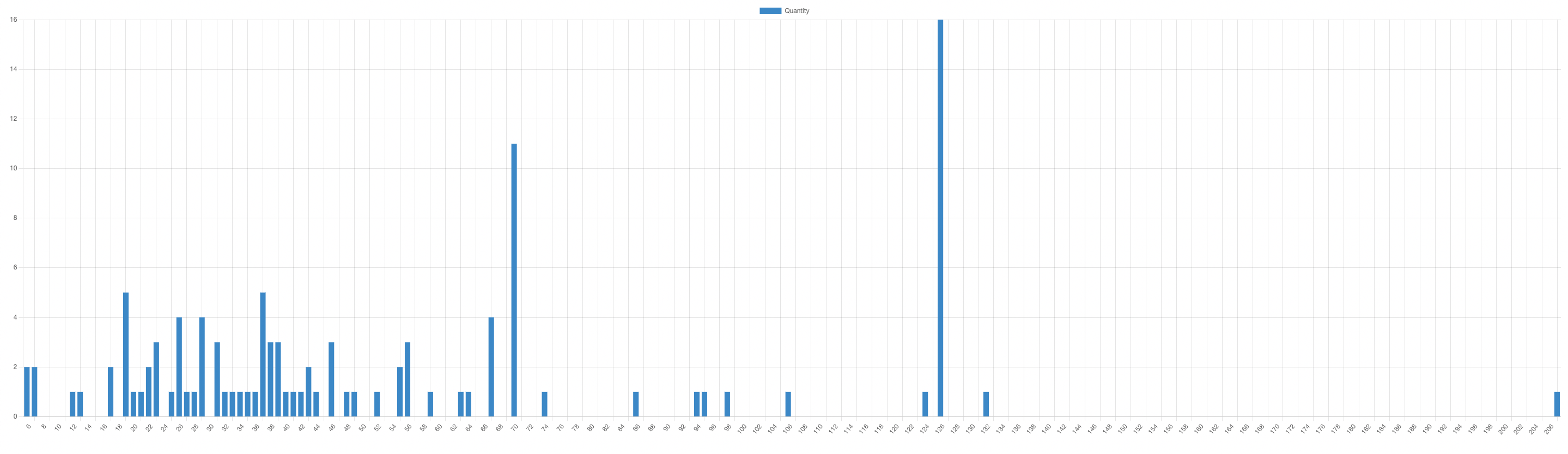
Pace report current month
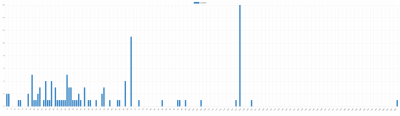
Report Title = Pace Report
Check In From = Today
Check In To = Next 365 days
Check Out From = Any Date
Check Out To = Any Date
Booking Date From = This month
Booking Date To = This month
Status = Not cancelled
Sub Status = All
Booking Source = All
Layout = Bar Graph
Sort By = Booked Days in Advance
Drag and Drop the columns to "Show Columns":
Quantity
Room distribution current month
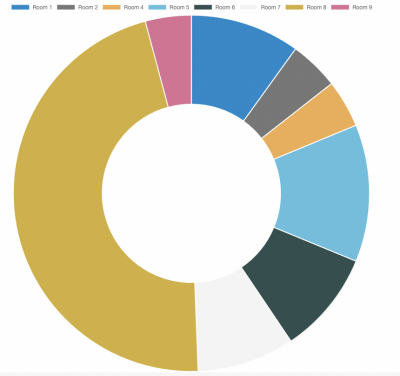
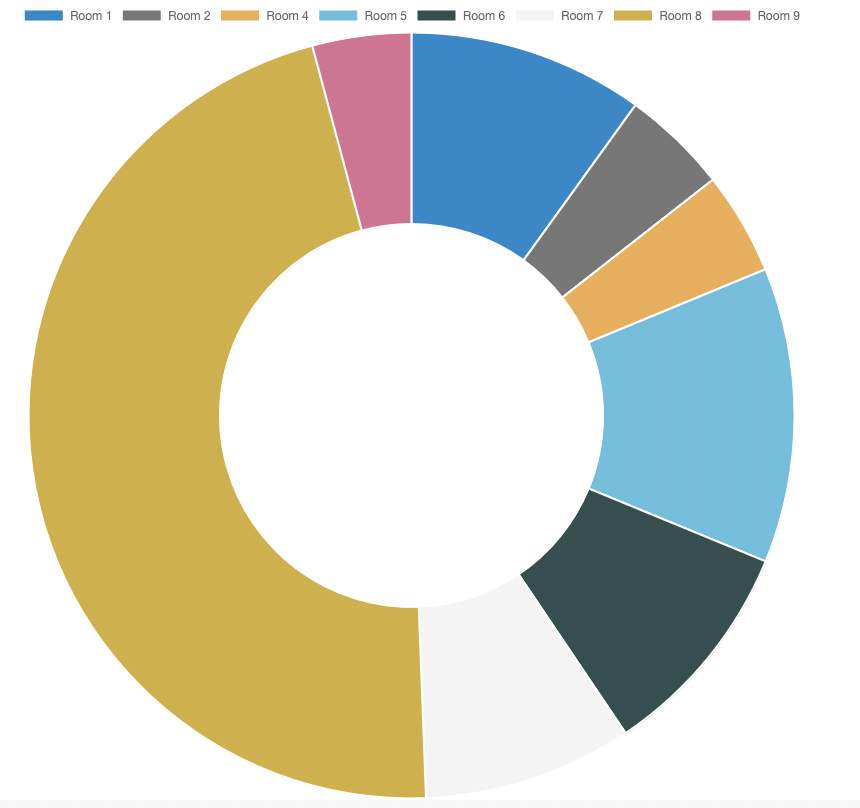
Report Title = Room Distribution
Check In From = Any Date
Check In To = Any Date
Check Out From = Any Date
Check Out To = Any Date
Booking Date From = This month
Booking Date To = This month
Status = Not cancelled
Sub Status = All
Booking Source = All
Layout = Pie Chart
Sort By = Room
Drag and Drop the columns to "Show Columns": Quantity
Specific Custom Reports using Info Codes
You can create specific reports showing only bookings which meet certain criteria.
These bookings are identified using Booking Info Codes which are automatically set by Auto Actions.
To create Info Codes go to (SETTINGS) >ACCOUNT - PREFERENCES “Booking Info Code Values” and create the info codes you need.
For example:
F&B-BB (for example for breakfast)
F&B-HB (for example for half board)
F&B-FB (for example for full board)
AirportTransfer (for example for airport transfer)
Daily breakfast report
1. Create your info codes as explained above.
2. Set up Auto Actions to automatically assign the Info Codes.
Go to (SETTINGS) > GUEST MANAGEMENT >AUTO ACTIONS and create an Auto Action or each of your meal options.
Trigger tab:
Trigger Event = After Booking
Trigger Time = Immediate
Booking Source = Booking.com (for example)
Booking Field Contains: meal_plan=Breakfast (or Extra Breakfast - use the text the channel uses)
Booking info tab
Booking Info Code : F&B-BB
Booking Info Text : [NUMPEOPLE1]
3. Create Custom Report,
Go to REPORTS - > CUSTOM REPORTS and create a new custom report with these settings:
Report Title = Breakfast
Check In From = Any Date
Check In To = Today
Check Out From = Today
Check Out To = Any Date
Any Booking Info Code =F&B-BB
Layout = Tabular
Drag and Drop the columns for the information you want to see from the “Available Columns” to the “Show Columns”
Booking Ref
Property
Room
Unit
Full Name
First Night
Check Out
Booking Info Specified Columns
Daily Half Board report
1. Create your info codes as explained above.
2. Set up Auto Actions to automatically assign the Info Codes.
Go to (SETTINGS) > GUEST MANAGEMENT >AUTO ACTIONS and create an Auto Action or each of your meal options.
Trigger tab:
Trigger Event = After Booking
Trigger Time = Immediate
Booking Source = Booking.com (for example)
Booking Field Contains: meal_plan=Half Board (or use the rate code for half board - use the text the channel uses)
Booking info tab
Booking Info Code : F&B-HB
Booking Info Text : [NUMPEOPLE1]
3. Create Custom Report,
Go to REPORTS - > CUSTOM REPORTS and create a new custom report with these settings:
Report Title = Half Board
Check In From = Any Date
Check In To = Today
Check Out From = Today
Check Out To = Any Date
Any Booking Info Code =F&B-HB
Layout = Tabular
Drag and Drop the columns for the information you want to see from the “Available Columns” to the “Show Columns”
Booking Ref
Property
Room
Unit
Full Name
First Night
Check Out
Booking Info Specified Columns
Daily Full Board report
1. Create your info codes as explained above.
2. Set up Auto Actions to automatically assign the Info Codes.
Go to SETTINGS -> GUEST MANAGEMENT ->AUTO ACTIONS and create an Auto Action or each of your meal options.
Trigger tab:
Trigger Event = After Booking
Trigger Time = Immediate
Booking Source = Booking.com (for example)
Booking Field Contains: meal_plan=Full Board (or use the rate code for Full board - use the text the channel uses)
Booking info tab
Booking Info Code : F&B-FB
Booking Info Text : [NUMPEOPLE1]
3. Create Custom Report,
Go to REPORTS - > CUSTOM REPORTS and create a new custom report with these settings:
Report Title = Full Board
Check In From = Any Date
Check In To = Today
Check Out From = Today
Check Out To = Any Date
Any Booking Info Code =F&B-FB
Layout = Tabular
Drag and Drop the columns for the information you want to see from the “Available Columns” to the “Show Columns”
Booking Ref
Property
Room
Unit
Full Name
First Night
Check Out
Booking Info Specified Columns
Airport Transfer Report Daily basis
1. Create your info codes as explained above.
2. Set up Auto Actions to automatically assign the Info Codes.
Go to SETTINGS -> GUEST MANAGEMENT ->AUTO ACTIONS
Trigger tab:
Trigger Event = After Booking
Trigger Time = Immediate
Booking Source = Booking.com (for example)
Booking Field Contains: Guest Comment = airport shuttle service ( or any other valid trigger for the airport shuttle)
Booking info tab :
Booking Info Code : AirportTransfer
Booking Info Text : [NUMPEOPLE1]
3. Create Custom Report, (please note you might need to adjust the Check In From, Check In To, Check Out From, Check Out To" to see in advanced the airport transfer requests).
Go to REPORTS - > CUSTOM REPORTS and create a new custom report with these settings:
Report Title = Airport Transfer Report
Check In From = Any Date
Check In To = Today
Check Out From = Today
Check Out To = Any Date
Any Booking Info Code =AirportTransfer
Layout = Tabular
Drag and Drop the columns for the information you want to see from the “Available Columns” to the “Show Columns”
Booking Ref
Property
Room
Unit
Full Name
First Night
Check Out
Booking Info Specified Columns
List room charges and extras individually tallied or in groups
1.) Create meaningful identifiers for your charges groups. For example:
Room charges, upsell item cleaning = Room
upsell item breakfast = Breakfast
upsell items cats, dogs = Pets.
2.) Insert these identifiers into the status fields for invoice items or upsell items
The status fields are not directly accessible. You have to append the content to the description field with a pipe (|).
Invoice items:
Settings > Guest Management > Invoicing > Invoice Item Room Description: Your description|Your identifier
Upsell items:
Settings > Booking Engine > Upsell Items > Description: Your description|Your identifier
By adding the same identifier to multiple upsell items or invoice items you pool them into a group
3.) Create a custom report. Use the fields that you need and make sure to use the field 'Invoice Status Values'
- Layout = 'Tabular'
- Include Totals = 'Report'
This creates a column for each of your charges groups with the identifier as the column header and the total amounts at the bottom.
Bookings that were made before you created the identifiers won't be included in this report unless you manually add the identifier in the booking popup under 'Charges and Payments'
Report for tax advisor
1.) If you require sums for different payment methods, first set up status descriptions for your payment methods under (SETTINGS) > GUEST MANAGEMENT > INVOICES "Payment Status".
2.) Create a custom report:
- Status = Invoice Number Assigned
then click on SAVE
- Invoice date from / to = the period for which you want to create a report.
- Layout = Tabular 2
- Sort = invoice number
Drag the columns with the information you want to see from "Available Columns" to "Show Columns".
Invoice Number
Invoice Date
Invoice Item Description
Invoice Item Price
Invoice Item Vat
Invoice Item Vat %
Invoice Status Values (if you require sums for different payment methods)
Invoice Payments Value
Invoice VAT by Percantage
Report on pending payments
Create a custom report:
- Pending Payments = choose which types of bookings you want to include in the report
- Layout = Tabular
- Sort = check-in
Drag the columns with the information you want to see from "Available Columns" to "Show Columns". Make sure you choose the "Pending Payments" columns you want to display.
Commission report for owners
Go to (SETTINGS) > PROPERTIES >ROOMS > SETUP and use template variables in "Room Template" to calculate the commission.
Examples:
- If the commission you charge is 10% of the booking value including all extras use [INVOICECHARGES:10%]
- If the commission you charge is 10% of cost of the lodging use [INVOICEUPSELLNUM0][*]0.1
Create a custom report:
- Layout = Tabular
- Include Totals= Property
Drag the columns with the information you want to see from "Available Columns" to "Show Columns". Make sure you choose the "Room Template" columns you are using to calculate the commission.
Report on use of voucher codes
Create a custom report:
- Booking Field Contains
- Choose "Rate Description"
- Enter the name of the voucher code
- Layout = Tabular
Drag the columns with the information you want to see from "Available Columns" to "Show Columns".
Report of bookings cancelled in the last day (Since yesterday)
Create a custom report:
- Check In From = Yesterday
- Status = Cancelled
- Template Variable = [MODIFYDATE:{%e %B, %Y}] equal [CURRENTDATE:-1day{%e %B, %Y}]
- Layout = Sortable Table
Drag the columns with the information you want to see from "Available Columns" to "Show Columns".
Report of bookings cancelled between 2 dates
For this report we are looking for all bookings with the Cancelled date between 1st-31st October 2021. Ensure the date format entered into the Template variable is YYYY-MM-DD
Create a custom report:
- Check In From = Any Date
- Check In To = Any Date
- Check Out From = Any Date
- Check Out To = Any Date
- Booking Date From = Any Date
- Booking Date To = Any Date
- Status = Cancelled
- Template Variable = [IFBETWEEN:[CANCELLEDTIME:{%Y-%m-%d}]:2021-10-01:2021-10-31:yes||]
- select 'equal' from the drop down list
- enter yes in the next box
- Layout = Sortable Table
Drag the columns with the information you want to see from "Available Columns" to "Show Columns".
Report of bookings with Custom Question ticked/not ticked
Can be used for any of the Custom Questions set in Properties > Booking Questions > Custom Questions with Type = Tick Box.
Create a custom report:
- Check In From = select appropriate dates for your report
- Status = All not cancelled
- Template Variable = [GUESTCUSTOMQ1] equal ticked (or) not ticked
- Layout = Sortable Table
Drag the columns with the information you want to see from "Available Columns" to "Show Columns".
Create a report that lists the group booking id only
In Template variable field enter [BOOKID] equal [GROUPID]
Create a Customer Statement with calculated values using booking info codes
This process uses several auto actions to create Booking Info codes with values in every booking.
You can follow the same principle for the columns/values you need for your customer reports.
Once you set up the same type of Auto Actions, you can create a custom report for your customer.
You can also use the calculated values in another calculation, as seen in the Auto Action screenshots below.
So if you select the Booking info codes in 'Any booking info code' all bookings/values for the report period will show in the report.
Custom Report :- https://screencast-o-matic.com/i/c31ilBV3q9l
Then the report :- https://screencast-o-matic.com/i/c31ilkV3q9A - use Layout = Tabular.
Create an auto action for each value/column you wish to calculate and show in the report.
The booking info codes will be shown in alphabetical order, so you will need to use 1. 2. etc to manage the order/display of the columns in your report.
We advise you to use 1 'word' as the booking info code, this ensure there is no confusion in the calculations.
Auto Actions, in the Booking Info tab, ensure that you set Process Template Variables = When created otherwise it will try to recalculate when the report is run and could give incorrect values.
1.BOOKPRICE - Booking price -Sum of the Invoice Charges -:- https://screencast-o-matic.com/i/c31ilgV3q9q
the value in the Booking Info Text box should be [INVOICECHARGESNUM]
2.EXTCOMM - External Commission - Commission value sent by the channel (Commission field) :- https://screencast-o-matic.com/i/c31ilEV3qRq
the value in the Booking Info Text box should be [COMMISSONNUM]
3.COMMAMMOUNT - Commission Amount - Base price (first row in the Charges & Payments tab minus the value in the Commission field :- https://screencast-o-matic.com/i/c31il5V3q9R
the full value in the Booking Info Text box should be [BASEPRICENUM][-][COMMISSIONNUM]
4.OURCOMMISSION - Our Commission - 20% of the base price - commission (20% of the Commissionable amount :- https://screencast-o-matic.com/i/c31ilmV3qRA
the full value in the Booking Info Text box, with 2 decimal places [BASEPRICENUM][*.2]0.20[-]COMMISSIONNUM][*.2]0.20
5.VATCOMMISSION - Vat Commission - VAT on the Commission values :- https://screencast-o-matic.com/i/c31ilJV3qRd
the full value in the Booking Info Text box should be
[BOOKINGINFOCODETEXT:4.OURCOMMISSION][*]0.20[+][BOOKINGINFOCODETEXT:2.EXTCOMM][*]0.20
6.TOTALCHAR - Total Charges - Total PM Charges :- https://screencast-o-matic.com/i/c31ildV3qSn
the full value in the Booking Info Text box should be
[BOOKINGINFOCODETEXT:2.EXTCOMM][+][BOOKINGINFOCODETEXT:4.OURCOMMISSION][+][BOOKINGINFOCODETEXT:5.VATCOMMISSION]
7.OWNERPAYOUT - Owner Payout - Booking price - Total PM charges :- https://screencast-o-matic.com/i/c31ilKV3qSb
the full value in the Booking Info Text box should be
[BOOKINGINFOCODETEXT:1.BOOKPRICE][-][BOOKINGINFOCODETEXT:4.TOTALCHAR]
Send reports via EMail
If you want to send reports via EMail go to SETTINGS->ACCOUNT->ROUTINES. For instructions please use the context help (? icons) and click on HELP (top right) of this page.
Available Columns
Available columns for custom reporting
| Availabile Columns | Description |
|---|---|
| Booking Ref | Booking reference number |
| Group Ref | Booking reference of the Master booking |
| Internal Notes | Internal Notes (Info tab) |
| Booking Info All Columns | All booking info codes in the booking |
| Booking Info Codes | Booking info codes |
| Booking Info Texts | Booking info text |
| Booking Info Specified Columns | If a booking info code has been specified in the report, then this will display the specified columns |
| Booking Info Specified Columns Code | If a booking info code has been specified in the report, then this will display the specified code in columns |
| Booking Info Specified Columns Total | If a booking info code has been specified in the report, then this will sum up and show the total value of all the values from the info items (expecting the text to be numbers) |
| Summary Tab | Description |
| Status | Booking status |
| Sub status | Booking Sub Status |
| Property | Property name |
| Room | Room name |
| Unit | Unit name |
| First Night | First night booked |
| Check Out | Check-out day |
| Last Night | Last night booked |
| Nights | Number of nights |
| Title | Guest title |
| First Name | Guest First name |
| Last Name | Guest last name |
| Full Name | Guest full name |
| Guest Comments | Guest Comments |
| Notes | Notes (Summary tab) |
| Arrival Time | Guest arrival time |
| Adults | Number of Adults |
| Children | Number of Children |
| Guests | Total number of guests |
| Telephone | Guest telephone number |
| Mobile | Guest mobile number |
| Fax | Guest fax number |
| Company | Guest Company details |
| Address | Guest Address |
| City | Guest City |
| State | Guest State |
| Postcode | Guest Postcode |
| Country (selector) | Guest Country from the selector |
| Country (text) | Guest Country text, manually entered |
| Detail Tab | Description |
| Message | Guest Message |
| Custom Question 1-10 | Answer to Custom question 1-10 |
| Reference | content of the booking reference field |
| Quantity | Number of rooms booked |
| Flag | Latest flag set in the booking |
| Status Code | Status Code can be used for your own purposes and for triggering auto actions. |
| Original Referrer | Original referrer |
| Channel Ref | Channel booking reference |
| Referrer | Referrer |
| Booking Date | booking date |
| Booking IP | Ip address of the computer used to make the booking |
| API Message | Channel booking information |
| Mail & Action Tab | Description |
| Guest email address | |
| Language | Guest language |
| Charges & Payments Tab | Description |
| Charge Item Description | Charge Item Description |
| Charge Item Qty | Charge Item Qty |
| Charge Item Price | Charge Item Price |
| Charge Item Net | Charge Item Net |
| Charge Item Total | Charge Item Total |
| Charge Item Status | Charge Item Status |
| Charge Item Vat % | Charge Item Vat % |
| Charge Item Vat | Charge Item Vat |
| Charge Item Date | Charge Item Date |
| Charge Item Invoicee Name | Charge Item Invoicee Name |
| Charge Item Invoicee Code | Charge Item Invoicee Code |
| Payment Item Description | Payment Item Description |
| Payment Item Amount | Payment Item Amount |
| Payment Item Status | Payment Item Status |
| Payment Item Date | Payment Item Date |
| Payment Item Invoicee Name | Payment Item Invoicee Name |
| Payment Item Invoicee Code | Payment Item Invoicee Code |
| Pending Payment Item Description | Pending Payment Item Description |
| Pending Payment Item Amount | Pending Payment Item Amount |
| Pending Payment Item Status | Pending Payment Item Status |
| Pending Payment Item Due | Pending Payment Item Due |
| Pending Payment Item Invoicee Name | Pending Payment Item Invoicee Name |
| Pending Payment Item Invoicee Code | Pending Payment Item Invoicee Code |
| Pending Payment Item Rule | Pending Payment Item Rule |
| Invoicee | Invoicee code assigned to booking |
| Offer | Offer number booked |
| Price | Indicative price information at time of booking, not recalculated |
| Tax | Indicative tax information at time of booking, not recalculated |
| Deposit | Indicative Deposit information at time of booking, not recalculated |
| Commission | Indicative Commission information at time of booking, not recalculated |
| Discount Voucher Code | discount voucher code entered by the guest at the time of booking |
| Rate Description | description of the rate that was quoted at time of booking |
| Invoice Tab | Description |
| Invoice Charges Value | Invoice Charges Value |
| Invoice Balance Value | Invoice Balance Value |
| Invoice Payments Value | Invoice Payments Value |
| Invoice Vat Value | Invoice Vat Value |
| Invoice Vat by Percentage | Invoice Vat by Percentage |
| Invoice Description Values | Invoice Description Values |
| Invoice Status Values | Invoice Status Values |
| Invoice Item Description | Invoice Item Description |
| Invoice Item Qty | Invoice Item Qty |
| Invoice Item Price | Invoice Item Price |
| Invoice Item Net | Invoice Item Net |
| Invoice Item Total | Invoice Item Total |
| Invoice Item Status | Invoice Item Status |
| Invoice Item Vat % | Invoice Item Vat % |
| Invoice Item Vat | Invoice Item Vat |
| Invoice Item Date | Invoice Item Date |
| Invoice Item Invoicee Name | Invoice Item Invoicee Name |
| Invoice Item Invoicee Code | Invoice Item Invoicee Code |
| Invoice Item Booking Ref | Invoice Item Booking Ref |
| Invoice Number | Invoice Number |
| Invoice Date | Invoice Date |
| First Invoice Item Charge Value | First Invoice Item Charge Value |
| Second Invoice Item Charge Value | Second Invoice Item Charge Value |
| Third Invoice Item Charge Value | Third Invoice Item Charge Value |
| Fourth Invoice Item Charge Value | Fourth Invoice Item Charge Value |
| Fifth Invoice Item Charge Value | Fifth Invoice Item Charge Value |
| Sixth Invoice Item Charge Value | Sixth Invoice Item Charge Value |
| Extra Invoice Item 1-20 Value | Extra Invoice Item 1-20 Value |
| Extra Invoice Item 1-20 Qty | Extra Invoice Item 1-20 Qty |
| Extra Invoice Item 1-20 VAT | Extra Invoice Item 1-20 VAT |
| Extra Invoice Manual Value | Extra Invoice Manual Value |
| Extra Invoice Manual Qty | Extra Invoice Manual Qty |
| Extra Invoice Manual VAT | Extra Invoice Manual VAT |
| Print Invoice | Icon to print Invoice |
| Assign Invoice Number | Icon to Assign Invoice number |
| Invoicee Code | Invoicee Code - Guest Management > Invoicee |
| Invoicee Name | Invoicee Name assigned to the booking |
| Invoicee Currency | Invoicee Currency - Guest Management > Invoicee |
| Invoicee Template 1-8 | Invoicee Template 1-8 - Guest Management > Invoicee |
| Base Value | Lodging Price (Accommodation price) |
| Base Qty | Lodging quantity (Accommodation) |
| Upsell 1-20 Value | Upsell items Value added to the booking |
| Upsell 1-20 Qty | Upsell items Qty added to the booking |
| Upsell 1-20 VAT | Upsell items VAT added to the booking |
| Calculated Fields | Description |
| Price less Commission | Calculation - Price field - Commission field |
| Price less Tax | Calculation - Price field - Tax field |
| Price less Commission and Tax | Calculation - Commission field - Tax field |
| Cancel Date | Cancelled date |
| Modified Date | Modified date |
| Booked Days In Advance | Number of days between booking and check-in |
| Price per Day | Average price, booking price / number of nights |
| People Nights | Number of people x number of nights |
| Adult Nights | Number of adults x number of nights |
| Child Nights | Number of children x number of nights |
| Bookings in Group | Number of bookings in the group |
| General Fields | Description |
| Guests Ids | Guest id from Guest database |
| Guests Names | Guest Names (Group booking guest names) |
| Guests First Names | Guest First Names (Group booking guest names) |
| Guests Last Names | Guest Last Names (Group booking guest names) |
| Group Notes | Notes for group bookings |
| Account | Account id of the booked property |
| Random 1 | a 1 digit random number seeded from the booking number |
| Random 2 | a 2 digit random number seeded from the booking number |
| Random 3 | a 3 digit random number seeded from the booking number |
| Random 4 | a 4 digit random number seeded from the booking number |
| Random 5 | a 5 digit random number seeded from the booking number |
| Random 6 | a 6 digit random number seeded from the booking number |
| Random 7 | a 7 digit random number seeded from the booking number |
| Random 8 | a 8 digit random number seeded from the booking number |
| Bedding | Displays bedding info codes |
| Currency | Property Currency |
| Room Template 1-8 | Properties > Setup > Rooms > Room Template 1-8 |
| Property Template 1-8 | Properties > Description > Property Template 1-8 |
| Room Id | Room id assigned for the booking |
| Property Id | Property id of booking |