Booking.com: Synchronise bookings prices availability: Difference between revisions
| (48 intermediate revisions by 2 users not shown) | |||
| Line 7: | Line 7: | ||
<div class="warning">{{#fas:exclamation-triangle}} Use [[Booking.com:_Import_Properties_from_Booking.com_to_Beds24|these instructions if you want to import]] properties from Booking.com to Beds24. </div> | <div class="warning">{{#fas:exclamation-triangle}} Use [[Booking.com:_Import_Properties_from_Booking.com_to_Beds24|these instructions if you want to import]] properties from Booking.com to Beds24. </div> | ||
<div style="display:none"> | |||
<div class="summarybox"> | |||
When all of your prices, and rooms are set up in Beds24 you can start the integration with Booking.com: | |||
#Initiate the connection in Booking.com | |||
#Map your rooms and Booking.com rate plans | |||
#Set the rooms you want to sync to "Enable" | |||
#Import all upcoming bookings | |||
#Check what will send to Booking.com | |||
#Activate the connection | |||
Read the complete [https://wiki.beds24.com/index.php?title=Booking.com:_Synchronise_bookings_prices_availability instructions] before you start the integration. | |||
<div class="warning alert alert-danger">{{#fas:exclamation-triangle}} Use [https://wiki.beds24.com/index.php/Booking.com:_Import_Properties_from_Booking.com_to_Beds24 these instructions if you want to import] properties from Booking.com to Beds24. </div> | |||
</div> | |||
</div> | |||
__TOC__ | __TOC__ | ||
=What you should know | =What you should know and do before getting started= | ||
<div class="bluebox"> | <div class="bluebox"> | ||
'''As a longstanding Booking.com Premier Partner Beds24 can offer you advanced functionality and many convenience functions. Once set up you can manage everything directly from Beds24 which will save you time and make working with Booking.com really easy. ''' | '''As a longstanding Booking.com Premier Partner Beds24 can offer you advanced functionality and many convenience functions. Once set up you can manage everything directly from Beds24 which will save you time and make working with Booking.com really easy. ''' | ||
| Line 44: | Line 60: | ||
*Beds24 imports only confirmed bookings. If you have set to only accept "Requests" you will need to accept the booking in your Booking.com extranet and they will import once they are confirmed. | *Beds24 imports only confirmed bookings. If you have set to only accept "Requests" you will need to accept the booking in your Booking.com extranet and they will import once they are confirmed. | ||
*Changes to availability and prices will be instantly sent to the channel. Changes to settings for example minimum stays, or quantity of rooms or the multiplier will send with the next update but you have the option to push them manually if you require an instant update. | *Changes to availability and prices will be instantly sent to the channel. Changes to settings for example minimum stays, or quantity of rooms or the multiplier will send with the next update but you have the option to push them manually if you require an instant update. | ||
*If linked prices are used only the price for room for which the price was set up will instantly update to the channels. All linked rooms will update with the next routine update but you have the option to push them manually if you require an instant update. | |||
*Same-day cut off/Advance Hours, after activating the XML connection can only be managed in Booking.com extranet and changed by the Booking.com Support team. | |||
*Booking.com have a default maximum stay of 30 days on properties. This can be raised on request for your property by Booking.com, Go to Property > Property Policies > 30+ Nights Monthly Stays, then edit and set the details as you need. In Beds24 {{#fas:cog}} (SETTINGS) CHANNEL MANAGER > BOOKING.COM > SPECIFIC PROPERTY CONTENT > PROPERTY DETAIL > MAX LENGHT OF STAY. It is important that the value set inside Booking.com matches the value set in Beds24 otherwise errors will occur and the updates may be rejected by Booking.com. After raising it to greater than 30 you will also be able to set min stays greater than 30. | |||
==Prices for Booking.com== | ==Prices for Booking.com== | ||
| Line 56: | Line 75: | ||
For dorms Booking.com requires the bed price be sent to them as the room price. They do not accept a single price for a dorm. Therefore we will have to manually adjust your pricing model. If you want to send a single price for other rooms you can create additional rate plans for single use in [[Booking.com:_Create_Booking.com_Rate_Plans_in_Beds24|{{#fas:cog}} (SETTINGS) CHANNEL MANAGER->BOOKING.COM > RATE PLANS]]. | For dorms Booking.com requires the bed price be sent to them as the room price. They do not accept a single price for a dorm. Therefore we will have to manually adjust your pricing model. If you want to send a single price for other rooms you can create additional rate plans for single use in [[Booking.com:_Create_Booking.com_Rate_Plans_in_Beds24|{{#fas:cog}} (SETTINGS) CHANNEL MANAGER->BOOKING.COM > RATE PLANS]]. | ||
'''Max stay > 30 days''' | |||
Booking.com have a default maximum stay of 30 days on properties. This can be raised on request for your property by Booking.com. | |||
*Go to Property > Property Policies > 30+ Nights Monthly Stays, then edit and set the details as you need. | |||
*In Beds24 (SETTINGS) CHANNEL MANAGER > BOOKING.COM > SPECIFIC PROPERTY CONTENT > PROPERTY DETAIL > MAX LENGHT OF STAY. | |||
It is important that the value set inside Booking.com matches the value set in Beds24 otherwise errors will occur and the updates may be rejected by Booking.com. After raising it to greater than 30 you will also be able to set min stays greater than 30. | |||
=Connect a property on Booking.com to a property in Beds24 to synchronize prices, availability and bookings= | =Connect a property on Booking.com to a property in Beds24 to synchronize prices, availability and bookings= | ||
This channel has a very specific activation process that must be followed carefully. Click on "Expand" to view the details for each step. | This channel has a very specific activation process that must be followed carefully. Click on "Expand" to view the details for each step. | ||
<embedvideo service="youtube">https://youtu.be/rsqRWgawcWU</embedvideo> | |||
<div class="mw-collapsible mw-collapsed"> | <div class="mw-collapsible mw-collapsed"> | ||
<div class="headline-collapse" > | <div class="headline-collapse" > | ||
| Line 94: | Line 124: | ||
</div> | </div> | ||
<div class="mw-collapsible-content"> | <div class="mw-collapsible-content"> | ||
#Click on the "Get | #Click on the "Get Codes" link next to the room id setting, a list of room Ids will be retrieved from Booking.com and displayed | ||
#Choose the Booking.com room you want to map to the Beds24 room and click on it | #Choose the Booking.com room you want to map to the Beds24 room and click on it | ||
#Check the correct room Id has been copied to the room id setting | #Check the correct room Id has been copied to the room id setting | ||
| Line 106: | Line 136: | ||
<div class="mw-collapsible-content"> | <div class="mw-collapsible-content"> | ||
'''1. If you have only one Booking.com rate plan''' | '''1. If you have only one Booking.com rate plan''' | ||
#Click on the "Get | #Click on the "Get Codes" link next to the rate id setting and a list of rate Ids will be retrieved from Booking.com for the saved room id | ||
#Choose the Booking.com rate plan and click on it | #Choose the Booking.com rate plan and click on it | ||
#Check the rate plan Id has been copied to the rate plan Id setting | #Check the rate plan Id has been copied to the rate plan Id setting | ||
| Line 122: | Line 152: | ||
<div class="warning">{{#fas:exclamation-triangle}} You can only map the rate plans Booking.com makes available when you click on "Get Codes". Do not enter any other numbers. Linked prices (slave or child rate plans) on Booking.com i.e. for refundable/non refundable options can not update from Beds24. Deactivate these in Booking.com </div> | <div class="warning">{{#fas:exclamation-triangle}} You can only map the rate plans Booking.com makes available when you click on "Get Codes". Do not enter any other numbers. Linked prices (slave or child rate plans) on Booking.com i.e. for refundable/non refundable options can not update from Beds24. Deactivate these in Booking.com </div> | ||
</div></div> | </div></div> | ||
| Line 153: | Line 182: | ||
<div class="mw-collapsible mw-collapsed"> | <div class="mw-collapsible mw-collapsed"> | ||
<div class="headline-collapse" > | <div class="headline-collapse" > | ||
Step 7: | Step 7: Import upcoming bookings | ||
</div> | </div> | ||
<div class="mw-collapsible-content"> | <div class="mw-collapsible-content"> | ||
#Click on the " | #Click on the "Import Existing Bookings" button to import upcoming bookings from Booking.com. We can then import 10 bookings. Repeat if you have more | ||
#If you have | #If you have bookings from Airbnb and/or Expedia you can import them directly from the channel as well | ||
#If you have bookings from other sources you can add these manually in the Calendar, via the "Add booking" button at the top or import them from a .csv file in {{#fas:cog}} (SETTINGS) > PROPERTIES | |||
#If you want to close additional dates or limit check-in and/or check-out you can use the "Override" function in the Calendar | |||
</div></div> | </div></div> | ||
<div class="mw-collapsible mw-collapsed"> | <div class="mw-collapsible mw-collapsed"> | ||
<div class="headline-collapse" > | <div class="headline-collapse" > | ||
Step 8: | Step 8: Check what will send to Booking.com | ||
</div> | </div> | ||
<div class="mw-collapsible-content"> | <div class="mw-collapsible-content"> | ||
#Click on the " | #Click on the "Price Data" Button to check which prices and availability will send. | ||
#If you have multiple room types repeat for each room. | |||
#If you have | |||
</div></div> | </div></div> | ||
| Line 180: | Line 209: | ||
You can activate the connection when your mapping and prices are correct and you have added all upcoming bookings. | You can activate the connection when your mapping and prices are correct and you have added all upcoming bookings. | ||
*Press "Activate Connection" and then "Activate Connection Now". | *Press "Activate Connection" and then "Activate Connection Now". | ||
Then you can import booking details to update the booking summary information. | |||
*Click 'Import Existing bookings' button and check the booking details have been updated. | |||
Then you can send the latest prices and availability to Booking.com | |||
*Click 'Update' button and check the prices and availability have been updated. | |||
<div class="warning">{{#fas:exclamation-triangle}} If you have dorms: Do not activate the connection yourself. Please send us a support ticket in which you explain that you have dorms with Booking.com. We will then manually adjust your settings so the connection can work. </div> | <div class="warning">{{#fas:exclamation-triangle}} If you have dorms: Do not activate the connection yourself. Please send us a support ticket in which you explain that you have dorms with Booking.com. We will then manually adjust your settings so the connection can work. </div> | ||
| Line 208: | Line 243: | ||
*you see Connection Status: XML Active and Hotel Status: Open / bookable | *you see Connection Status: XML Active and Hotel Status: Open / bookable | ||
*you are not receiving error messages | *you are not receiving error messages | ||
*the display in the channel is correct. | *the display in the channel is correct. The new button "View at Booking.com" will open your listing on Booking.com | ||
This is what the different status values mean: | This is what the different status values mean: | ||
| Line 219: | Line 254: | ||
</div></div> | </div></div> | ||
=After the connection is activated= | |||
<div class="warning">{{#fas:exclamation-triangle}} Changes to availability and prices will be instantly sent to the channel. Changes for settings for example minimum stays, or quantity of rooms or the multiplier will send with the next update. Click on "Update" if you want to push them through instantly. | |||
Same-day cut-off/advance hours, contact the Booking.com support team and request they update the value in your property. This can no longer be changed after the connection is activated. | |||
</div> | </div> | ||
==Communication with guests== | ==Communication with guests== | ||
| Line 259: | Line 294: | ||
Credit card details are imported and shown on the "INVOICE" tab of the booking. If not please refer to "Missing credit card details" in "Troubleshooting" section below. | Credit card details are imported and shown on the "INVOICE" tab of the booking. If not please refer to "Missing credit card details" in "Troubleshooting" section below. | ||
Bookings with payments collected by Booking.com will show the payment amount collected as a payment in the "Invoice" tab of the booking. | Bookings with payments collected by Booking.com will show the payment amount collected as a payment in the "Invoice" tab of the booking. You can now access the current live payout value at Booking.com directly from Beds24. To see the latest information open the booking and go to "Details". | ||
*For bank transfers from Booking.com you will see amount and when its due | |||
*For Booking.com virtual card you will see the the current amount on the card and when the card becomes active | |||
'''Charge virtual cards automatically''' | '''Charge virtual cards automatically''' | ||
| Line 354: | Line 392: | ||
=Troubleshooting= | =Troubleshooting= | ||
<div class="warning">{{#fas:exclamation-triangle}} Same-day cut off/Advance Hours, after activating the XML connection can only be managed in Booking.com extranet and changed by the Booking.com Support team.</div> | |||
==Common issues== | ==Common issues== | ||
<div class="mw-collapsible mw-collapsed"> | <div class="mw-collapsible mw-collapsed"> | ||
| Line 407: | Line 448: | ||
Note that if there is no price on any day at all for a rate, this will not necessarily close the rate, in this case no information will be sent and whatever data is in Booking.com will remain. | Note that if there is no price on any day at all for a rate, this will not necessarily close the rate, in this case no information will be sent and whatever data is in Booking.com will remain. | ||
<span class="" style="color: #f3e504; font-size: 150%;" >{{#fas:lightbulb}} </span> <span style="font-weight: bold;" >Tip</span> Click on the "View Price Data" Button to check which prices and availability will send. | <span class="" style="color: #f3e504; font-size: 150%;" >{{#fas:lightbulb}} </span> <span style="font-weight: bold;" >Tip</span> Click on the "View Price Data" Button to check which prices and availability will send. | ||
</div></div> | |||
<div class="mw-collapsible mw-collapsed"> | |||
<div class="headline-collapse" >Receive bookings with wrong minimum stay. | |||
</div> | |||
<div class="mw-collapsible-content"> | |||
Check the Rate Description field in the Charges & Payments tab of the booking. If 'rewritten' is in the text, this confirms there was a 'Linked' rate plan or Promotion used at Booking.com to make the booking. | |||
If you have 'Linked' rate plans, you will need to setup prices in Beds24 with the rules and map to the Booking.com rate plans. | |||
Go to Booking.com Extranet, go to Rates & Availability and click 'Edit' on the Rate id identified in the error message, then 'Edit' the Price, and select 'Setup as a new rate plan'. Click Save. View the details in this short video :- https://screenpal.com/watch/c0lV6CVmFNd | |||
Then go to Prices > and setup Daily/Fixed prices and ensure you MAP the Booking.com Rate Plan code 'Get codes' to the price. | |||
</div></div> | |||
<div class="mw-collapsible mw-collapsed"> | |||
<div class="headline-collapse" >Booking dates modified causing an overbooking. | |||
</div> | |||
<div class="mw-collapsible-content"> | |||
Booking.com did not check the inventory when the guest made the date modification. | |||
You can set the rule in Booking.com Extranet, Modification and Cancellation exceptions. Set the rules you require for your property. | |||
</div></div> | </div></div> | ||
| Line 433: | Line 497: | ||
<div class="headline-collapse" > INVALID_USE_OF_SINGLE_OCCUPANCY</div> | <div class="headline-collapse" > INVALID_USE_OF_SINGLE_OCCUPANCY</div> | ||
<div class="mw-collapsible-content"> | <div class="mw-collapsible-content"> | ||
Booking.com does not allow you to send a single price. | Booking.com does not allow you to send a single price with Pricing Model = Standard or RLO. | ||
Go to {{#fas:cog}} (SETTINGS) > BOOKING.COM > MAPPING and set "Booking.com Pricing Model"= Per Day Pricing | |||
If you want to send occupancy pricing to Booking.com, then send a Support ticket and ask the Beds24 team to update your Booking.com Pricing model to OBP. | |||
</div></div> | </div></div> | ||
| Line 444: | Line 510: | ||
<div class="mw-collapsible mw-collapsed"> | <div class="mw-collapsible mw-collapsed"> | ||
<div class="headline-collapse" > WARN_PRICE_TOO_LOW_LIMIT and WARN_PRICE_TOO_HIGH_LIMIT | <div class="headline-collapse" > WARN_PRICE_TOO_LOW_LIMIT and WARN_PRICE_TOO_HIGH_LIMIT and PRICE_BELOW_MIN_PRICE | ||
</div> | </div> | ||
<div class="mw-collapsible-content"> | <div class="mw-collapsible-content"> | ||
| Line 466: | Line 532: | ||
<div class="mw-collapsible-content"> | <div class="mw-collapsible-content"> | ||
You do not have an active Booking.com rate id with this number. You can only update Booking.com Rate Plans which show when you click on 'Get codes'. | You do not have an active Booking.com rate id with this number. You can only update Booking.com Rate Plans which show when you click on 'Get codes'. | ||
*Go to Prices > Channel Mapping enter the code from the error message Search box and click on the | *Go to Prices > Channel Mapping enter the code from the error message Search box and click on the price and and select and ID which you see when you click 'Get codes'. | ||
*Please double check your Fixed prices and Daily prices and select a valid Booking.com rate id from the list in 'get codes'. You can only send prices for active Booking.com rate codes. | *Please double check your Fixed prices and Daily prices and select a valid Booking.com rate id from the list in 'get codes'. You can only send prices for active Booking.com rate codes. | ||
</div></div> | </div></div> | ||
<div class="mw-collapsible mw-collapsed"> | <div class="mw-collapsible mw-collapsed"> | ||
<div class="headline-collapse" > Room is not active''' or '''ROOM_NOT_ACTIVE</div> | <div class="headline-collapse" > '''Room is not active''' or '''ROOM_NOT_ACTIVE''' or '''ROOM_ID_INVALID'''</div> | ||
<div class="mw-collapsible-content"> | <div class="mw-collapsible-content"> | ||
You can only update rooms which show when you click on 'Get codes'. | You can only update rooms which show when you click on 'Get codes'. | ||
| Line 511: | Line 577: | ||
1. The Booking.com connection for the property does not allow the use of the messaging API. | 1. The Booking.com connection for the property does not allow the use of the messaging API. | ||
Please log into Booking.com and and go to ACCOUNT > CONNECTIVITY PROVIDER. Disconnect from Beds24 and reconnect this time ticking all tick boxes as shown here: https://wiki.beds24.com/images/6/69/Extranet-booking.png | Please log into Booking.com and and go to ACCOUNT > CONNECTIVITY PROVIDER. Disconnect from Beds24 and reconnect this time ticking all tick boxes as shown here: https://wiki.beds24.com/images/6/69/Extranet-booking.png | ||
2. You have assigned or moved the booking into a room that is in a different property than originally booked. If you want to use messaging with Booking.com you can move/assign booking only to rooms in the same property as the one originally booked. | 2. You have assigned or moved the booking into a room that is in a different property than originally booked. If you want to use messaging with Booking.com you can move/assign booking only to rooms in the same property as the one originally booked. | ||
</div></div> | </div></div> | ||
| Line 624: | Line 690: | ||
<div class="mw-collapsible-content"> | <div class="mw-collapsible-content"> | ||
Extras taxes and fees will not automatically send or update. Set/change these in your Booking.com Extranet unless you want to manage your full Booking.com content from Beds24. | Extras taxes and fees will not automatically send or update. Set/change these in your Booking.com Extranet unless you want to manage your full Booking.com content from Beds24. | ||
*Changes to availability and prices will be instantly sent to the channel. | *Changes to availability and prices will be instantly sent to the channel. | ||
</div></div> | </div></div> | ||
Latest revision as of 13:11, 19 December 2025
This page is about the menu (SETTINGS) CHANNEL MANAGER > BOOKING.COM > MAPPING and explains how to export prices, availability, rules and import bookings, modifications to bookings and cancellations for existing listings on Booking.com
What you should know and do before getting started
As a longstanding Booking.com Premier Partner Beds24 can offer you advanced functionality and many convenience functions. Once set up you can manage everything directly from Beds24 which will save you time and make working with Booking.com really easy.
Learn how the channel manager works.
If you want to export inventory (availability) Booking.com demands prices to be sent from Beds24 so you will not be able to set prices the Booking.com extranet after the connection has been enabled.
All of your prices, rooms, and bookings from other sources must be set up in Beds24 before you connect:
- The prices you want to send to Booking.com need to have Booking.com activated under "Channels"
- Beds24 can not import past booking from before Booking.com was connected as a distribution channel. You can add these manually in the Calendar, via the "Add booking" button at the top or import them from a .csv file in (SETTINGS) > PROPERTIES
- Your rooms and room types in Beds24 have to match your set up in Booking.com. If you sell rooms individually at another channel or your own website and want to sell them on Booking.com as a "room type" with a quantity of more than one you can set up virtual rooms.
Capabilities and Limitations
With this connection you can:
- send prices and availability
- send multiple prices
- add a multiplier to mark prices up or down
- create Booking.com rate plans if you want to add additional pricing options
- send restrictions
- send minimum stay
- send maximum stay
- send closed to arrival and closed to departure
- import and manage bookings
- import new bookings, modifications to bookings and cancellations (importing modifications or cancellations can be disabled for individual bookings)
- report no-shows date changes and guest misconduct to Booking.com
- report invalid cards to Booking.com. If you use Stripe you can set to automatically report invalid cards to Booking.com (go to (SETTINGS) CHANNEL MANAGER to activate this option)
- create and manage Booking.com promotions
- view reviews and react to reviews
Limitations:
- Extras taxes and fees will not automatically send or update. Set/change these in your Booking.com Extranet unless you want to manage your full Booking.com content from Beds24.
- Beds24 imports only confirmed bookings. If you have set to only accept "Requests" you will need to accept the booking in your Booking.com extranet and they will import once they are confirmed.
- Changes to availability and prices will be instantly sent to the channel. Changes to settings for example minimum stays, or quantity of rooms or the multiplier will send with the next update but you have the option to push them manually if you require an instant update.
- If linked prices are used only the price for room for which the price was set up will instantly update to the channels. All linked rooms will update with the next routine update but you have the option to push them manually if you require an instant update.
- Same-day cut off/Advance Hours, after activating the XML connection can only be managed in Booking.com extranet and changed by the Booking.com Support team.
- Booking.com have a default maximum stay of 30 days on properties. This can be raised on request for your property by Booking.com, Go to Property > Property Policies > 30+ Nights Monthly Stays, then edit and set the details as you need. In Beds24 (SETTINGS) CHANNEL MANAGER > BOOKING.COM > SPECIFIC PROPERTY CONTENT > PROPERTY DETAIL > MAX LENGHT OF STAY. It is important that the value set inside Booking.com matches the value set in Beds24 otherwise errors will occur and the updates may be rejected by Booking.com. After raising it to greater than 30 you will also be able to set min stays greater than 30.
Prices for Booking.com
Our connection with Booking.com supports Occupancy Pricing (OBP) so Beds24 can send a price for each occupancy defined in your prices in Beds24. We will automatically set all newly connected properties to "Occupancy Pricing (OBP)" which also allows you to just send one price per day for the full occupancy.
- If you use Daily Prices, a price for each date and occupancy will be sent. Multiple occupancy prices can send on each rate plan. Extra person price in the daily price will send. See this tutorial on how to use daily prices.
- If you use Fixed Prices, 1 person, 2 person and room price will send. The room price will send for specified occupancy. Multiple fixed prices with different occupancies can send on same rate plan. Prices for "Extra Person", "Extra child" and discounts set in the "Discounts" tab of the Fixed Prices can not be sent.
- If you currently use RLO (derived) prices for different occupancies on Booking.com:
- If you want to keep RLO pricing, the Beds24 prices you want to send to Booking.com need to to be the right price for "base number of guests" in Booking.com so Booking.com can calculate correctly.
- If you want to send prices for different occupancies from Beds24, contact Booking.com and ask them to remove all linked prices. Then change your pricing model in Beds24 to "Occupancy Pricing".
Prices for dorms
For dorms Booking.com requires the bed price be sent to them as the room price. They do not accept a single price for a dorm. Therefore we will have to manually adjust your pricing model. If you want to send a single price for other rooms you can create additional rate plans for single use in (SETTINGS) CHANNEL MANAGER->BOOKING.COM > RATE PLANS.
Max stay > 30 days
Booking.com have a default maximum stay of 30 days on properties. This can be raised on request for your property by Booking.com.
- Go to Property > Property Policies > 30+ Nights Monthly Stays, then edit and set the details as you need.
- In Beds24 (SETTINGS) CHANNEL MANAGER > BOOKING.COM > SPECIFIC PROPERTY CONTENT > PROPERTY DETAIL > MAX LENGHT OF STAY.
It is important that the value set inside Booking.com matches the value set in Beds24 otherwise errors will occur and the updates may be rejected by Booking.com. After raising it to greater than 30 you will also be able to set min stays greater than 30.
Connect a property on Booking.com to a property in Beds24 to synchronize prices, availability and bookings
This channel has a very specific activation process that must be followed carefully. Click on "Expand" to view the details for each step.
Step 1: Initiate the connection in Booking.com
1. Click on the "Connect to Booking.com" button to login to Booking.com then go to ACCOUNT > CONNECTIVITY PROVIDER. If you have a Booking.com group account log to Booking.com and go to ACCOUNT > CONNECTIVITY PROVIDER and select Beds24 as channel manager from there.
2. Search for Beds24.
3. Tick all tick boxes.
4. Complete the rest of the on screen instructions.

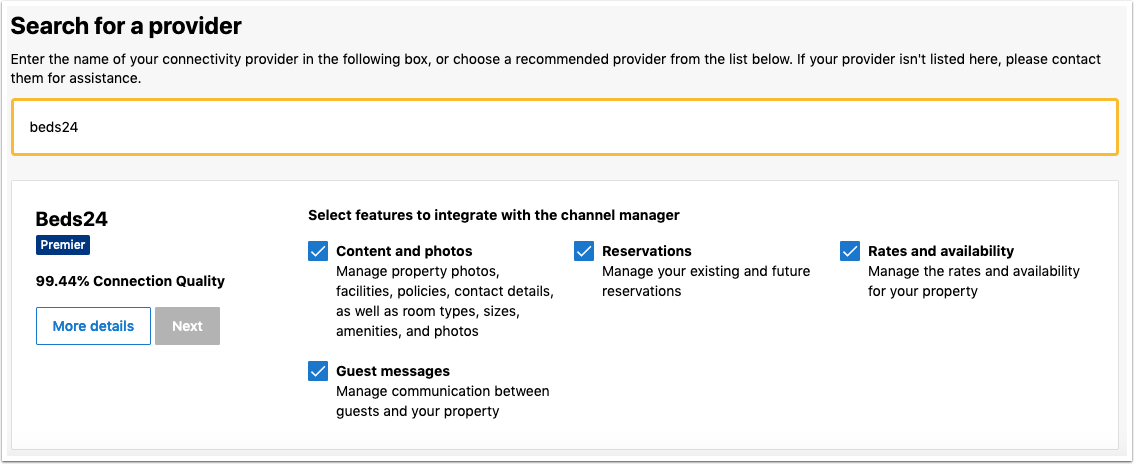
For a two-way connection you need to select both "Reservations" and "Rates and Availability". Beds24 can then export inventory to Booking.com and import bookings from Booking.com. If you select only "Reservations" or only "Rates and Availability" you only have a "one-way" connection meaning the action you did not select must be manually maintained by you.
Step 2: Enter your Booking.com property ID
- Copy your Booking.com hotel ID and paste it into the "Hotel Id " field
- Press SAVE
Step 3: Map your rooms
- Click on the "Get Codes" link next to the room id setting, a list of room Ids will be retrieved from Booking.com and displayed
- Choose the Booking.com room you want to map to the Beds24 room and click on it
- Check the correct room Id has been copied to the room id setting
- Press Save
Step 4: Map your Booking.com rate plans
1. If you have only one Booking.com rate plan
- Click on the "Get Codes" link next to the rate id setting and a list of rate Ids will be retrieved from Booking.com for the saved room id
- Choose the Booking.com rate plan and click on it
- Check the rate plan Id has been copied to the rate plan Id setting
- Press SAVE
2. If you have more than one Booking.com rate plan
- Click on the "Get Code" link next to the rate id setting and a list of rate Ids will be retrieved from Booking.com for the saved room id
- Choose the Booking.com standard rate plan
- Check the rate plan Id has been copied to the rate plan Id setting
- Press Save
- Open the prices (PRICES > Daily Prices/Fixed Prices) which you want to send your other Booking.com rate plans
- Click on "Get Codes" and choose the Booking.com rate plan you want to update with this price
- Check the rate plan Id has been copied to the rate plan Id setting
- Press SAVE
Step 5: Enable rooms
- Scroll down to the rooms and set "Enable" = Enabled
- If you have multiple room types repeat for each room
- Press SAVE
Step 6: Set a multiplier to mark your prices up or down or for currency conversion (optional)
You can add a multiplier to your prices, add a * followed by the multiplier number in the "Multiplier" field
Examples:
- *1.23 will multiply all prices by 1.23 (i.e. raised by 23%).
- Lower prices can be sent with a multiplier less than 1: *0.85 will send 85% of the normal price (i.e. lowered by 15%).
- To convert the price of bookings imported from the channel add a * AFTER the multiplier. *1.23* will divide the price of the booking by 1.23.
- For currency conversion you can also use currency conversion template variables. All currencies supported by the booking page currency selector can be used.
- *[CONVERT:IDR-EUR] will convert Indonesian Rupees to Euros.
- *[CONVERT:IDR-EUR]* will convert Indonesian Rupees to Euros and back to Indonesian Rupees on the import.
Step 7: Import upcoming bookings
- Click on the "Import Existing Bookings" button to import upcoming bookings from Booking.com. We can then import 10 bookings. Repeat if you have more
- If you have bookings from Airbnb and/or Expedia you can import them directly from the channel as well
- If you have bookings from other sources you can add these manually in the Calendar, via the "Add booking" button at the top or import them from a .csv file in (SETTINGS) > PROPERTIES
- If you want to close additional dates or limit check-in and/or check-out you can use the "Override" function in the Calendar
Step 8: Check what will send to Booking.com
- Click on the "Price Data" Button to check which prices and availability will send.
- If you have multiple room types repeat for each room.
Step 9: Activate the connection
When you activate the connection Booking.com will remove your prices and availability from their system and replace them with the prices and availability sent from the channel manager.
You can activate the connection when your mapping and prices are correct and you have added all upcoming bookings.
- Press "Activate Connection" and then "Activate Connection Now".
Then you can import booking details to update the booking summary information.
- Click 'Import Existing bookings' button and check the booking details have been updated.
Then you can send the latest prices and availability to Booking.com
- Click 'Update' button and check the prices and availability have been updated.
Beds24 will automatically reopen rooms when you have availability. If you have Auto-Replenishment enabled, Booking.com will not wait for the update sent from Beds24 but will automatically re-open the closed room when a guest cancels even if you have a booking from another source. You can opt-out of the feature by following these steps:
- Log into your Booking.com account
- Click on the Rates & Availability tab
- Go to the Settings symbol on the top-right corner of your Calendar
- Click on Auto-Replenishment
- Under Calendar Settings, click "No" to turn off the Auto-Replenishment feature
Click "Refresh" for the Connection Status to check the status of your property at Booking.coms end.
If you are receiving error messages check in the "Common Errors" section why you are receiving the error and how to fix it.
The connection is working if and your property is selling if
- you do not receive any erros
- you see Connection Status: XML Active and Hotel Status: Open / bookable
- you are not receiving error messages
- the display in the channel is correct. The new button "View at Booking.com" will open your listing on Booking.com
This is what the different status values mean:
- Ready to Open: The property has been reviewed by Booking.com, and is ready to open. Open the property in your Booking.com extranet or go to (SETTINGS) CHANNEL MANAGER > BOOKING.COM > SYNC CONTENT and click on "Open property".
- Open/Bookable: The property is open and live on Booking.com. It is ready to receive reservations.
- Autoclosed: Availability: The property has no availability and has been closed. Go to (SETTINGS) CHANNEL MANAGER->BOOKING.COM > MAPPING, click on "Price Data" to check which prices and availability will send. If required adjust your prices and inventory.
- Duplicate: This property has been found to be a duplicate of another property.
- XML: Closed: The property has been closed. Open the property in your Booking.com extranet or go to (SETTINGS) CHANNEL MANAGER > BOOKING.COM > SYNC CONTENT and click on "Open property".
- Closed:The property is closed and no longer bookable on Booking.com. Check your Booking.com extranet for further information.
After the connection is activated
Same-day cut-off/advance hours, contact the Booking.com support team and request they update the value in your property. This can no longer be changed after the connection is activated.
Communication with guests
You can communicate with Booking.com guest directly from Beds24.
You can view all messages which Booking.com makes available from the "API Messages" component on the DASHBOARD and individual communication from the "Messages" tab in the booking.
You and your guests will see the messages in Booking.com Messaging Center.
Currently messaging with guests from Booking.com has following limitations:
- Guests must click on "View Messages" in the email to login to Booking.com and answer from there.
- If a guest hits "reply" on E-mail they received from Booking.com, Booking.com does not send the reply to Beds24 and will also not make the reply available in Booking.com.
- Booking.com does not allow links in messages. Use attachments instead.
Properties can send messages to guests within the following time frames:
- From the time of booking until 7 days after the guest checkout.
- From the time of booking until 7 days after the booking is cancelled.
- If the guest messages about the booking, the property gets an additional 14-day window to reply to the guest irrespective of when the booking was cancelled or when the guest checked out.
- Currently, guests can send messages to properties from the time of booking until 66 days after the checkout.
To use this function
- Add the component "API Messages" to your DASHBOARD
- To send Auto Action Emails via messaging set "Send Message" on the "Messaging" tab in the Auto Action to one of the API options.
- Bookings need to be in a Property that is connected to Booking.com to use the Message API, otherwise communication will be via Email. If you are not sure your connection has Message API, please log into Booking.com and and go to ACCOUNT > CONNECTIVITY PROVIDER. Disconnect from Beds24 and reconnect this time ticking all tick boxes as shown here: https://wiki.beds24.com/images/6/69/Extranet-booking.png
Booking.com allows .jpg and .png attachments but no links or pdfs.
Manage bookings
Credit cards, charging virtual credit cards & payments
Credit card details are imported and shown on the "INVOICE" tab of the booking. If not please refer to "Missing credit card details" in "Troubleshooting" section below.
Bookings with payments collected by Booking.com will show the payment amount collected as a payment in the "Invoice" tab of the booking. You can now access the current live payout value at Booking.com directly from Beds24. To see the latest information open the booking and go to "Details".
- For bank transfers from Booking.com you will see amount and when its due
- For Booking.com virtual card you will see the the current amount on the card and when the card becomes active
Charge virtual cards automatically
Virtual cards can be set to be auto charged at the date they become valid. To use this option set "Auto Process Virtual Cards" = Yes
For Booking.com virtual cards you can set to adjust the charge automatically to the full amount available on the card at the time it is charged. To do so create a rule with these settings and specify it in the booking.com "Virtual Card Payment Rule" setting:
- Funds Source: Virtual Card
- Payment value adjustment = choose any except for "None"
A payment rule can be specified to be attached to the pending payment, the payment rule can further manage the conditions to collect the payment, for example it could specify to use virtual cards only and not a guest card. Click here for more details
Charge virtual cards manually
If you manually charge virtual credit cards please note that they can only be charged after the activation date.
Report No-shows, invalid cards, date changes guest misconduct, request cancellations or restrict channel modifications
You will see buttons in the "Details" tab of the bookings which allow you to
- Report No-shows
- Report invalid cards
- Report date changes
- Report guest misconduct
- Request the booking to be cancelled
If you do not want to allow channel modifications by default you can change the setting for "Allow Channel Modifications" value" in (SETTINGS) CHANNEL MANAGER.
Info Codes for relevant information
Info Codes in the "Info" tab of the booking show you relevant information about the booking and the guest.
| Code | Use |
|---|---|
| BOOKINGCOMCARD | invalid card reported to Booking.com |
| BOOKINGCOMFLAG | Booking.com general info flag (Genius/no credit card) |
| BOOKINGCOMVIRTCARD | Booking.com sent a virtual card |
| BOOKINGCOMBANKTRANS | booking paid via bank transfer from Booking.com |
| CARDTOSTRIPE | card details were sent to Stripe |
| STRIPEPAYMENT | payment imported from Stripe |
| STRIPEFAIL | card could not send to Stripe |
| CARDEXPIRES | added when the card expires before check-in |
VAT value on extra items
If an extra item name in the booking matches the name of an upsell item for the property, the VAT value of the upsell item will be used. Otherwise, the VAT value defined in the Property booking rules will be used.
Different invoice templates
If you need a different invoice template for the bookings from this channel you can use the invoicee function.
Reviews
To access Booking.com reviews from your DASHBOARD unlock the DASHBORAD click on the hamburger menu then on "Extentions" and add the Booking.com Review Module.
Create and manage Booking.com promotions
Promotions can be created, modified and deactivated in (SETTINGS) CHANNEL MANAGER > BOOKING-COM >PROMOTIONS.
Click here for more information and setup instructions.
Manage or add Booking.com Rate Plans
To manage your rate plans go to (SETTINGS) CHANNEL MANAGER > BOOKING.COM > RATE PLANS. If you want to offer multiple price options for example a non-refundable rate or your rate plan contains meals you can also create additional rate plans.
Limit the maximum number accepted bookings if you do not want to offer all rooms
By default, all available rooms are sent to activated channels. In (SETTINGS) CHANNEL MANAGER > CHANNEL INVENTORY limit the number of accepted bookings for this channel.
Troubleshooting
Common issues
Each Booking.com room id is unique and can be mapped to only one room in Beds24. If you enter the same Booking.com room id more than once the room updates will overwrite each other causing inaccurate information being sent to Booking.com which will cause overbookings.
During the Setup of your connection, click on 'Get the Booking.com Room and Rate Codes for this "Property Code"'
You will see the list of Rooms/Rate codes returned from Booking.com. If Booking.com does not make any rooms available. If you are sure you have rooms please forward the RUID to Booking.com support and ask them to check why they do not return any rooms.
The channel manager will close the room on all dates which do not have a valid price available for sending to Booking.com. Make sure you have prices for the complete range of dates you are sending (1 year or 2 years).
Ensure you do not have any special characters in the message text that could fail the Booking.com Security checks. (For example do not use * or @ in the message text).
When Booking.com sends the credit card number it will be available in the "Payments and Charges" tab of the booking unless it has been stored in a third party system such as Stripe. The encoded CVC number is available from the booking notification email sent to the host as the line labelled Security Code. Enter the Security Code value from the email into the booking to view the CVC.
- If there is no Security Code item in the host notification email, the CVC was not collected or sent for this booking. Booking.com may sometimes withhold the credit card number or CCV unless you specifically request they are sent to you. Contact your Booking.com rep if this is occurring and you require this information.
- If credit card details are always missing and you require them, please ask Booking.com to collect and send credit card details to Beds24
- If Booking.com normally sends credit card details but did not do so for a specific booking and you always want a card as security, please ask Booking.com to exclusively accept bookings with a credit card number.
If you need to close a rate at Booking.com, make the rate id unbookable at Beds24, for example by closing the room or removing the price and wait for it to update at Booking.com. Only once the rate has closed at Booking.com it is safe to remove it from Beds24.
You can close a rate at booking.com by making sure there is no price for it on the dates to close in Beds24. As long as the rate has at least a price for 1 day in the next year, all the other dates without prices will be closed.
If you have multiple rates at booking.com, the other rates can continue to be available by giving them prices.
Note that if there is no price on any day at all for a rate, this will not necessarily close the rate, in this case no information will be sent and whatever data is in Booking.com will remain. Tip Click on the "View Price Data" Button to check which prices and availability will send.
Check the Rate Description field in the Charges & Payments tab of the booking. If 'rewritten' is in the text, this confirms there was a 'Linked' rate plan or Promotion used at Booking.com to make the booking.
If you have 'Linked' rate plans, you will need to setup prices in Beds24 with the rules and map to the Booking.com rate plans.
Go to Booking.com Extranet, go to Rates & Availability and click 'Edit' on the Rate id identified in the error message, then 'Edit' the Price, and select 'Setup as a new rate plan'. Click Save. View the details in this short video :- https://screenpal.com/watch/c0lV6CVmFNd
Then go to Prices > and setup Daily/Fixed prices and ensure you MAP the Booking.com Rate Plan code 'Get codes' to the price.
Booking.com did not check the inventory when the guest made the date modification.
You can set the rule in Booking.com Extranet, Modification and Cancellation exceptions. Set the rules you require for your property.
Error messages
Any errors reported by Booking.com will be emailed to you with the error message as returned by Booking.com. The error message usually includes information about the date, rate or room with the problem and a brief description. Below are common error messages and how to fix them.
Check if you have received a notification from Booking.com that the connection is ready.
- If not please check in the Booking.com extranet that the connection has been requested.
- If yes please check the Booking.com hotel id you have entered is correct and does not have blank spaces.
- Click on "Connection Status" to check that the connection is properly activated.
Send us a Support Ticket, so we can correct your pricing model.
Booking.com does not allow you to send a single price with Pricing Model = Standard or RLO. Go to (SETTINGS) > BOOKING.COM > MAPPING and set "Booking.com Pricing Model"= Per Day Pricing
If you want to send occupancy pricing to Booking.com, then send a Support ticket and ask the Beds24 team to update your Booking.com Pricing model to OBP.
Check that "Max guests" set in (SETTINGS) PROPERTIES > ROOMS > SETUP is the same as the occupancy you have set for the room in your Booking.com extranet.
Booking.com considers the price you want to send varies significantly from the prices which are already in Booking.com, or if it’s outside the accepted threshold – the minimum being €5 and the maximum being €50,000 (or the equivalent in the local currency).
Either adjust your price in Beds24 or try to change the limitation at Booking.com
Booking.com have not activated a single occupancy price for the room. Either ask Booking.com to allow a single price (set up a "Single" rate id) or set "Booking.com Rate Type" = Per Day Pricing
If it is a dorm: Booking.com requires the bed price be sent to them as the room price. Therefore they do not accept a single price for a dorm. Set "Booking.com Rate Type" = Per Day Pricing and make sure to set your prices in all rates as a room price (and not as a single price).
You do not have an active Booking.com rate id with this number. You can only update Booking.com Rate Plans which show when you click on 'Get codes'.
- Go to Prices > Channel Mapping enter the code from the error message Search box and click on the price and and select and ID which you see when you click 'Get codes'.
- Please double check your Fixed prices and Daily prices and select a valid Booking.com rate id from the list in 'get codes'. You can only send prices for active Booking.com rate codes.
You can only update rooms which show when you click on 'Get codes'. If you do have a room with this ID ask Booking.com to activate it. It is activated when you see it when you click on "Get Codes".
You cannot set occupancy_price for a child rate 123456789, since they are automatically set based on Rate Relations.
You cannot set closed_as_last_night for a child rate 123456789, since they are automatically set based on Rate Relations /message It is not possible to send prices for this rate plan as it is Derived/calculated from another Rate Plan by Booking.com.
- Option 1
- Go to Booking.com Extranet, go to Rates & Availability and click 'Edit' on the Rate id identified in the error message, then 'Edit' the Price, and select 'Setup as a new rate plan'. Click Save. View the details in this short video :- https://screenpal.com/watch/c0lV6CVmFNd
- Option 2
- Go to (SETTINGS) > BOOKING.COM > MAPPING and select a valid Rate Plan id from the 'get codes' list.
- Go to Prices > Channel Mapping enter the Rate id in the Search box and click on the Daily Price/Rate and make sure the correct booking.com rate id is selected from the 'get codes' list.
- Go to Prices > Channel Mapping enter the Rate id in the Search box and click on the Daily Price/Rate untick Booking.com and remove the Rate plan id.
You are trying to update a non-XML rate. Log into your Booking.com extranet remove the rate.
The booking was already cancelled in Booking.com before the Channel synchronisation.
There are two possible reasons:
1. The Booking.com connection for the property does not allow the use of the messaging API.
Please log into Booking.com and and go to ACCOUNT > CONNECTIVITY PROVIDER. Disconnect from Beds24 and reconnect this time ticking all tick boxes as shown here: https://wiki.beds24.com/images/6/69/Extranet-booking.png
2. You have assigned or moved the booking into a room that is in a different property than originally booked. If you want to use messaging with Booking.com you can move/assign booking only to rooms in the same property as the one originally booked.
Ensure you do not have any special characters in the message text that could fail the Booking.com Security checks. (For example do not use * or @ in the message text).
There are two possible reasons:
1. There is no content in the language of the Guest (OR the default language you have set for your account,) in the Messaging tab of the auto action that you triggered for this booking.
- Open the booking go to the Mail & Action tab and check the guest language.
- Open the auto action and ensure you have text in the Subject, Plain Text Field and HTML Field.
2. Auto action should not send a message to the guest, go to the Messaging tab in the Auto action and set 'Sending Message' = NO (or Internal)
Log into Booking.com and go to ACCOUNT > CONNECTIVITY PROVIDER. Disconnect from Beds24 and reconnect this time ticking all tick boxes as shown here: https://wiki.beds24.com/images/6/69/Extranet-booking.png
If you use dependencies you can only assign the bookings into a room in the same property as the room which is mapped to Booking.com.
Booking.com does not allow you to mark credit cards as invalid because you have not passed their trust verification process. Please contact your Booking.com Account Manager.
Booking.com incorrectly show this error in the Booking.com Extranet. There is no problem at all and you should ignore the rest of the text on the screen.
Room 12345678 has a maximum occupancy of 4. You cannot set an occupancy_price for an occupancy of 5 for rate 123456783
Check that "Max guests" set in (SETTINGS) PROPERTIES > ROOMS > SETUP is the same as the occupancy you have set for the room in your Booking.com extranet.
Disconnect
- Set 'Enable' to 'Disable' this will stop Beds24 sending data to Booking.com. This will not remove the data from Booking.com and it will still be bookable.
- To completely disconnect the channel manager please log into your Booking.com extranet and click on the Account icon in the top right-hand corner. Select Channel Manager from the drop-down menu. Click the Deactivate button to cancel the connection to Beds24.
FAQ
Beds24 can handle multiple properties in one account. You will need a property in Beds24 for each property you have on Booking.com so you can connect them so each Booking.com property ID or hotel ID requires one property in Beds24.
The system can handle multiple properties in one account. It doesn't matter whether the Booking.com properties are in different Booking.com accounts.
After you activate the channel manager the channel will stop sending notifications. You will receive an Email notification from Beds24 instead and you will also see new bookings on your dashboard provided you use the "Latest Bookings" module.
The channel confirms the booking with the guest. Beds24 will not sent an additional confirmation message to the guest. If you want to send an additional confirmation or welcome message for the guest you can set up an Auto Action Email.
You can request Booking.com to cancel the booking or report changed stay dates from the "Details" tab of the bookings.
Otherwise bookings coming from a channel should be modified by the channel. Just changing the status of a booking in Beds24 to "Cancelled" will not cancel the booking in Booking.com and can cause a double booking.
If for some reason you need to make a change in Beds24 and do not want an update from the channel to override it, you can set "Allow Channel Modifications" = No ("Details" tab of the booking"). If you have changed the room you can set "Allow Channel Modifications" = All except room changes. If you do this you will need to manage all changes manually.
This is how you can view credit card details. Booking.com may sometimes withhold the credit card number or CCV unless you specifically request they are sent to you. Contact Booking.com support if this is occurring and you require this information to always be sent.
You can set up promotions directly in Beds24 in (SETTINGS) CHANNEL MANAGER > BOOKING.COM > PROMOTIONS or in the Booking.com extranet.
Extras taxes and fees will not automatically send or update. Set/change these in your Booking.com Extranet unless you want to manage your full Booking.com content from Beds24.
- Changes to availability and prices will be instantly sent to the channel.
Yes. With "Occupancy Prices (OBP) Beds24 will send prices for each occupancy you have defined in your prices. If you have different prices for different minimum stays Beds24 will send these.
- Check if you are receiving error messages by email or in the potential issues menu. Error messages need to be addressed immediately because they can mean the channel manger is able to make updates.
- Entering the same Booking.com room code in multiple rooms in Beds24 can cause overbookings. Check your set up for warnings.
- If you have Auto-Replenishment enabled, Booking.com will not wait for the update sent from Beds24 but will automatically re-open the closed room when a guest cancels even if you have a booking from another source. You can opt-out of the feature by following these steps:
- Log into your Booking.com account
- Click on the Rates & Availability tab
- Go to the Settings symbol on the top-right corner of your Calendar
- Click on Auto-Replenishment
- Under Calendar Settings, click "No" to turn off the Auto-Replenishment feature
If you can not see a problem in your set up send us a support ticket with the booking numbers and dates.
- Check if the room for which you received the booking is properly mapped.
If you can not see a problem in your set up send us a support ticket with the booking number and the date the booking was made.
Possilbe reasons:
- Check if you have set up promotions or linked Prices in Booking.com. These will reduce the price the channel manager sent.
- Your prices are not set up as you expect.
To report a no show to Booking.com open the booking and click the button in the "Details" tab.
Invalid cards can be reported to Booking.com via a button on the "Details" tab of the booking.
If you use Stripe you can set in (SETTINGS) CHANNEL MANAGER to automatically report invalid cards to Booking.com.
You will need to disconnect your connection with Beds24 in the Booking.com extranet and then initiate the connection with two-way connection.