Deposit Collection: Difference between revisions
No edit summary |
|||
| (16 intermediate revisions by 2 users not shown) | |||
| Line 7: | Line 7: | ||
[[Category:Automation]] | [[Category:Automation]] | ||
<div class="heading">Payment Collection for Direct Online Bookings on the Booking page</div> | <div class="heading">Payment Collection for Direct Online Bookings on the Booking page</div> | ||
This page is about the menu {{#fas:cog}} (SETTINGS) > | This page is about the menu {{#fas:cog}} (SETTINGS) > BOOKING ENGINE and explains how to collect deposits or full payments for direct online bookings. | ||
__TOC__ | __TOC__ | ||
= | =Summary= | ||
When you require a payment the guest will not be able to complete the booking if they do not make a payment. You can choose which if bookings where guests did not complete the payments are considered "Cancelled" or "Requests". | <div class="summarybox"> | ||
When you require a '''payment for direct bookings from your booking page''', the guest will not be able to complete the booking if they do not make a payment. You can choose which if bookings where guests did not complete the payments are considered "Cancelled" or "Requests". | |||
To use this options you need a account with the payment gateway you want to use and connect it to Beds24. Payments will be made directly into your account with the gateway through which the guest makes the payment. Beds24 will be notified about the payment and the payment amount will be added to the "Charges and Payments" tab of the booking. | To use this options you '''need a account with the payment gateway you want to use and connect it to Beds24'''. Payments will be made directly into your account with the gateway through which the guest makes the payment. Beds24 will be notified about the payment and the payment amount will be added to the "Charges and Payments" tab of the booking. | ||
If you offer guests to pay via bank transfer or cheque you can provide instructions on how to do this using "Offline Payments". The guest will then need to confirm that they will make the payment to finish the booking. For offline payments you will need to enter the payment manually into the "Charges and Payments" tab and adjust the status of the booking manually if required. | If you offer guests to pay via bank transfer or cheque you can provide instructions on how to do this using "Offline Payments". The guest will then need to confirm that they will make the payment to finish the booking. For offline payments you will need to enter the payment manually into the "Charges and Payments" tab and adjust the status of the booking manually if required. | ||
</div> | |||
=Setup= | =Setup= | ||
'''Step 1: Acitvate Deposit Collection''' | '''Step 1: Acitvate Deposit Collection''' | ||
1. Go to {{#fas:cog}} (SETTINGS) | 1. Go to {{#fas:cog}} (SETTINGS) BOOKING ENGINE | ||
*Select the "Non Payment Booking Status". | *Select the "Non Payment Booking Status". | ||
**'''Request''': When the guest clicks "Confirm Booking" the room gets reserved for the guest and will not be available for other guests to book. When they make a successful payment the status of the booking will automatically change to confirmed. If the payment is aborted or not successful the status of the room will still be blocked with the request status. You will then either need to change the status manually to cancelled or use an auto action to automatically change the status of Request bookings to Cancelled after a preset time. Auto Actions can be set up in {{#fas:cog}} (SETTINGS) > GUEST MANAGEMENT > AUTO ACTIONS. | **'''Request''': When the guest clicks "Confirm Booking" the room gets reserved for the guest and will not be available for other guests to book. When they make a successful payment the status of the booking will automatically change to confirmed. If the payment is aborted or not successful the status of the room will still be blocked with the request status. You will then either need to change the status manually to cancelled or use an auto action to automatically change the status of Request bookings to Cancelled after a preset time. Auto Actions can be set up in {{#fas:cog}} (SETTINGS) > GUEST MANAGEMENT > AUTO ACTIONS. | ||
NOTE : {{#fas:cog}} (SETTINGS) BOOKING ENGINE "Request Bookings" - Do not block the room - this has been depreciated with the introduction of Inquiry status. | |||
**'''Inquiry''': When the guest clicks "Confirm Booking" the booking is entered in to the calendar, but will not block the room. The dates will be available for other guests to book. When they make a successful payment the status of the booking will automatically change to confirmed. If the payment is aborted or not successful the room will not be blocked. You will then either need to change the status manually to cancelled or use an auto action to automatically change the status of Request bookings to Cancelled after a preset time. Auto Actions can be set up in {{#fas:cog}} (SETTINGS) > GUEST MANAGEMENT > AUTO ACTIONS. | |||
**'''Cancelled''': When the guest clicks "Confirm Booking" the room will not be reserved until the payment has completed. Other guests can still book the room until a successful payment has been made leaving a small risk of double bookings. | **'''Cancelled''': When the guest clicks "Confirm Booking" the room will not be reserved until the payment has completed. Other guests can still book the room until a successful payment has been made leaving a small risk of double bookings. | ||
| Line 31: | Line 32: | ||
*The currency used by will be the currency you have set in the {{#fas:cog}} (SETTINGS) PROPERTIES > DESCRIPTION''' currency to receive payments setting. | *The currency used by will be the currency you have set in the {{#fas:cog}} (SETTINGS) PROPERTIES > DESCRIPTION''' currency to receive payments setting. | ||
[[ | |||
[[Image:DBpaymentOCT.jpg|500px|link=]] | |||
[[Media:DBpaymentOCT.jpg|view large]] | |||
| Line 62: | Line 65: | ||
'''Step 4: Adjust your booking rule''' | '''Step 4: Adjust your booking rule''' | ||
*Go to {{#fas:cog}} (SETTINGS) | *Go to {{#fas:cog}} (SETTINGS) > BOOKING ENGINE | ||
*Set "Booking Type" to either the Deposit Collection 1 or Deposit Collection 2. | *Set "Booking Type" to either the Deposit Collection 1 or Deposit Collection 2. | ||
| Line 71: | Line 74: | ||
This allows you for example to take a different deposit in high and low season or for normal and last minute bookings. | This allows you for example to take a different deposit in high and low season or for normal and last minute bookings. | ||
[[ | |||
[[Image:BookingTypes.jpg|500px|link=]] | |||
[[Media:BookingTypes.jpg|view large]] | |||
<span style="color:#fe746c;“ >{{#fas:exclamation-triangle}} </span> The booking rules for Fixed Prices will override rules for rooms and booking rules for offers will override property booking rules. | <span style="color:#fe746c;“ >{{#fas:exclamation-triangle}} </span> The booking rules for Fixed Prices will override rules for rooms and booking rules for offers will override property booking rules. | ||
Latest revision as of 08:29, 2 October 2025
This page is about the menu (SETTINGS) > BOOKING ENGINE and explains how to collect deposits or full payments for direct online bookings.
Summary
When you require a payment for direct bookings from your booking page, the guest will not be able to complete the booking if they do not make a payment. You can choose which if bookings where guests did not complete the payments are considered "Cancelled" or "Requests".
To use this options you need a account with the payment gateway you want to use and connect it to Beds24. Payments will be made directly into your account with the gateway through which the guest makes the payment. Beds24 will be notified about the payment and the payment amount will be added to the "Charges and Payments" tab of the booking.
If you offer guests to pay via bank transfer or cheque you can provide instructions on how to do this using "Offline Payments". The guest will then need to confirm that they will make the payment to finish the booking. For offline payments you will need to enter the payment manually into the "Charges and Payments" tab and adjust the status of the booking manually if required.
Setup
Step 1: Acitvate Deposit Collection
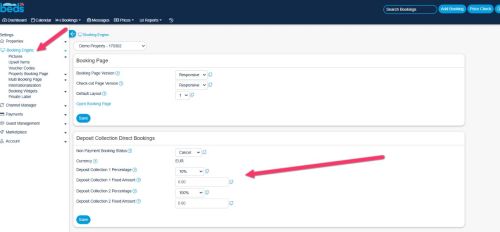
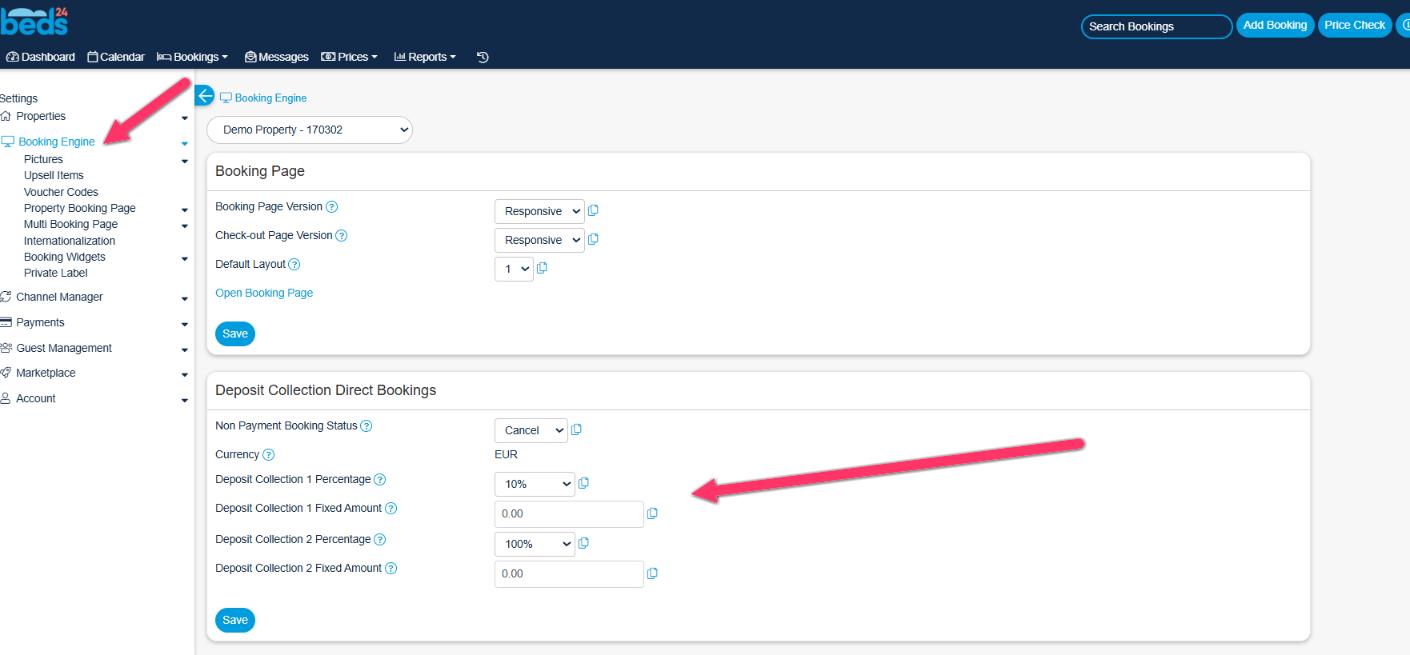
1. Go to (SETTINGS) BOOKING ENGINE
- Select the "Non Payment Booking Status".
- Request: When the guest clicks "Confirm Booking" the room gets reserved for the guest and will not be available for other guests to book. When they make a successful payment the status of the booking will automatically change to confirmed. If the payment is aborted or not successful the status of the room will still be blocked with the request status. You will then either need to change the status manually to cancelled or use an auto action to automatically change the status of Request bookings to Cancelled after a preset time. Auto Actions can be set up in (SETTINGS) > GUEST MANAGEMENT > AUTO ACTIONS.
NOTE : (SETTINGS) BOOKING ENGINE "Request Bookings" - Do not block the room - this has been depreciated with the introduction of Inquiry status.
- Inquiry: When the guest clicks "Confirm Booking" the booking is entered in to the calendar, but will not block the room. The dates will be available for other guests to book. When they make a successful payment the status of the booking will automatically change to confirmed. If the payment is aborted or not successful the room will not be blocked. You will then either need to change the status manually to cancelled or use an auto action to automatically change the status of Request bookings to Cancelled after a preset time. Auto Actions can be set up in (SETTINGS) > GUEST MANAGEMENT > AUTO ACTIONS.
- Cancelled: When the guest clicks "Confirm Booking" the room will not be reserved until the payment has completed. Other guests can still book the room until a successful payment has been made leaving a small risk of double bookings.
- Set the required amount. It can be a fixed amount, a percentage of the total or the value of the first nights accommodation.
- The currency used by will be the currency you have set in the (SETTINGS) PROPERTIES > DESCRIPTION currency to receive payments setting.
Step 2: Add payment instructions or information for your guests
To add general information to the header section of the payment screen click on "Deposit Collection Header" and enter the information there.
The "Payment Header" will be included on Payment screen shown to the guest. HTML commands can be used to add style and format to your message. Template Variables can be used to personalise the page.
To add a logo to your payment collection page, you need to upload your logo as a picture first.
- Go to (SETTINGS) BOOKING ENGINE > PICTURES and choose your file and import.
- Scroll to the picture and click 'Manage' and copy the URL.
- Go to (SETTINGS) > PAYMENTS > PAYMENT COLLECTION "Payment Header"
- Click 'Edit', then find the 'Image' icon and paste the url into the URL box and add a description if necessary, resize as required, click OK. Use the other features to position the image as you required (centre, left, right).
- Click Save.
The "Payment Request Header" and "Payment Request Confirmation" will be shown to the guest if you send Payment Request links after the booking has been made.
Use this instruction to create payment requests.
Step 3: Enable one or more payment gateways or options.
- Go to ( (SETTINGS) PAYMENTS > PAYMENT GATEWAYS > STRIPE/PAYPAL.... and enter the required account information to connect your payment system to your account. If you want to offer your guests a choice between different options you can select in which order the options display.
To override the default title which the guest sees enter your custom text in the "Title" field.
- In "Instruction" you can enter a custom information to display under the payment button.
For detailed instruction for each gateway/method please use the context help and click on help in the top right of the gateway menu page.
Use ( (SETTINGS) PAYMENTS > PAYMENT GATEWAYS > CREDIT CARD COLLECTION only if you want to collect credit card details only without charging them.
Step 4: Adjust your booking rule
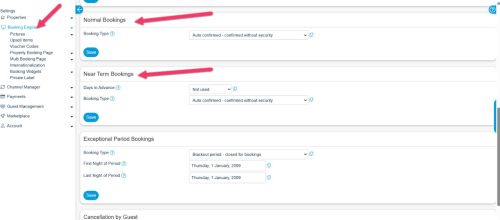
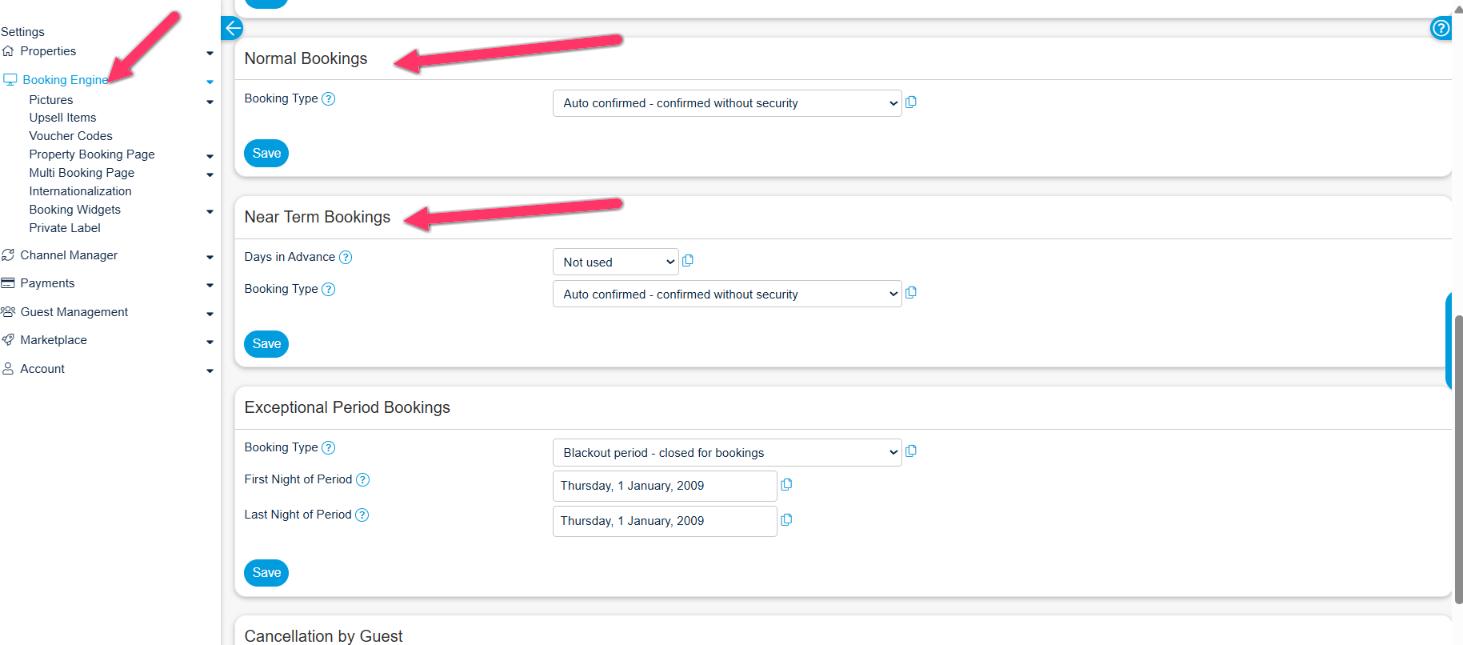
- Go to (SETTINGS) > BOOKING ENGINE
- Set "Booking Type" to either the Deposit Collection 1 or Deposit Collection 2.
Each of Deposit Collection 1 and Deposit Collection 2 can collect different deposit amounts.
Individual rules can be set for Normal, Near term and Exceptional period bookings. Individual rules can also be set directly within offers or Fixed Prices.
This allows you for example to take a different deposit in high and low season or for normal and last minute bookings.
The booking rules for Fixed Prices will override rules for rooms and booking rules for offers will override property booking rules.