Travelokacom: Difference between revisions
Markkinchin (talk | contribs) Created page with "Coming Soon" |
No edit summary |
||
| Line 1: | Line 1: | ||
Coming | [[Category:Channel Manager]] | ||
[[Category:Error Messages from Channels]] | |||
[[Category:Set up Instructions]] | |||
''Synchronising Beds24.com with Traveloka | |||
Coming soon! Send us a support ticket if you want to use this connection. | |||
===General=== | |||
*[[:Category:Channel Manager|Click here]] for general information on how the channel manager works. | |||
*This tutorial explains how to [[Setting_Prices_for_Booking_Channels|set prices for channels]]. | |||
=== Capabilities === | |||
*Beds24.com can export inventory. | |||
*Beds24.com can export multiple rates. | |||
*Beds24.com can import bookings. | |||
*Beds24.com can import booking cancellations. | |||
*Beds24.com can import booking modifications. | |||
*Importing modifications and cancellations can be disabled for individual bookings. | |||
For details please [[Channel_Manager_Capabilities|click here]] | |||
=== Limitations === | |||
*Only bookings made after the connection is established will be imported, existing bookings must be manually entered into Beds24 to block the dates. | |||
*Only mapped rates can be updated. | |||
=== What you will need === | |||
*Your Traveloka hotel id | |||
=== Set Up=== | |||
====Traveloka==== | |||
You request a connection with Beds24 channel manager from your Traveloka market manager. If you do not know who your Traveloka market manager is contact [email protected] and cc [email protected] instead. After Traveloka has set the connection up you can start setting it up in Beds24. | |||
====Beds24==== | |||
*Enter your Traveloka hotel id | |||
*Set the currency. If you are using different currencies on Traveloka and on Beds24 you can use the price multiplier (see below) | |||
*Choose the Payment Collect method. This defines weather Traveloka collect the payment from the guest or the guest pays a the hotel. | |||
*Set weather breakfast is included in the price or not. | |||
'''Mapping''' | |||
<embedvideo service="youtube">https://youtu.be/-SbeMMSk8wc</embedvideo> | |||
Map Rooms: | |||
*Click on the "Get Code" link next to the room type id setting. | |||
*Choose the Agoda room id you want to map to each Beds24 room and click on it. | |||
*When the correct room id has copied to the room type id setting, click Save. | |||
[[Image:agoda_room_mapping.png|500px|link=]] | |||
[[Media:agoda_room_mapping.png|view large]] | |||
Map Rates: | |||
It is important to map all rate codes for the room. Unmapped rate codes can not be updated an can cause the room to remain open at Traveloka. | |||
*Click on the "Get Code" link next to the rate code setting. | |||
*Choose the Traveloka standard rate for this room and click on it | |||
*Click SAVE when the correct rate code has copied to the rate plan code setting. | |||
A price for Single (1 guest), Double (2 guests) and a room price (for the number of guests you have defined in the rate ) can be sent. If you have more than 3 occupancy levels you can set up additional rates in Beds24 for each occupancy level using and map map them in the channel settings of the rate or the daily price. | |||
*If you use daily prices you can set the rate code under "Enable" in the Daily Price settings (SETTINGS- >PROPERTIES- >ROOMS- >DAILY PRICES then click on "Edit) | |||
*If you use rates go to the "Channels" tab of the rate. | |||
==Multiple Rates at Traveloka== | |||
Traveloka can set up multiple rate codes for each room, each with pre-defined booking conditions. Beds24 can map a different Beds24 or daily price to each Traveloka code. [[Setting_Prices_for_Booking_Channels#Mapping_channel_rate_codes|Please use these instructions]]. | |||
If you do not want to send prices for each of your rate plan codes you can enter them all in the rate plan code field for each room, separated by a semicolon ; | |||
Like this: 123456;123457;123458;123459 | |||
'''Payment collection''' | |||
== Activate == | |||
*Tick "Inventory", "Prices" and "Bookings" | |||
*Save | |||
[[Image:Agoda_activation.png|500px|link=]] | |||
[[Media:Agoda_ativation.png|view large]] | |||
===Bookings=== | |||
New Bookings are imported. Cancellations to bookings are also imported. | |||
Existing bookings are not automatically imported when the connection is established and should be entered into Beds24 manually. | |||
=== Price Multiplier === | |||
If you want to add a multiplier to your prices, for example because of a different currency to your Beds24 currency, add a * followed by the multiplier number to your hotel id. | |||
For example a hotel id setting 123456*12.34 will multiply all prices by 12.34 sent for hotel id 123456. | |||
You can also use currency conversion template variable. All currencies supported by the booking page currency selector can be used. | |||
For example *[CONVERT:IDR-EUR] will convert Indonesian Rupees to Euros. | |||
== Notes == | |||
Channel collect payments will be shown in the booking invoice if SETTINGS->CHANNEL MANAGER -> “Import Channel Collect Payments” is set to “Yes”. | |||
==Common Errors== | |||
Any errors occurring during updates will be emailed to you with the error message as returned by Traveloka. Below are common error messages and how to fix them. | |||
==Disconnect== | |||
*Unticking "Inventory" and "Prices" and "Bookings" will stop the synchronisation for a room. | |||
*To completely disconnect the channel manager you might need to contact Traveloka and ask them to disconnect you. | |||
Revision as of 16:20, 23 October 2017
Synchronising Beds24.com with Traveloka
Coming soon! Send us a support ticket if you want to use this connection.
General
- Click here for general information on how the channel manager works.
- This tutorial explains how to set prices for channels.
Capabilities
- Beds24.com can export inventory.
- Beds24.com can export multiple rates.
- Beds24.com can import bookings.
- Beds24.com can import booking cancellations.
- Beds24.com can import booking modifications.
- Importing modifications and cancellations can be disabled for individual bookings.
For details please click here
Limitations
- Only bookings made after the connection is established will be imported, existing bookings must be manually entered into Beds24 to block the dates.
- Only mapped rates can be updated.
What you will need
- Your Traveloka hotel id
Set Up
Traveloka
You request a connection with Beds24 channel manager from your Traveloka market manager. If you do not know who your Traveloka market manager is contact [email protected] and cc [email protected] instead. After Traveloka has set the connection up you can start setting it up in Beds24.
Beds24
- Enter your Traveloka hotel id
- Set the currency. If you are using different currencies on Traveloka and on Beds24 you can use the price multiplier (see below)
- Choose the Payment Collect method. This defines weather Traveloka collect the payment from the guest or the guest pays a the hotel.
- Set weather breakfast is included in the price or not.
Mapping
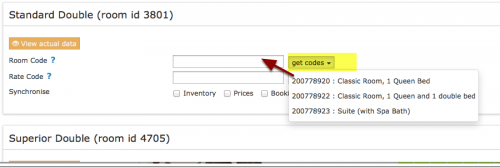
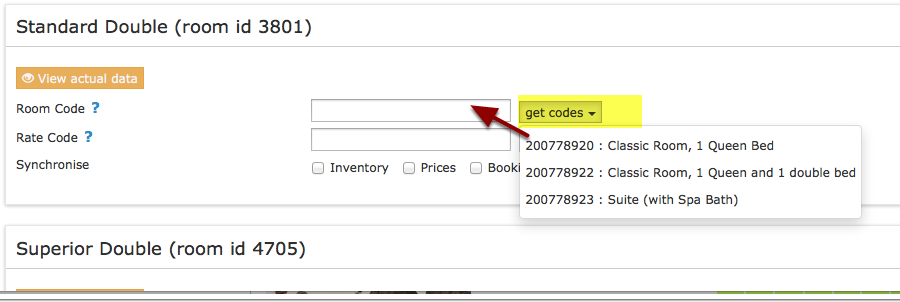
Map Rooms:
- Click on the "Get Code" link next to the room type id setting.
- Choose the Agoda room id you want to map to each Beds24 room and click on it.
- When the correct room id has copied to the room type id setting, click Save.
Map Rates:
It is important to map all rate codes for the room. Unmapped rate codes can not be updated an can cause the room to remain open at Traveloka.
- Click on the "Get Code" link next to the rate code setting.
- Choose the Traveloka standard rate for this room and click on it
- Click SAVE when the correct rate code has copied to the rate plan code setting.
A price for Single (1 guest), Double (2 guests) and a room price (for the number of guests you have defined in the rate ) can be sent. If you have more than 3 occupancy levels you can set up additional rates in Beds24 for each occupancy level using and map map them in the channel settings of the rate or the daily price.
- If you use daily prices you can set the rate code under "Enable" in the Daily Price settings (SETTINGS- >PROPERTIES- >ROOMS- >DAILY PRICES then click on "Edit)
- If you use rates go to the "Channels" tab of the rate.
Multiple Rates at Traveloka
Traveloka can set up multiple rate codes for each room, each with pre-defined booking conditions. Beds24 can map a different Beds24 or daily price to each Traveloka code. Please use these instructions.
If you do not want to send prices for each of your rate plan codes you can enter them all in the rate plan code field for each room, separated by a semicolon ;
Like this: 123456;123457;123458;123459
Payment collection
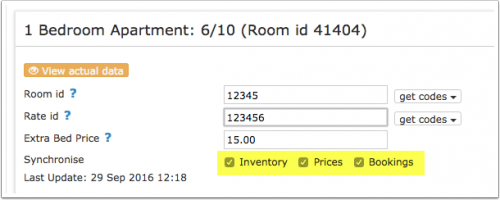
Activate
- Tick "Inventory", "Prices" and "Bookings"
- Save

Bookings
New Bookings are imported. Cancellations to bookings are also imported.
Existing bookings are not automatically imported when the connection is established and should be entered into Beds24 manually.
Price Multiplier
If you want to add a multiplier to your prices, for example because of a different currency to your Beds24 currency, add a * followed by the multiplier number to your hotel id.
For example a hotel id setting 123456*12.34 will multiply all prices by 12.34 sent for hotel id 123456.
You can also use currency conversion template variable. All currencies supported by the booking page currency selector can be used.
For example *[CONVERT:IDR-EUR] will convert Indonesian Rupees to Euros.
Notes
Channel collect payments will be shown in the booking invoice if SETTINGS->CHANNEL MANAGER -> “Import Channel Collect Payments” is set to “Yes”.
Common Errors
Any errors occurring during updates will be emailed to you with the error message as returned by Traveloka. Below are common error messages and how to fix them.
Disconnect
- Unticking "Inventory" and "Prices" and "Bookings" will stop the synchronisation for a room.
- To completely disconnect the channel manager you might need to contact Traveloka and ask them to disconnect you.