Category:Wordpress: Difference between revisions
No edit summary |
No edit summary |
||
| Line 11: | Line 11: | ||
==Embed your Booking Page == | ==Embed your Booking Page == | ||
Adjust the general setting for your booking page. You can further customize the booking page in Beds24 in SETTINGS->-BOOKING | Adjust the general setting for your booking page. You can further customize the booking page in Beds24 in SETTINGS->-BOOKING ENGINE | ||
[[Image:embed_1.png|450px|link=]] | [[Image:embed_1.png|450px|link=]] | ||
| Line 34: | Line 34: | ||
== Add Booking Widgets == | == Add Booking Widgets == | ||
Widgets are inserted via short codes. You can generate the short codes for one or multiple properties. To generate a short code for multiple properties set the selector for "Property" = All SETTING->BOOKING | Widgets are inserted via short codes. You can generate the short codes for one or multiple properties. To generate a short code for multiple properties set the selector for "Property" = All SETTING->BOOKING ENGINE->BOOKING WIDGETS. Copy the short code from there and paste it where you want to display the widget. | ||
===Booking Box, Booking Strip, Availability Calendar === | ===Booking Box, Booking Strip, Availability Calendar === | ||
Short Codes for Booking Box, Booking Strip, Availability Calendar are generated in the widget designer in the Beds24 control panel in SETTING->BOOKING | Short Codes for Booking Box, Booking Strip, Availability Calendar are generated in the widget designer in the Beds24 control panel in SETTING->BOOKING ENGINE->BOOKING WIDGETS. Copy the short code from there and paste it where you want to display the widget on your Wordpress page.. | ||
Generate the widget in SETTINGS->BOOKING | Generate the widget in SETTINGS->BOOKING ENGINE->BOOKING WIDGETS | ||
[[Image:Wordpresswidget_1.png|450px|link=]] | [[Image:Wordpresswidget_1.png|450px|link=]] | ||
| Line 51: | Line 51: | ||
If you want to allow guests to search by certain criteria: | If you want to allow guests to search by certain criteria: | ||
*first create the search criteria in SETTINGS -> BOOKING | *first create the search criteria in SETTINGS -> BOOKING ENGINE ->MULTIPLE PROPERTIES->SEARCH CRITERIA then go to SETTINGS -> BOOKING ENGINE->MULTIPLE PROPERTIES->PROPERTY SETTINGS and assign the applicable criteria to each property | ||
*Once you have set and assigned your search criteria you can go to SETTINGS-> BOOKING | *Once you have set and assigned your search criteria you can go to SETTINGS-> BOOKING ENGINE-> BOOKING WIDGETS. Set PROPERTY = ALL and design your widget, ensuring that you change "Search Filter" to show the search criteria in your booking widget. | ||
*Generate the code for the widget and paste it into the source code (Set the Wordpress editor to "Text") where you want to display the widget. | *Generate the code for the widget and paste it into the source code (Set the Wordpress editor to "Text") where you want to display the widget. | ||
Revision as of 18:44, 23 January 2020
This page explains how to install and customise the Wordpress plugin.
The Wordpress Plugin allows you to add an embedded booking page and/or booking widgets via short codes.
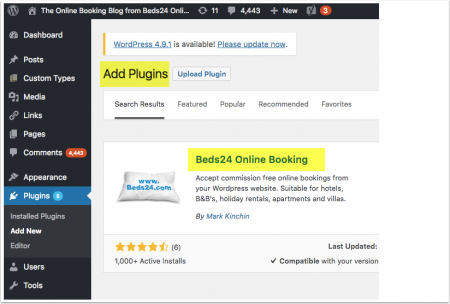
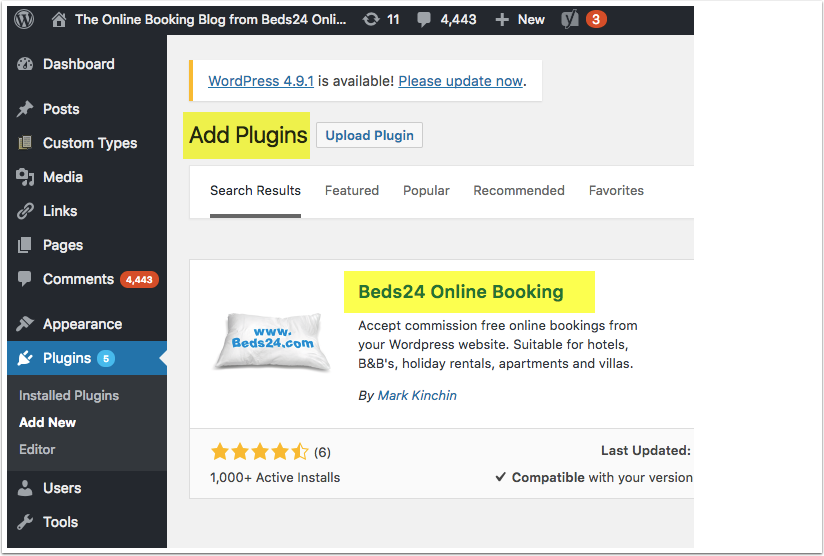
Install the Plugin
Add and activate the plugin
Embed your Booking Page
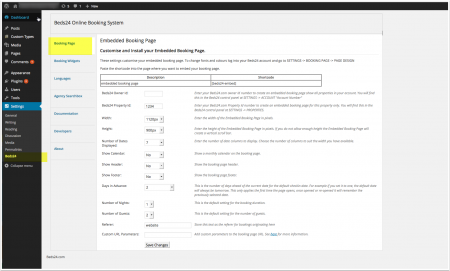
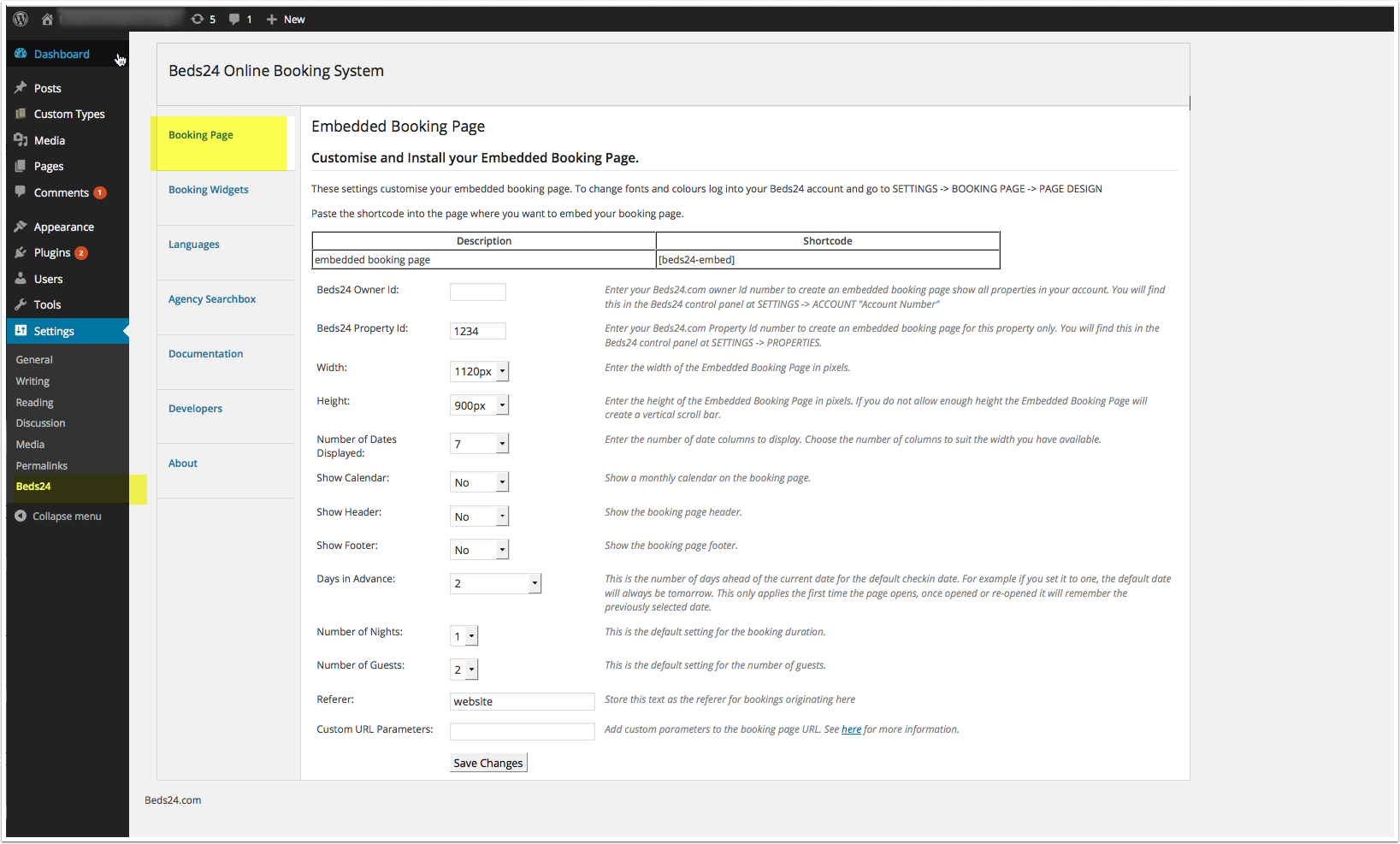
Adjust the general setting for your booking page. You can further customize the booking page in Beds24 in SETTINGS->-BOOKING ENGINE
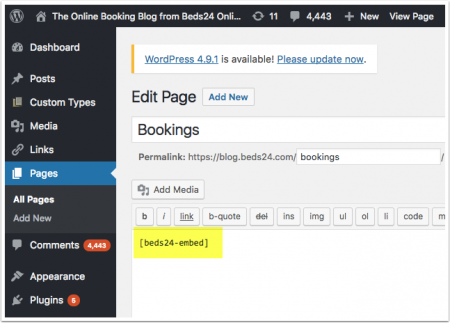
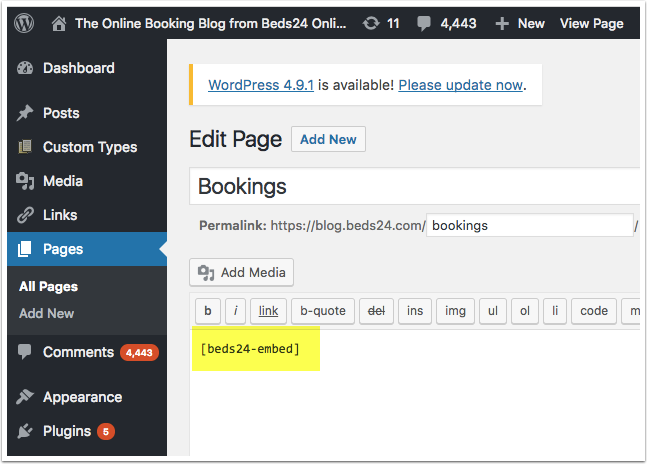
Use the short code [beds24-embed] to add a booking page with pre populated dates.
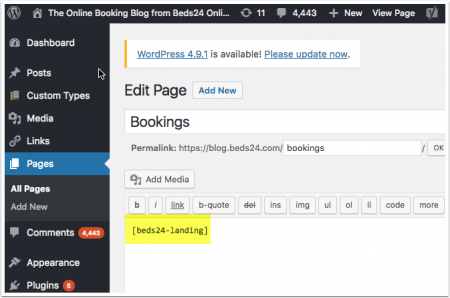
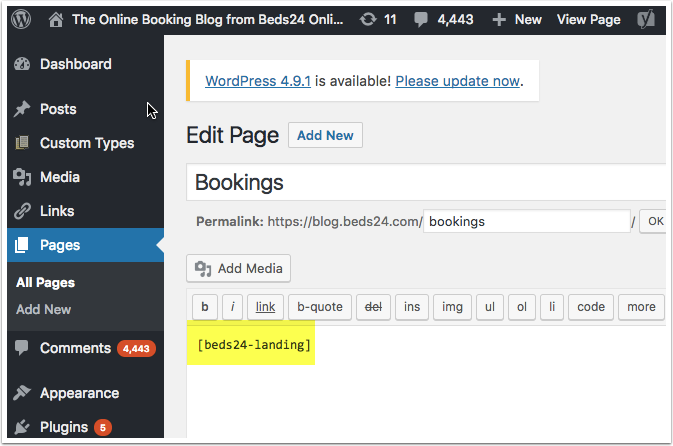
NOTE: Do not use [beds24-embed] if you redirect to the booking page from a widget. Use [beds24-landing] instead.
Use [beds24-landing] to add a booking page which uses the dates chosen on a widgets.
See the "Documentation" section in the Plugin settings for customisation options.
If you want to ceate a booking page for a group only use the "custom" parameter: custom="group=NameOfGroup"
Add Booking Widgets
Widgets are inserted via short codes. You can generate the short codes for one or multiple properties. To generate a short code for multiple properties set the selector for "Property" = All SETTING->BOOKING ENGINE->BOOKING WIDGETS. Copy the short code from there and paste it where you want to display the widget.
Booking Box, Booking Strip, Availability Calendar
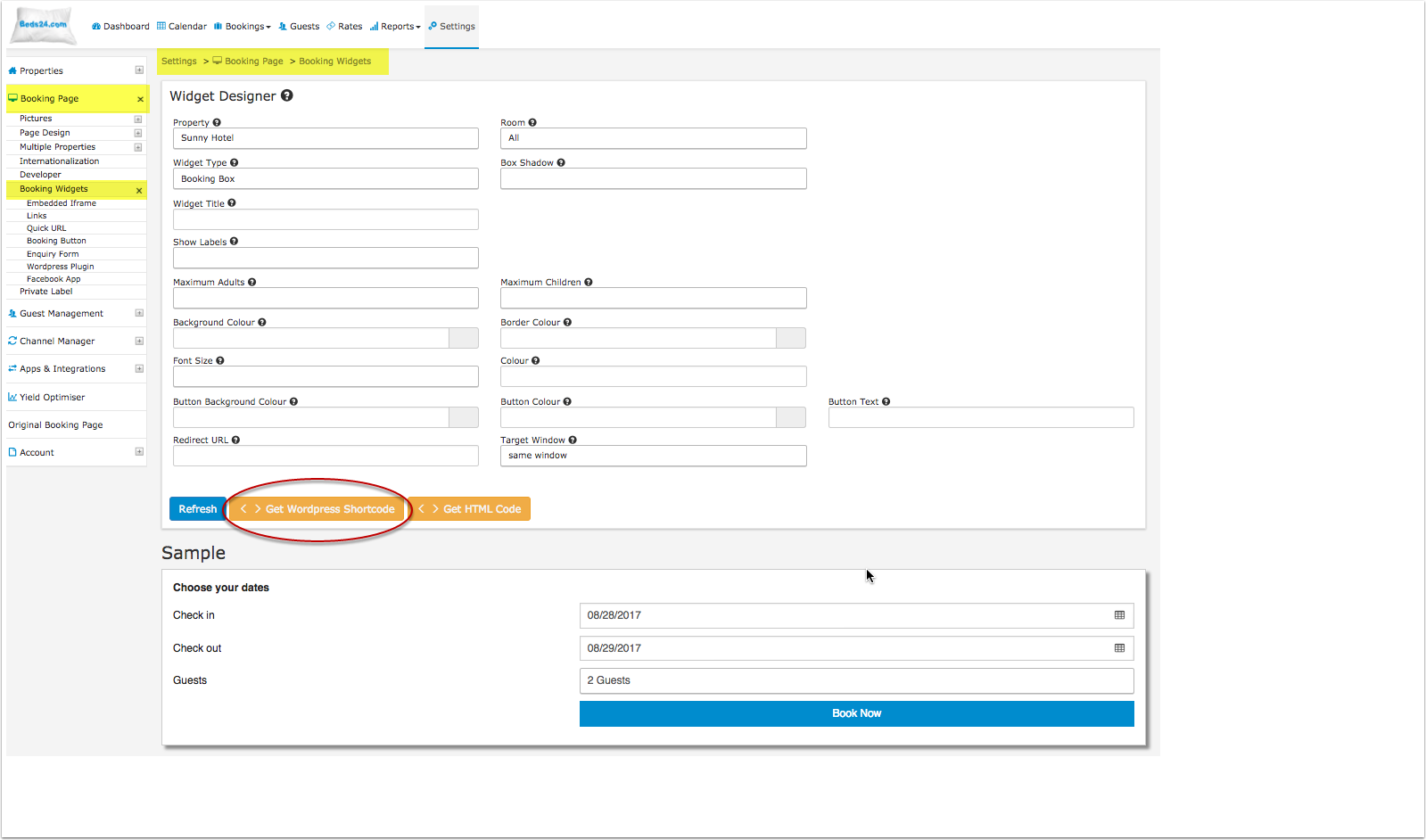
Short Codes for Booking Box, Booking Strip, Availability Calendar are generated in the widget designer in the Beds24 control panel in SETTING->BOOKING ENGINE->BOOKING WIDGETS. Copy the short code from there and paste it where you want to display the widget on your Wordpress page..
Generate the widget in SETTINGS->BOOKING ENGINE->BOOKING WIDGETS
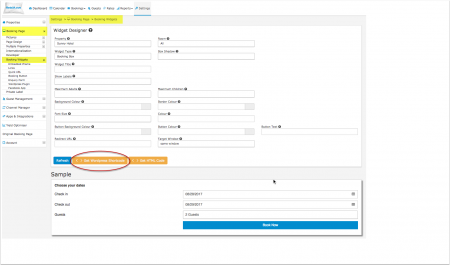
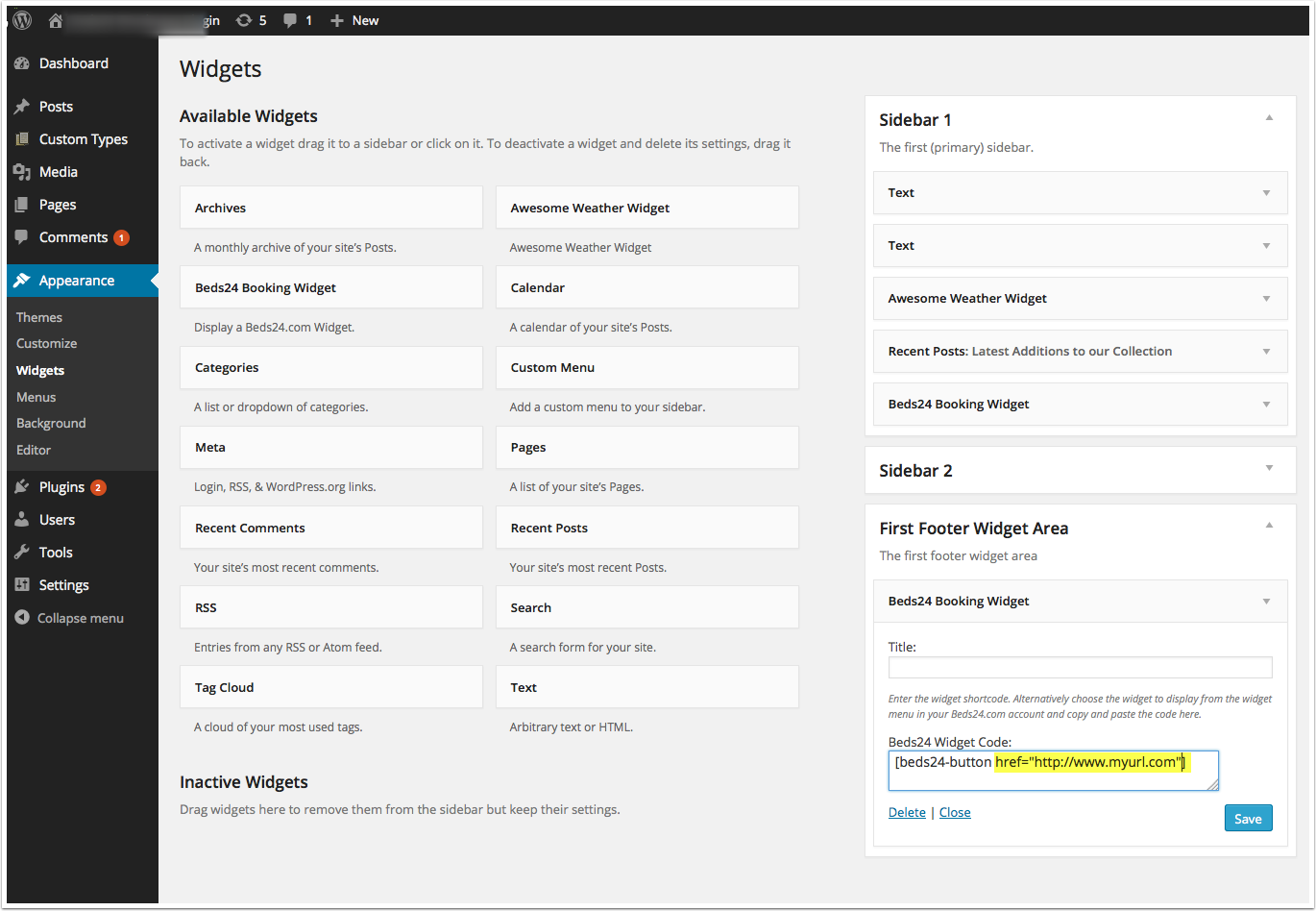
Paste the generated short code to where you want to display the widget
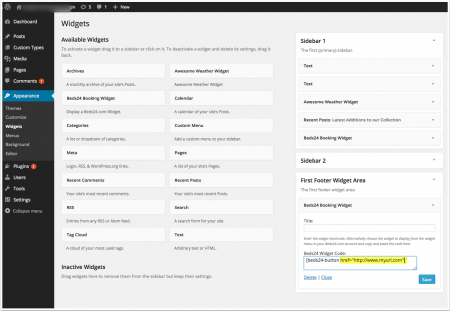
If you want to allow guests to search by certain criteria:
- first create the search criteria in SETTINGS -> BOOKING ENGINE ->MULTIPLE PROPERTIES->SEARCH CRITERIA then go to SETTINGS -> BOOKING ENGINE->MULTIPLE PROPERTIES->PROPERTY SETTINGS and assign the applicable criteria to each property
- Once you have set and assigned your search criteria you can go to SETTINGS-> BOOKING ENGINE-> BOOKING WIDGETS. Set PROPERTY = ALL and design your widget, ensuring that you change "Search Filter" to show the search criteria in your booking widget.
- Generate the code for the widget and paste it into the source code (Set the Wordpress editor to "Text") where you want to display the widget.
Booking Button, Booking Link
Booking Button, Booking Link are inserted via these short codes:
- Booking button: [beds24-button]
- Booking link: [beds24-link]
Paste it where you want to display the widget on your Wordpress page.
For customization options for the buttons and links see the "Booking Widgets" section in SETTINGS-BOOKING WIDGETS in Wordpress
Developer Options
Developers or users with basic knowledge of HTML, PHP and CSS can change the plugin code to customise widgets.
Developer Options for last generation booking widgets
Example: Change the default values of [beds24-box]
Open your Wordpress dashboard and go to SETTINGS->BEDS24 then click on "Edit"
Search for this file in the right navigation: beds24-online-booking/theme-files/beds24-box.php
Click on on the link to edit:
To change the default number of guests search for:
if (!isset($_REQUEST['numadult'])) $_REQUEST['numadult'] = 2;
and change 1 to your default number of guests e.g.
if (!isset($_REQUEST['numadult'])) $_REQUEST['numadult'] = 1;
Click "Update File"
To change the default number of nights search for:
if (!isset($_REQUEST['numnight'])) $_REQUEST['numnight'] = 1;
and change 1 to your default min number of nights e.g.
if (!isset($_REQUEST['numnight'])) $_REQUEST['numnight'] = 3;
Click "Update File"
To change the maximum number of guests of  search for
<?php for ($i=1; $i<=12; $i++)
change 12 to your max number of guests e.g.
<?php for ($i=1; $i<=4; $i++)
Click "Update File"
You can save the file in your theme directory if you want to avoid over-writing if you update the plugin.
Note: Iframes on mobile devices are problematic. Best is if you set up a special mobile page for the page where you have embedded the Iframe which opens the booking page in a new page instead of an Iframe.
Pages in category "Wordpress"
The following 3 pages are in this category, out of 3 total. download this selection of articles as a PDF book