Remotelock.com: Difference between revisions
No edit summary |
Markkinchin (talk | contribs) |
||
| Line 35: | Line 35: | ||
Note: Lockstate uses several servers. If you are not redirected back to Beds24 send us a support ticket via the SUPPORT button in the top left of your Beds24 control panel. | Note: Lockstate uses several servers. If you are not redirected back to Beds24 send us a support ticket via the SUPPORT button in the top left of your Beds24 control panel. | ||
== Auto Check-in == | |||
Auto check-in will mark the booking with an info item called CHECKIN when the guest first uses the lock. | |||
To use auto check-in you must setup a webhook to send notifications from the lock to Beds24. | |||
There are two steps to the webhook setup: | |||
1)Add a Webhook Notification Contact in Remotelock | |||
the URL of the webhook must contain your Beds24 ownerId number at the end after ownerid=: | |||
https://api.beds24.com/locktate.com/notify.php?ownerid=<Your Beds24 owner ID> | |||
The Content Type must be "JSON" | |||
The secret can be left empty | |||
2) Add a Notification in Remotelock | |||
The notification type is "Webhook" | |||
The Webhook Notification Contact is the contact you created in step 1) | |||
The source should be "Account" | |||
The Events must be "Access Granted" and "First Access Only" | |||
== How it works == | == How it works == | ||
Revision as of 09:36, 4 October 2019
This page is about the menu SETTINGS->APPS & INTEGRATIONS->REMOTELOCK
To use this service you will need an account with Remotelock
For Beds24 the normal channel manger fees apply.
Capabilities
- Beds24 can send booking data to Remotelock locks.
- Multiple rooms can connect to one lock.
- Auto-Check-in: when a lock is first opened by the guest the info code "CHECKIN" will be added to the booking.
- Support for Resortlocks.
Remotelock provides various regional servers, the main one we connect to is the US service, if you need to connect to a regional one (for example Japanese) please let us know and we can configure your account accordingly.
Limitations
Set Up
- Click on "Connect to Lockstate".
- Authorize Beds24 to access your account
When successfully connected you will see the Remotelock account you are connected to.
- The "Pin Strategy" defines how the access code is constructed.
- The "Start Time" and "End Time" define the earliest Check-in time and latest Check-out time.
- The "Days in Advance" sets the days before check-in that the booking is sent to the lock.
- Click on "Get Codes"
You will see one serial number for each lock. Click on the serial number of the lock that is using the lock.
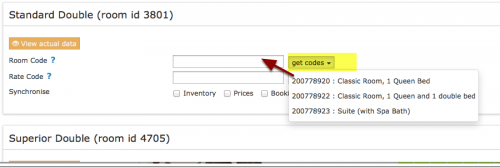
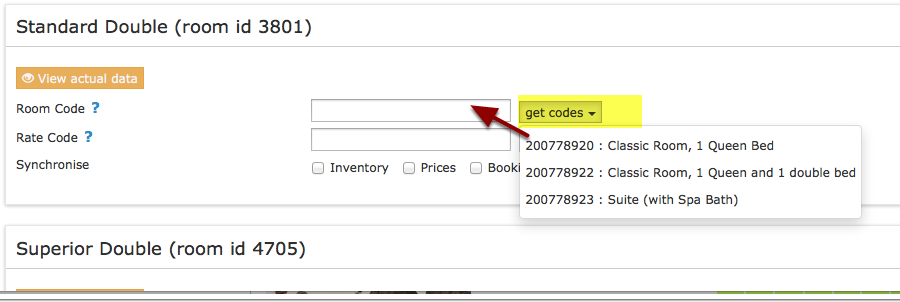
If you have a common lock for multiple units you can enter the same lock serial number for each unit.
Note: Lockstate uses several servers. If you are not redirected back to Beds24 send us a support ticket via the SUPPORT button in the top left of your Beds24 control panel.
Auto Check-in
Auto check-in will mark the booking with an info item called CHECKIN when the guest first uses the lock. To use auto check-in you must setup a webhook to send notifications from the lock to Beds24.
There are two steps to the webhook setup:
1)Add a Webhook Notification Contact in Remotelock
the URL of the webhook must contain your Beds24 ownerId number at the end after ownerid=:
https://api.beds24.com/locktate.com/notify.php?ownerid=<Your Beds24 owner ID>
The Content Type must be "JSON"
The secret can be left empty
2) Add a Notification in Remotelock
The notification type is "Webhook"
The Webhook Notification Contact is the contact you created in step 1)
The source should be "Account"
The Events must be "Access Granted" and "First Access Only"
How it works
Bookings get sent to the locks at the set time prior to check-in. A booking info code Remotelock_PIN which will show the pin number created for the booking.
You can change the pin manually in the LOCKSTATE_PIN booking info code and the new pin will be sent to the lock at the next update.
To force no pin to be sent for a booking, change the value of the LOCKSTATE_PIN booking info item to none, (i.e. the word "none")
Updates are sent multiple times per day and sends bookings for the selected days in advance. To instantly push updates through click "Send Data to Lockstate".
If the dates of the booking is changed or the booking is moved to a different room those details will be sent to the locks.
If bookings are cancelled we delete the guest out of LOCKSTATE this will remove the access.
The Email address of the guest is sent to Lockstate. You can set Remotelock up to automatically send Emails to the guest. Alternatively you can set up an Auto Action in SETTINGS->GUEST MANAGEMENT->AUTO ACTIONS.
The template variable for the Pin is [BOOKINGINFOCODETEXT:LOCKSTATE_PIN].
Common Problems
Lockstate have two types of access: users and guests. Bookings from Beds24 create guests.
Disconnect
Click on "Disconnect" to terminate the connection.