Upsell Items: Difference between revisions
No edit summary |
|||
| Line 4: | Line 4: | ||
[[Category:Enhanced_Selling]] | [[Category:Enhanced_Selling]] | ||
[[Category:Booking_Engine]] | [[Category:Booking_Engine]] | ||
<div class="heading">Upsell Items</div> | |||
This page is about the menu SETTINGS->BOOKING ENGINE->UPSELL ITEMS and explains how you can sell extras and add fees for direct bookings. | |||
=Create Upsell Items= | |||
Upsell Items are shown on the booking page after the guest has selected their room or rooms. | Upsell Items are shown on the booking page after the guest has selected their room or rooms. | ||
The items can be used to show and allow booking of optional items and services or to add compulsory fee's like taxes and charges. | The items can be used to show and allow booking of optional items and services or to add compulsory fee's like taxes and charges. | ||
| Line 10: | Line 13: | ||
Up to 20 upsell items can be created per property. | Up to 20 upsell items can be created per property. | ||
<span style="color:#fe746c;“ >{{#fas:exclamation-triangle}} </span>Upsell Items can not be exported to OTAs. If required you can set them up directly in the channel. Also you need prices for each room. Price linking across rooms or properties will not work. | |||
== Type of Item== | |||
Upsell items of the following types can be created. The Description can be entered in each language. The description can contain HTML tags to enhance the on screen display. These tags will not show in emails, rate description and invoice fields. You can add a picture which has been uploaded by adding the "Image Tag" from SETTINGS -> BOOKING ENGINE -> PICTURES. | Upsell items of the following types can be created. The Description can be entered in each language. The description can contain HTML tags to enhance the on screen display. These tags will not show in emails, rate description and invoice fields. You can add a picture which has been uploaded by adding the "Image Tag" from SETTINGS -> BOOKING ENGINE -> PICTURES. | ||
| Line 18: | Line 21: | ||
<nowiki><p>Spa Treatment</p></nowiki> | <nowiki><p>Spa Treatment</p></nowiki> | ||
<img src="https://media.xmlcal.com/pic/p0000/3103/01.png" alt="Extra" width="200" height="141"> | <img src="https://media.xmlcal.com/pic/p0000/3103/01.png" alt="Extra" width="200" height="141"> | ||
=== Optional === | |||
The optional item type is selected by a check box on the booking page. | The optional item type is selected by a check box on the booking page. | ||
| Line 25: | Line 28: | ||
The Per and Period values are used to calculate how many of the items are required. | The Per and Period values are used to calculate how many of the items are required. | ||
==== Optional Quantity ==== | |||
The optional quantity type works like the optional type except the guest can select the quantity they would like using a selector. | The optional quantity type works like the optional type except the guest can select the quantity they would like using a selector. | ||
==== Optional Percentage ==== | |||
The optional percentage is calculated and added to invoice when the item is selected. | The optional percentage is calculated and added to invoice when the item is selected. | ||
| Line 38: | Line 41: | ||
The Period value is not used for percentage items. | The Period value is not used for percentage items. | ||
=== Obligatory === | |||
The obligatory type is like an optional type except it is added automatically to the booking and cannot be removed. | The obligatory type is like an optional type except it is added automatically to the booking and cannot be removed. | ||
An example would be a cleaning charge or fee. | An example would be a cleaning charge or fee. | ||
| Line 49: | Line 52: | ||
The percentage is calculated on the room price only. | The percentage is calculated on the room price only. | ||
==== Obligatory Cleaning ==== | |||
This fee will be applied to the booking page. It will not send to OTAs. Some OTAs allow to send cleaning fees. For information where to set this up see the channels help pages. | This fee will be applied to the booking page. It will not send to OTAs. Some OTAs allow to send cleaning fees. For information where to set this up see the channels help pages. | ||
==== Obligatory Percentage ==== | |||
The obligatory percentage type is like the Optional Percentage type except it is always calculated and added to the booking and cannot be removed. | The obligatory percentage type is like the Optional Percentage type except it is always calculated and added to the booking and cannot be removed. | ||
| Line 60: | Line 63: | ||
The setting Per Booking means the value is calculated as a percentage of the room price plus all selected items appearing before this one. See "Order of the Items" for more information. | The setting Per Booking means the value is calculated as a percentage of the room price plus all selected items appearing before this one. See "Order of the Items" for more information. | ||
==== Obligatory Percentage Tax ==== | |||
The obligatory percentage tax type is like the Obligatory Percentage type except it that it will be added to the "Price" field and the "Tax" field in the "Charges and Payments" tab the booking. | The obligatory percentage tax type is like the Obligatory Percentage type except it that it will be added to the "Price" field and the "Tax" field in the "Charges and Payments" tab the booking. | ||
=== Refundable=== | |||
Under "Period" upsell items can be set to be "Refundable". Refundable upsell items work like obligatory upsell items but are not sent to comparison sites like Trivago or Tripadvisor. | Under "Period" upsell items can be set to be "Refundable". Refundable upsell items work like obligatory upsell items but are not sent to comparison sites like Trivago or Tripadvisor. | ||
== Description == | |||
The Description can be entered in each language. The description can contain HTML tags to enhance the on screen display. These tags will not show in emails, rate description and invoice fields. You can add a picture which has been uploaded by adding the "Image Tag" from SETTINGS -> BOOKING PAGE -> PICTURES. | The Description can be entered in each language. The description can contain HTML tags to enhance the on screen display. These tags will not show in emails, rate description and invoice fields. You can add a picture which has been uploaded by adding the "Image Tag" from SETTINGS -> BOOKING PAGE -> PICTURES. | ||
| Line 73: | Line 76: | ||
<img src="https://media.xmlcal.com/pic/p0000/3103/01.png" alt="Extra" width="200" height="141"> | <img src="https://media.xmlcal.com/pic/p0000/3103/01.png" alt="Extra" width="200" height="141"> | ||
===Status=== | |||
You can show an invoice sum for certain upsell items only, exclude upsell items from the total, or group specific items in reports. | You can show an invoice sum for certain upsell items only, exclude upsell items from the total, or group specific items in reports. | ||
To do this you use the status. You set the status field of the invoice item include a pipe symbol | between the description text and the status text. For example Description of item | Status. | To do this you use the status. You set the status field of the invoice item include a pipe symbol | between the description text and the status text. For example Description of item | Status. | ||
== Order of the Items == | |||
The order the items are defined in the control panel is important for percentage calculations. | The order the items are defined in the control panel is important for percentage calculations. | ||
| Line 86: | Line 89: | ||
Obligatory upsell items appear on the booking page in the room section. Other upsell items appear as "Add Extra's" in the order defined | Obligatory upsell items appear on the booking page in the room section. Other upsell items appear as "Add Extra's" in the order defined | ||
== Voucher Codes == | |||
Voucher code discount values can also be affected by the order upsell items are created. Voucher code discounts are not applied to any items from or after the first compulsory percentage item. | Voucher code discount values can also be affected by the order upsell items are created. Voucher code discounts are not applied to any items from or after the first compulsory percentage item. | ||
== VAT == | |||
Each item can be assigned it's own VAT rate if for example some items are VAT free or have discounted VAT rates. | Each item can be assigned it's own VAT rate if for example some items are VAT free or have discounted VAT rates. | ||
<span style="color:#fe746c;“ >{{#fas:exclamation-triangle}} </span> VAT is generally the tax already included in the price and should not be confused with a tax added by an obligatory percentage value. | |||
== Adding an Upsell Item to a Booking == | |||
A selector is available to add the Upsell Items to existing bookings in the control panel on the bookings "Charges and Payments" tab. | A selector is available to add the Upsell Items to existing bookings in the control panel on the bookings "Charges and Payments" tab. | ||
| Line 100: | Line 103: | ||
[[Media:Upsell1.png|view large]] | [[Media:Upsell1.png|view large]] | ||
== Limiting availability of items == | |||
Upsell items can be enabled/disabled for individual daily prices or rates. When a booking is made only those upsell items enabled for any rate involved in the booking will be offered to the guest. | Upsell items can be enabled/disabled for individual daily prices or rates. When a booking is made only those upsell items enabled for any rate involved in the booking will be offered to the guest. | ||
| Line 109: | Line 112: | ||
If you have extras you only sell on site you can set them up as "Invoice Items" in SETTINGS->GUEST MANAGEMENT->INVOICING. | If you have extras you only sell on site you can set them up as "Invoice Items" in SETTINGS->GUEST MANAGEMENT->INVOICING. | ||
==Different upsell items for different rooms== | |||
Upsell items are created on property level. However, you can activate an upsell item for a rate, and the rate can be specific for a room. | Upsell items are created on property level. However, you can activate an upsell item for a rate, and the rate can be specific for a room. | ||
| Line 116: | Line 119: | ||
In the rate menu go to the upsell tab and activate/deactivate the upsell you want for the room that is attached to the rate. | In the rate menu go to the upsell tab and activate/deactivate the upsell you want for the room that is attached to the rate. | ||
= Display prices including obligatory fees on the first screen on your booking page= | |||
To do this, you use a rate that already contains the fees. | To do this, you use a rate that already contains the fees. | ||
| Line 130: | Line 133: | ||
Note: Discounts set in the "Discounts" tab of the rate do not send to OTAs. Check the help page of the OTAs you are using for information on how fees are handled. | Note: Discounts set in the "Discounts" tab of the rate do not send to OTAs. Check the help page of the OTAs you are using for information on how fees are handled. | ||
=Reports and Templates= | |||
The value or quantity of each individual item can be added as columns in custom reports. | The value or quantity of each individual item can be added as columns in custom reports. | ||
| Line 145: | Line 148: | ||
Upsell Items can not be sent to OTAs. If you want to set up extras for bookings from a channel you will need to do this in the channels extranet. | Upsell Items can not be sent to OTAs. If you want to set up extras for bookings from a channel you will need to do this in the channels extranet. | ||
== | = Examples = | ||
'''Example | == Obligatory Cleaning Fee == | ||
'''Example''': An obligatory cleaning fee of 50 applies once to all bookings. | |||
Go to SETTINGS->PROPERTIES->UPSELL ITEMS and add the cleaning fee as an "Upsell Item" with the settings | Go to SETTINGS->PROPERTIES->UPSELL ITEMS and add the cleaning fee as an "Upsell Item" with the settings | ||
| Line 162: | Line 166: | ||
Vat % = if applicable enter the VAT rate | Vat % = if applicable enter the VAT rate | ||
== Optional Breakfast == | |||
'''Example | '''Example''': A guest house offers an optional breakfast costing 10 per day. 19% VAT are included in the price for the breakfast. | ||
Go to SETTINGS->PROPERTIES->UPSELL ITEMS and add breakfast as an "Upsell Item" with the settings | Go to SETTINGS->PROPERTIES->UPSELL ITEMS and add breakfast as an "Upsell Item" with the settings | ||
| Line 177: | Line 181: | ||
Vat % = 19 | Vat % = 19 | ||
== Breakfast with Different VAT Rate than Lodging == | |||
'''Example''': 7% VAT are included in the room price. The lodging offers breakfast as an extra. 19% VAT are included in the price for the breakfast. Additionally the lodging needs to charge 5% city tax on which 7% VAT applies | |||
Go to SETTINGS->PROPERTIES->BOOKING RULES and set "Vat Rate %" = 7 | |||
Go to SETTINGS->PROPERTIES->UPSELL ITEMS and | |||
'''Example | 1) add breakfast as an "Upsell Item" with "Vat %" = 19 | ||
2) add city tax as an obligarory % tax "Upsell Item" | |||
To show VAT change your confirmations (SETTINGS->GUEST MANAGEMENT->CONFIRMATION MESSAGES) and invoice template (SETTINGS->GUEST MANAGEMENT->INVOICING) to use the template variable [INVOICETABLEVAT]. | |||
== City Tax == | |||
'''Example''': A lodging needs to charge 5% city tax on all bookings. | |||
Go to SETTINGS->PROPERTIES->UPSELL ITEMS and add the tax as an "Upsell Item" with the settings | Go to SETTINGS->PROPERTIES->UPSELL ITEMS and add the tax as an "Upsell Item" with the settings | ||
| Line 194: | Line 211: | ||
Vat % = if applicable enter the VAT rate | Vat % = if applicable enter the VAT rate | ||
== City Tax Only for Children Above a Certain Age == | |||
'''Example | '''Example''': City tax only applies to children over 10 years of age. | ||
Go to SETTINGS->BOOKING PAGE -> DEVELOPERS "Custom Text" and exchange the default text for children: | Go to SETTINGS->BOOKING PAGE -> DEVELOPERS "Custom Text" and exchange the default text for children: | ||
| Line 202: | Line 219: | ||
Child|Child under 10 | Child|Child under 10 | ||
== Offer Extras after the Guest has Booked == | == Offer Extras after the Guest has Booked == | ||
Revision as of 16:10, 14 May 2020
This page is about the menu SETTINGS->BOOKING ENGINE->UPSELL ITEMS and explains how you can sell extras and add fees for direct bookings.
Create Upsell Items
Upsell Items are shown on the booking page after the guest has selected their room or rooms. The items can be used to show and allow booking of optional items and services or to add compulsory fee's like taxes and charges.
Up to 20 upsell items can be created per property.
Upsell Items can not be exported to OTAs. If required you can set them up directly in the channel. Also you need prices for each room. Price linking across rooms or properties will not work.
Type of Item
Upsell items of the following types can be created. The Description can be entered in each language. The description can contain HTML tags to enhance the on screen display. These tags will not show in emails, rate description and invoice fields. You can add a picture which has been uploaded by adding the "Image Tag" from SETTINGS -> BOOKING ENGINE -> PICTURES.
Example:
<p>Spa Treatment</p>
<img src="https://media.xmlcal.com/pic/p0000/3103/01.png" alt="Extra" width="200" height="141">
Optional
The optional item type is selected by a check box on the booking page.
The Amount value is the cost of the item. Negative Amounts are allowed and will create a discount.
The Per and Period values are used to calculate how many of the items are required.
Optional Quantity
The optional quantity type works like the optional type except the guest can select the quantity they would like using a selector.
Optional Percentage
The optional percentage is calculated and added to invoice when the item is selected.
The percentage value should be entered in the Amount field as a number, ie 10 = 10%
The setting Per Room means the value is calculated as a percentage of the room price and not other upsell items. The setting Per Booking means the value is calculated as a percentage of the room price plus all selected items appearing before this one. See "Order of the Items" for more information.
The Period value is not used for percentage items.
Obligatory
The obligatory type is like an optional type except it is added automatically to the booking and cannot be removed. An example would be a cleaning charge or fee.
Per = Booking
The percentage is calculated on the room price plus all selected extras defined before this one. Extra items defined after this will not be included in the percentage calculation.
This could be used to add tax free items after the tax calculation.
Per = Room
The percentage is calculated on the room price only.
Obligatory Cleaning
This fee will be applied to the booking page. It will not send to OTAs. Some OTAs allow to send cleaning fees. For information where to set this up see the channels help pages.
Obligatory Percentage
The obligatory percentage type is like the Optional Percentage type except it is always calculated and added to the booking and cannot be removed.
A common use of the obligatory percentage item is to add one or more sales taxes.
The setting Per Room means the value is calculated as a percentage of the room price and not other upsell items. The setting Per Booking means the value is calculated as a percentage of the room price plus all selected items appearing before this one. See "Order of the Items" for more information.
Obligatory Percentage Tax
The obligatory percentage tax type is like the Obligatory Percentage type except it that it will be added to the "Price" field and the "Tax" field in the "Charges and Payments" tab the booking.
Refundable
Under "Period" upsell items can be set to be "Refundable". Refundable upsell items work like obligatory upsell items but are not sent to comparison sites like Trivago or Tripadvisor.
Description
The Description can be entered in each language. The description can contain HTML tags to enhance the on screen display. These tags will not show in emails, rate description and invoice fields. You can add a picture which has been uploaded by adding the "Image Tag" from SETTINGS -> BOOKING PAGE -> PICTURES.
Example:
<p>Spa Treatment</p>
<img src="https://media.xmlcal.com/pic/p0000/3103/01.png" alt="Extra" width="200" height="141">
Status
You can show an invoice sum for certain upsell items only, exclude upsell items from the total, or group specific items in reports. To do this you use the status. You set the status field of the invoice item include a pipe symbol | between the description text and the status text. For example Description of item | Status.
Order of the Items
The order the items are defined in the control panel is important for percentage calculations.
With the exception of per room percentages, percentage items are applied to the room price and any items above it.
For example, if you want to add an item and not have an obligatory tax apply to it, create the obligatory tax before the item.
Obligatory upsell items appear on the booking page in the room section. Other upsell items appear as "Add Extra's" in the order defined
Voucher Codes
Voucher code discount values can also be affected by the order upsell items are created. Voucher code discounts are not applied to any items from or after the first compulsory percentage item.
VAT
Each item can be assigned it's own VAT rate if for example some items are VAT free or have discounted VAT rates.
VAT is generally the tax already included in the price and should not be confused with a tax added by an obligatory percentage value.
Adding an Upsell Item to a Booking
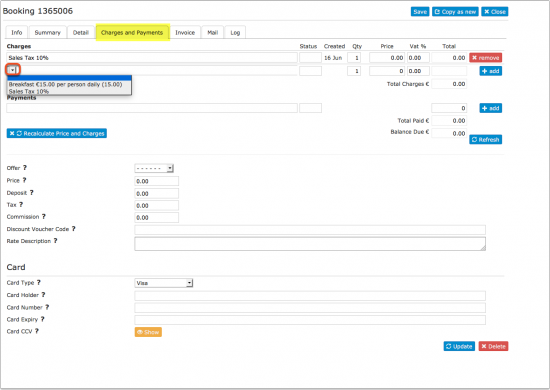
A selector is available to add the Upsell Items to existing bookings in the control panel on the bookings "Charges and Payments" tab.
Limiting availability of items
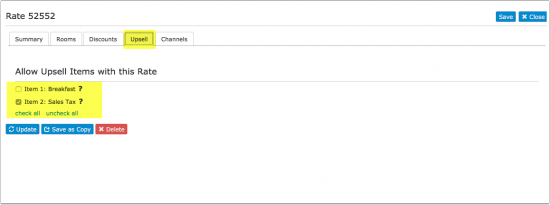
Upsell items can be enabled/disabled for individual daily prices or rates. When a booking is made only those upsell items enabled for any rate involved in the booking will be offered to the guest.


If you have extras you only sell on site you can set them up as "Invoice Items" in SETTINGS->GUEST MANAGEMENT->INVOICING.
Different upsell items for different rooms
Upsell items are created on property level. However, you can activate an upsell item for a rate, and the rate can be specific for a room.
Create your different upsell items.
In the rate menu go to the upsell tab and activate/deactivate the upsell you want for the room that is attached to the rate.
Display prices including obligatory fees on the first screen on your booking page
To do this, you use a rate that already contains the fees.
Example: The price per night is €100. € 50 cleaning fee apply regardless on how long the guest stays.
"Summary" tab of the rate:
- Room Price = 150
"Discounts" tab of the rate:
- Nights = 2
- Per night = 50
Note: Discounts set in the "Discounts" tab of the rate do not send to OTAs. Check the help page of the OTAs you are using for information on how fees are handled.
Reports and Templates
The value or quantity of each individual item can be added as columns in custom reports.
The columns are called "Upsell 1 Value" and "Upsell 1 Qty" etc. where the number is the order they have been created.
Template Variables can be used to display invoice charges in invoices, booking templates or Email templates.
Activities
If you want to offer extras separate to the booking and manage and/or display availability through the system have a look here: Sell Extras like Activities or Car Rental
Limitations
If you allow "Multiple Room Bookings" the system will apply obligatory extras to all rooms and allow optional extras for all rooms.
Upsell Items can not be sent to OTAs. If you want to set up extras for bookings from a channel you will need to do this in the channels extranet.
Examples
Obligatory Cleaning Fee
Example: An obligatory cleaning fee of 50 applies once to all bookings.
Go to SETTINGS->PROPERTIES->UPSELL ITEMS and add the cleaning fee as an "Upsell Item" with the settings
Type = obligatory
Description = Cleaning Fee (if multiple languages are activated enter the description in all languages)
Amount = 50
Per = booking
Period = one time
Vat % = if applicable enter the VAT rate
Optional Breakfast
Example: A guest house offers an optional breakfast costing 10 per day. 19% VAT are included in the price for the breakfast.
Go to SETTINGS->PROPERTIES->UPSELL ITEMS and add breakfast as an "Upsell Item" with the settings
Type = optional
Amount = 10
Per = person
Period = daily
Vat % = 19
Breakfast with Different VAT Rate than Lodging
Example: 7% VAT are included in the room price. The lodging offers breakfast as an extra. 19% VAT are included in the price for the breakfast. Additionally the lodging needs to charge 5% city tax on which 7% VAT applies
Go to SETTINGS->PROPERTIES->BOOKING RULES and set "Vat Rate %" = 7
Go to SETTINGS->PROPERTIES->UPSELL ITEMS and
1) add breakfast as an "Upsell Item" with "Vat %" = 19
2) add city tax as an obligarory % tax "Upsell Item"
To show VAT change your confirmations (SETTINGS->GUEST MANAGEMENT->CONFIRMATION MESSAGES) and invoice template (SETTINGS->GUEST MANAGEMENT->INVOICING) to use the template variable [INVOICETABLEVAT].
City Tax
Example: A lodging needs to charge 5% city tax on all bookings.
Go to SETTINGS->PROPERTIES->UPSELL ITEMS and add the tax as an "Upsell Item" with the settings
Type = obligatory % tax
Description = City Tax (if multiple languages are activated enter the description in all languages)
Amount = 5
Per = booking
Period = one time
Vat % = if applicable enter the VAT rate
City Tax Only for Children Above a Certain Age
Example: City tax only applies to children over 10 years of age.
Go to SETTINGS->BOOKING PAGE -> DEVELOPERS "Custom Text" and exchange the default text for children:
Children|Children under 10 Child|Child under 10
Offer Extras after the Guest has Booked
You use a property with a special setup to sell extras to guests that have already made a booking. They will need to enter their booking number when they make the booking so the owner can ‘group’ the bookings.
Preparations:
Adjustments for your property:
Add a Custom Question to your Booking page SETTINGS > PROPERTIES > BOOKING QUESTIONS so a guest can enter the original booking id so you can link the bookings together.
1. Set up "Extras" property
- Go to SETTINGS -> PROPERTIES and click on ADD NEW PROPERTY.
- Click on EDIT and you will get to PROPERTIES -> DESCRIPTION. Enter the name (e.g. Extras – after booking) and the currency you accept. Set the "Type of Booking" to "Activity".
- Go to SETTINGS -> PROPERTIES-> ROOMS ->SETUP
- enter in “Name” the name of your extra (i.e. Welcome Hamper)
- set the "Quantity" = the number you want to sell in advance, this can be based on the number of rooms per day (i.e. one hamper per unit)
- set "Unit Allocation" = One per Booking
- set Collect Number of Guests = No
- Maximum Guest = 1
- set "Maximum Stay" = Single Day Activity
- enter "Accommodation Type" = Welcome Hamper
- Enter in "Accommodation Type" what the guest books e.g. "Welcome Hamper”
Repeat (1) above for the number of Extras you want to offer to your Guests.
Create individual Rooms/Units for each Extra you want to offer (e.g. different prices or types – Large Hamper, Gourmet Hamper, Champagne Hamper, Cooking course, Spa Day)
If you need to collect the number of guests for example Evening meals, you will need to setup the Room/unit slightly differently as you may allow your guests to book per person/adult/child
- Go to SETTINGS -> PROPERTIES->ROOMS ->SETUP
- enter “Name” – the name of your extra (i.e. Welcome Dinner)
- set the "Quantity" = the number you want to sell in advance, number of guests
- set "Unit Allocation" = One per booking
- set Collect Number of Guests = Yes
- Maximum Guests = Number of guests per booking
- Maximum Adults = Number of Adults per booking, should be the same as the ROOM types you have (may need to be higher if you have a mix of room types)
- Maximum Children= Number of children if you offer different prices for Adult/Child meals
- set "Maximum Stay" = Single Day Activity
- enter "Accommodation Type" = Welcome Meal
- Go to SETTINGS -> BOOKING PAGE->DEVELOPERS and exchange all phrases which refer to accommodation. Enter for example the following in "Custom Text"
Check in|Purchase Date
Book Multiple|Buy Multiple
Book|Buy
Guest|Hamper
Guests|Hamper
Click to Book Now|Click to Buy Now
Confirm Booking|Buy Now
Guest Details|Details
Click here to make another booking|Click here to make another purchase
Click here to make another booking|Click here to make another purchase
2. Set prices for your Extras
For Single items, like Welcome Hamper etc, Daily Prices will work as you are likely to be selling 1 item per booking.
For Meals etc, we suggest you setup RATES as you can add Single, Extra Person and Extra Child prices.
3. Further settings
- Go to SETTINGS -> PROPERTIES-> BOOKING QUESTIONS > CUSTOM QUESTION add a question – Please enter your Accommodation Booking id, set = Obiligatory
- Go to SETTINGS -> PROPERTIES->PAYMENT COLLECTION and set up payment collection or use payment requests.
- Go to SETTINGS -> GUEST MANAGEMENT -> CONFIRMATION MESSAGES and customise the confirmation message for the "Extras" property.
We suggest at least delete everything from the default that refers to accommodation. Ensure you have the details of the Custom Question (Original Accommodation Booking id) so that you and the guest have reference to the original booking. (you will need this to ‘group’ the extras to the original booking id.
NOTE: You may want to create a new Property for each Extra that you offer to your guests, for example, Food, Experiences, Travel (pickups)
4. Optional
If you want to offer options to your Guests to select prior to their arrival, for example if you offer Evening meals and you would like you guests to select the number of each dish with their booking, then you should add UPSELL items that will show on the guest booking page.
Go to SETTINGS > BOOKING ENGINE > UPSELL ITEMS
- Create an Upsell item for each item
- Type = Optional
- Description = Roast Chicken dinner (for example)
- Amount = 0
- Per = Booking
- Period =Daily
- VAT % = 0
Then go to your Rates (Upsell tab) Daily Price (Upsell items) for this Extra (Evening Meals), then tick the items that should be shown for these items.
Manage extras and bookings
We suggest that the original booking is your Master, then open the Extras Booking, go to “Detail” tab and copy the value in your Custom Question – Original booking id (point 7 above)
In another window, paste the booking id in to the Booking Search box (top right of most pages), click on the booking and then go to the Invoice Tab, scroll down to ‘Add New Booking to Group’ enter the Booking id of the Extras Booking, and click enter, this will create a ‘group booking’ and add the extra to the "Invoice" tab of the booking.
- Set up an Auto Action to confirm to the Guest their ‘Extras’ has been received an linked to their Accommodation booking, using the Booking ids from both bookings in the email.
- Setup an Auto Action to send Payment Request if you have not collected payment at the time of the booking.