Nuki.io: Difference between revisions
No edit summary |
No edit summary |
||
| Line 14: | Line 14: | ||
= Limitations = | = Limitations = | ||
= What you need = | = What you need = | ||
To use this service you will need: | To use this service you will need: | ||
* | *At least one Nuki Smart Lock. | ||
*A [https://nuki.io nuki.io] account. | *A [https://nuki.io nuki.io] account. | ||
Using keypad codes requires a Nuki keypad to be setup. | |||
= Set Up = | = Set Up = | ||
'''Step 1: Connect your Nuki Account''' | '''Step 1: Connect your Nuki Account''' | ||
*Click on "Connect to Nuki". | *Click on "Connect to Nuki". | ||
| Line 52: | Line 47: | ||
*Create an Auto Action Email which includes the template variable for the pin which is [BOOKINGINFOCODETEXT:NUKI_PIN]. | *Create an Auto Action Email which includes the template variable for the pin which is [BOOKINGINFOCODETEXT:NUKI_PIN]. | ||
= How it works = | = How it works = | ||
== Syncing == | |||
Bookings are automatically sent to locks the number of "Days in Advance" prior to check-in which you have selected. | Bookings are automatically sent to locks the number of "Days in Advance" prior to check-in which you have selected. | ||
| Line 64: | Line 62: | ||
*Click on the "View Bookings in Locks" button to check which bookings have already been sent. | *Click on the "View Bookings in Locks" button to check which bookings have already been sent. | ||
*To instantly send updates, click "Send Bookings to Locks". | *To instantly send updates, click "Send Bookings to Locks". | ||
*If | *If a keypad code, booking date, or room changes, those details will be sent to locks. | ||
*If a booking is cancelled the associated entry code will be deleted from locks. | *If a booking is cancelled, the associated entry code or user will be deleted from locks. | ||
*The associated entry code of bookings sent from Beds24 will be removed one day after check-out. | *The associated entry code of bookings sent from Beds24 will be removed one day after check-out. | ||
<span style="color:#fe746c;“ >{{#fas:exclamation-triangle}} </span> If a Nuki lock is offline when an update is sent, the entry code will not be added until the lock comes online again. | <span style="color:#fe746c;“ >{{#fas:exclamation-triangle}} </span> If a Nuki lock is offline when an update is sent, the entry code will not be added until the lock comes online again. | ||
== Manually changing | == App and code entry methods == | ||
There are two ways that bookings can be sent to locks: app and code. | |||
=== App entry === | |||
If the "App' tickbox is selected, bookings will be sent to locks as users. | |||
*Nuki will send guests an email containing an access code that will allow them to unlock the associated Nuki lock with the Nuki app. | |||
* Guests have 48 hours to accept the invitation. | |||
* There is no way to resend a Nuki app invitation if a guest does not accept it in time. However, you may go to [https://web.nuki.io/#/pages/smartlocks web.nuki.io], select Devices, click the desired smartlock, go to the Users tab, then find the booking and click delete. You can then visit the Beds24 Nuki integration at {{#fas:cog}} (SETTINGS) APPS & INTEGRATIONS > NUKI and click "Send bookings to Locks" to make Nuki send a new invitation to the guest. | |||
*When the user is deleted from the lock, Nuki will send an email to the guest informing them that they no longer have access to the lock. | |||
[[Image:nuki_delete_user.png|900px|link=]] | |||
[[Media:nuki_delete_user.png|view large]] | |||
=== Code entry === | |||
If the "Code" tickbox is selected, bookings will be sent to locks as entry codes. | |||
Guests will need to enter these codes on a Nuki keypad to unlock the associated Nuki lock. | |||
=== Manually changing codes === | |||
# Navigate to {{#fas:cog}} (SETTINGS) ACCOUNT > PREFERENCES "Bookings" and add "NUKI_PIN" to your Booking Info Code Values. | # Navigate to {{#fas:cog}} (SETTINGS) ACCOUNT > PREFERENCES "Bookings" and add "NUKI_PIN" to your Booking Info Code Values. | ||
# You can now manually add a NUKI_PIN info code to your bookings. | # You can now manually add a NUKI_PIN info code to your bookings. | ||
| Line 82: | Line 99: | ||
<span style="color:#fe746c;“ >{{#fas:exclamation-triangle}} </span> If you manually set an invalid NUKI_PIN, it will be overwritten with a randomly generated pin the next time bookings are sent to locks. Each code can only be used once per lock. Before you can reuse a code it has to be removed from the lock. | <span style="color:#fe746c;“ >{{#fas:exclamation-triangle}} </span> If you manually set an invalid NUKI_PIN, it will be overwritten with a randomly generated pin the next time bookings are sent to locks. Each code can only be used once per lock. Before you can reuse a code it has to be removed from the lock. | ||
= Disconnect= | = Disconnect= | ||
Click on "Disconnect" to terminate the connection. | Click on "Disconnect" to terminate the connection. | ||
Revision as of 07:43, 20 July 2020
This page is about the menu (SETTINGS) APPS & INTEGRATIONS > NUKI
Contact us if you want to participate in the beta test.
For Beds24 the normal channel manger fees apply.
Capabilities
- Beds24 can send booking data to Nuki locks.
- Auto-Check-in: when a lock is first opened by the guest the info code "CHECKIN" will be added to the booking (coming soon).
Limitations
What you need
To use this service you will need:
- At least one Nuki Smart Lock.
- A nuki.io account.
Using keypad codes requires a Nuki keypad to be setup.
Set Up
Step 1: Connect your Nuki Account
- Click on "Connect to Nuki".
- Sign in with your Nuki account if prompted.
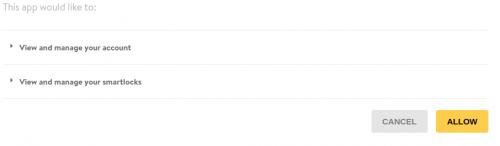
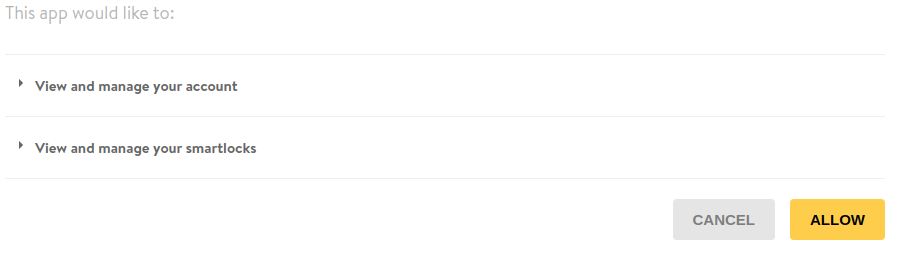
- Click "Allow" to let Beds24 view and manage your Nuki account and locks.
Step 2: Set when bookings should send to locks
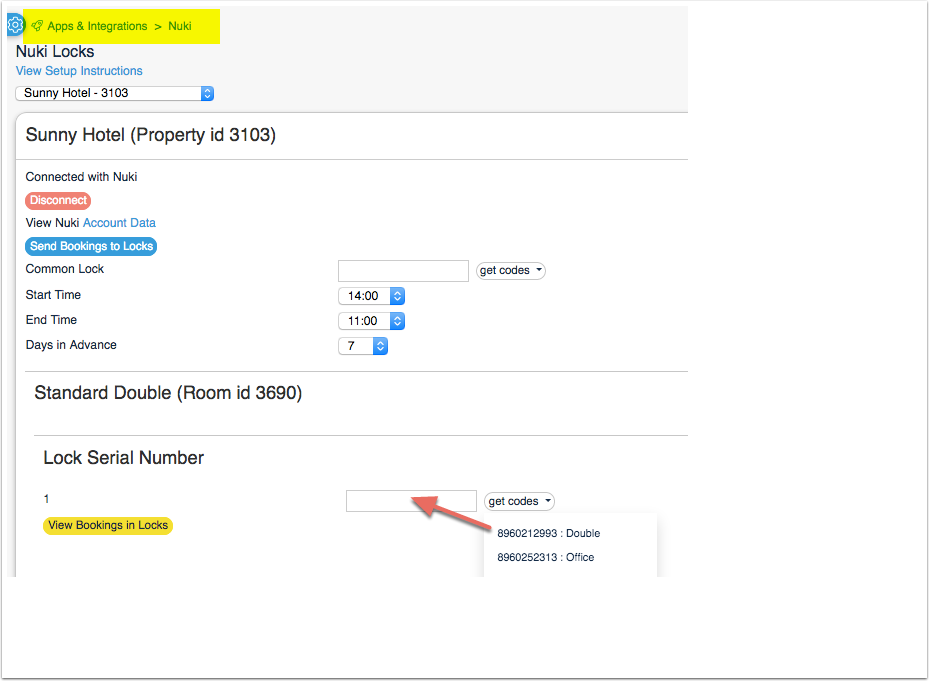
- The "Start Time" and "End Time" define the earliest Check-in time and latest Check-out time.
- The "Days in Advance" sets the days before check-in that the booking is sent to the lock.
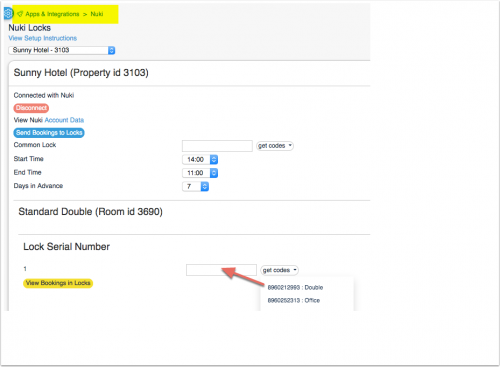
Step 3: Map your locks to your rooms
- Click on "Get Codes"
You will see one identifier and name for each lock. Click on the name of the lock that is associated with the room.
Step 4: Set up an Auto Action Email to send the PIN to guests
- Go to (SETTINGS) GUEST MANAGEMENT > AUTO ACTIONS.
- Create an Auto Action Email which includes the template variable for the pin which is [BOOKINGINFOCODETEXT:NUKI_PIN].
How it works
Syncing
Bookings are automatically sent to locks the number of "Days in Advance" prior to check-in which you have selected.
Entry codes/users can only be used during the booking period, they will not provide access before or after.
- An entry code/user named Booking:{booking number} is added to the lock, viewable at web.nuki.io or in the Nuki app.
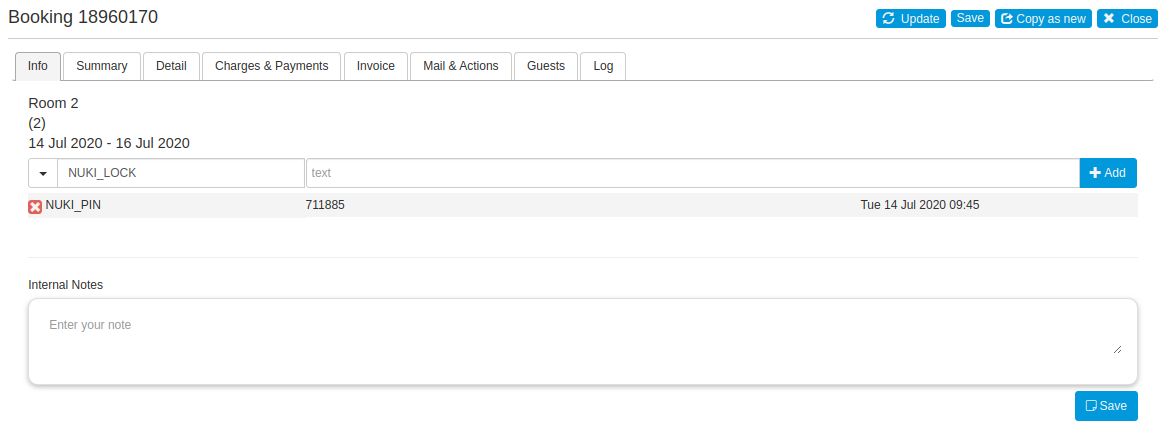
- A booking info code named NUKI_PIN is created on the "Info" tab of the booking which will show the pin number valid for the booking.
- Updates are sent periodically.
- Click on the "View Bookings in Locks" button to check which bookings have already been sent.
- To instantly send updates, click "Send Bookings to Locks".
- If a keypad code, booking date, or room changes, those details will be sent to locks.
- If a booking is cancelled, the associated entry code or user will be deleted from locks.
- The associated entry code of bookings sent from Beds24 will be removed one day after check-out.
If a Nuki lock is offline when an update is sent, the entry code will not be added until the lock comes online again.
App and code entry methods
There are two ways that bookings can be sent to locks: app and code.
App entry
If the "App' tickbox is selected, bookings will be sent to locks as users.
- Nuki will send guests an email containing an access code that will allow them to unlock the associated Nuki lock with the Nuki app.
- Guests have 48 hours to accept the invitation.
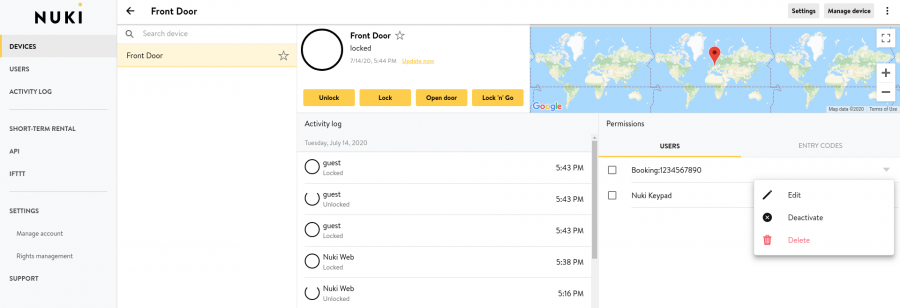
- There is no way to resend a Nuki app invitation if a guest does not accept it in time. However, you may go to web.nuki.io, select Devices, click the desired smartlock, go to the Users tab, then find the booking and click delete. You can then visit the Beds24 Nuki integration at (SETTINGS) APPS & INTEGRATIONS > NUKI and click "Send bookings to Locks" to make Nuki send a new invitation to the guest.
- When the user is deleted from the lock, Nuki will send an email to the guest informing them that they no longer have access to the lock.
Code entry
If the "Code" tickbox is selected, bookings will be sent to locks as entry codes.
Guests will need to enter these codes on a Nuki keypad to unlock the associated Nuki lock.
Manually changing codes
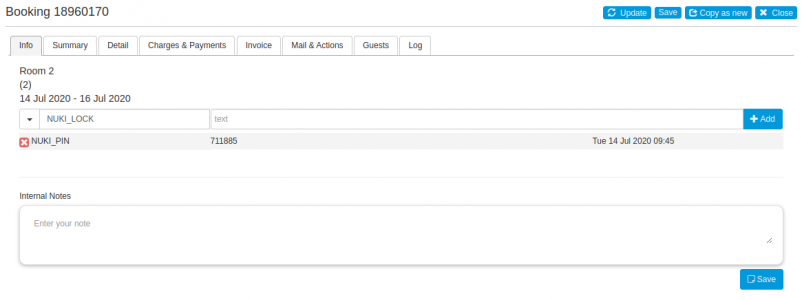
- Navigate to (SETTINGS) ACCOUNT > PREFERENCES "Bookings" and add "NUKI_PIN" to your Booking Info Code Values.
- You can now manually add a NUKI_PIN info code to your bookings.

Nuki keypad codes must:
- Be exactly six digits long.
- Not contain the number zero.
- Not start with "12".
If you manually set an invalid NUKI_PIN, it will be overwritten with a randomly generated pin the next time bookings are sent to locks. Each code can only be used once per lock. Before you can reuse a code it has to be removed from the lock.
Disconnect
Click on "Disconnect" to terminate the connection.