Cleaning and Housekeeping: Difference between revisions
No edit summary |
No edit summary |
||
| Line 18: | Line 18: | ||
<embedvideo service="youtube">https://youtu.be/AxPfVUxXNbA</embedvideo> | <embedvideo service="youtube">https://youtu.be/AxPfVUxXNbA</embedvideo> | ||
<span style="color:#007bff;“ >{{# | <span style="color:#007bff; font-size: 150%;“ >{{#fas:info-circle}} </span> If you are using the old version of the dashboard click on the "Try it" link. If you want to change back to the old version click on the hamburger menu and then on "Original Dashboard". | ||
== Manage from CALENDAR == | == Manage from CALENDAR == | ||
| Line 71: | Line 71: | ||
*Select the fields that you want to show on the report/dashboard. | *Select the fields that you want to show on the report/dashboard. | ||
<span | <span style="color:#007bff; font-size: 150%;“ >{{#fas:info-circle}} </span> For each of your Cleaner accounts, you will need to clone the report and make some adjustments before they can use it for their specific information. | ||
3. Go to {{#fas:user}} 'User' icon on the top right and then ACCOUNT MANAGEMENT > LIST ACCOUNTS | 3. Go to {{#fas:user}} 'User' icon on the top right and then ACCOUNT MANAGEMENT > LIST ACCOUNTS | ||
Revision as of 09:11, 22 October 2021
This page explains how you can manage cleaning and housekeeping tasks.
Manage from DASHBOARD
The component "Units" shows you an overview on your units. You can change the status and add a note if required. The changes you make in this component will reflect in the CALENDAR.
You can change the status and add a note if required. The changes you make in this components will reflect in the CALENDAR. The default statuses can be changed in (SETTINGS) ACCOUNT->PREFERENCES under "Unit Status Presets".
The Housekeeping component "Units" shows you a list of your units. The status of the units is unrelated to bookings.
The Housekeeping component "Bookings" shows a list of your units and the status of the unit related to the bookings.
If you are using the old version of the dashboard click on the "Try it" link. If you want to change back to the old version click on the hamburger menu and then on "Original Dashboard".
Manage from CALENDAR
In the CALENDAR you have the option to add a note to a unit or a status value. Preset unit status values can be defined in (SETTINGS) ACCOUNT->PREFERENCES. Note that only the account owning a property can change the status. To use this feature (SETTINGS) ACCOUNT->PREFERENCES "Calendar Style" should be set to "All Units". Only the account owning a property can change the status.
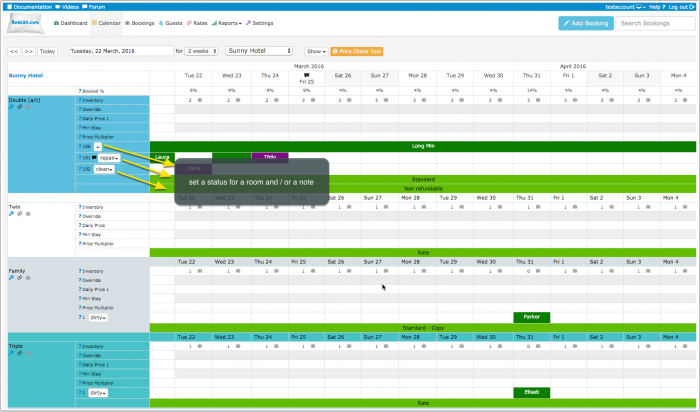
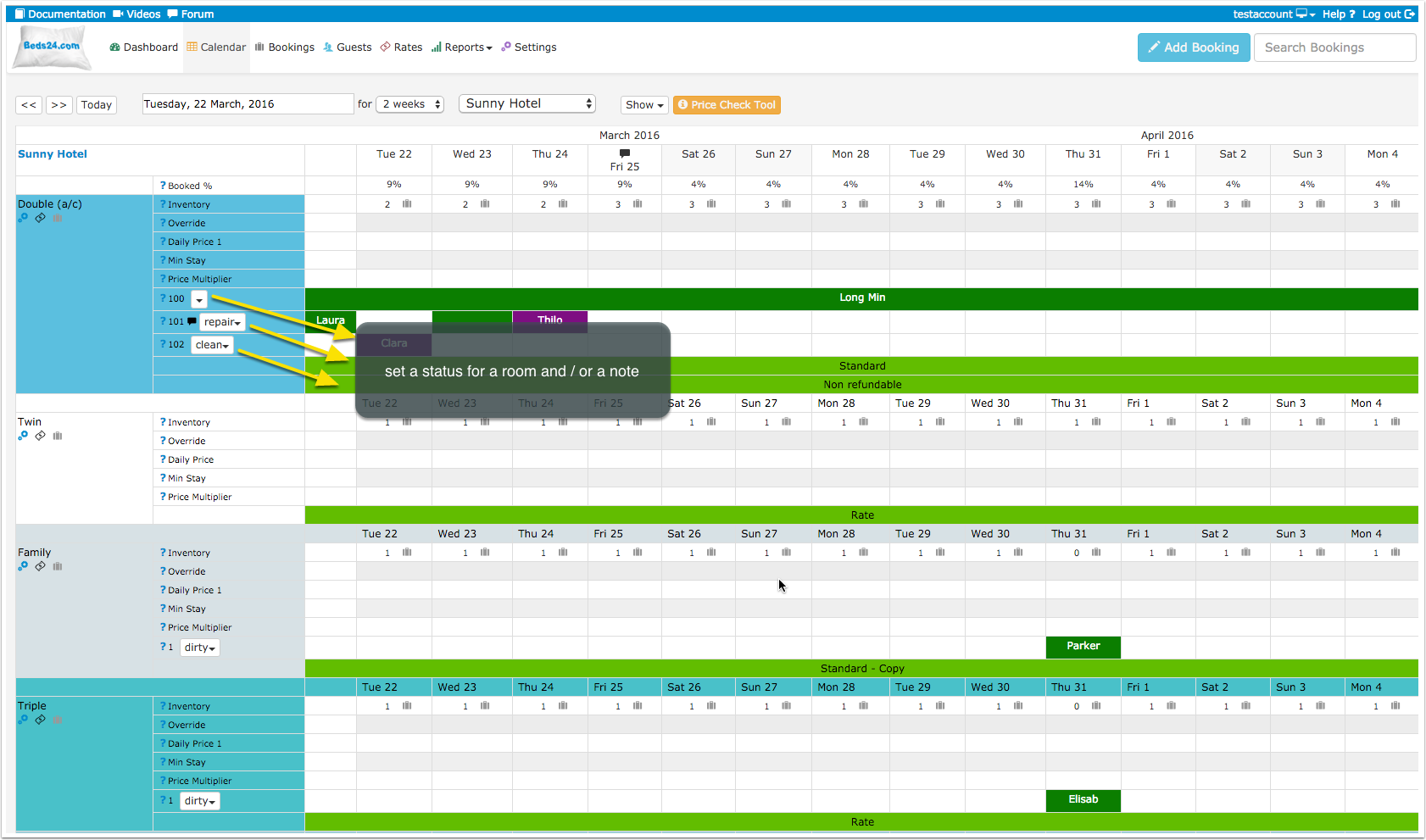
You can also add a note to store information for a room.
If you do not need the status selector your can hide it. Click on the 'User' icon on the top right and then on 'Account Management (in the old control panel SUB ACCOUNT in the top right) click on "Manage Account" and enter calendar-unitstatus in the "Hide menu pages" field.
Reports
Standard Reports
Under REPORTS there are several reports which are designed to manage cleaning and housekeeping.
Custom report to Assign Units for Housekeeping to specific Cleaner
This report can be used to assign a Properties/Rooms/Units to a specific Cleaner.
1. In the account that will assign the housekeeping of the units either manually or automatically (auto actions). Create Unit Status that will be used, i.e. Cleaner name/company.
Go to (SETTINGS) > ACCOUNT > PREFERENCES > UNIT STATUS
Enter the Unit status required, i.e. the cleaner name, company (the identifier)
Enter each value on a separate line, you can add a colour if required, check the (?) context help for details.
- Cleaner1
- Cleaner2
- Cleaner3
- ToBeAssigned
- Ready
- Action Required
2. Go to REPORTS > CUSTOM REPORTS
Create a New report or update an existing report.
Select the Report Name.
- Checkin from = Today
- Checkin to = 2 days (timeline you require)
- Status = All not cancelled.
- Template Variables [UNITSTATUS1] equal [Cleaner1]
- Select the fields that you want to show on the report/dashboard.
For each of your Cleaner accounts, you will need to clone the report and make some adjustments before they can use it for their specific information.
3. Go to 'User' icon on the top right and then ACCOUNT MANAGEMENT > LIST ACCOUNTS
Click on the Button 'Clone Account Settings'
- Select the Account that created the Housekeeping Report
- Select the Cleaner Sub Accounts from the List.
- Scroll down to Control Panel Calendar > Unit Status Values and tick the box.
- Scroll down to Settings > Custom Reports. Tick the the Report (you will need the report number) to each of the Cleaners accounts.
Scroll back to the top of the page and click 'COPY'.
4. For each Sub Account, you will need to adjust the details in the report and update their Dashboard. To do this you will need to temporarily change the Role = Admin
Go to 'User' icon on the top right and then ACCOUNT MANAGEMENT > LIST ACCOUNTS click 'Manage Account' for the Cleaner account.
- Set ROLE = Admin. Click Save.
- Click 'Login to Account'.
Go to (SETTINGS) > ACCOUNT > PREFERENCES > UNIT STATUS
Enter the Unit status required, i.e. the cleaner name, company (the identifier)
Enter each value on a separate line, you can add a colour if required, check the (?) context help for details.
- Cleaner1
- Cleaner2
- Cleaner3
- ToBeAssigned
- Ready
- Action Required
Go to REPORTS > CUSTOM REPORTS > edit the Housekeeping Report
Scroll down to
- Template Variables - change the value = CleanerXXX
Template Variables [UNITSTATUS1] equal [Cleaner1]
- Save the report
Go to DASHBOARD and click on the Padlock to unlock the Dashboard, check instructions for details.
- Select the new report that you have just created/cloned.
- Format the Dashboard as you need.
Go to 'User' icon on the top right and then ACCOUNT MANAGEMENT and for this Cleaner account set the ROLE = Cleaner.
Do this for each of the cleaner accounts.
5. Setup the Auto Actions to automatically assign the Cleaner to the Properties/Rooms/Units.
You can then use Auto Actions to automatically assign the Housekeeping to the appropriate cleaner, if it is by Property, Room ids, Units, these can be set in the Auto Action Trigger.
Go to (SETTINGS) > GUEST MANAGEMENT > AUTO ACTIONS
Click on "Create New Action" to set up a new auto action.
Trigger tab
- Property
- Room
- Exclude Room Id's (can be used to refine the assignments)
- Unit (can be used to refine the assignments)
- Trigger Event = Check-out
- Trigger Time = Immediate
- Trigger Window = 1 day
- Booking Status = All but not cancelled
Booking tab:
- Execution = One time only
- Change Room Unit Status = Select the 'Cleaner number/name'
Repeat this for each Property/Room/Unit/Cleaner.
6. Manually change/assign - If you need to adjust the details for one apartment/property due to change in Cleaner or sickness etc.
Go to CALENDAR go to the Property/Room/Unit
- Set the 'Unit Status' = to the Cleaner number/name.
Then in the report on the Cleaner Dashboard they will see the list of apartments that are assigned to them.
If appropriate the Cleaner can then use the Housekeeping Module on the dashboard to update the unit that it has been cleaned, by updating the Unit Status.
Automation
If you want to automate the process you can set up an Auto Action which automatically changes the unit status when a guest arrives.
Customise status presets
The default status can be changed in (SETTINGS) ACCOUNT->PREFERENCES under "Unit Status Presets".
An optional color used to highlight the status can be added to the end of each line using CSS format (# and 6 character code) like follows:
colorful status #992200
Closure for maintenance
There are several options:
- Add a booking with the status "Black" for the period the room is under maintenance.
- Reduce the inventory in the CALENDAR to 0
- If you want to close the whole property set an "Exceptional booking period" = Blackout in (SETTINGS) PROPERTIES->BOOKING RULES.
Log in for Cleaners
Additional user log ins can be created under Account Management. Click on the 'User' icon on the top right and then on 'Account Management (in the old control panel SUB ACCOUNT in the top right). The roles "Cleaner" and "Cleaner Manager" have restricted access to the control panel.