Hotelbeds.com: Difference between revisions
No edit summary |
No edit summary |
||
| Line 39: | Line 39: | ||
*Enter your Hotelbeds password in the field "Password". | *Enter your Hotelbeds password in the field "Password". | ||
==Beds24.com== | ==Beds24.com== | ||
Click on the "Get Contract List" link to access your contract list. | |||
Enter account data: | |||
*Enter your Hotelbeds Hotel Code into the field "Hotel Code" | *Enter your Hotelbeds Hotel Code into the field "Hotel Code" | ||
*Enter your Hotelbeds Contract Name in the field "Contract Name". | *Enter your Hotelbeds Contract Name in the field "Contract Name". | ||
| Line 54: | Line 50: | ||
Press SAVE. | Press SAVE. | ||
[[Image:hotelbeds.png|350px|link=]] | |||
[[Media:hotelbeds.png|view large]] | |||
== Map rooms == | == Map rooms == | ||
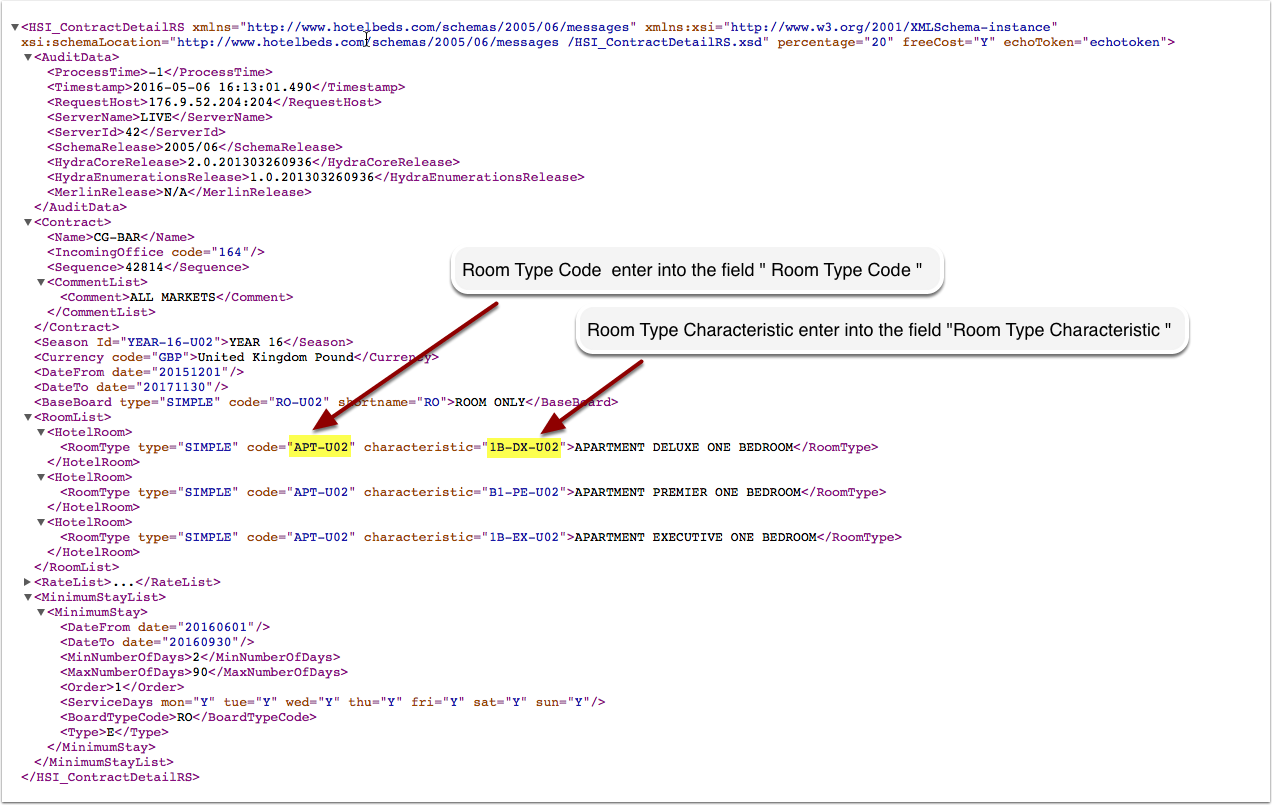
Click on the "Get Contract Detail" link to access your contract list. | |||
For each room you want to connect: | For each room you want to connect: | ||
*Enter your Hotelbeds Room Code into the field "Room Code" | *Enter your Hotelbeds Room Code into the field "Room Code" | ||
*Enter your Hotelbeds Room Characteristic into the field "Room Characteristic" | *Enter your Hotelbeds Room Characteristic into the field "Room Characteristic" | ||
[[Image:hotelbeds1.png|350px|link=]] | |||
[[Media:hotelbeds1.png|view large]] | |||
== Multiple contracts == | == Multiple contracts == | ||
| Line 70: | Line 72: | ||
Daily prices and all rates in which you have not specified a contract will send to the first contract. | Daily prices and all rates in which you have not specified a contract will send to the first contract. | ||
[[Image:hotelbeds2.png|350px|link=]] | |||
[[Media:hotelbeds2.png|view large]] | |||
== Activate == | == Activate == | ||
Revision as of 16:04, 6 May 2016
Synchronising Beds24.com with Hotelbeds
General
- Click here for general information on how the channel manager works.
- This tutorial explains how to set prices for channels.
Capabilities
- Beds24.com can export inventory
- Beds24.com can export rates. We send one room price. If you have multiple rates by default the lowest price will be sent.
- Beds24.com can export minimum stay
- Beds24.com can import bookings
- Beds24.com can import changes to bookings
For details please click here
Limitations
Currently the channel manager can synchonise one contract only.
If your contract changes you will need to update Beds24 with the codes for your new contract.
You need
- Hotelbeds username
- Hotelbeds password
Hotelbeds
Send and email to [email protected]) with your Hotelbeds username which you are using to access the Hotelbeds extranet and ask them to connect with Beds24. Include following information in the email:
1. The URL where the reservations will be sent is: https://api.beds24.com/hotelbeds.com/booking
2. The email address where the reservations will be sent in case the Channel answers with NOT PROCESSED is: [email protected]
Hotelbeds will notify you when the BMS connection is ready.
Set Up
Once you have this confirmation from Hotelbeds enter:
- Enter your Hotelbeds username into the field "Username"
- Enter your Hotelbeds password in the field "Password".
Beds24.com
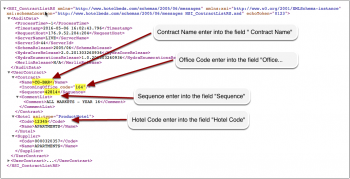
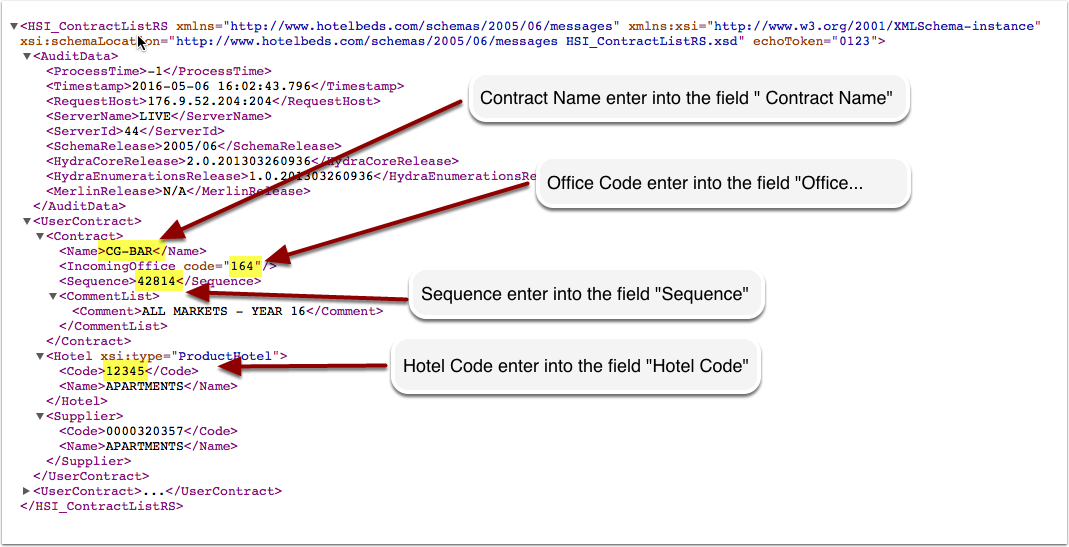
Click on the "Get Contract List" link to access your contract list.
Enter account data:
- Enter your Hotelbeds Hotel Code into the field "Hotel Code"
- Enter your Hotelbeds Contract Name in the field "Contract Name".
- Enter your Hotelbeds Sequence into the field "Sequence"
- Enter your Hotelbeds Office Code into the field "Incoming Office Code"
Press SAVE.
Map rooms
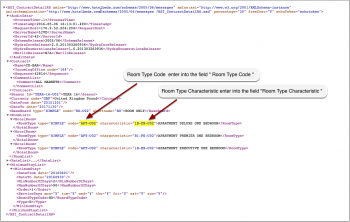
Click on the "Get Contract Detail" link to access your contract list.
For each room you want to connect:
- Enter your Hotelbeds Room Code into the field "Room Code"
- Enter your Hotelbeds Room Characteristic into the field "Room Characteristic"
Multiple contracts
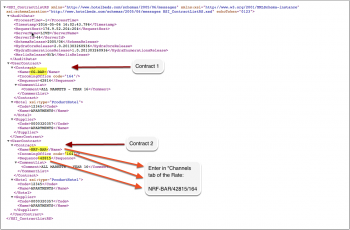
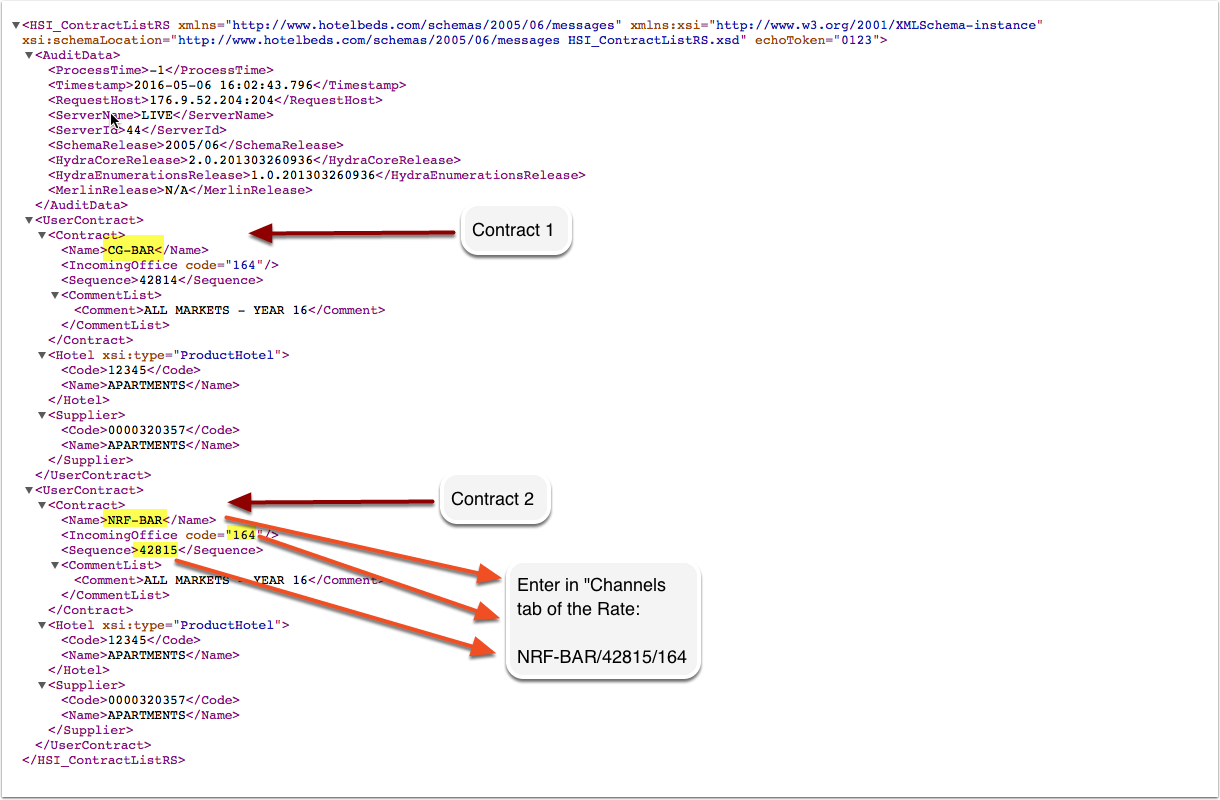
Specify the first contract in the channel manager settings. Make sure "Hotelbeds" is ticked in the "Channels" tab of all rates you want to send to this contract.
Open the rates you want to send to the second contract. Go to the "Channels" tab. Tick "Hotelbeds" and enter the contract name, sequence and office code for this contract separated by the / symbol.
Example: NRF-BAR/45678/164
Daily prices and all rates in which you have not specified a contract will send to the first contract.
Activate
You can view the live availability and prices that will be sent to Hotelbeds before or after activating using the "View actual data" button.
When everything is correct tick "Inventory", "Prices" and "Bookings" to activate the connection.
Price Multiplier
If you want to add a multiplier to your prices, for example because Hotelbds requires a different currency to your Beds24 currency, add a * followed by the multiplier number to your Contract Name.
For example a Contract Name setting ABC*1.23 will multiply all prices by 1.23 sent for Contract Name ABC. (i.e. raised by 23%) Lower prices can be sent with a multiplier less than 1, i.e. ABC*0.85 will send a price 85% of the normal price (i.e. lowered by 15%)