Make: Difference between revisions
No edit summary |
No edit summary |
||
| Line 241: | Line 241: | ||
1. After you setup your Beds24 module in Integromat ( showing in this video https://wiki.beds24.com/index.php/Integromat.com#Integromat) set the Google Chrome module. | 1. After you setup your Beds24 module in Integromat ( showing in this video https://wiki.beds24.com/index.php/Integromat.com#Integromat) set the Google Chrome module. | ||
[[Image:push1.png|650px|link=]] | [[Image:push1.png|650px|link=]] | ||
[[Media:push1.png|view large]] | [[Media:push1.png|view large]] | ||
2. Click on “Add This Chrome” and install the Integromat google chrome plugin. | |||
2. | |||
[[Image:push2.png|650px|link=]] | [[Image:push2.png|650px|link=]] | ||
[[Media:push2.png|view large]] | [[Media:push2.png|view large]] | ||
3. Click on “Add to Chrome” to install the plugin | |||
3. | |||
[[Image:push3.png|650px|link=]] | [[Image:push3.png|650px|link=]] | ||
[[Media:push3.png|view large]] | [[Media:push3.png|view large]] | ||
4. Copy the Registration Code | |||
4. | |||
[[Image:push4.png|650px|link=]] | [[Image:push4.png|650px|link=]] | ||
| Line 298: | Line 261: | ||
5. | 5. Paste the Registration code on the Chrome module in Integromat | ||
[[Image: | [[Image:push5.png|650px|link=]] | ||
[[Media:push5.png|view large]] | [[Media:push5.png|view large]] | ||
6. Create the message you want to send , you can use the Beds24 Template variables that show in Integromat | |||
6. | |||
[[Image:push6.png|650px|link=]] | [[Image:push6.png|650px|link=]] | ||
[[Media:push6.png|view large]] | [[Media:push6.png|view large]] | ||
7. Once a new booking is created, Intergomat send a notification to your Google Chrome/Account | |||
7. | |||
[[Image:push7.png|650px|link=]] | [[Image:push7.png|650px|link=]] | ||
[[Media:push7.png|view large]] | [[Media:push7.png|view large]] | ||
Picture 8 | |||
Revision as of 17:11, 27 November 2019
This page is about the menu SETTINGS->APPS & INTEGRATIONS->INTEGROMAT
To use this service you will need an account with Integromat.
For Beds24 the normal channel manger fees apply.
Capabilities
Within Integromat you can connect Beds24 to third party Apps and services. Beds24 will then send booking data to Integromat which will be passed on to the services you connected to
Limitations
Set Up
Beds24
- Set up an Auto Action (SETTINGS-GUEST MANAGEMENT-AUTO ACTIONS) which selects the bookings which will be sent to Integromat. Set "Trigger Action" = automatic.
- Select the Auto Action which you want to use for Integromat.
- Tick the rooms for which you want to send bookings. Only bookings from rooms enabled for Integromat and which meet the trigger conditions in the Auto Action will be sent.
- Create an apiKey of 16 or more characters and save it.
- Choose your send strategy, bookings can be sent repeatedly, once only or after each modification.
- A default set of booking information is sent to Integromat, this can be customized by specifying the fields you want to send, one per line at the setting "Data fields". See below for a set of all fields.
Integromat
- Create an Integromat account at Integromat.
- Search for the Beds24 App.
- Connect the Beds24 App to your scenario and enter the apiKey you created and the Beds24 Property Id.
- Select the trigger "watch bookings" and map the data into your scenario as you require.
Send template variables to Integromat
The advanced section of the Integromat connection form has eight template fields where you can enter Beds24 Template Variables.
The matching "template" data field must be specified in Beds24 as one of the Integromat data fields to enable the field. (template1 etc.).
The Template Variable will be calculated and it's value sent to Integromat with the booking.
How it works
In Integromat you create a scenario which automates tasks for you. A scenario is comprised of a series of modules that indicate how data should be transferred and transformed between Beds24 and other apps/services.
Bookings are sent from Beds24 to Integromat when the room is enabled and the booking meets the trigger condition in the selected auto action. Bookings which were sent will appear in Integromat via the "watch bookings" trigger.
These bookings will then be automatically transferred from Integromat to the apps/services in your Integromat scenarios.
Data Fields
If the data fields setting is left empty, a default set of information will be sent about each booking.
If the data fields setting is used, only the booking number, modifiedTime and the fields specified are sent to Integromat. Data field values must be specified one per line.
Possible values are:
groupId
roomId
roomName
unitId
unitName
status
checkIn
checkOut
lastNight
numAdult
numChild
guestTitle
guestFirstName
guestLastName
guestComments
guestArrivalTime
guestEmail
guestPhone
guestMobile
guestCompany
guestAddress
guestCity
guestState
guestPostCode
guestCountry
guestCountry2
lang
originalBooking
originalOTA
originalReferer
referer
notes
reference
custom1
custom2
custom3
custom4
custom5
custom6
custom7
custom8
custom9
custom10
offerId
voucher
flagColor
flagText
bookingTime
invoice
invoiceCharges
invoicePayments
totalCharges
totalPayments
totalBalance
price
tax
deposit
commission
rateDescription
template1
template2
template3
template4
template5
template6
template7
template8
Common Problems
Disconnect
Untick "Bookings" to stop sending bookings.
Examples
Create a Subaccount from a Google Form
1. Create the Google form(https://docs.google.com/forms/u/0/) , you will need to at least “request” on the form
a)Username
b)Email
c)Password
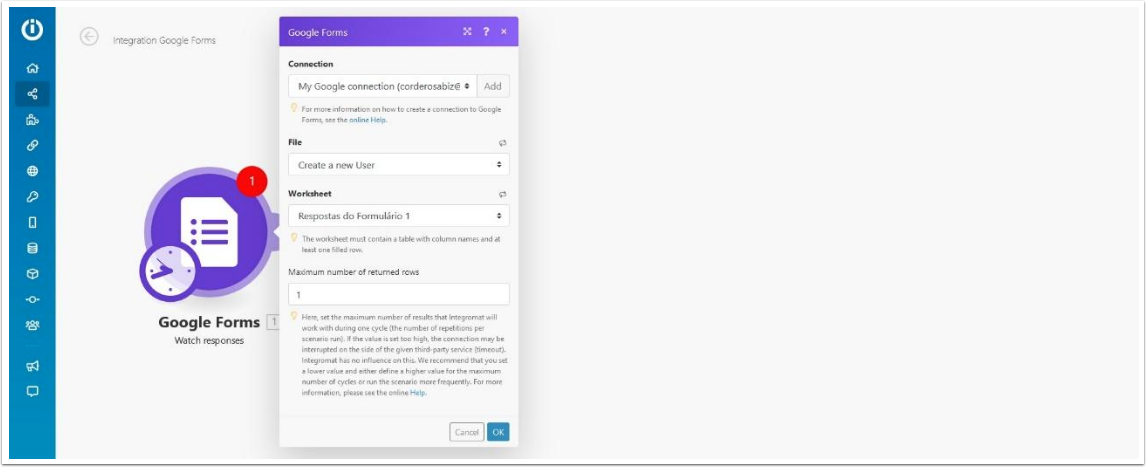
2. Go to Integromat and create a scenario, start with a Google Forms, and set it to “Watch Responses”
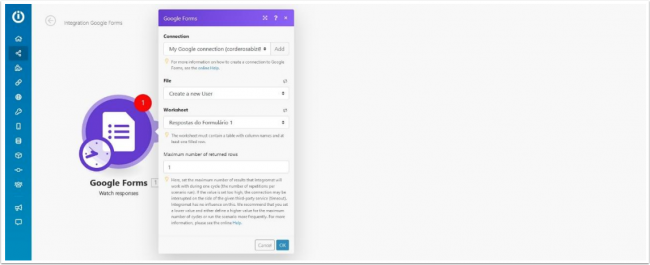
3. Set the connection ( you will need to Allow Integromat to access your Google account),
a) Choose the “File” this is the same name you gave your “Form” in Google forms.
b) Worksheet, Google forms should create a worksheet in your Google drive, you need to select this here.
c) Maximum number of returned rows, Here, set the maximum number of results that Integromat will work with during one cycle, You can set this to one, we will make this scenario constantly checking for new responses.
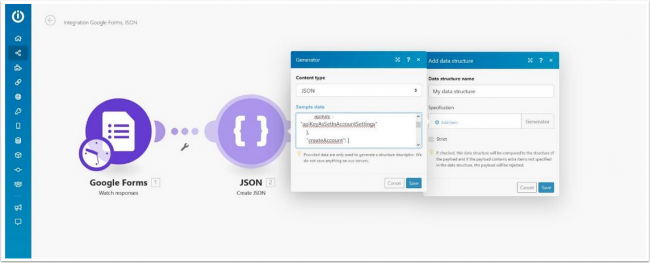
4. After this, it will ask you to “Select the first row” this means the row you want Integromat to start checking the worksheet, it should normal be set to number”2” because the first row is used for the column names.
5. Now we will need to add another module, add the “Json” module and set it to “Create Json”
6. You will need to add a “Data Structure.
a) Click on “Add”
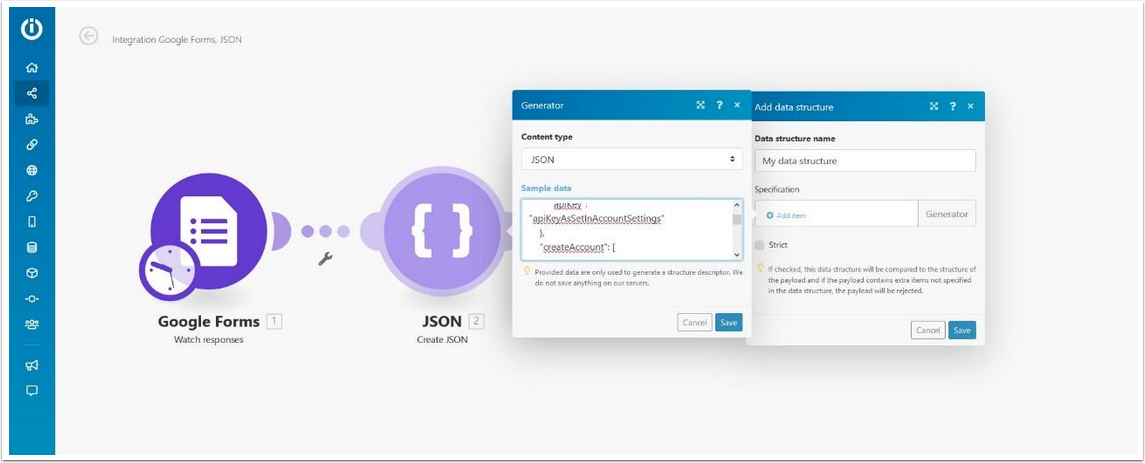
b) “Name the data structure” and click on “Generator”
c) Leave the “Content Type = Json
d) On the Sample Data insert
{
   "authentication": {
       "apiKey": "apiKeyAsSetInAccountSettings"
   },
   "createAccount": [
       {
           "username": "username",
           "password": "password",
           "apiKey": "YourKeyToUseForTheNewAccount",
           "email": "[email protected]",
           "role": "0",
           "systemEmails": "0",
           "bookingEmails": "0",
           "bookingReplyto": "0"
       }
   ]
}
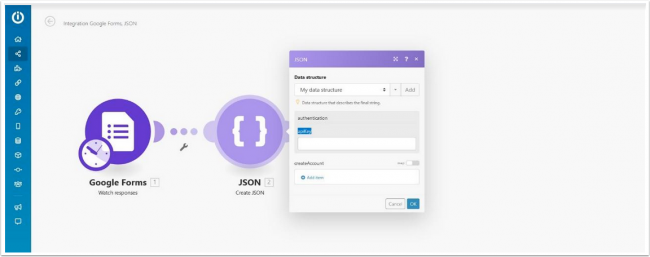
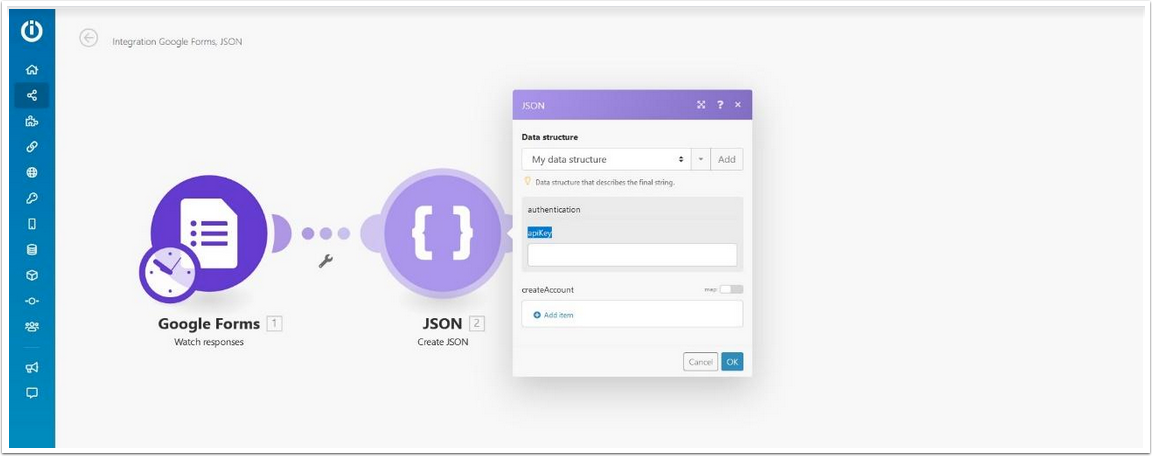
- Click on “Save”, you should now see the original “window” with your data structure and it should have a “Authentication” box where you need to insert the API key,
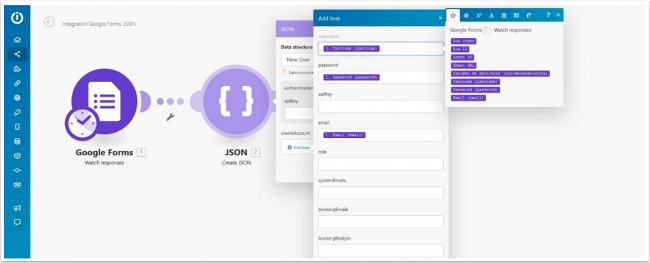
- You need to set the API key you have set under Settings -> Account - > Account Access
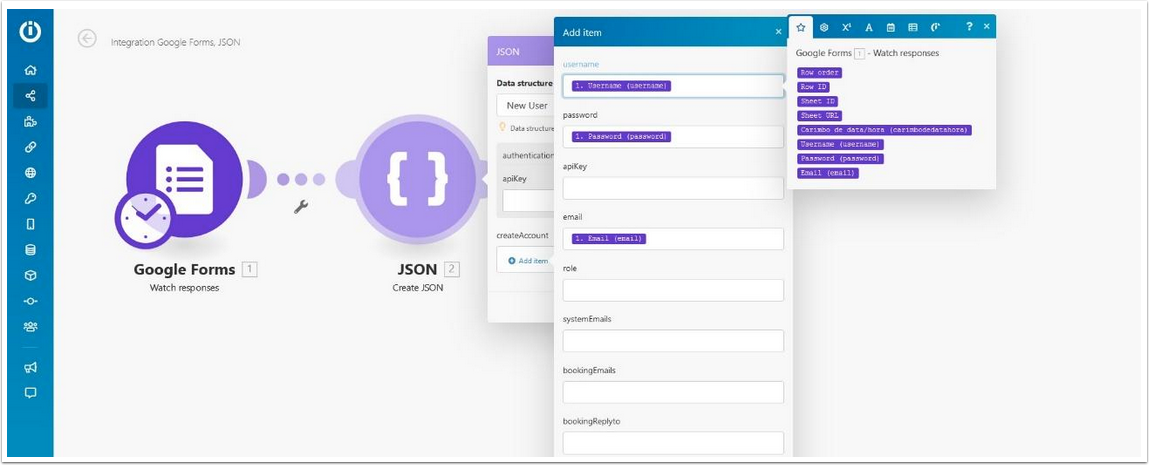
- Click on “Add Items” under Create Account in Integromat, here you will need to add the variables into the correct fields.
- Leave the “API” field empty, the fields
- Role
- systemEmails
- bookingEmails
- bookingReplyto
- Can be manually filled by you conform your requirements, for information about this fields please have a look at this page, https://api.beds24.com/json/createAccount
- Leave the “API” field empty, the fields
After you have done this, click on “Add” and than click on “Ok”.
Now we are going to create another module.
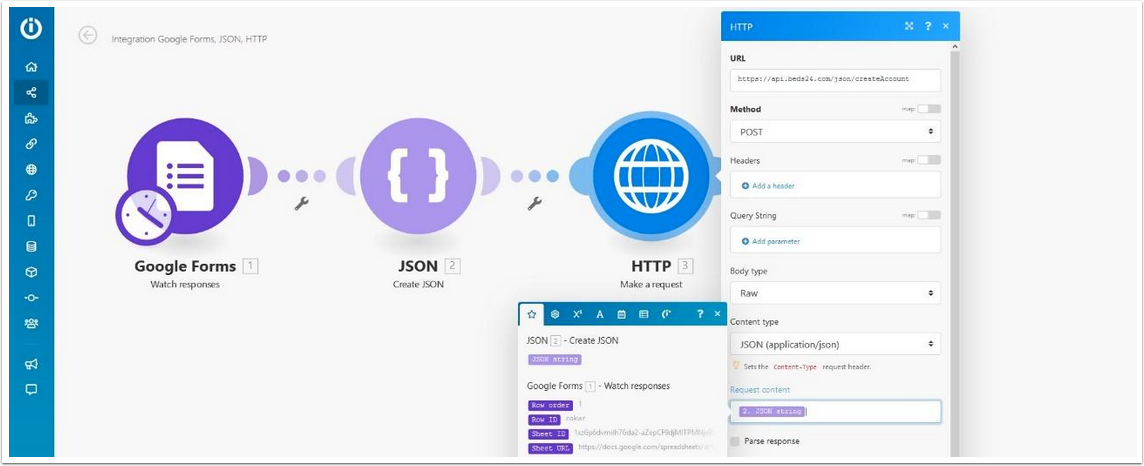
- Set the module HTTP, and set this to “Make a Request”
- Set the:
- URL: https://api.beds24.com/json/createAccount
- Method:Post
- Header: Leave blank
- Query String: Leave blank
- Body Type: Raw
- Content Type: JSON
- Request Content: JSON String ( Its a variable you need to drag and drop).
- Set the:
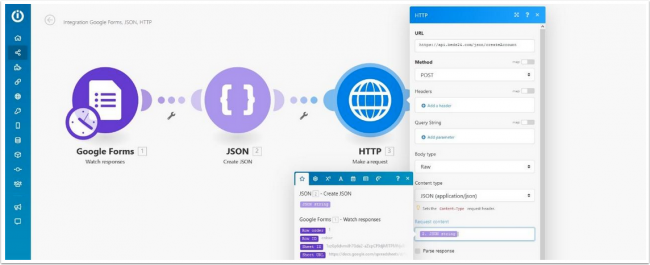
Click on “OK” and you are ready to test this scenario,
Open you Google form and insert some information, “username / Email and password” this will be added to row 2 on your worksheet, go to Integromat and click on “Run Once” it will insert this user as a sub account into your Beds24 account.
Sending Booking Notifications to your Google Chrome/Account
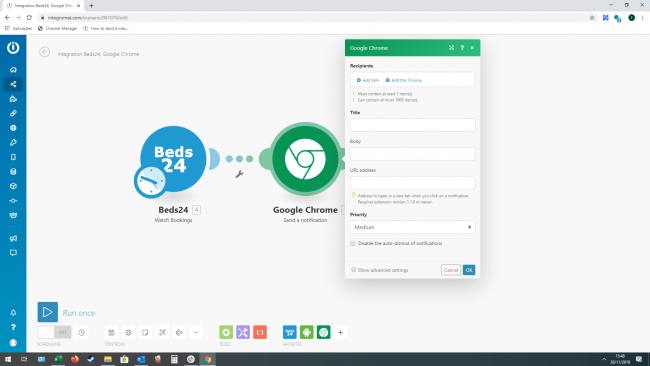
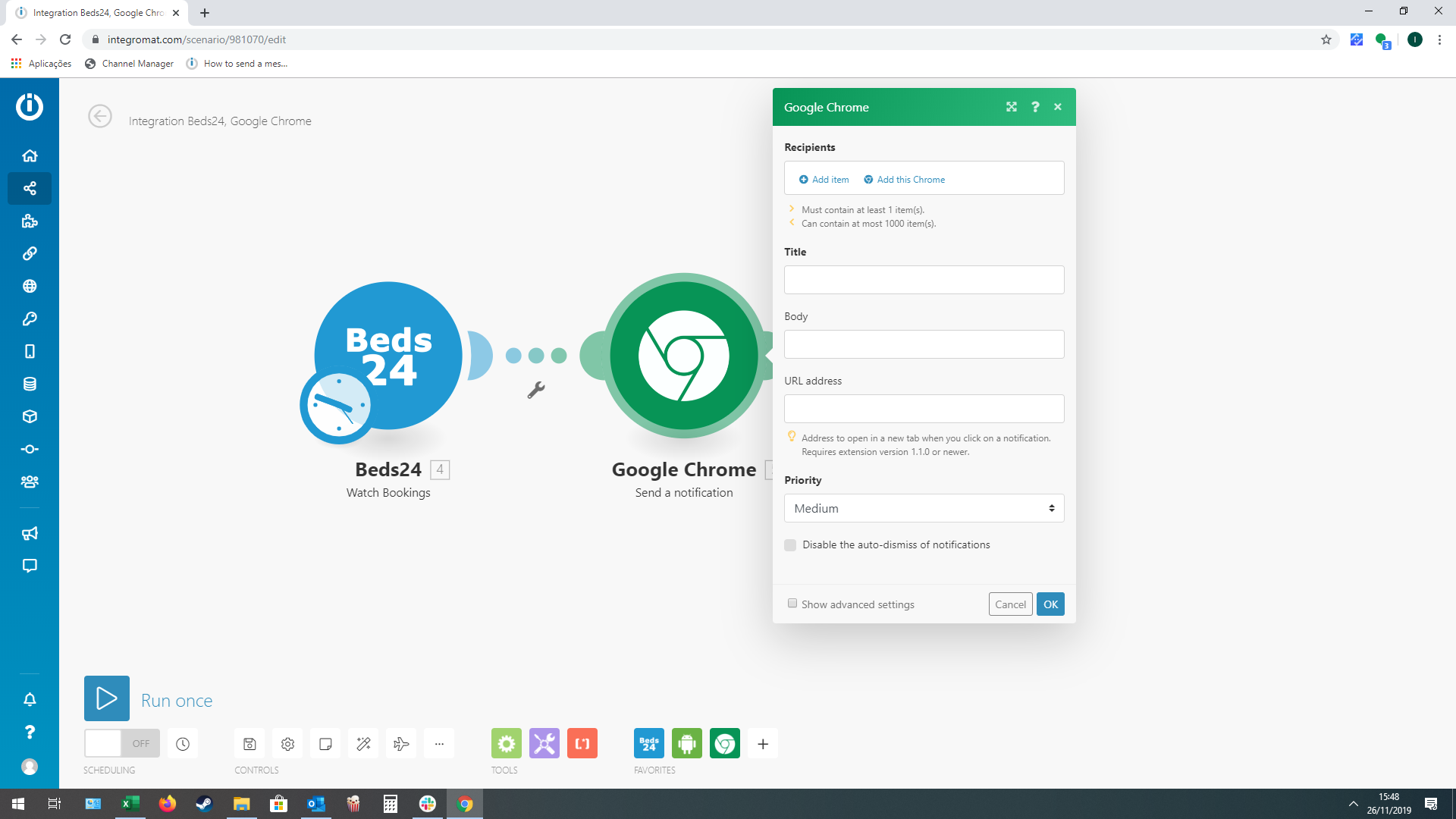
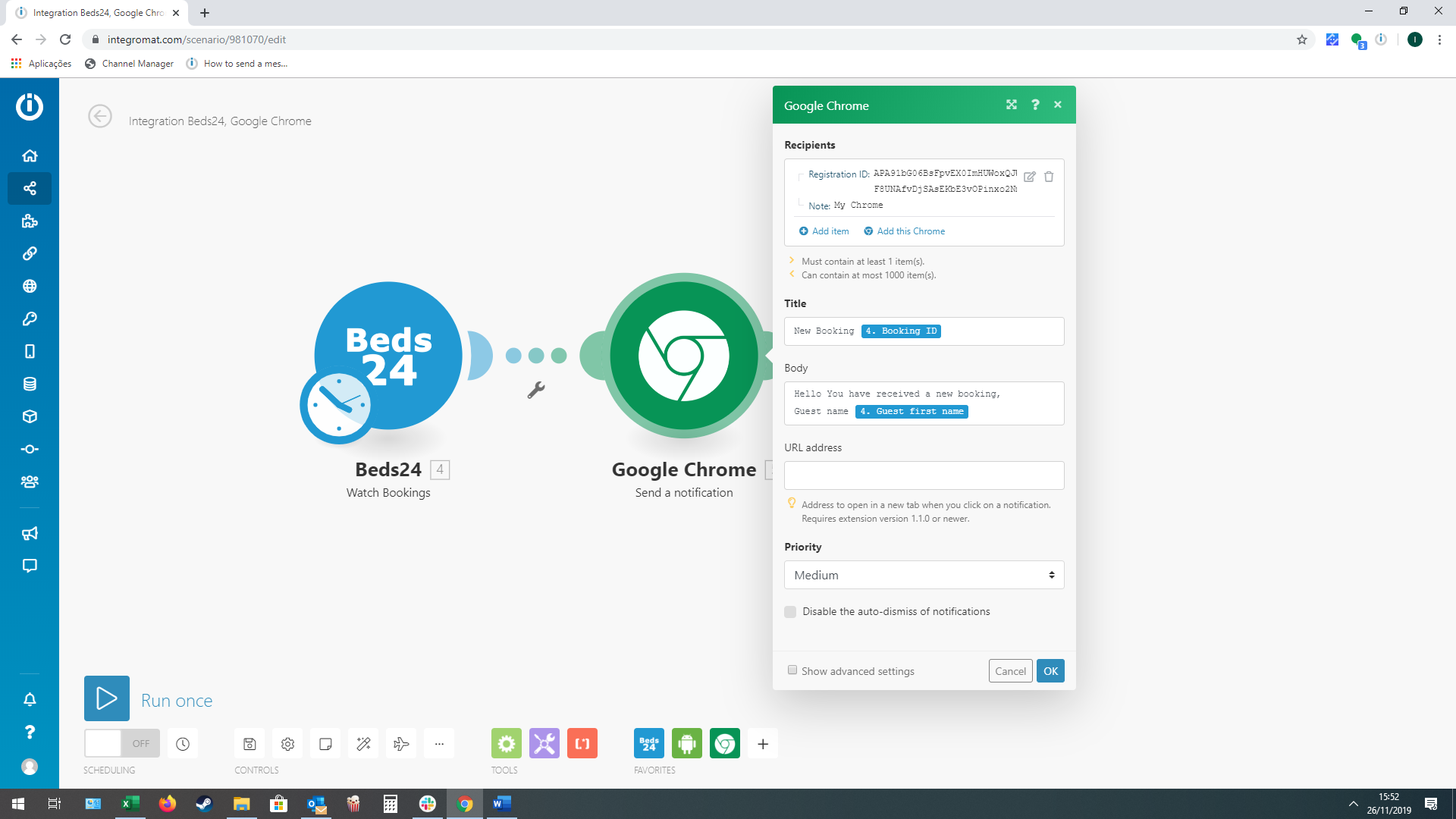
1. After you setup your Beds24 module in Integromat ( showing in this video https://wiki.beds24.com/index.php/Integromat.com#Integromat) set the Google Chrome module.
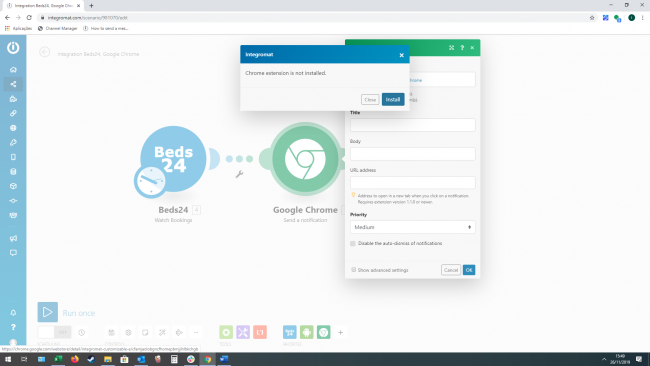
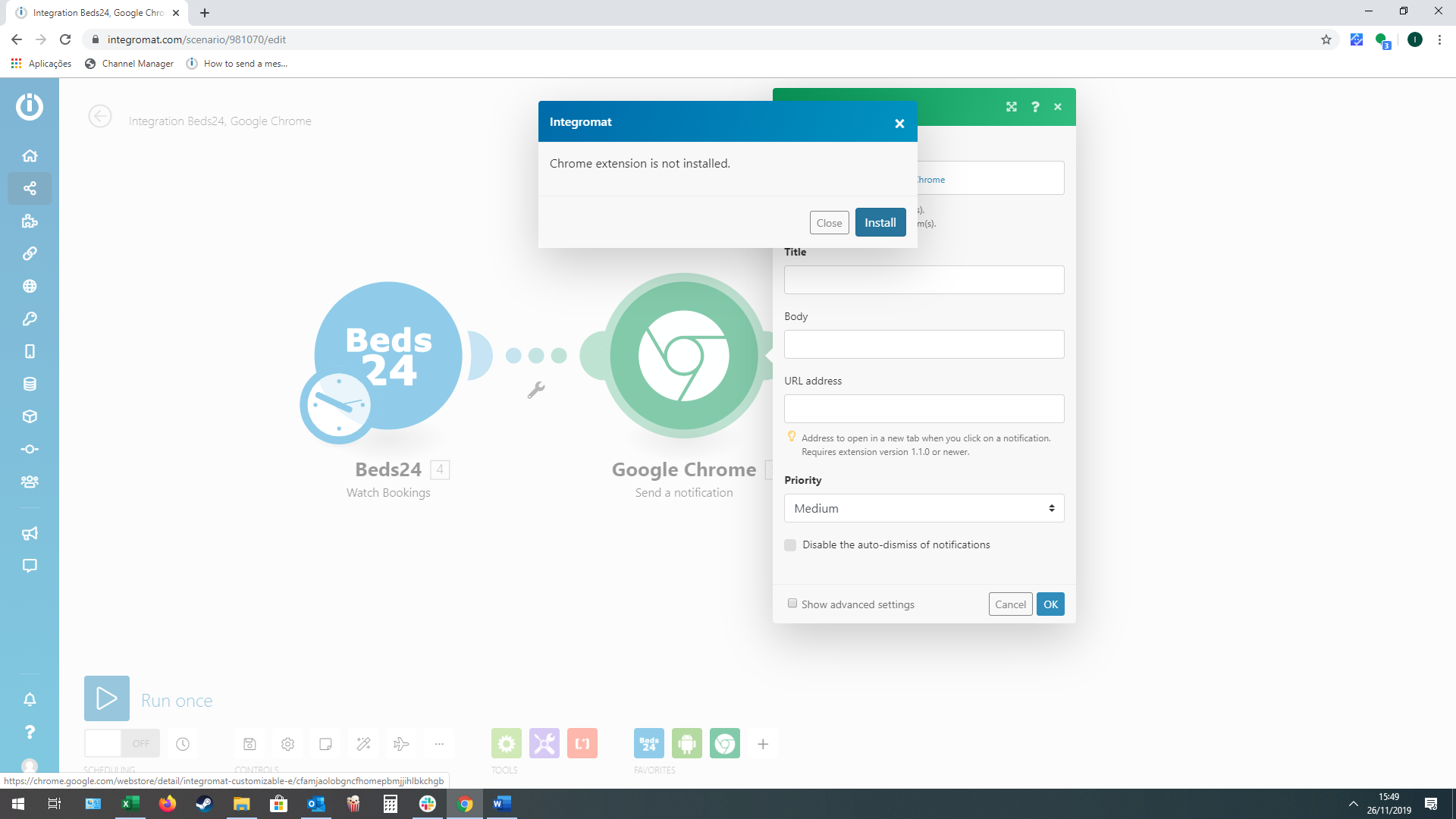
2. Click on “Add This Chrome” and install the Integromat google chrome plugin.
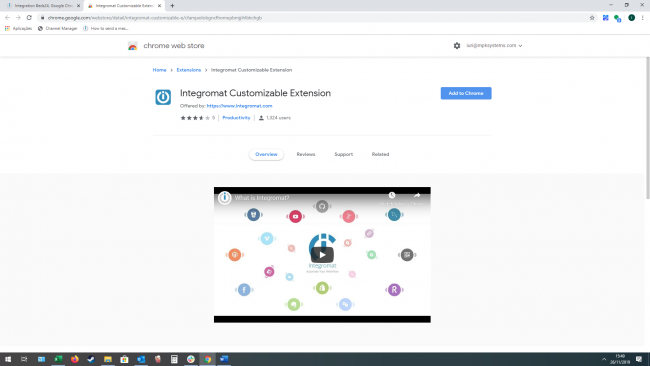
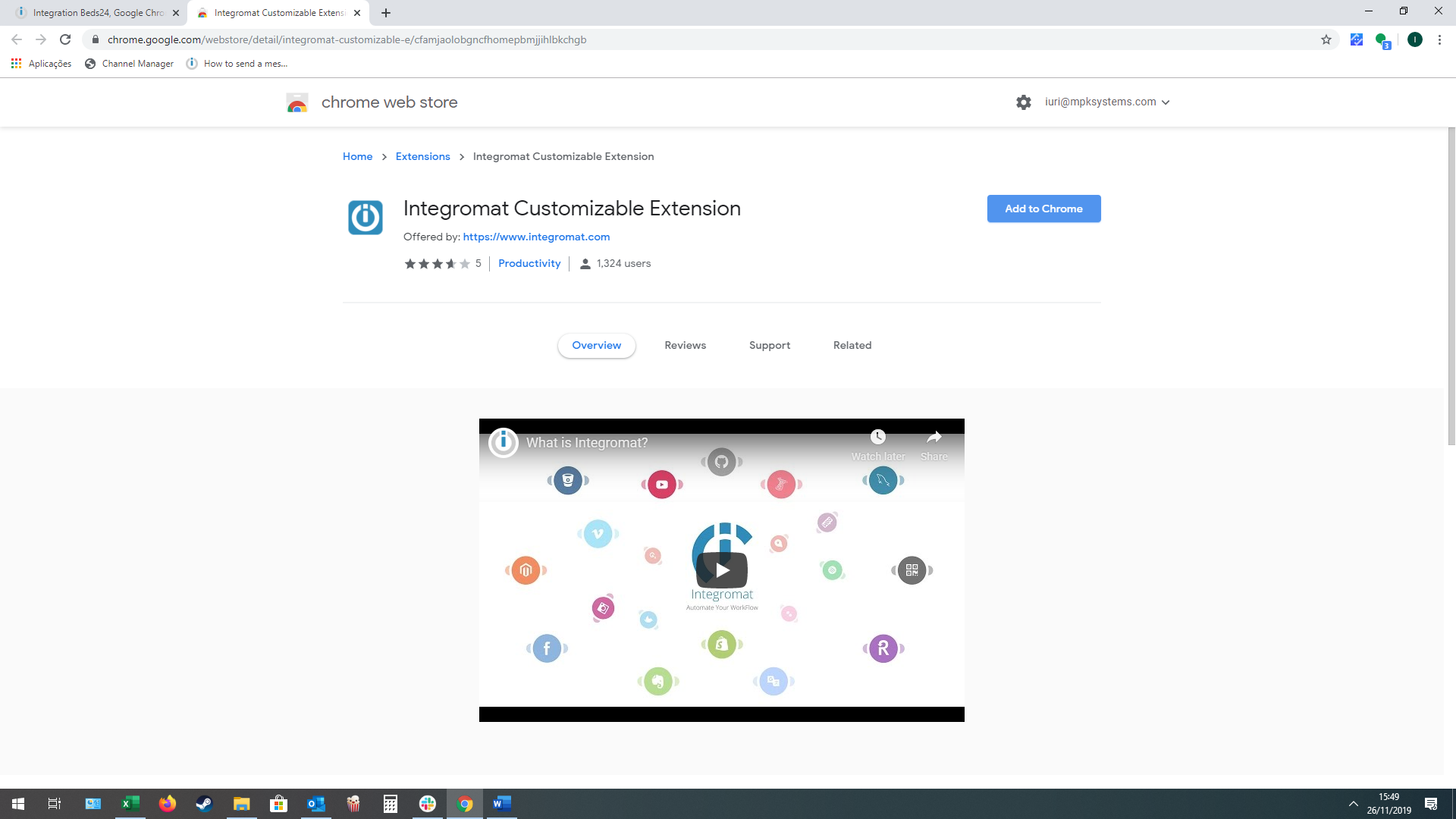
3. Click on “Add to Chrome” to install the plugin
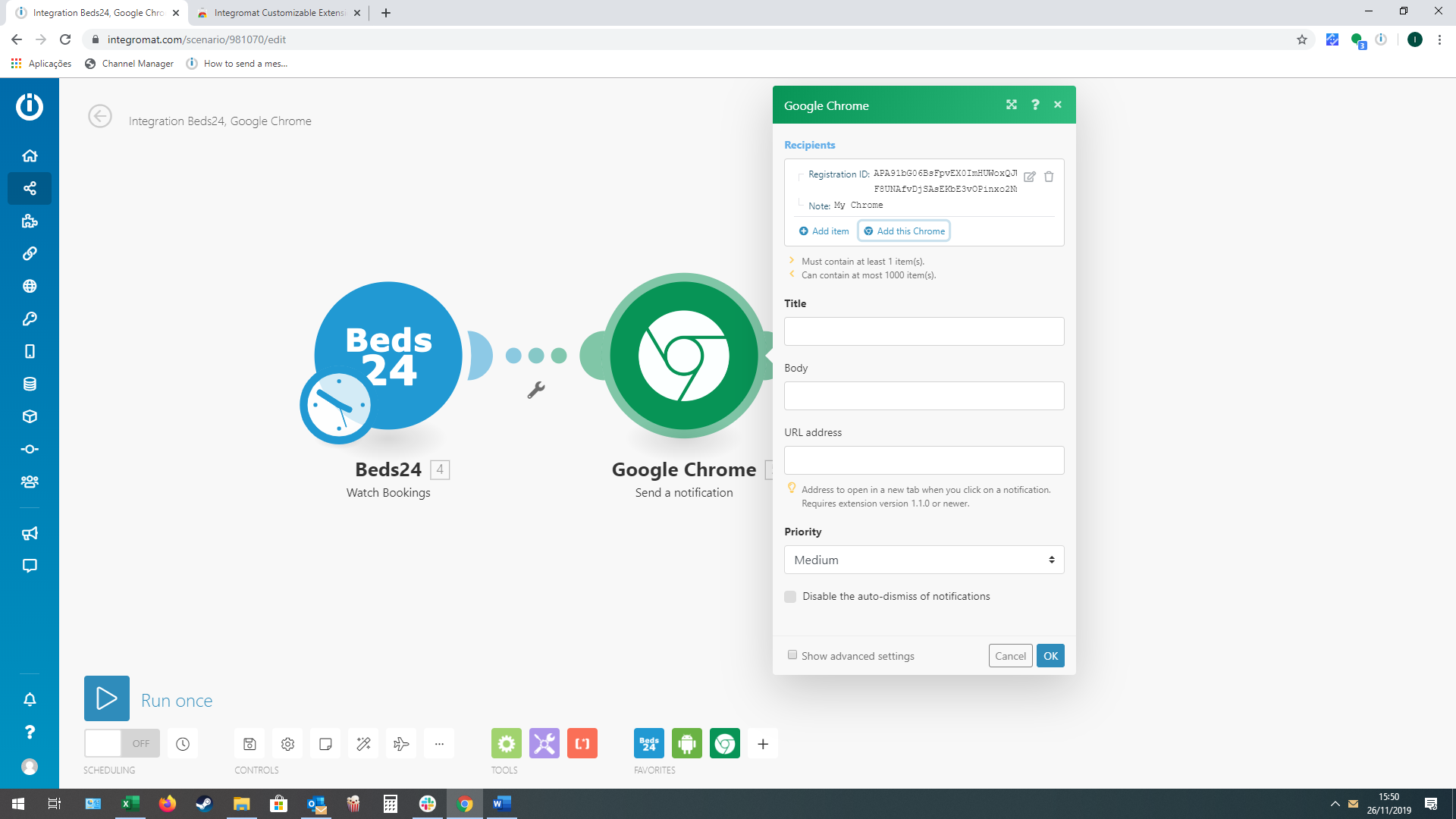
4. Copy the Registration Code
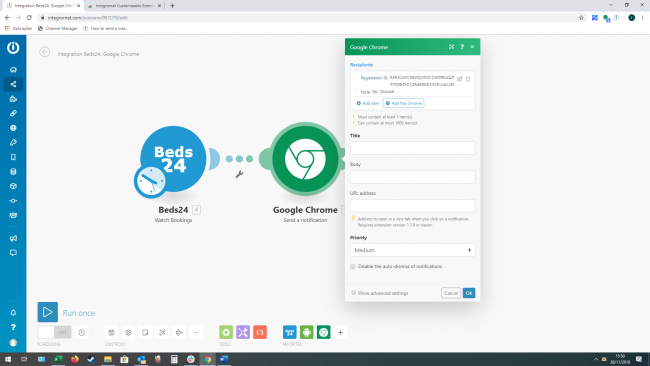
5. Paste the Registration code on the Chrome module in Integromat
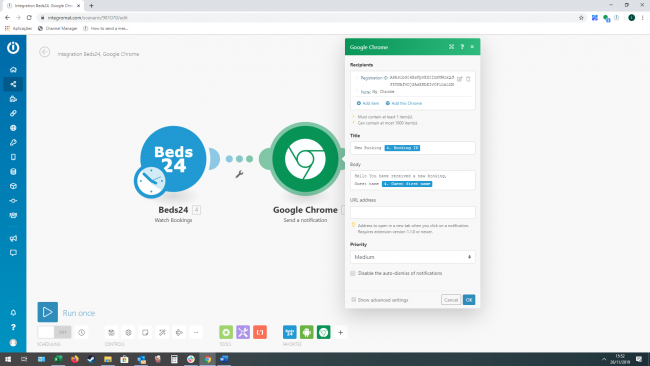
6. Create the message you want to send , you can use the Beds24 Template variables that show in Integromat
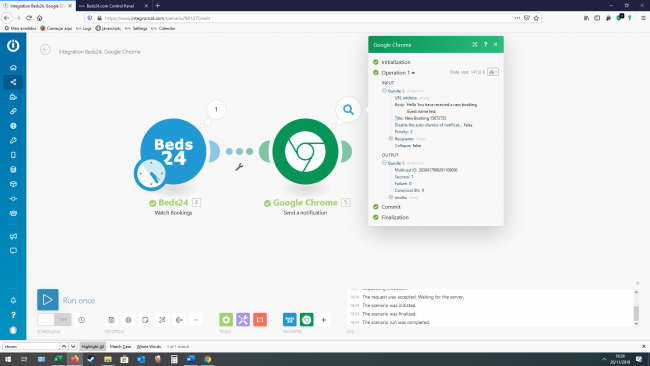
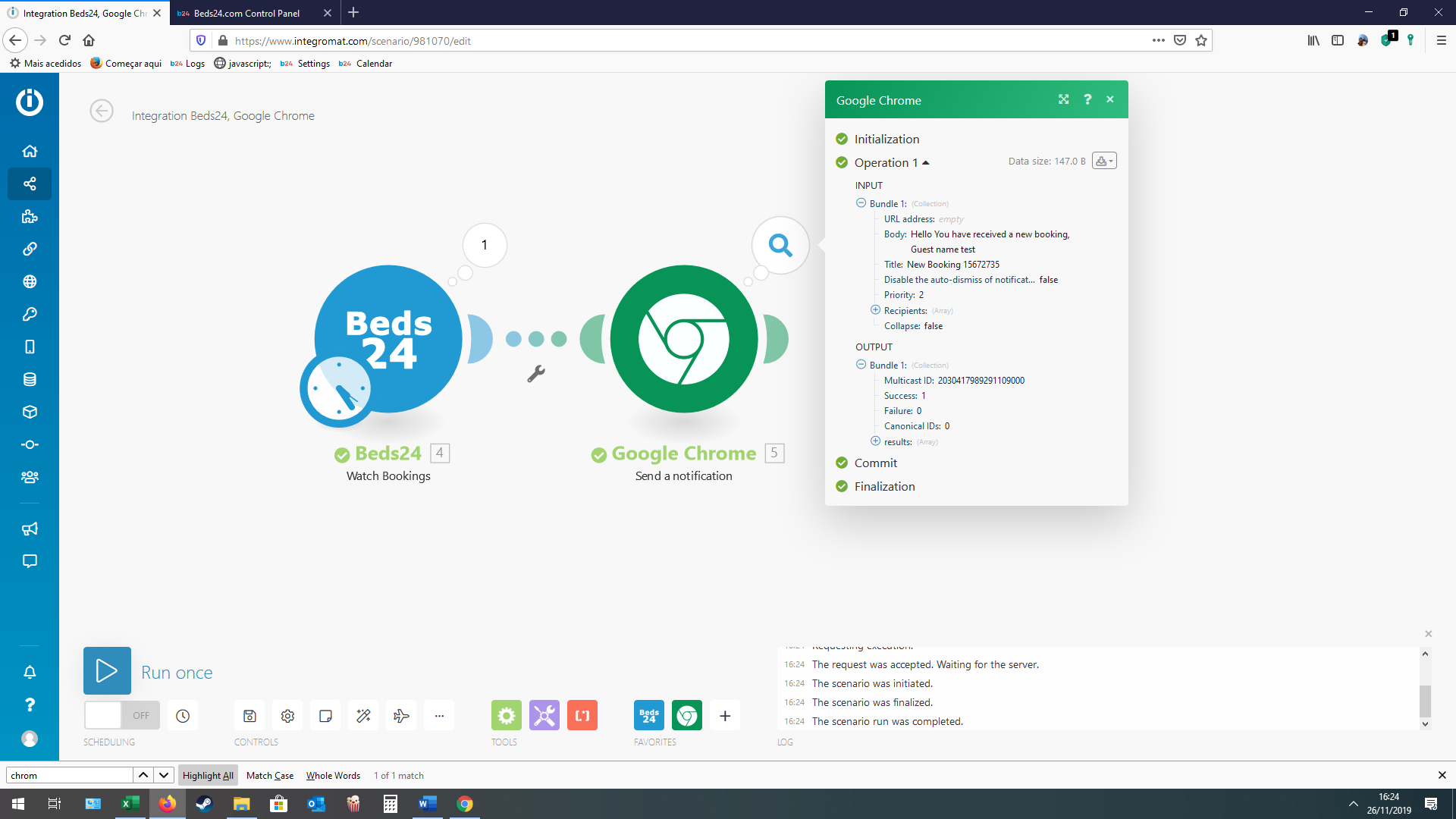
7. Once a new booking is created, Intergomat send a notification to your Google Chrome/Account

Picture 8