Nuki.io: Difference between revisions
No edit summary |
No edit summary |
||
| Line 8: | Line 8: | ||
Contact us if you want to participate in the beta test. | Contact us if you want to participate in the beta test. | ||
For Beds24 the normal channel manger fees apply. | For Beds24 the normal channel manger fees apply. | ||
== Capabilities == | == Capabilities == | ||
*Beds24 can send booking data to | *Beds24 can send booking data to Nuki locks. | ||
*Auto-Check-in: when a lock is first opened by the guest the info code "CHECKIN" will be added to the booking. | *Auto-Check-in: when a lock is first opened by the guest the info code "CHECKIN" will be added to the booking. | ||
== Limitations == | == Limitations == | ||
*Currently only keypad authentication is supported. | |||
== Set Up == | == Set Up == | ||
* | To use this service you will need: | ||
* | *A Nuki Smart Lock. | ||
*A Nuki Keypad. | |||
*A [https://nuki.io nuki.io] account. | |||
*Click on "Connect to Nuki". | |||
*Sign in with your Nuki account if prompted. | |||
*Click "Allow" to let Beds24 view and manage your Nuki account and locks. | |||
[[Image:nuki_auth.png|500px|link=]] | |||
[[Media:nuki_auth.png|view large]] | |||
*The "Start Time" and "End Time" define the earliest Check-in time and latest Check-out time. | *The "Start Time" and "End Time" define the earliest Check-in time and latest Check-out time. | ||
*The "Days in Advance" sets the days before check-in that the booking is sent to the lock. | *The "Days in Advance" sets the days before check-in that the booking is sent to the lock. | ||
*Click on "Get Codes" | *Click on "Get Codes" | ||
You will see one | You will see one identifier and name for each lock. Click on the name of the lock that is associated with the room. | ||
[[Image:nuki_mapping.png|500px|link=]] | |||
[[Media:nuki_mapping.png|view large]] | |||
== How it works == | == How it works == | ||
Bookings | Bookings are sent to locks "Days in Advance" prior to check-in. | ||
*An entry code/user named Booking:{booking number} is added to the lock, viewable at [https://web.nuki.io/#/pages/smartlocks web.nuki.io] or in the Nuki app. | |||
*A booking info code named NUKI_PIN is created which will show the pin number valid for the booking. | |||
Updates are sent periodically. To instantly send updates, click "Send Bookings to Locks". | |||
If the keypad code, booking dates, or room changes, those details will be sent to locks. | |||
Updates are sent | |||
If the dates | |||
If a booking is cancelled the associated entry code will be deleted from locks. | |||
Entry codes/users can only be used during the booking period, they will not provide access before or after. | |||
<span style="color:#fe746c;“ >{{#fas:exclamation-triangle}} </span> If a Nuki lock is offline when an update is sent, the entry code will not be added until the lock comes online again. | |||
== Manually changing pins == | |||
# Navigate to Account, Preferences, Bookings, and add "NUKI_PIN" to your Booking Info Code Values. | |||
# You can now manually add a NUKI_PIN info code to your bookings. | |||
[[Image:nuki_set_pin.png|x300px|link=]] | |||
[[Media:nuki_set_pin.png|view large]] | |||
=== Nuki pin limitations === | |||
Nuki keypad codes must: | |||
# Be exactly six digits long. | |||
# Not contain the number zero. | |||
# Not start with "12". | |||
<span style="color:#fe746c;“ >{{#fas:exclamation-triangle}} </span> If you manually set an invalid NUKI_PIN, it will be overwritten with a randomly generated pin the next time bookings are sent to locks. | |||
== Information sent to guests == | |||
=== Keypad codes === | |||
* For keypad entry code bookings, Nuki does not send any information to guests. | |||
=== App access === | |||
(not currently supported) | |||
* For app access bookings, Nuki will automatically send an email to guests that provides access via the Nuki app. | |||
* Guests have 48 hours to accept the invitation. | |||
* There is no way to resend a Nuki app invitation if a guest does not accept it in time. However, you may go to [https://web.nuki.io/#/pages/smartlocks web.nuki.io], select Devices, click the desired smartlock, go to the Users tab, then find the booking and click delete. You can then visit the [https://beds24.com/control2.php?pagetype=syncronisernukiio Beds24 Nuki integration tool] and click "Send bookings to Locks" to make Nuki send a new invitation to the guest. | |||
= | [[Image:nuki_delete_user.png|900px|link=]] | ||
[[Media:nuki_delete_user.png|view large]] | |||
== Disconnect== | == Disconnect== | ||
Click on "Disconnect" to terminate the connection. | Click on "Disconnect" to terminate the connection. | ||
Revision as of 17:16, 15 July 2020
This page is about the menu (SETTINGS) APPS & INTEGRATIONS > NUKI
To use this service you will need an account with https://nuki.io/
Contact us if you want to participate in the beta test.
For Beds24 the normal channel manger fees apply.
Capabilities
- Beds24 can send booking data to Nuki locks.
- Auto-Check-in: when a lock is first opened by the guest the info code "CHECKIN" will be added to the booking.
Limitations
- Currently only keypad authentication is supported.
Set Up
To use this service you will need:
- A Nuki Smart Lock.
- A Nuki Keypad.
- A nuki.io account.
- Click on "Connect to Nuki".
- Sign in with your Nuki account if prompted.
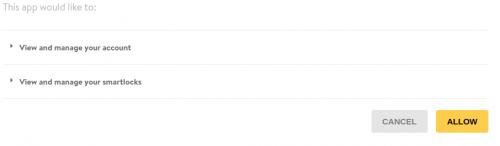
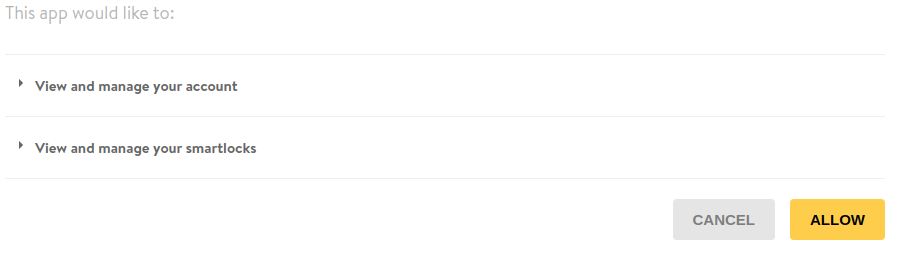
- Click "Allow" to let Beds24 view and manage your Nuki account and locks.
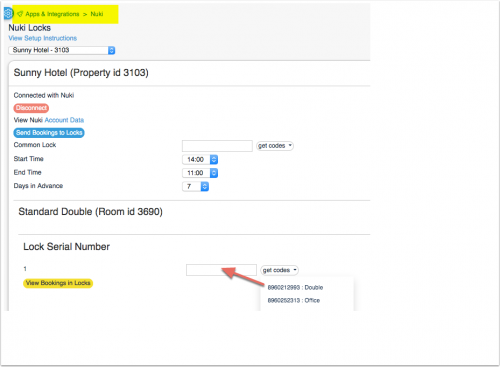
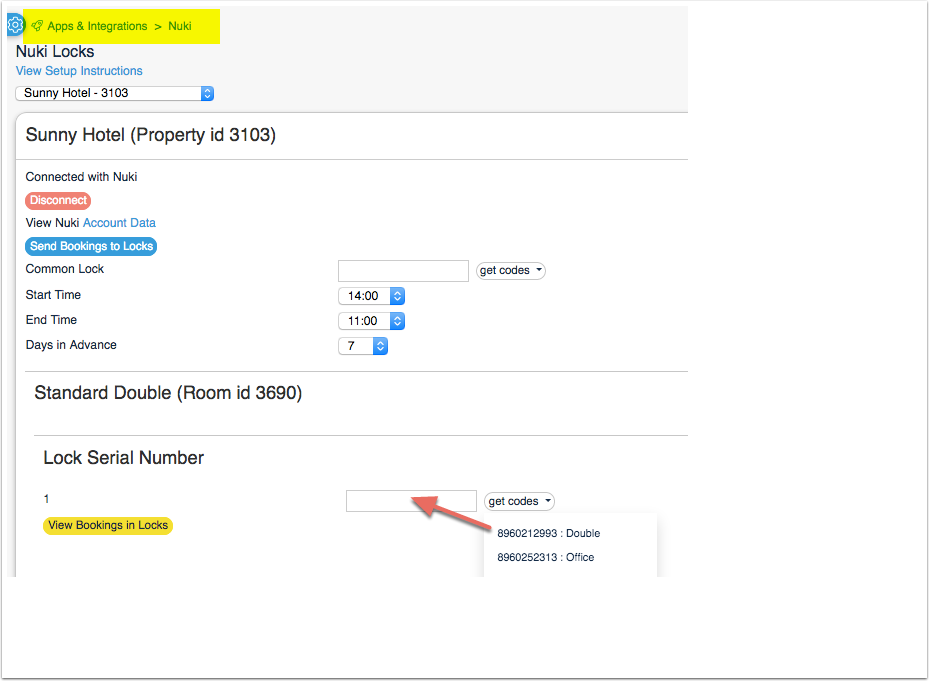
- The "Start Time" and "End Time" define the earliest Check-in time and latest Check-out time.
- The "Days in Advance" sets the days before check-in that the booking is sent to the lock.
- Click on "Get Codes"
You will see one identifier and name for each lock. Click on the name of the lock that is associated with the room.
How it works
Bookings are sent to locks "Days in Advance" prior to check-in.
- An entry code/user named Booking:{booking number} is added to the lock, viewable at web.nuki.io or in the Nuki app.
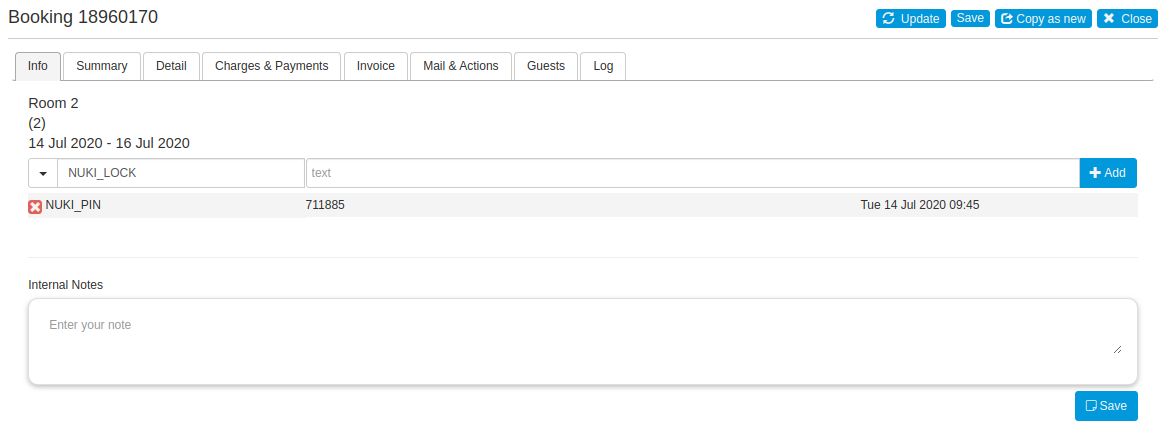
- A booking info code named NUKI_PIN is created which will show the pin number valid for the booking.
Updates are sent periodically. To instantly send updates, click "Send Bookings to Locks". If the keypad code, booking dates, or room changes, those details will be sent to locks.
If a booking is cancelled the associated entry code will be deleted from locks.
Entry codes/users can only be used during the booking period, they will not provide access before or after.
If a Nuki lock is offline when an update is sent, the entry code will not be added until the lock comes online again.
Manually changing pins
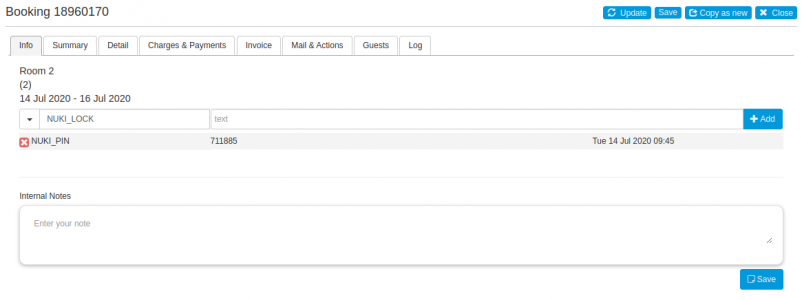
- Navigate to Account, Preferences, Bookings, and add "NUKI_PIN" to your Booking Info Code Values.
- You can now manually add a NUKI_PIN info code to your bookings.
Nuki pin limitations
Nuki keypad codes must:
- Be exactly six digits long.
- Not contain the number zero.
- Not start with "12".
If you manually set an invalid NUKI_PIN, it will be overwritten with a randomly generated pin the next time bookings are sent to locks.
Information sent to guests
Keypad codes
- For keypad entry code bookings, Nuki does not send any information to guests.
App access
(not currently supported)
- For app access bookings, Nuki will automatically send an email to guests that provides access via the Nuki app.
- Guests have 48 hours to accept the invitation.
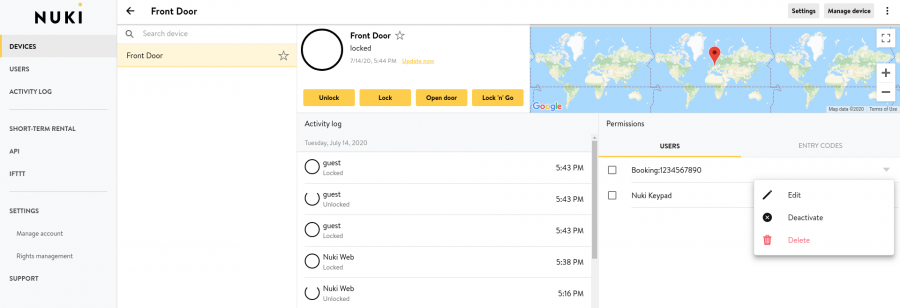
- There is no way to resend a Nuki app invitation if a guest does not accept it in time. However, you may go to web.nuki.io, select Devices, click the desired smartlock, go to the Users tab, then find the booking and click delete. You can then visit the Beds24 Nuki integration tool and click "Send bookings to Locks" to make Nuki send a new invitation to the guest.

Disconnect
Click on "Disconnect" to terminate the connection.