Booking.com: Synchronise bookings prices availability: Difference between revisions
| Line 461: | Line 461: | ||
'''Rate is not active''' or '''RATE_NOT_ACTIVE''' or '''RATE_NOT_ACTIVE_FOR_ROOM''' | '''Rate is not active''' or '''RATE_NOT_ACTIVE''' or '''RATE_NOT_ACTIVE_FOR_ROOM''' | ||
You do not have an active Booking.com rate id with this number. Please double check your rates and daily prices and select a valid Booking.com rate id from the list in 'get codes'. You can only send prices for active Booking.com rate codes. | You do not have an active Booking.com rate id with this number. | ||
*Please double check your rates and daily prices and select a valid Booking.com rate id from the list in 'get codes'. You can only send prices for active Booking.com rate codes. | |||
*Open your rates (Channel Tab) and make sure the correct booking.com rate id is selected from the 'get codes' list. | |||
*Open your daily prices (Enable list) and make sure the correct booking.com rate id is selected from the 'get codes' list. | |||
*Go to Prices > Channel Mapping enter the Rate id in the Search box and click on the Rate and make sure the correct booking.com rate id is selected from the 'get codes' list. | |||
'''Room is not active''' or '''ROOM_NOT_ACTIVE''' | '''Room is not active''' or '''ROOM_NOT_ACTIVE''' | ||
| Line 491: | Line 495: | ||
'''room/rate combination is not active''' | '''room/rate combination is not active''' | ||
Your codes are not correctly mapped. Check you have entered the right Booking.com mapping codes. | |||
You have added a number which is not a valid Booking.com rate id into the field in the "Channels" tab of a rate/daily price. | |||
*Open your rates (Channel Tab) and make sure the correct booking.com rate id is selected from the 'get codes' list. | |||
*Open your daily prices (Enable list) and make sure the correct booking.com rate id is selected from the 'get codes' list. | |||
*Go to Prices > Channel Mapping enter the Rate id in the Search box and click on the Rate and make sure the correct booking.com rate id is selected from the 'get codes' list. | |||
'''Rate is editable only on extranet''' | |||
Your codes are not correctly mapped. Check you have entered the right Booking.com mapping codes. | Your codes are not correctly mapped. Check you have entered the right Booking.com mapping codes. | ||
You have added a number which is not a valid Booking.com rate id into the field in the "Channels" tab of a rate/daily price. | You have added a number which is not a valid Booking.com rate id into the field in the "Channels" tab of a rate/daily price. | ||
*Open your rates (Channel Tab) and make sure the correct booking.com rate id is selected from the 'get codes' list. | *Open your rates (Channel Tab) and make sure the correct booking.com rate id is selected from the 'get codes' list. | ||
*Open your daily prices (Enable list) and make sure the correct booking.com rate id is selected from the 'get codes' list. | *Open your daily prices (Enable list) and make sure the correct booking.com rate id is selected from the 'get codes' list. | ||
*Go to Prices > Channel Mapping enter the Rate id in the Search box and click on the Rate and make sure the correct booking.com rate id is selected from the 'get codes' list. | |||
'''Room reservation does not belong to this hotel reservation''' | '''Room reservation does not belong to this hotel reservation''' | ||
| Line 506: | Line 518: | ||
1. The Booking.com connection for the property does not allow the use of the messaging API. | 1. The Booking.com connection for the property does not allow the use of the messaging API. | ||
Please log into Booking.com and and go to ACCOUNT > CONNECTIVITY PROVIDER. Disconnect from Beds24 and reconnect this time ticking all tick boxes as shown here: https://wiki.beds24.com/images/6/69/Extranet-booking.png | Please log into Booking.com and and go to ACCOUNT > CONNECTIVITY PROVIDER. Disconnect from Beds24 and reconnect this time ticking all tick boxes as shown here: https://wiki.beds24.com/images/6/69/Extranet-booking.png | ||
2. You have assigned or moved the booking into a room that is in a different property than originally booked. If you want to use messaging with Booking.com you can move/assign booking only to rooms in the same property as the one originally booked. | 2. You have assigned or moved the booking into a room that is in a different property than originally booked. If you want to use messaging with Booking.com you can move/assign booking only to rooms in the same property as the one originally booked. | ||
= FAQ = | = FAQ = | ||
Revision as of 15:21, 8 March 2022
This page is about the menu (SETTINGS) > CHANNEL MANAGER > BOOKING.COM > MAPPING and explains how to export prices, availability, rules and import bookings, modifications to bookings and cancellations for existing listings on Booking.com
Use these instructions if you want to import properties from Booking.com to Beds24.
Capabilities and limitations
These instructions explain how to connect existing listings on Booking.com. If you do not yet have a listing and/or a Booking.com accout you can create it directly from Beds24.
With this connection you can
- export prices, availability
- send inventory (available rooms)
- send minimum stay
- send maximum stay
- send closed to arrival and closed to departure
- send multiple rates
- add a multiplier to mark prices up or down.
- import bookings, modifications to bookings and cancellations, importing modifications or cancellations can be disabled for individual bookings
- create Booking.com rate plans
- report invalid cards and no-shows can be reported to Booking.com from the "Details" tab of the booking. If you use Stripe you can set in (SETTINGS) CHANNEL MANAGER to automatically report invalid cards to Booking.com
- create and manage promotions
- view reviews and react to reviews
If you want to export inventory Booking.com demands prices to be sent from Beds24 so you will not be able to set in the Booking.com extranet after the connection has been enabled.
Changes to availability and prices will be instantly sent to the channel. Changes for settings for example minimum stays, or quantity of rooms or the multiplier will send with the next update. Click on "Update" if you want to push them through instantly.
Credit card details are imported and shown on the "INVOICE" tab of the booking. If not please refer to "Missing credit card details" in "Troubleshooting" section below.
Bookings with payment collected by Booking.com will show the payment amount collected as a payment in the "Invoice" tab of the booking.
Before you connect
Familiarize yourself with the channel manager
Learn how the channel manager works.
Make sure you have suitable prices set up in Beds24
We can only send availability if you have set up prices which are activated for this channel. This tutorial gives general information how to set prices for channels.
Our connection with Booking.com supports these pricing models:
1. Per Occupancy Pricing (OBP) - RECOMMENDED - If your "Booking.com Rate Type" is Per Occupancy Pricing a price for each occupancy defined in Beds24 can be sent.
- Set the "Booking.com Rate Type" to Per Occupancy Pricing.
- If you use daily prices a price for each date and occupancy will be sent. Multiple occupancy prices can send on each rate plan. Extra person price in the daily price will send.
- If you use rates 1 person, 2 person and room price will send. Room price will send for specified occupancy. Multiple rates with different occupancies can send on same rate plan. Prices for "Extra Person", "Extra child" and discounts set in the "Discounts" tab of the rate can not be sent.
2. Per Day Pricing (Standard) - If your "Booking.com Rate Type" is Per Day Pricing you will need a price for the maximum room occupancy.
- Set the "Booking.com Rate Type" to Per Day Pricing
- If maximum number of guests is 4 you need a ROOM price for four guests. Prices for 1, 2 or 3 guests are not sent.
- If you use daily prices with "Extra Person" prices your daily price needs to be set for the max occupancy and the "Extra Person" price needs to be added with a negative value so the price for the full occupancy can send. The price for the extra person will not send.
- If you have multiple prices for one rate code which are activated for Booking.com the system will use the price for the highest occupancy.
- If you want to send an additional "Single" price Booking.com needs to activate the single price option. After this is done you can set the Booking.com Rate Type to Per Day Pricing + Single.
3. Derived Prices (RLO) - If Booking.com has set up derived (RLO) prices for you where Booking.com calculates prices for different occupancies from the standard price sent from Beds24.
- Set the Booking.com Rate Type to Per Day Pricing.
- You will need to manage any changes to your prices in both Beds24 and Booking.com. In Beds24 you need to set the price for the maximum room occupancy in your daily prices or rates and then contact Booking.com to adjust your occupancy prices/percentages.
With derived (RLO) prices Booking.com only a price for Max Occupancy can be sent from Beds24, they do not allow single price. We recommend you use "Per Occupancy Pricing" instead so you can control all prices from Beds24.
See this tutorial on how to use daily prices for occupancy pricing and linked daily prices with fixed prices and/or offsets.
If you want to offer multiple price options for example a non-refundable rate or your rate plan contains meals you can create additional rate plans in (SETTINGS) CHANNEL MANAGER > BOOKING.COM > RATE PLANS.
For dorms Booking.com requires the bed price be sent to them as the room price. Therefore they do not accept a single price for a dorm. Make sure you set "Booking.com Rate Type"= Per Day Pricing. If you want to send a single price for other rooms you can create additional rate plans for single use in (SETTINGS) CHANNEL MANAGER->BOOKING.COM > RATE PLANS.
Booking.com does not support occupancy pricing for dorms. If you have dorms log into your Booking.com account and change your pricing model to "Standard" and set the Pricing model in Beds24 to "Per Day".
This tutorial explains how to set prices for channels.
Extras, taxes and credit card rules in your Booking.com extranet
"Upsell Items" can not be exported to Booking.com. If required you can enter extras and fees directly in Booking.com.
If you have set up additional taxes in (SETTINGS) PROPERTIES > UPSELL ITEMS that have the exact same name as your additional taxes in Booking.com, they can be imported as taxes during the booking import.
Booking.com does not send a tax rate for extras. Therefore, for extras, the VAT rate of the accommodation is applied by default. If an extra (e.g. breakfast) has a different tax rate, this vat rate can only be applied to imported bookings, if you have an extra with the exact same wording in (SETTINGS) PROPERTIES > UPSELL ITEMS.
If you want to access credit card details through Beds24 ask Booking.com to only accept bookings with credit card details and always send all details to Beds24.
Make sure your rooms and room types in Beds24 match your set up in Booking.com
If you sell rooms individually at another channel or your own web site and want to sell them on Booking.com as a "roomtype" with a quantity of more than one you can set up virtual rooms.
Disable the auto opening rooms after cancellations
Beds24 will automatically reopen rooms when you have availability. If you have this feature enabled Booking.com will not wait for the an update sent from Beds24 but will automatically re-open the closed room when a guest cancels even if you have a booking from another source. You can opt-out of the feature by following these steps:
- Log into your Booking. com account
- Click on the Rates & Availability tab
- Go to the Settings symbol on the top-right corner of your Calendar
- Click on Auto-Replenishment
- Under Calendar Settings, click "No" to turn off the Auto-Replenishment feature
The set up process
Setting up the connection is a 4 step process:
1) You request a connection on Booking.com extranet. Nothing changes. You are still bookable according to the prices and inventory you have set in the Booking.com extranet.
2) Beds24 accepts your request. Nothing changes. You are still bookable according to the prices and inventory you have set in the Booking.com extranet.
Between step 2 and 3 you should map your rooms and rates, check everything and import existing bookings from Booking.com to block the booked dates.
3) You enable the connection in Booking.com. This is when Booking.com removes your inventory and rates and you are temporarily not bookable.
4) Beds24 sends prices and availability to Booking.com. You are bookable again. To send the update immediately click the "Update" buttons in the channel manager settings.
Bookings are not removed from the Booking.com extranet. Existing and new bookings are always visible in the Booking.com extranet.
1. Initiate the connection in Booking.com
Initiate the connection from the property menu within the booking.com extranet and then do the Beds24 setup.
1) Login to Booking.com and go to ACCOUNT > CONNECTIVITY PROVIDER. If you do not see this option contact Booking.com support and tell them you want to use a channel manager
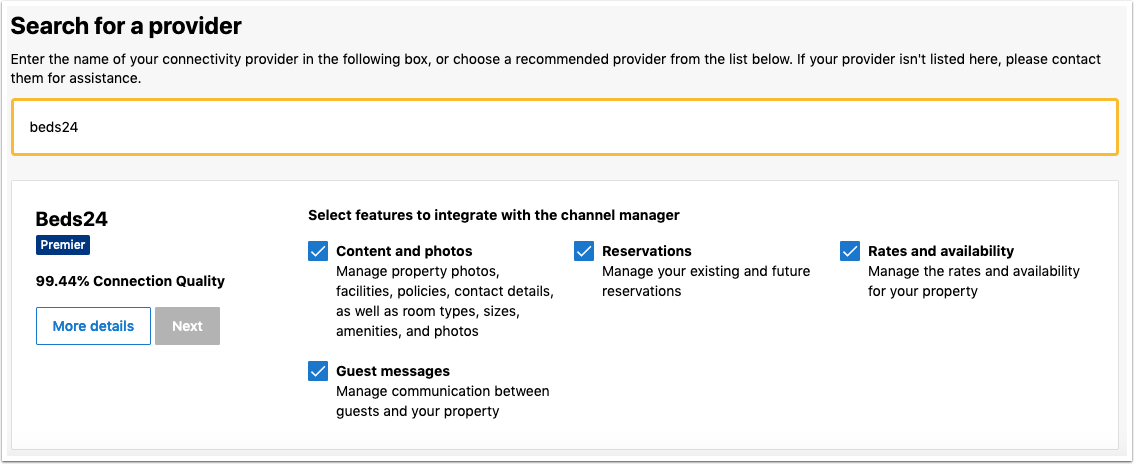
2) Search for BEDS24.
3) Tick all tick boxes.

For a two-way connection you need to select both "Reservations" and "Rates and Availability". Beds24 can then both export inventory to Booking.com and import bookings from Booking.com. If you select only "Reservations" or only "Rates and Availability" you only have a "one-way" connection meaning the action you did not select must be manually maintained by you.
4) Complete the rest of the on screen instructions.
- If you choose "Connect me automatically to the provider" Booking.com will instantly remove your prices and availability. Choose this option only if your have check that your prices in Beds24 are all set up and ready to send.
- If you choose "Dont connect me automatically to the provider" you can confirm the connection after you have done the setup in Beds24.
5) When ready you will receive a notification from Booking.com, go to the Channel Manager menu again and activate the connection.
2. Set up and mapping in Beds24
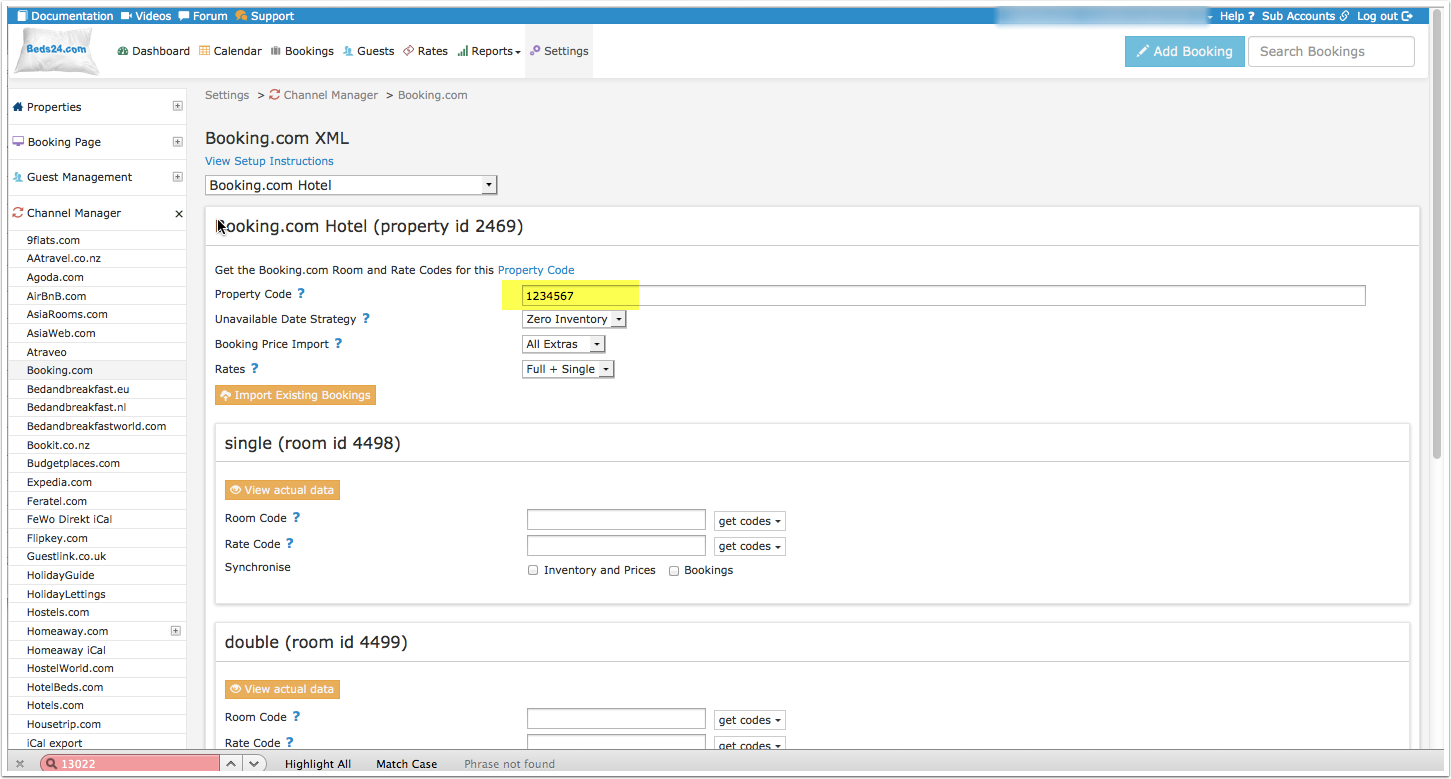
1) Enter your Booking.com Hotel Id into SETTINGS -> CHANNEL MANAGER -> BOOKING.COM "Hotel ID" setting and choose your "Booking.com Rate Type". Then scroll to the bottom of the page and click SAVE.
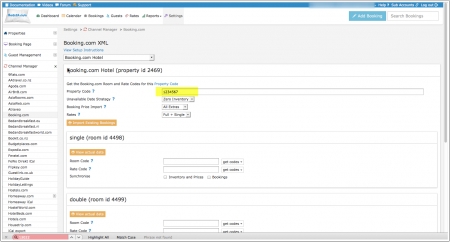
2) Set "Booking Price Import" to either import the room price only or the room price plus unpaid extras (cleaning charges, local taxes etc.)
3) Some Booking.com rate ids can accept a room price plus a single occupancy price on the same rate id. If you have this rate type and want to send the single occupancy price set "Booking.com Rate Type " = "Per Day Pricing + Single". If you do not have this rate type or you are not sure set "Booking.com Rate Type "= " Per Day Pricing"
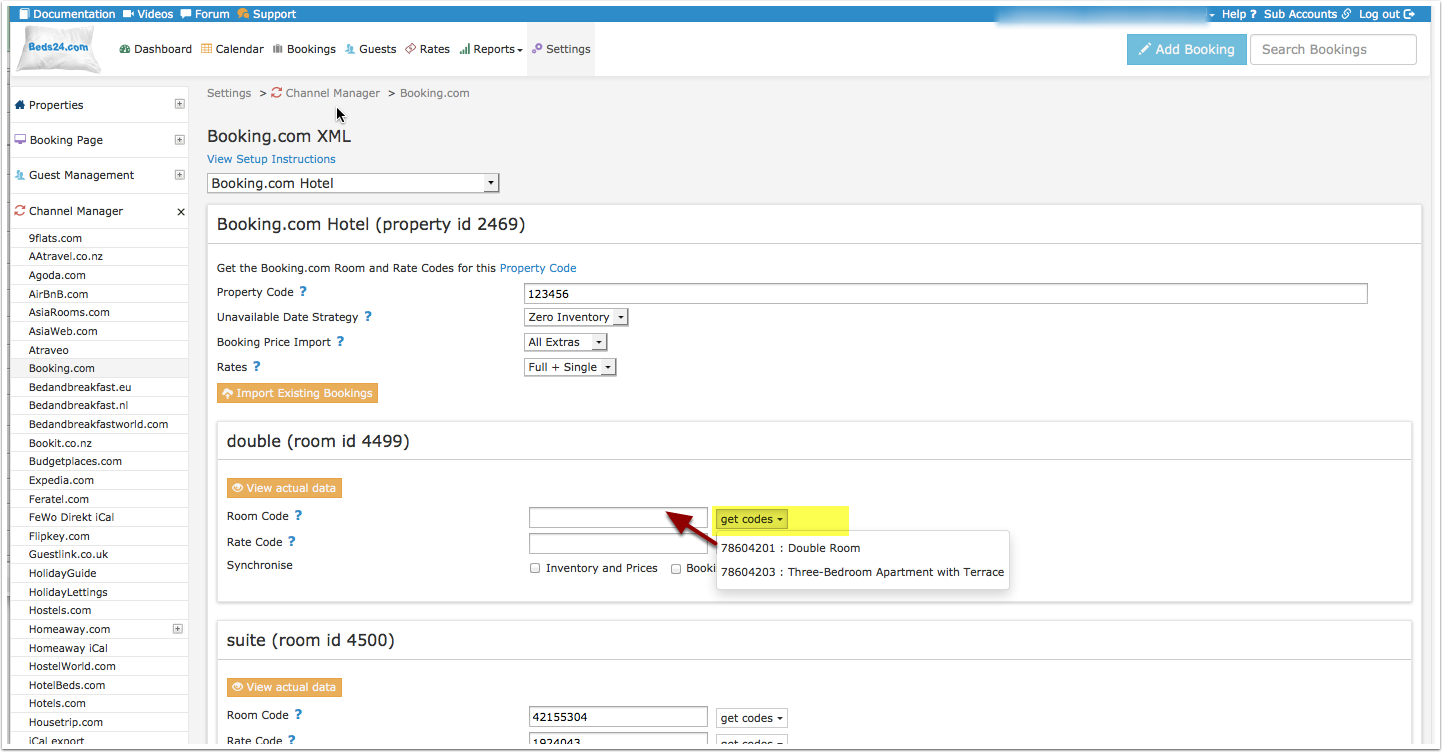
4) Mapping
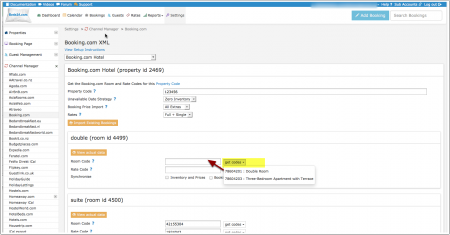
Map Rooms:
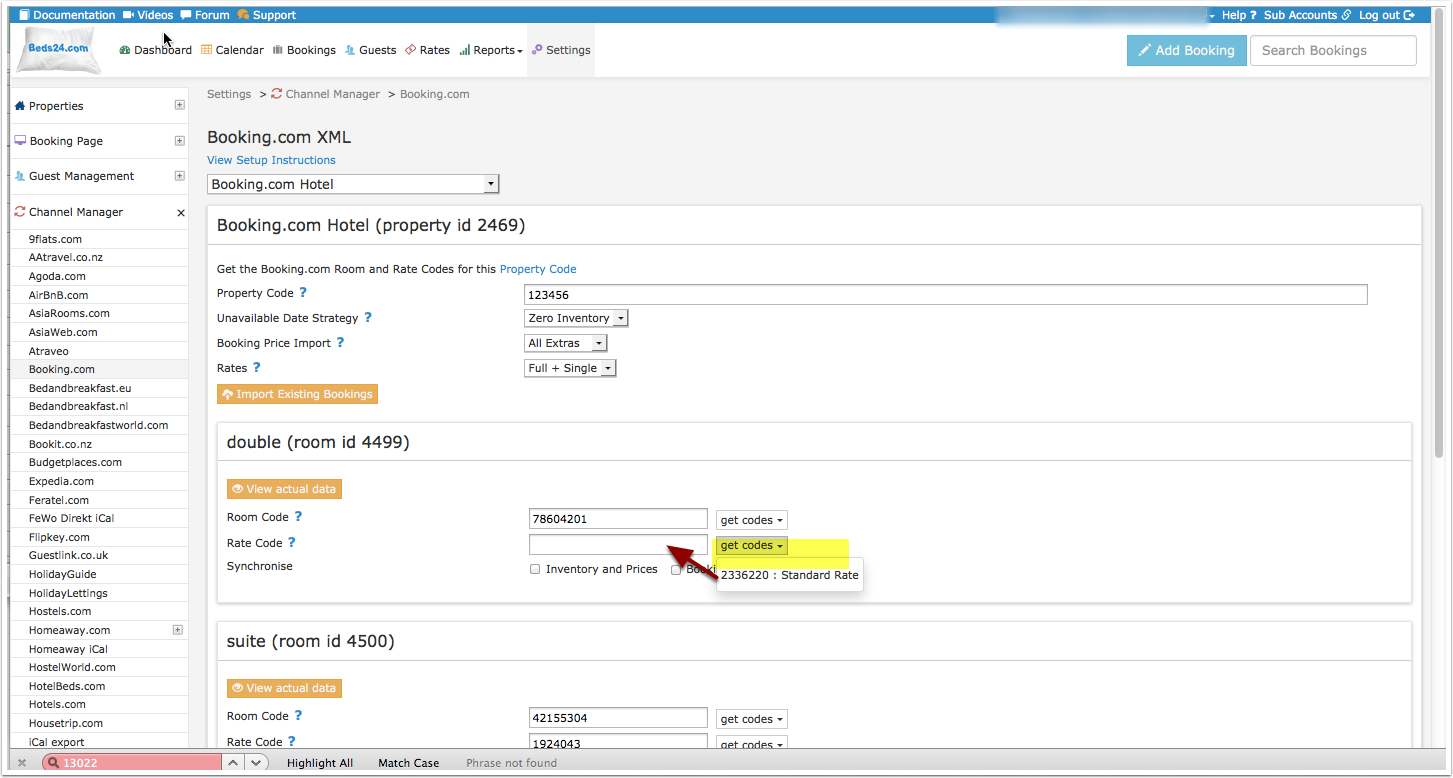
- Click on the "Get Code" link next to the room id setting, a list of room ids will be retrieved from Booking.com and displayed.
- Choose the Booking.com room you want to map to the Beds24 room and click on it.
- When the correct room id has copied to the room id setting, click Save.
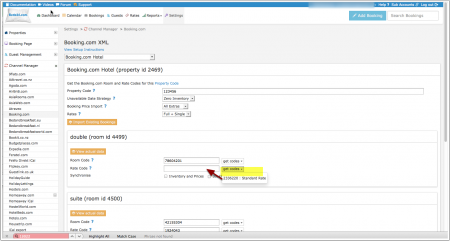
Map Rates:
- Click on the "Get Code" link next to the rate id setting and a list of rate ids will be retrieved from Booking.com for the saved room id.
- Choose the Booking.com rate id for this room and click on it. This will normally be the standard rate.
- When the correct rate id has copied to the rate id setting, click Save.
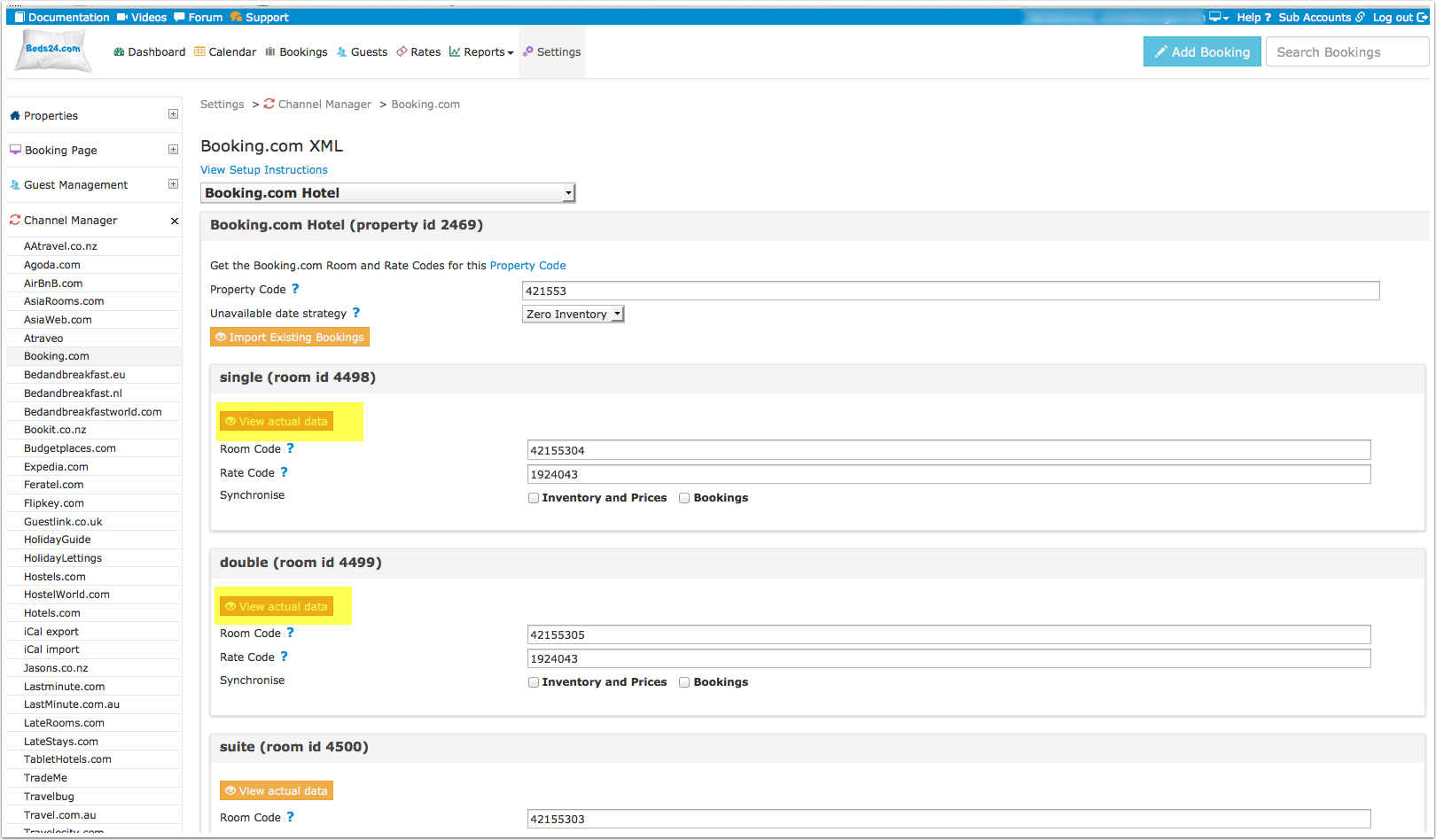
Tip Click on the "View Actual Data" Button to check which prices and availability will send.
3. If you have different price options i.e. refundable/non refundable rates, meal plans
Booking.com can support more than one price per room and day.
If you need additional rate plans, for example a for different occupancies, or a non-refundable rate, or your rate plan contains meals, you can create additional rate plans in (SETTINGS) CHANNEL MANAGER > BOOKING.COM > RATE PLANS.
Please use these mapping instructions if you have multiple rate codes.
4. If you want to mark your prices for Booking.com up or down or need currency conversion
You can add a multiplier to your prices, add a * followed by the multiplier number in the "Multiplier" field
Examples:
- *1.23 will multiply all prices by 1.23 (i.e. raised by 23%).
- Lower prices can be sent with a multiplier less than 1: *0.85 will send 85% of the normal price (i.e. lowered by 15%).
- To convert the price of bookings imported from the channel add a * AFTER the multiplier. *1.23* will divide the price of the booking by 1.23.
- For currency conversion you can also use currency conversion template variables. All currencies supported by the booking page currency selector can be used.
- *[CONVERT:IDR-EUR] will convert Indonesian Rupees to Euros.
- *[CONVERT:IDR-EUR][/]0.85 will convert Indonesian Rupees to Euros and lower the price by 15%.
5. Limit the maximum number accepted bookings if you do not want to offer all rooms
By default all available rooms are sent to activated channels. In (SETTINGS) CHANNEL MANAGER > CHANNEL INVENTORY limit the number of accepted bookings for this channel.
6. Activate in Beds24 and Booking.com
1) You can view the live availability and prices that will be sent to Booking.com before or after activating using the "View actual data" button.
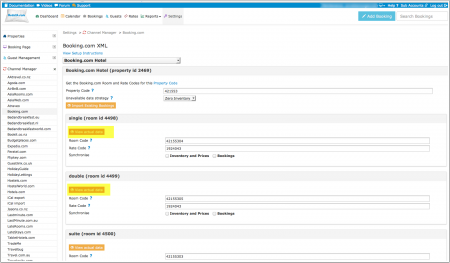
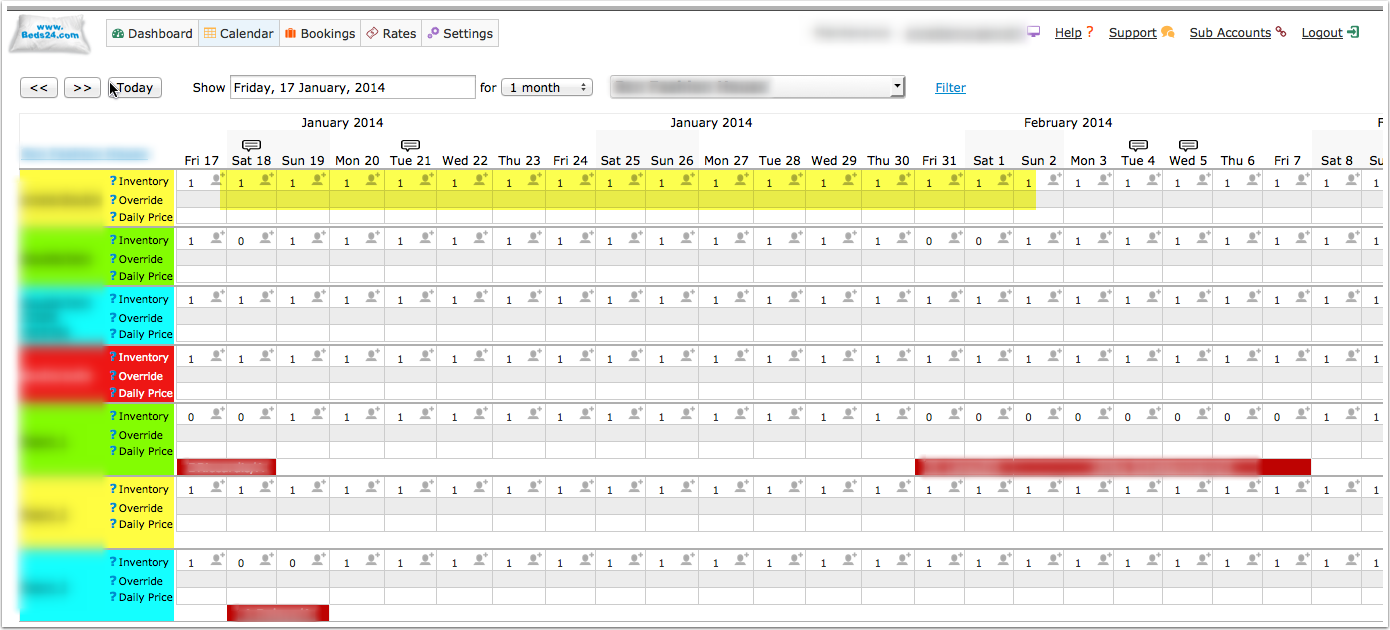
2) Make sure your inventory is correct in Beds24. Check existing bookings in Booking.com imported and dates blocked by other sources are blocked in Beds24. Dates can be blocked by either entering a booking manually into Beds24 for those dates or using the inventory and override functions on the control panel calendar for those dates. Failure to do this could allow new bookings on dates you are not available. All available dates in Beds24 will be sent to Booking.com as available for new bookings.
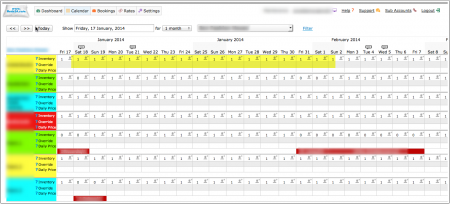
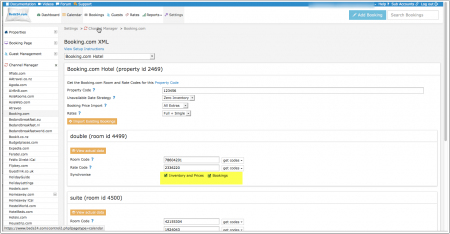
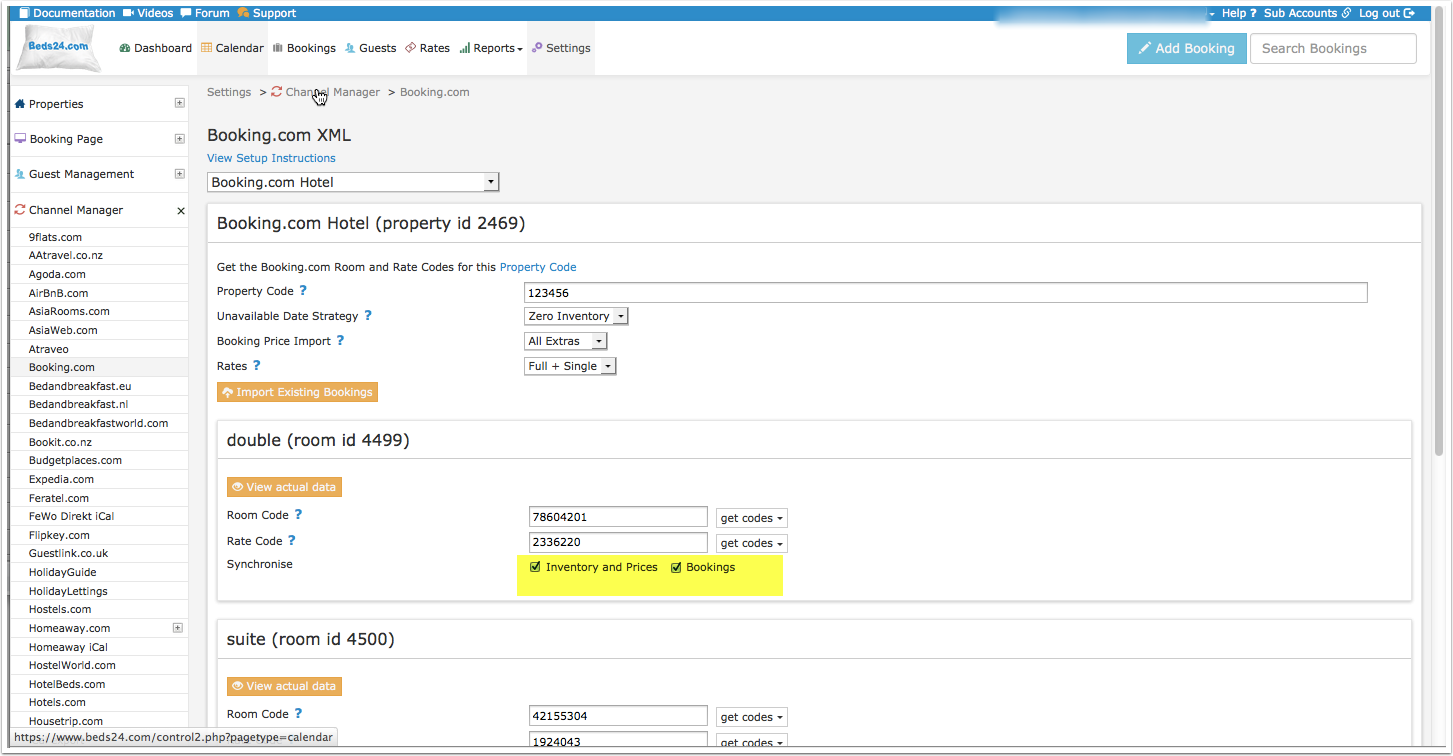
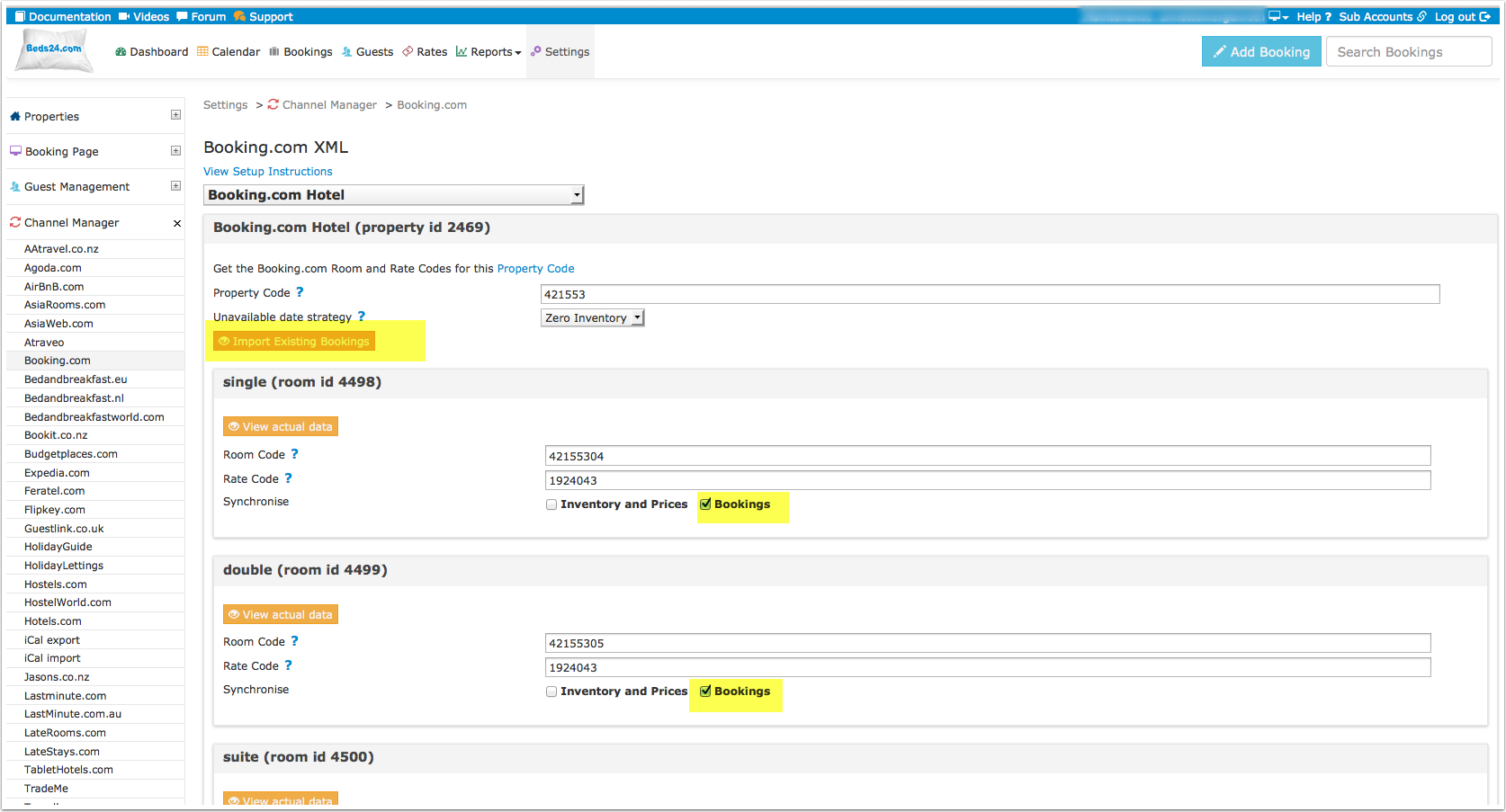
3) Enable the connection in Beds24 by ticking "Inventory and Rates" for each mapped room and saving. The "Bookings" checkbox should already be ticked but tick it as well if it is not ticked and bookings should be imported.
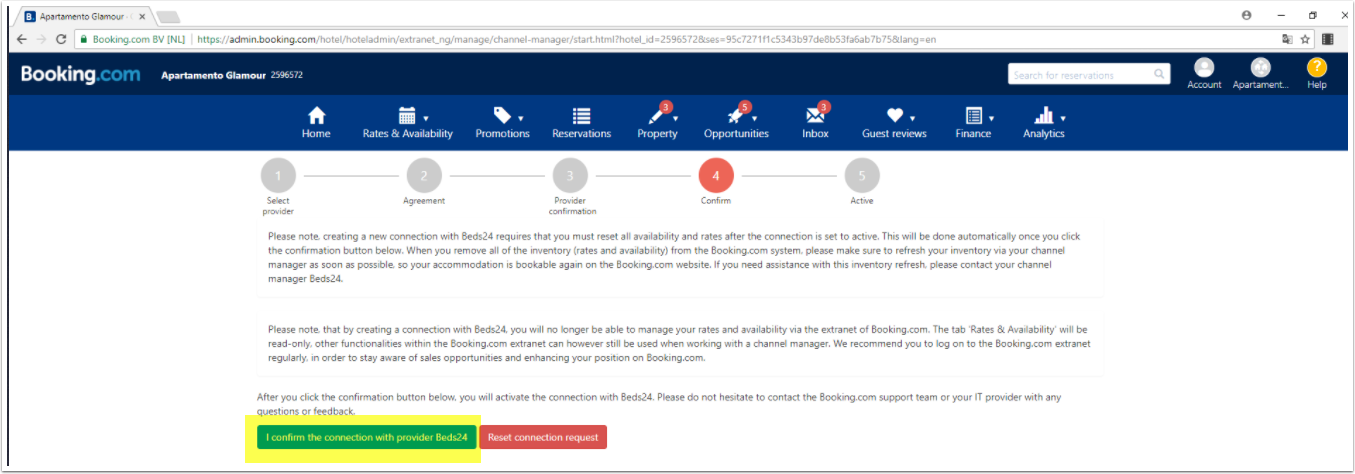
4) When all the set up in Beds24 is correct you can make the final step to confirm the connection (go live) from the Booking.com extranet.
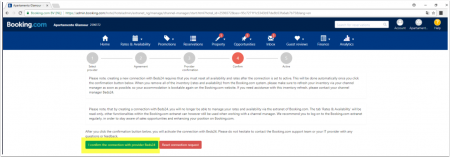
You have to / can do this only if you initially selected "Dont automatically connect me to the provider".
When you go live your rates and inventory will be deleted from Booking.com and a full reload will occur from your Beds24 Inventory.
You can use the "Update" button on each room to speed this up. Your bookings will not be deleted from Booking.com but make sure the dates are blocked in Beds24 before going live so they will not be reopened.
5) Click on "Get Connection Status" to see the connection is properly activated.
6) Import existing bookings from Booking.com (all upcoming bookings)
Make sure the "Bookings" check box for each mapped room is ticked and saved and then click the "Import existing bookings" button.
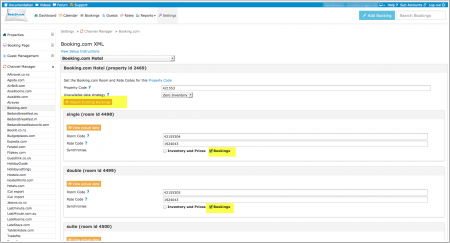
If for any reason your existing bookings do not import, the dates could be reopened and resold. To prevent this import the bookings via CSV.
a. Export your bookings as CSV from booking.com b. Go to https://api.beds24.com/csv/putbookingcomcsv.php and import the csv file to Beds24.
Follow the instructions on the page carefully so they import to the correct rooms.
If this is also unsuccessful, block the booked dates in the beds24 calendar. Please note that in this case cancellations and modifications will not be imported automatically.
7) Once updated, check all your values in the Booking.com extranet for correctness and if required make any adjustments to the settings to fix.
8) Channel collect payments will be shown in the booking invoice if (SETTINGS) CHANNEL MANAGER “Import Channel Collect Payments” is set to “Yes”.
9) You can allow cancellation fees and commission values to overwrite booking values when cancelled by channel if (SETTINGS) CHANNEL MANAGER “Import Cancel Fees” is set to “Yes”.
7. Check that the connection is working properly
The connection is working if you are not receiving error messages and the display in the channel is correct. If you are receiving error messages check in the "Common Errors" section why you are receiving the error and how to fix it.
Setup problems
1) The room is being unexpectedly closed at Booking.com
The channel manager will close the room on all dates which do not have a valid price available for sending to Booking.com. Make sure you have prices for the complete range of dates you are sending (1 year or 2 years)
2) "Room code is not unique" warning when saving in Beds24.
Each Booking.com room id is unique and can be mapped to only one room in Beds24. If you enter the same Booking.com room id more than once the room updates will overwrite each other causing inaccurate information being sent to Booking.com
Create and manage Booking.com promotions
Promotions can be created, modified and deactivated in (SETTINGS) CHANNEL MANAGER > BOOKING-COM >PROMOTIONS.
Click here for more information and setup instructions.
Manage bookings
Communication with guests
You can communicate with Booking.com guest directly from Beds24.
You can view all messages which Booking.com makes available from the "API Messages" component on the DASHBOARD and individual communication from the "Messages" tab in the booking.
You and your guests will see the messages in Booking.com Messaging Center.
Currently messaging with guests from Booking.com has following limitations:
- Guests must click on "View Messages" in the email to login to Booking.com and answer from there.
- If a guest hits "reply" on E-mail they received from Booking.com, Booking.com does not send the reply to Beds24 and will also not make the reply available in Booking.com.
- Booking.com does not allow links in messages. Use attachments instead.
To use this function you should:
1. Add the component "API Messages" to your DASHBOARD
2. To send Auto Action Emails via messaging set "Send Message" on on the "Messaging" tab in the Auto Action to one of the API options.
3. Bookings need to be in a Property that is connected to Booking.com to use the Message API, otherwise communication will be via Email. If you are not sure your connection has Message API, please log into Booking.com and and go to ACCOUNT > CONNECTIVITY PROVIDER. Disconnect from Beds24 and reconnect this time ticking all tick boxes as shown here: https://wiki.beds24.com/images/6/69/Extranet-booking.png
If you use dependencies you can only assign the bookings in to a room in the same property as the room which is mapped to Booking.com.
VAT value on extra items
If an extra item name in the booking matches the name of an upsell item for the property, the VAT value of the upsell item will be used. Otherwise the VAT value defined in the Property booking rules will be used.
Report No-shows, Invalid cards or restrict channel modifications
This screenshot shows specific settings for bookings from Booking.com:
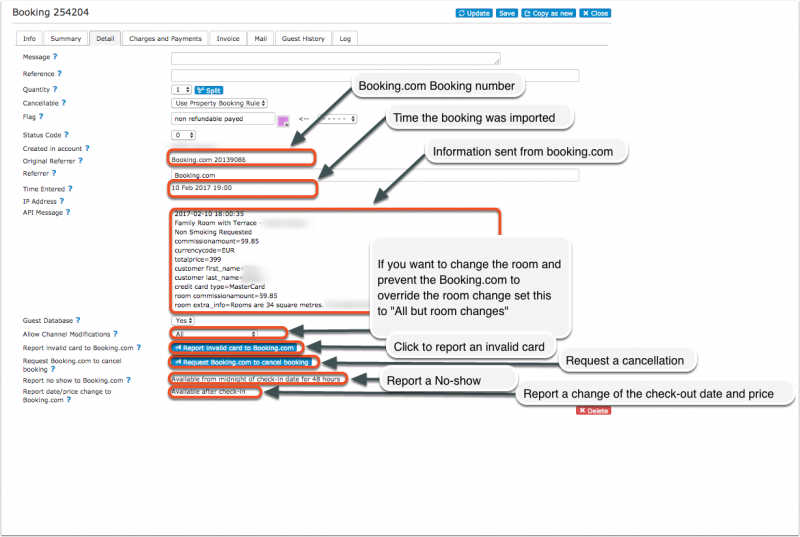
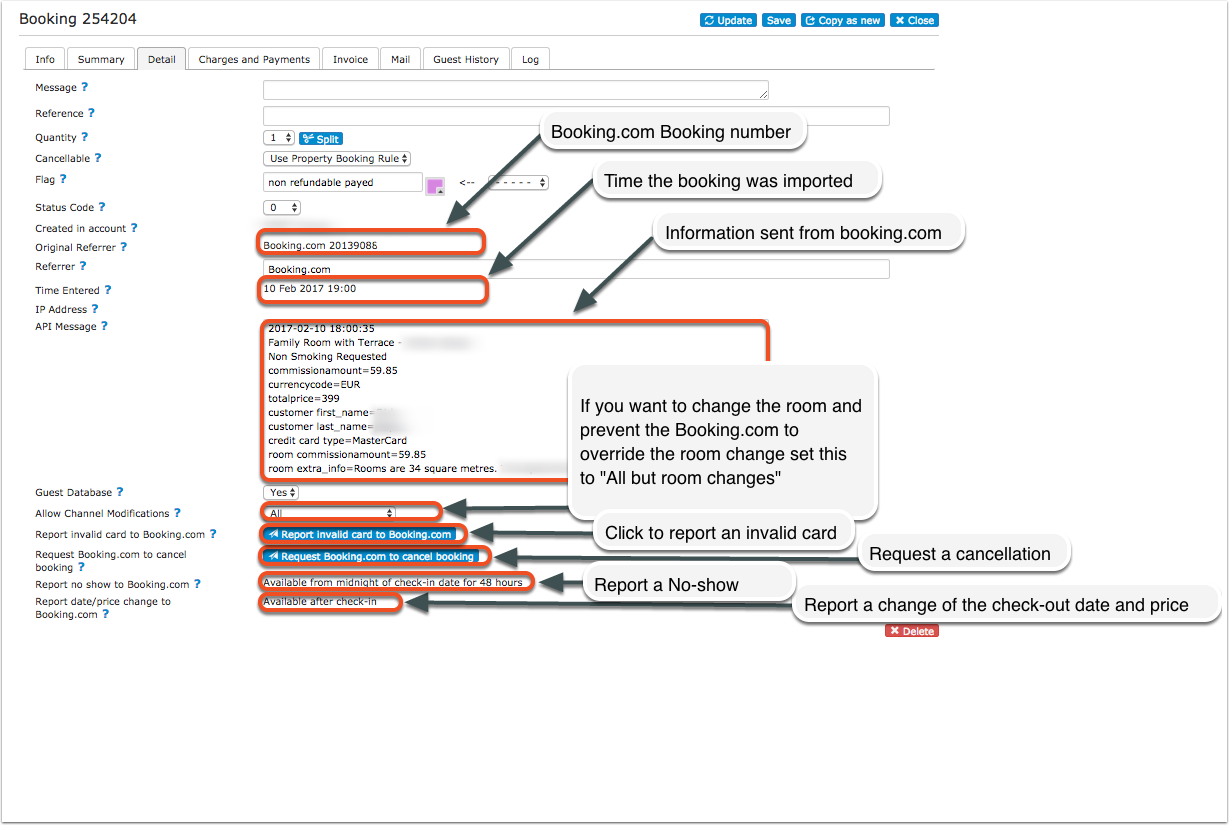
If you want to not allow channel modifications by default you can change the setting for "Allow Channel Modifications" value" in (SETTINGS) CHANNEL MANAGER.
Charge virtual credit cards
Virtual cards can be set to be auto charged at the date they become valid. To use this option set "Auto Process Virtual Cards" = Yes
Virtual cards can be set to be auto charged at the date they become valid.
A payment rule can be specified to be attached to the pending payment, the payment rule can further manage the conditions to collect the payment, for example it could specify to use virtual cards only and not a guest card.
For Booking.com virtual cards you can set to adjust the charge automatically to the amount on the card. To do so create a rule with these settings:
- Funds Source: Virtual Card
- Payment value adjustment = choose any except for "None"
If you manually charge virtual credit cards please note that they can only be charged after the activation date.
Different invoice templates
If you need a different invoice template for the bookings from this channel you can use the invoicee function.
Reviews
To access Booking.com reviews from your DASHBOARD unlock the DASHBORAD click on the hamburger menu then on "Extentions" and add the Booking.com Review Module.
Info Codes
Info Codes in the "Info" tab of the booking show you relevant information.
| Code | Use |
|---|---|
| BOOKINGCOMCARD | invalid card reported to Booking.com |
| BOOKINGCOMFLAG | Booking.com general info flag (Genius/no credit card) |
| BOOKINGCOMVIRTCARD | Booking.com sent a virtual card |
| BOOKINGCOMBANKTRANS | booking paid via bank transfer from Booking.com |
| CARDTOSTRIPE | card details were sent to Stripe |
| STRIPEPAYMENT | payment imported from Stripe |
| STRIPEFAIL | card could not sent to Stripe |
| CARDEXPIRES | added when the card expires before check-in |
Updates and Changes
Changes to availability and prices will be instantly sent to the channel. Changes for settings for example minimum stays, the multiplier or number of rooms will send with the next update. Click on "Update" if you want to push them through instantly.
Disconnect
- Unticking "Inventory and Prices" and "Bookings" will stop Beds24 sending data to Booking.com. This will not remove the data from Booking.com and it will still be bookable.
- To completely disconnect the channel manager please log into your Booking.com extranet and click on the Account icon in the top right-hand corner. Select Channel Manager from the drop-down menu. Click the Deactivate button to cancel the connection to Beds24.
Trouble shooting
Deleting a rate or price in Beds24 will not delete the price in Booking.com
If you need to close a rate at Booking.com, make the rate id unbookable at Beds24, for example by closing the room or removing the price and wait for it to update at Booking.com. Only once the rate has closed at Booking.com it is safe to remove it from Beds24.
You can close a rate at booking.com by making sure there is no price for it on the dates to close in Beds24. As long as the rate has at least a price for 1 day in the next year, all the other dates without prices will be closed.
If you have multiple rates at booking.com, the other rates can continue to be available by giving them prices.
Note that if there is no price on any day at all for a rate, this will not necessarily close the rate, in this case no information will be sent and whatever data is in Booking.com will remain.
Tip Click on the "View Actual Data" Button to check which prices and availability will send.
Missing credit card details
When Booking.com sends the credit card number it will be available in the "Payments and Charges" tab of the booking unless it has been stored in a third party system such as Stripe. The encoded CVC number is available from the booking notification email sent to the host as the line labelled Security Code. Enter the Security Code value from the email into the booking to view the CVC.
- If there is no Security Code item in the host notification email, the CVC was not collected or sent for this booking. Booking.com may sometimes withhold the credit card number or CCV unless you specifically request they are sent to you. Contact your Booking.com rep if this is occurring and you require this information.
- If credit card details are always missing and you require them, please ask Booking.com to collect and send credit card details to Beds24
- If Booking.com normally sends credit card details but did not do so for a specific booking and you always want a card as security, please ask Booking.com to exclusively accept bookings with a credit card number.
No Room codes are available
During the Setup of your connection, click on 'Get the Booking.com Room and Rate Codes for this "Property Code"'
You will see the list of Rooms/Rate codes returned from Booking.com. If Booking.com does not make any rooms available. If you are sure you have rooms please forward the RUID to Booking.com support and ask them to check why they do not return any rooms.
Error messages
Any errors reported by Booking.com will be emailed to you with the error message as returned by Booking.com. The error message usually includes information about the date, rate or room with the problem and a brief description. Below are common error messages and how to fix them.
Access denied while trying to get rooms for hotel XXXXXX
Check if you have received a notification from Booking.com that the connection is ready.
*If not please check in the Booking.com extranet that the connection has been requested.
*If yes please check the Booking.com hotel id you have entered is correct and does not have blank spaces.
*Click on "Connection Status" to check that the connection is properly activated.
**If you see "Status" = Pending Property you need to  confirm the connection in your Booking.com Extranet as explained under „Activating in Beds24 and Booking.com“ step 4 (https://wiki.beds24.com/images/1/16/Bookingconfirm.png).
Access denied or Hotel not allowed for connection type
*Click on "Connection Status" to check that the connection is properly activated.
**If you see "Status" = Pending  Property you need to  confirm the connection in your Booking.com Extranet as explained under „Activating in Beds24 and Booking.com“ step 4 (https://wiki.beds24.com/images/1/16/Bookingconfirm.png).
Updating availability hasn't been enabled for hotel 0000
You have not activated the connection in the booking.com extranet. Please log into your booking.com extranet and activate the connection.
SINGLE_USE_PRICING_PASSED_FOR_RLO_RATE or OBP_PRICING_PASSED_FOR_SINGLE_USE_RATE
Booking.com does not allow you to send a single price.
Set "Booking.com Rate Type"= Per Day Pricing
 OBP_PRICING_PASSED_FOR_DEFAULT_RATE
 Your Booking.com Rate Type is "Per Occupancy". The system will automatically adjust your rate type so prices for different occupancies can send.
OBP_PRICING_PASSED_FOR_RLO_RATE
 Your Booking.com Rate Type is "Per Day Pricing". Booking.com will automatically adjust your rate type so prices for different occupancies will be displayed in Booking.com.
  Set "Booking.com Rate Type"= Per Day Pricing
OCCUPANCY_NOT_VALID
Check that "Max guests" set in  (SETTINGS)  PROPERTIES > ROOMS > SETUP is the same as the occupancy you have set for the room in your Booking.com extranet.
Did not set price to XX on date xxxx-xx-xx for Room 'abd' and Rate Category 'def' and occupancy x because the room has a max occupancy of x.
You have either set the wrong number of guests in Booking.com or in  (SETTINGS)  PROPERTIES > ROOMS > SETUP. Please correct so both numbers are the same.
 TAG_HAS_INVALID_VALUE
1. Your connection type does not allow the use the the Booking.com content API. If you have set to use "Occupancy Pricing" in Beds24 we can not automatically adjust your settings in Booking.com. Log into Booking.com, stop the connection and request a new one with Content API.
2. Booking.com does not support occupancy pricing for dorms. If you have dorms log into your Booking.com account and change your pricing model to "Standard" and set the Pricing model in Beds24 to "Per Day".
Did not set price to xx.xx on date xxxx-xx-xx1 for Room xx and occupancy x because the room has a max occupancy of x.
You are trying to send a price for a number of guests which is higher than the number of guests Booking.com has the room set for. Adjust the maximum number of guests to be the same in Beds24 and Booking.com and if required adjust your prices.
WARN_PRICE_TOO_LOW_LIMIT
 WARN_PRICE_TOO_HIGH_LIMIT
Booking.com considers the price you want to send varies significantly from the prices which are already in Booking.com, or if it’s outside the accepted threshold – the minimum being €5 and the maximum being €50,000 (or the equivalent in the local currency).
Either adjust your price in Beds24 or try to change the limitation at Booking.com
Not allowed to update Single Use Rate for Room or CANNOT_SET_SINGLE_USE_RATE
Booking.com have not activated a single occupancy price for the room.
Either ask Booking.com to allow a single price (set up a "Single" rate id) or set "Booking.com Rate Type" = Per Day Pricing

If it is a dorm: Booking.com requires the bed price be sent to them as the room price. Therefore they do not accept a single price for a dorm. Set "Booking.com Rate Type" = Per Day Pricing and make sure to set your prices in all rates as a room price (and not as a single price).
Not allowed to update Single Use Rate for Room
Booking.com requires the bed price be sent to them as the room price. Therefore they do not accept a single price for a dorm. Set "Booking.com Rate Type"= Per Day Pricing. If you want to send a single price for other rooms ask Booking.com to set up a "Single" rate id for these.
Rooms to Sell were set below the Minimum Contracted rooms for these dates
You have agreed to supply a minimum number of rooms to Booking.com on the mentioned dates and Beds24 is trying to update them to a number lower than your agreed minimum. Booking.com have ignored the Beds24 values on those dates and used your agreed minimum instead.
*Make sure you have valid rates for the mentioned dates and no bookings from other sources
*Beds24: change your inventory to send the allotment you have guaranteed Booking.com
*Booking.com: Ask Booking.com to remove the guaranteed allotment
Rate is not active or RATE_NOT_ACTIVE or RATE_NOT_ACTIVE_FOR_ROOM
You do not have an active Booking.com rate id with this number.
*Please double check your rates and daily prices and select a valid Booking.com rate id from the list in 'get codes'. You can only send prices for active Booking.com rate codes.
*Open your rates (Channel Tab) and make sure the correct booking.com rate id is selected from the 'get codes' list.
*Open your daily prices (Enable list) and make sure the correct booking.com rate id is selected from the 'get codes' list.
*Go to Prices > Channel Mapping enter the Rate id in the Search box and click on the Rate and make sure the correct booking.com rate id is selected from the 'get codes' list.
Room is not active or ROOM_NOT_ACTIVE
Booking.com has not activated the room for selling. Please ask Booking.com to activate it and check the room id  is correct.
Rate 123456 cannot be updated via XML
This rate has not been activated for channel management. Ask Booking.com to activate it.
Did not set Close Room 'XY for Rate Category 'ZZ' because of remaining Minimum Contracted Rooms on dates.....
You have guaranteed and to have a minimum number of rooms to sell on  Booking.com but the channel manager is sending a lower quantity than contracted.
*Make sure you have valid rates for the mentioned dates and no bookings from other sources
*Beds24: change your inventory to send the minimum contracted rooms you have guaranteed Booking.com
*Booking.com: Ask Booking.com to remove the minimum contracted rooms
Rate does not exist
You have added a number which is not a valid Booking.com rate id into the field in the "Channels" tab of a rate/daily price.
*Open your rates (Channel Tab) and make sure the correct booking.com rate id is selected from the 'get codes' list.
*Open your daily prices (Enable list) and make sure the correct booking.com rate id is selected from the 'get codes' list.
hotel 'xxxxx' not allowed for user 'Beds24ProductionServer'
 Check if you have received a notification from Booking.com that the connection is ready.
*If not please check in the Booking.com extranet that the connection has been requested.
*If yes please check the Booking.com hotel id you have entered is correct and does not have blank spaces.
hotel 'xxxxx' not allowed for user'
 Check if you have received a notification from Booking.com that the connection is ready.
*If not please check in the Booking.com extranet that the connection has been requested.
*If yes please check the Booking.com hotel id you have entered is correct and does not have blank spaces.
room/rate combination is not active
Your codes are not correctly mapped. Check you have entered the right Booking.com mapping codes.
You have added a number which is not a valid Booking.com rate id into the field in the "Channels" tab of a rate/daily price.
*Open your rates (Channel Tab) and make sure the correct booking.com rate id is selected from the 'get codes' list.
*Open your daily prices (Enable list) and make sure the correct booking.com rate id is selected from the 'get codes' list.
*Go to Prices > Channel Mapping enter the Rate id in the Search box and click on the Rate and make sure the correct booking.com rate id is selected from the 'get codes' list.
Rate is editable only on extranet
Your codes are not correctly mapped. Check you have entered the right Booking.com mapping codes.
You have added a number which is not a valid Booking.com rate id into the field in the "Channels" tab of a rate/daily price.
*Open your rates (Channel Tab) and make sure the correct booking.com rate id is selected from the 'get codes' list.
*Open your daily prices (Enable list) and make sure the correct booking.com rate id is selected from the 'get codes' list.
*Go to Prices > Channel Mapping enter the Rate id in the Search box and click on the Rate and make sure the correct booking.com rate id is selected from the 'get codes' list.
Room reservation does not belong to this hotel reservation
The booking was already cancelled in Booking.com before the Channel synchronisation.
Code 150 - Changes are not permitted. This is because property 5587283 has status Open / bookable. Please contact your account manager if you want to modify latitude, longitude, property name, address
 This means that changes (to certain values like language, latitude, longitude) are not permitted because you have already put the property online. If you want to change anything now you have to contact your account manager at Booking.com and ask for the property to be reviewed again.
Message thread not found
There are two possible reasons:
 1. The Booking.com connection for the property does not allow the use of the messaging API.
Please log into Booking.com and and go to ACCOUNT > CONNECTIVITY PROVIDER. Disconnect from Beds24 and reconnect this time ticking all tick boxes as shown here: https://wiki.beds24.com/images/6/69/Extranet-booking.png
2. You have assigned or moved the booking into a room that is in a different property than originally booked. If you want to use messaging with Booking.com you can move/assign booking only to rooms in the same property as the one originally booked.
FAQ
Will I receive notifications on new bookings?
After you activate the channel manager the channel will stop sending notifications. You will receive them from Beds24 instead.
Do guests receive a confirmation?
The channel confirms the booking with the guest. Beds24 will not sent a confirmation message. If you want to send one as well you can set up an Auto Action Email.
How do I modify or cancel a booking?
Bookings coming from a channel should be modified by the channel. Cancelling a booking in Beds24 will not cancel the booking in Booking.com and can cause a double booking. Please ask booking.com or the guest to cancel the booking in Booking.com and the cancellation will be sent to Beds24.
If for some reason you need to make a change in Beds24 and do not want an update from the channel to override it, you can set "Allow Channel Modifications" = No ("Details" tab of the booking"). If you have changed the room you can set "Allow Channel Modifications" = All except room changes.
How can I access credit card details?
This is how you can view credit card details. Booking.com may sometimes withhold the credit card number or CCV unless you specifically request they are sent to you. Contact your Booking.com rep if this is occurring and you require this information to always be sent.
How do I add a promotion or special price?
You can set up promotions directly in Beds24 in (SETTINGS) CHANNEL MANAGER > BOOKING.COM > PROMOTIONS or in the Booking.com extranet.
How do I add extra costs or fees?
Extra Costs, e.g. tax, cleaning fee, service charge can be set directly in the channels extranet.
Can I send different prices for different minimum stays or for different numbers of guests?
Yes. You can do this either with occupancy based Daily Prices or multiple rates ids. See the "Multiple rates" section of this page.
have multiple Booking.com hotel ids. How do I set this up?
The system can handle multiple properties in one account. Each Booking.com hotel requires one property in Beds24.
I have multiple Booking.com accounts. How do I set this up?
The system can handle multiple properties in one account. It doesn't matter whether the Booking.com properties are in different Booking.com accounts. Each Booking.com property still requires one property in Beds24, though.
What to do when I receive an overbooking?
- Check if you are receiving error messages by email or in the potential issues menu. Error messages need to be addressed immediately because they can mean the channel manger is able to make updates.
- Entering the same Booking.com room code in multiple rooms in Beds24 can cause overbookings. Check your set up for warnings.
If you can not see a problem in your set up send us a support ticket with the booking numbers and dates.
Why did a booking not import?
- Check if the room for which you received the booking is properly mapped.
If you can not see a problem in your set up send us a support ticket with the booking number and the date the booking was made.
Why is the price for the booking wrong?
- A special offer set up in the channel may have reduced the price the channel manager sent.
- Your prices are not set up as you expect.
What are contracted rooms?
This is an agreement between you and the channel where you agree to provide a number of rooms exclusively to that channel. This means you will not be able to sell these rooms directly or on other channels.
What do I do when I have a no show?
To report a no show to Booking.com open the booking and click the button in the "Details" tab.
What do I do when a guest provides an invalid credit card number?
Invalid cards can be reported to Booking.com via a button on the "Details" tab of the booking.
If you use Stripe you can set in (SETTINGS) CHANNEL MANAGER to automatically report invalid cards to Booking.com.
I originally set my connection as a one-way connection, now I want a two-way connection
You will need to disconnect your connection with Beds24 in the Booking.com extranet and then initiate the connection with two-way connection.