Emerging Travel Group: Difference between revisions
No edit summary |
No edit summary |
||
| Line 2: | Line 2: | ||
[[Category:Error Messages from Channels]] | [[Category:Error Messages from Channels]] | ||
[[Category:Troubleshooting]] | [[Category:Troubleshooting]] | ||
<div class="heading">Ostrovok</div> | <div class="heading">Emerging travel group (formerly Ostrovok)</div> | ||
This page is about the menu {{#fas:cog}} (SETTINGS) CHANNEL MANAGER > | This page is about the menu {{#fas:cog}} (SETTINGS) CHANNEL MANAGER > EMERGING TRAVEL GROUP and explains how the connection with Emerging travel group works and how to set it up. | ||
===General=== | ===General=== | ||
| Line 19: | Line 18: | ||
For details please [[Channel_Manager_Capabilities|click here]] | For details please [[Channel_Manager_Capabilities|click here]] | ||
The connection can update following | The connection can update following Emerging travel group brands: Emerging travel group, RateHawk, Zenhotels. | ||
=== Limitations === | === Limitations === | ||
| Line 46: | Line 45: | ||
=== What you will need === | === What you will need === | ||
The | The Emerging travel group hotel id code for your property. | ||
=== Set Up=== | === Set Up=== | ||
==== | ====Emerging travel group==== | ||
Log into the | Log into the Emerging travel group extranet using you login and password and go to tab «Hotel», then «General Info where you will find «Channel manager» at the bottom of the page | ||
*If the you want to connect the property first time: choose Beds24 from the drop-down menu. Please check the availability of the icon «Channel manager» on the top of the page. | *If the you want to connect the property first time: choose Beds24 from the drop-down menu. Please check the availability of the icon «Channel manager» on the top of the page. | ||
| Line 56: | Line 55: | ||
====Beds24==== | ====Beds24==== | ||
*Enter your | *Enter your Emerging travel group hotel id | ||
*Set the currency. If you are using different currencies on | *Set the currency. If you are using different currencies on Emerging travel group and on Beds24 you can use the price multiplier (see below) | ||
<embedvideo service="youtube">https://youtu.be/-SbeMMSk8wc</embedvideo> | <embedvideo service="youtube">https://youtu.be/-SbeMMSk8wc</embedvideo> | ||
| Line 63: | Line 62: | ||
Map Rooms: | Map Rooms: | ||
*Click on the "Get Code" link next to the room type id setting. | *Click on the "Get Code" link next to the room type id setting. | ||
*Choose the | *Choose the Emerging travel group room id you want to map to each Beds24 room and click on it. | ||
*When the correct room id has copied to the room type id setting, click Save. | *When the correct room id has copied to the room type id setting, click Save. | ||
[[Image:agoda_room_mapping.png|500px|link=]] | [[Image:agoda_room_mapping.png|500px|link=]] | ||
| Line 71: | Line 70: | ||
*Click on the "Get Code" link next to the rate plan id setting. | *Click on the "Get Code" link next to the rate plan id setting. | ||
*Choose the | *Choose the Emerging travel group standard rate for this room and click on it | ||
*When the correct rate plan id has copied to the rate plan id setting. | *When the correct rate plan id has copied to the rate plan id setting. | ||
*Click SAVE | *Click SAVE | ||
| Line 80: | Line 79: | ||
Beds24 can send a single (1 person), double (2 guests) and room price which is will apply for the maximum occupancy. | Beds24 can send a single (1 person), double (2 guests) and room price which is will apply for the maximum occupancy. | ||
If you need prices for more occupancies talk to | If you need prices for more occupancies talk to Emerging travel group and ask them if the can set up additional rate Ids for you. Beds24 can send a different price to each rate ID. [[Setting_Prices_for_Booking_Channels#Mapping_channel_rate_codes|Please use these instructions]]. | ||
<span style="color: #f3e504; font-size: 250%;" >{{#fas:lightbulb}} </span> Click on the "View Actual Data" Button to check which prices and availability will send. Prices that had already been set in HRS be overridden but cannot be removed. If no prices have are sent from Beds24, no availability is sent, but the which originally was in HRS is displayed. | <span style="color: #f3e504; font-size: 250%;" >{{#fas:lightbulb}} </span> Click on the "View Actual Data" Button to check which prices and availability will send. Prices that had already been set in HRS be overridden but cannot be removed. If no prices have are sent from Beds24, no availability is sent, but the which originally was in HRS is displayed. | ||
| Line 99: | Line 98: | ||
Multiple rates can be created for each date, for example to send prices for different occupancies, minimum stays, meal options or refundable and non-refundable prices. | Multiple rates can be created for each date, for example to send prices for different occupancies, minimum stays, meal options or refundable and non-refundable prices. | ||
Emerging travel group can set up multiple rate plan ids for each room, each with pre-defined booking conditions. Beds24 can map a different Beds24 rate or offer to each Emerging travel group rate. If you do not have the appropriate rate plan ids you need to request Emerging travel group to add them. | |||
*Click on the "Get the | *Click on the "Get the Emerging travel group Room and Rate Codes for this Property Code" link to view all mapping codes for this property. | ||
'''Multiple Rate Ids using Rates''' | '''Multiple Rate Ids using Rates''' | ||
Each Beds24 rate can be mapped to any valid | Each Beds24 rate can be mapped to any valid Emerging travel group rate plan id that is active and not derived or linked. On the CHANNEL tab of each Beds24 rate is a setting to enter an Emerging travel group rate plan id. | ||
If this setting is left blank, the rate plan id defined in the Beds24 channel manager settings for | If this setting is left blank, the rate plan id defined in the Beds24 channel manager settings for Emerging travel groupwill be used. | ||
If the Beds24 rate should be mapped to an alternative | If the Beds24 rate should be mapped to an alternative Emerging travel group rate plan id, enter the Emerging travel group rate plan id here. | ||
<embedvideo service="youtube">https://youtu.be/C5bfXOEtve4</embedvideo> | <embedvideo service="youtube">https://youtu.be/C5bfXOEtve4</embedvideo> | ||
| Line 126: | Line 125: | ||
Beds24 supports up to four price "offers" for each room. | Beds24 supports up to four price "offers" for each room. | ||
Each of the four offers can be mapped to a different | Each of the four offers can be mapped to a different Emerging travel group rate plan id. | ||
This is particularly useful when mapping daily prices to | This is particularly useful when mapping daily prices to Emerging travel group. | ||
To define the | To define the Emerging travel grouprate plan id for each offer, separate the rate plan ids with colons. | ||
For example the following Beds24 rate plan id setting will map offer 1 to rate plan id 11111, offer 2 to rate plan id 22222, offer 3 to rate plan id 33333 and offer 4 to rate plan id 44444: | For example the following Beds24 rate plan id setting will map offer 1 to rate plan id 11111, offer 2 to rate plan id 22222, offer 3 to rate plan id 33333 and offer 4 to rate plan id 44444: | ||
'''11111:22222:33333:4444''' | '''11111:22222:33333:4444''' | ||
If offer 1 is used only for the Beds24 booking page and only offers 2,3 and 4 are used for | If offer 1 is used only for the Beds24 booking page and only offers 2,3 and 4 are used for Emerging travel group leave the first rate plan id blank and start with a colon. | ||
For example ''':22222:33333:44444''' | For example ''':22222:33333:44444''' | ||
The settings for daily prices allow each daily price row to be assigned to a specific offer and therefore mappable to different | The settings for daily prices allow each daily price row to be assigned to a specific offer and therefore mappable to different Emerging travel group rate plan ids | ||
'''Same Price to Multiple Rate Plan Ids''' | '''Same Price to Multiple Rate Plan Ids''' | ||
If a Beds24 price should be sent to multiple | If a Beds24 price should be sent to multiple Emerging travel group rate plan ids, the multiple rate plan ids can be entered with a comma separating them. | ||
For example ''''12345678,123456789''' | For example ''''12345678,123456789''' | ||
This can be used to allow a daily price set to "Do not allow lower prices" to override multiple | This can be used to allow a daily price set to "Do not allow lower prices" to override multiple Emerging travel group rate plan ids. | ||
If the comma separated rate plan ids are defined in the channel manager rate plan id setting and each individual Beds24 rate contains it's specific | If the comma separated rate plan ids are defined in the channel manager rate plan id setting and each individual Beds24 rate contains it's specific Emerging travel group rate plan id, each rate will be mapped to it's rate plan id and daily prices will be mapped to all the specified rate plan ids, over-riding the rate price when appropriate. | ||
=== Price Multiplier === | === Price Multiplier === | ||
| Line 168: | Line 167: | ||
==Common Errors== | ==Common Errors== | ||
Any errors occurring during updates will be emailed to you with the error message as returned by | Any errors occurring during updates will be emailed to you with the error message as returned by Emerging travel group. Below are common error messages and how to fix them. | ||
'''You have no permissions to modify rates with ids:.....''' | '''You have no permissions to modify rates with ids:.....''' | ||
You have entered numbers which are not valid | You have entered numbers which are not valid Emerging travel groupk rate Ids. Please double check your rate ids and enter only valid Emerging travel group Rate Ids. | ||
==Disconnect== | ==Disconnect== | ||
*Unticking "Inventory" and "Prices" and "Bookings" will stop the synchronisation for a room. | *Unticking "Inventory" and "Prices" and "Bookings" will stop the synchronisation for a room. | ||
*Log into the | *Log into the Emerging travel group extranet, using you login and password and go to tab «Hotel», then «General Info where you will find «Channel manager» at the bottom of the page and press the button «Deactivate». | ||
Revision as of 08:42, 13 March 2023
This page is about the menu (SETTINGS) CHANNEL MANAGER > EMERGING TRAVEL GROUP and explains how the connection with Emerging travel group works and how to set it up.
General
- Click here for general information on how the channel manager works.
- This tutorial explains how to set prices for channels.
Capabilities
- Beds24.com can export inventory.
- Beds24.com can export multiple rates.
- Beds24.com can import bookings.
- Beds24.com can import booking cancellations.
- Importing cancellations can be disabled for individual bookings.
For details please click here
The connection can update following Emerging travel group brands: Emerging travel group, RateHawk, Zenhotels.
Limitations
- Only bookings made after the connection is established will be imported, existing bookings must be manually entered into Beds24 to block the dates.
Before you connect
Prices
- We can only send availability if you have set up prices which are activated for this channel. This tutorial gives general information how to set prices for channels.
- Prices for "Extra Person", "Extra child" and discounts set in the "Discounts" tab of the rates can not be sent.
- If you use daily prices with "Extra Person" prices your daily price needs to be set for the max occupancy and the "Extra Person" price needs to be added with a negative value so the price for the full occupancy can send.
Bookings
New Bookings are imported.
Existing bookings are not automatically imported when the connection is established and should be entered into Beds24 manually.
Extras and Taxes
"Upsell Items" can not be exported.
Rooms and room types
If you sell rooms individually at another channel or your own web site and want to sell them here as a "roomtype" with a quantity of more than one you can set up virtual roooms.
What you will need
The Emerging travel group hotel id code for your property.
Set Up
Emerging travel group
Log into the Emerging travel group extranet using you login and password and go to tab «Hotel», then «General Info where you will find «Channel manager» at the bottom of the page
- If the you want to connect the property first time: choose Beds24 from the drop-down menu. Please check the availability of the icon «Channel manager» on the top of the page.
- If you want to change Channel manager: press the button «Deactivate», then choose Beds24 from the drop-down menu;
Beds24
- Enter your Emerging travel group hotel id
- Set the currency. If you are using different currencies on Emerging travel group and on Beds24 you can use the price multiplier (see below)
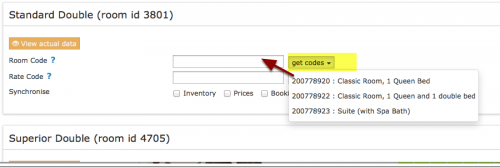
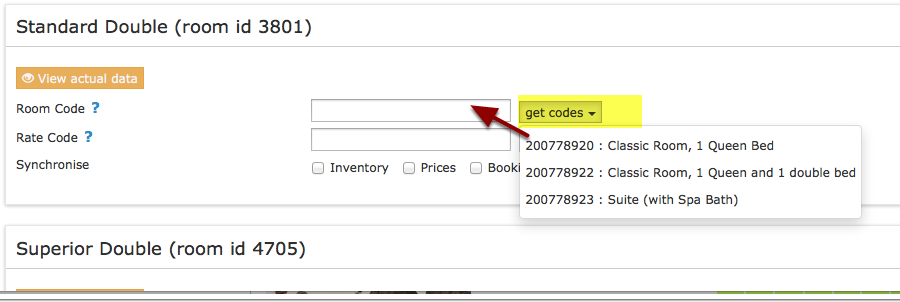
Map Rooms:
- Click on the "Get Code" link next to the room type id setting.
- Choose the Emerging travel group room id you want to map to each Beds24 room and click on it.
- When the correct room id has copied to the room type id setting, click Save.
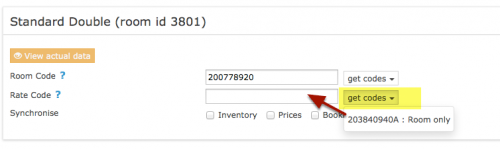
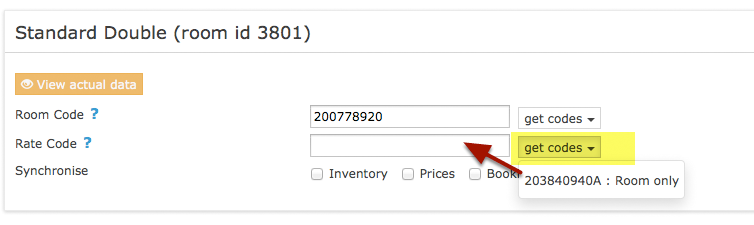
Map Rates:
- Click on the "Get Code" link next to the rate plan id setting.
- Choose the Emerging travel group standard rate for this room and click on it
- When the correct rate plan id has copied to the rate plan id setting.
- Click SAVE
Beds24 can send a single (1 person), double (2 guests) and room price which is will apply for the maximum occupancy.
If you need prices for more occupancies talk to Emerging travel group and ask them if the can set up additional rate Ids for you. Beds24 can send a different price to each rate ID. Please use these instructions.
Click on the "View Actual Data" Button to check which prices and availability will send. Prices that had already been set in HRS be overridden but cannot be removed. If no prices have are sent from Beds24, no availability is sent, but the which originally was in HRS is displayed.
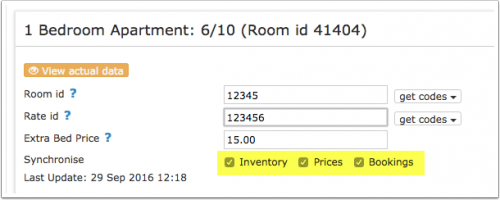
Activate
- Tick "Inventory", "Prices" and "Bookings"
- Save
Bookings
New Bookings are imported. Cancellations to bookings are also imported.
Existing bookings are not automatically imported when the connection is established and should be entered into Beds24 manually.
Multiple Rates
Multiple rates can be created for each date, for example to send prices for different occupancies, minimum stays, meal options or refundable and non-refundable prices.
Emerging travel group can set up multiple rate plan ids for each room, each with pre-defined booking conditions. Beds24 can map a different Beds24 rate or offer to each Emerging travel group rate. If you do not have the appropriate rate plan ids you need to request Emerging travel group to add them.
- Click on the "Get the Emerging travel group Room and Rate Codes for this Property Code" link to view all mapping codes for this property.
Multiple Rate Ids using Rates
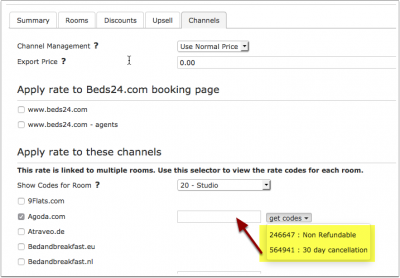
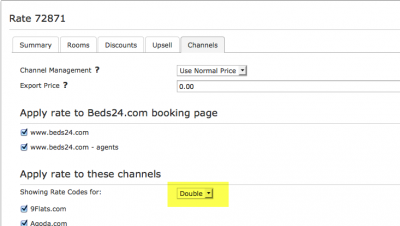
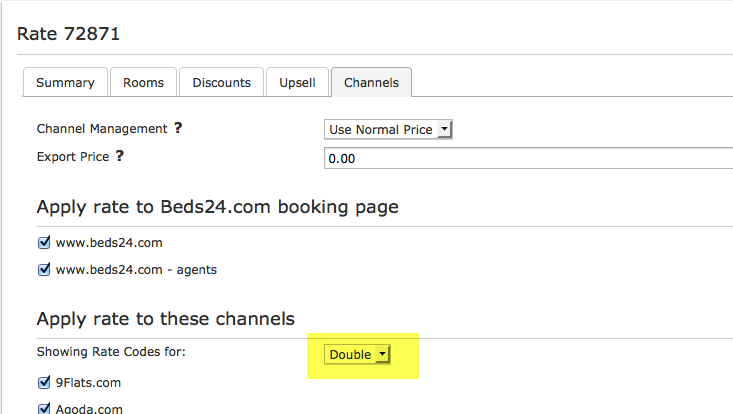
Each Beds24 rate can be mapped to any valid Emerging travel group rate plan id that is active and not derived or linked. On the CHANNEL tab of each Beds24 rate is a setting to enter an Emerging travel group rate plan id. If this setting is left blank, the rate plan id defined in the Beds24 channel manager settings for Emerging travel groupwill be used. If the Beds24 rate should be mapped to an alternative Emerging travel group rate plan id, enter the Emerging travel group rate plan id here.
 [[Media::Agoda_rate_mapping.png|view large]]
If you have linked a rate to be used for other offers or rooms use the selector to choose the room you want to map.

Multiple Rate Ids using Offers or Daily Prices
Beds24 supports up to four price "offers" for each room. Each of the four offers can be mapped to a different Emerging travel group rate plan id. This is particularly useful when mapping daily prices to Emerging travel group.
To define the Emerging travel grouprate plan id for each offer, separate the rate plan ids with colons. For example the following Beds24 rate plan id setting will map offer 1 to rate plan id 11111, offer 2 to rate plan id 22222, offer 3 to rate plan id 33333 and offer 4 to rate plan id 44444:
11111:22222:33333:4444
If offer 1 is used only for the Beds24 booking page and only offers 2,3 and 4 are used for Emerging travel group leave the first rate plan id blank and start with a colon. For example :22222:33333:44444
The settings for daily prices allow each daily price row to be assigned to a specific offer and therefore mappable to different Emerging travel group rate plan ids
Same Price to Multiple Rate Plan Ids
If a Beds24 price should be sent to multiple Emerging travel group rate plan ids, the multiple rate plan ids can be entered with a comma separating them. For example '12345678,123456789
This can be used to allow a daily price set to "Do not allow lower prices" to override multiple Emerging travel group rate plan ids. If the comma separated rate plan ids are defined in the channel manager rate plan id setting and each individual Beds24 rate contains it's specific Emerging travel group rate plan id, each rate will be mapped to it's rate plan id and daily prices will be mapped to all the specified rate plan ids, over-riding the rate price when appropriate.
Price Multiplier
If you want to add a multiplier to your prices, for example because of a different currency to your Beds24 currency, add a * followed by the multiplier number to your hotel Id.
For example a property code setting 123456*12.34 will multiply all prices by 12.34 sent for hotel id 123456.
You can also use currency conversion template variable. All currencies supported by the booking page currency selector can be used.
For example *[CONVERT:IDR-EUR] will convert Indonesian Rupees to Euros.
Example: *[CONVERT:IDR-EUR][/]0.85 will convert Indonesian Rupees to Euros and divides the price by 0.85 which raises it by circa 15%
Check Connection
The connection is working if you are not receiving error messages and the display in the channel is correct. If you are receiving error messages check in the "Common Errors" section why you are receiving the error and how to fix it.
Updates
Changes to availability and prices will be instantly sent to the channel. Changes for settings for example minimum stays or number of rooms will send with the next update. Click on "Update" if you want to push them through instantly.
Notes
Common Errors
Any errors occurring during updates will be emailed to you with the error message as returned by Emerging travel group. Below are common error messages and how to fix them.
You have no permissions to modify rates with ids:.....
You have entered numbers which are not valid Emerging travel groupk rate Ids. Please double check your rate ids and enter only valid Emerging travel group Rate Ids.
Disconnect
- Unticking "Inventory" and "Prices" and "Bookings" will stop the synchronisation for a room.
- Log into the Emerging travel group extranet, using you login and password and go to tab «Hotel», then «General Info where you will find «Channel manager» at the bottom of the page and press the button «Deactivate».