Using Airbnb and Booking.com: Difference between revisions
No edit summary |
|||
| Line 100: | Line 100: | ||
<span style="color: #f3e504; font-size: 150%;" >{{#fas:lightbulb}} </span> | <span style="color: #f3e504; font-size: 150%;" >{{#fas:lightbulb}} </span> | ||
Depending on the '''Sync type''' you plan to use '''Prices & Availability or Everything''', there is additional information you need to check/update before you complete the connection (Step | Depending on the '''Sync type''' you plan to use '''Prices & Availability or Everything''', there is additional information you need to check/update before you complete the connection (Step 3). | ||
With sync type '''Prices and Availability''' Beds24 will only update your price data (including number of guests, extra person price, base price, taxes and fees, max stay, minimum stay, max days in advance, advance notice/same day booking cut off, last-minute discount, early-bird discount, weekly discount, monthly discount) and availability and import bookings. If you want to change your descriptions pictures or other settings you do this in Airbnb. | With sync type '''Prices and Availability''' Beds24 will only update your price data (including number of guests, extra person price, base price, taxes and fees, max stay, minimum stay, max days in advance, advance notice/same day booking cut off, last-minute discount, early-bird discount, weekly discount, monthly discount) and availability and import bookings. If you want to change your descriptions pictures or other settings you do this in Airbnb. | ||
| Line 265: | Line 265: | ||
9) You can allow cancellation fees and commission values to overwrite booking values when cancelled by channel if {{#fas:cog}} (SETTINGS) CHANNEL MANAGER “Import Cancel Fees” is set to “Yes”. | 9) You can allow cancellation fees and commission values to overwrite booking values when cancelled by channel if {{#fas:cog}} (SETTINGS) CHANNEL MANAGER “Import Cancel Fees” is set to “Yes”. | ||
== Step | == Step 5: Connect your Beds24 rooms to your Airbnb Listings == | ||
By mapping a room you connect it so it can update a listing in Airbnb. | By mapping a room you connect it so it can update a listing in Airbnb. | ||
| Line 303: | Line 303: | ||
#Click on "Airbnb Listing" link to open the listing on Airbnb select dates to check the listing is bookable but do NOT finish the booking. | #Click on "Airbnb Listing" link to open the listing on Airbnb select dates to check the listing is bookable but do NOT finish the booking. | ||
== Step | == Step 6: Import bookings from Airbnb == | ||
Click on "Import existing bookings" to import the bookings you already have in Airbnb. Bookings previously imported via the Airbnb iCal connection will not import. We recommend you delete them before you press the button. | Click on "Import existing bookings" to import the bookings you already have in Airbnb. Bookings previously imported via the Airbnb iCal connection will not import. We recommend you delete them before you press the button. | ||
| Line 321: | Line 321: | ||
The connection is working if you are not receiving error messages and the display in the channel is correct. If you are receiving error messages check in the "Common Errors" section why you are receiving the error and how to fix it. | The connection is working if you are not receiving error messages and the display in the channel is correct. If you are receiving error messages check in the "Common Errors" section why you are receiving the error and how to fix it. | ||
== Step | == Step 7: Enable the 2-way connection for Booking.com and send Prices & Availability == | ||
*Go to {{#fas:cog}} (SETTINGS) CHANNEL MANAGER > BOOKING.COM > MAPPING | *Go to {{#fas:cog}} (SETTINGS) CHANNEL MANAGER > BOOKING.COM > MAPPING | ||
Revision as of 10:59, 13 December 2023
This page explains how to set up your properties if you are using both Airbnb and Booking.com. Airbnb and Booking.com manage the listings/properties differently. Booking.com has 1 Hotel id with the rooms listed within the Hotel, Airbnb lists individual rooms/listings.
If your setup is the same in both Booking.com and Airbnb, we recommend you use the Import from Airbnb as the details are simpler and more complete.
Capabilities
Your properties are listed on both Booking.com and Airbnb.
- You have individual rooms listed on Booking.com and Airbnb
- The setup is the same
After you have imported your listings from Airbnb you can map them to Booking.com
- Manage content in Beds24 and update both Airbnb and Booking.com
- Send prices and availability to Airbnb and Booking.com
- Import bookings and booking modifications or cancellations
Click here for general information on how the channel manager works.
Limitations
- The setup in Airbnb is the same as the setup in Booking.com.
- Beds24 can connect all Airbnb hosts who are eligible for API use.
- Airbnb does not allow Co-host accounts to use their Api. All connections have to be via the host account. There are two solutions:
- Airbnb does not allow Co-hosts to use their API. This means if you are a Co-Host Airbnb will not allow you to connect your co-hosted listings via Beds24 (or any other channel manager). Solutions to this limitation are:
- Ask the host to transfer their account to you.
- Your hosts make the connection between their Airbnb accounts and Beds24 themselves
- You can create a (temporary) subaccount in Beds24 for each of your hosts. Your hosts will have a login where they then can connect their Airbnb accounts.
- If you manage a large number of properties we can give you the "Connect with Airbnb Account" button. Your hosts will then be able to use this button outside of Beds24 so they will not need to log into Beds24 to allow the connection.
- Airbnb restrict API access in some cities. If you are not sure if you can use the API connection ask Airbnb support to check with your market manger if you are eligible.
- If you can not use the API connection you can use our Airbnb iCal connection to synchronize calendars only.
- Hosts in the DACH region (Germany, Austria and Switzerland) which are in bigger cities can use the API connection if they enter an imprint in their profile (under ACCOUNT - only available in German).
The steps to follow when using Airbnb and Booking.com
This approach requires you to import your listings from Airbnb, establish the connection to Booking.com and import the bookings, before completing the connection to Airbnb.
1) Connect your Airbnb account to Beds24 2) Import your listings from Airbnb and create a Property/Room 3) Complete property and room information and prices in Beds24 before connecting to Booking.com 4) Connect your Booking.com Account/Property to Beds24 5) Map your rooms to Booking.com Rooms/Rate plans 6) Update your Beds24 calendar with blocked dates and bookings from other sources (not Booking.com or Airbnb) 7) Enable the Sync Import (1-way only) connection to Booking.com, to import your bookings. 8) Connect your Beds24 rooms to your Airbnb Listings 9) Import your bookings from Airbnb 10) Enable the 2-way connection for Booking.com and send Prices & Availability
Step 1: Connect to Airbnb
Connect your Airbnb Account
Go to (SETTINGS) CHANNEL MANAGER > AIRBNB > ACCOUNTS
Click on "Connect with Airbnb"
If you are not logged into an Airbnb account you will see this screen:
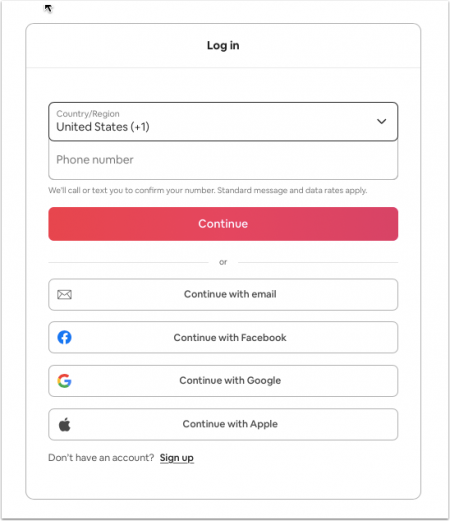
Log into the Airbnb account you want to connect to and then continue.
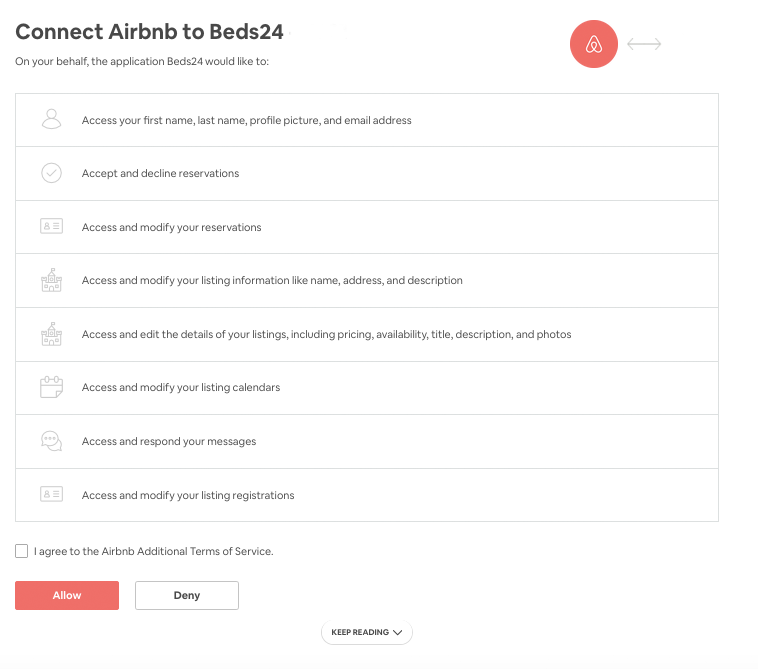
Once you are logged in you will be taken to the authorization page which looks like this:
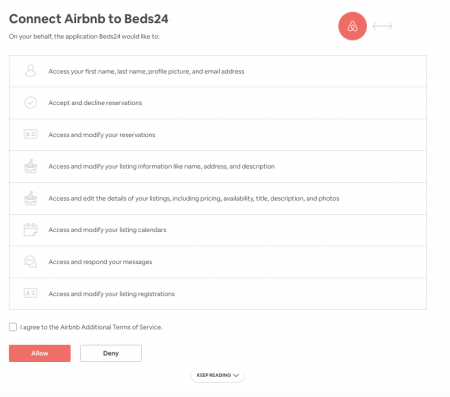
If you were already logged into an Airbnb account make sure it is the one you want to connect.
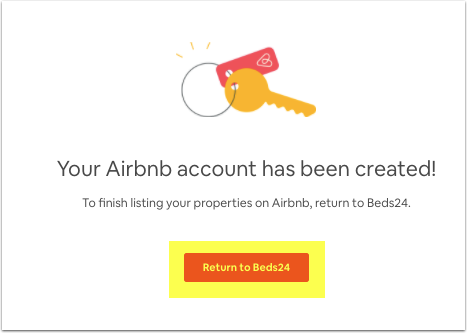
Agree to Airbnbs additional terms and click "Allow". You can then click on the "Return" button to go back to Beds24.
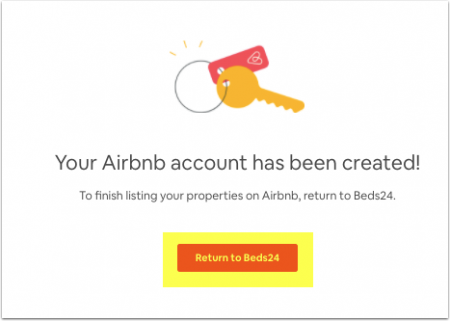
When you are connected the "Connect with Airbnb" button is replaced with a "View Listings" button. When you click on this button you will see all listings Airbnb makes available for import and connection for this account.
Import your Airbnb Listings
Click 'View Listings' and 'Import' the first listing, creating a Property in Beds24 with 1 room.
If you have multiple rooms in Booking.com within the same property, select 'Add a room to an existing property'
- Click on the "Import" button
- Select if you want to create a new property with a room or add a room to a property you already have in Beds24. After you have done this you will see the new property/room in (SETTINGS) PROPERTIES > ROOMS.
If you do not have an import button and the "Connected Room" shows "unknown" log into your Airbnb account and set the listing to "manual".
- Beds24 supports both "'Daily Prices'" and "'Occupancy Prices'" for Airbnb. Please see Pricing Models for more information and adjust your pricing model if required in (SETTINGS) CHANNEL MANAGER > AIRBNB > MAPPING
- Your prices are imported as daily prices. If you have an "'Extra Person Price'" in Airbnb you will need to adjust the "Max Guests" and the "Extra Person" price in PRICES > DAILY PRICE SETUP.
Complete property and room information and prices in Beds24 before connecting to Booking.com
Depending on the Sync type you plan to use Prices & Availability or Everything, there is additional information you need to check/update before you complete the connection (Step 3).
With sync type Prices and Availability Beds24 will only update your price data (including number of guests, extra person price, base price, taxes and fees, max stay, minimum stay, max days in advance, advance notice/same day booking cut off, last-minute discount, early-bird discount, weekly discount, monthly discount) and availability and import bookings. If you want to change your descriptions pictures or other settings you do this in Airbnb.
With sync type Everything also your existing listing's descriptive content will be overridden by the descriptive content in Beds24 and can no longer be edited in Airbnb.
If you want to sync everything your listing needs to meet Airbnbs requirements. If you see a red button "Fix Content Errors" your listing does not meet Airbnb requirements. Click on the button. Any settings which do not meet Airbnb requirements are highlighted in red. Click on the links to go to the settings where you can fix the problems.
Always go to "View Content" to check what will send to Airbnb before selecting Everything.
Go to (SETTINGS) CHANNEL MANAGER > AIRBNB > VIEW CONTENT and click on the links next to the settings to enter these. For instructions use the context help .
- Check ALL Fees are imported.
Other fees supported by Airbnb can be sent as CUSTOM value in (SETTINGS) CHANNEL MANAGER > AIRBNB > SPECIFIC CONTENT > CUSTOM. If you apply a linen fee Airbnb will add this to the cleaning fee.
- PETFEE 45 (for example)
If you want to use the booking engine you will also need to add the cleaning fee in (SETTINGS) PROPERTIES > UPSELL ITEMS.
- Check ALL amenities are imported.
Check the amenities and requirements here Airbnb Content
To add Property amenities go to (SETTINGS) PROPERTIES > DESCRIPTION > FEATURES and click on 'edit amenities.
To add Room amenities/features go to (SETTINGS) PROPERTIES > ROOMS > SETUP > FEATURES and click on 'edit bedroom' and 'edit bathroom'
- Pictures are imported without Captions/descriptions, update them before completing the connection
Check the details for Pictures Airbnb Picture requirements
Step 2: Connect your Booking.com Account/Property to Beds24
The set up process
Setting up the connection is a 4 step process:
1) You request a connection on Booking.com extranet. Nothing changes. You are still bookable according to the prices and inventory you have set in the Booking.com extranet.
2) Beds24 accepts your request. Nothing changes. You are still bookable according to the prices and inventory you have set in the Booking.com extranet.
Between step 2 and 3 you should map your rooms and rates, check everything, Enable Sync Type = Import (1-way Only) and import existing bookings from Booking.com to block the booked dates in the Beds24 calendar.
3) You enable the connection in Beds24. This is when Booking.com removes your inventory and rates and you are temporarily not bookable.
4) Beds24 sends prices and availability to Booking.com. You are bookable again. To send the update immediately click the "Update" buttons in the channel manager settings.
Bookings are not removed from the Booking.com extranet. Existing and new bookings are always visible in the Booking.com extranet.
Initiate the connection in Booking.com
Initiate the connection from the property menu within the Booking.com extranet and then do the Beds24 setup.
- Go to (SETTINGS) CHANNEL MANAGER > BOOKING.COM > MAPPING
1) Click on the "Connect to Booking.com" button to login to Booking.com then go to ACCOUNT > CONNECTIVITY PROVIDER.
If you have a Booking.com group account log to Booking.com and go to ACCOUNT > CONNECTIVITY PROVIDER and select Beds24 as channel manager from there.
2) Search for BEDS24.
3) Tick all tick boxes.


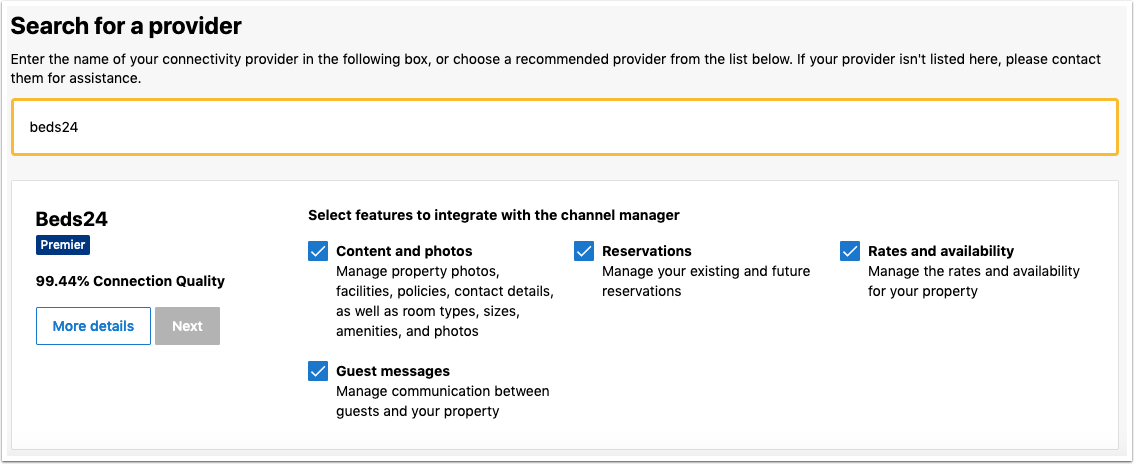
For a two-way connection you need to select both "Reservations" and "Rates and Availability". Beds24 can then both export inventory to Booking.com and import bookings from Booking.com. If you select only "Reservations" or only "Rates and Availability" you only have a "one-way" connection meaning the action you did not select must be manually maintained by you.
4) Complete the rest of the on screen instructions.
- If you choose "Connect me automatically to the provider" Booking.com will instantly remove your prices and availability. Choose this option only if you have check that your prices in Beds24 are all set up and ready to send.
- If you choose "Dont connect me automatically to the provider" you can confirm the connection after you have done the setup in Beds24.
5) When the connection has been approved, you will receive a notification from Booking.com, go to the Channel Manager menu again and set the connection up.
Set up and mapping in Beds24
1) Enter your Booking.com Hotel Id into SETTINGS -> CHANNEL MANAGER -> BOOKING.COM "Hotel ID" setting and choose your "Booking.com Rate Type" and click SAVE.
2) Set "Booking Price Import" to either import the room price only or the room price plus unpaid extras (cleaning charges, local taxes etc.)
3) Set "Booking.com Rate Type " = "Per Occupancy Pricing" as this is the default for the Booking.com connection.
Some Booking.com rate ids can accept a room price plus a single occupancy price on the same rate id. If you have this rate type and want to send the single occupancy price set "Booking.com Rate Type " = "Per Day Pricing + Single". If you do not have this rate type or you are not sure set "Booking.com Rate Type "= " Per Day Pricing" or "Per Occupancy Pricing"
Map your rooms to Booking.com Rooms/Rate plans
Map Rooms:
- Click on the "Get Code" link next to the room id setting, a list of room ids will be retrieved from Booking.com and displayed.
- Choose the Booking.com room you want to map to the Beds24 room and click on it.
- When the correct room id has been copied to the room id setting, click Save.
Map Rates:
- Click on the "Get Code" link next to the rate id setting and a list of rate ids will be retrieved from Booking.com for the saved room id.
- Choose the Booking.com rate id for this room and click on it. This will normally be the standard rate.
- When the correct rate id has been copied to the rate id setting, click Save.
Tip Click on the "View Actual Data" Button to check which prices and availability will send.
3. If you have different price options i.e. refundable/non refundable rates, meal plans Booking.com can support more than one price per room and day.
If you need additional rate plans, for example a for different occupancies, or a non-refundable rate, or your rate plan contains meals, you can create additional rate plans in (SETTINGS) CHANNEL MANAGER > BOOKING.COM > RATE PLANS.
Please use these mapping instructions if you have multiple rate codes.
4. If you want to mark your prices up or down or need currency conversion You can add a multiplier to your prices, add a * followed by the multiplier number in the "Multiplier" field
Examples:
- *1.23 will multiply all prices by 1.23 (i.e. raised by 23%).
- Lower prices can be sent with a multiplier less than 1: *0.85 will send 85% of the normal price (i.e. lowered by 15%).
- To convert the price of bookings imported from the channel add a * AFTER the multiplier. *1.23* will divide the price of the booking by 1.23.
- For currency conversion you can also use currency conversion template variables. All currencies supported by the booking page currency selector can be used.
- *[CONVERT:IDR-EUR] will convert Indonesian Rupees to Euros.
- *[CONVERT:IDR-EUR]* will convert Indonesian Rupees to Euros and back to Indonesian Rupees on the import.
5. Limit the maximum number of accepted bookings if you do not want to offer all rooms By default all available rooms are sent to activated channels. In (SETTINGS) CHANNEL MANAGER > CHANNEL INVENTORY limit the number of accepted bookings for this channel.
Step 3: Update your Beds24 calendar with blocked dates and bookings from other sources (not Booking.com or Airbnb)
- Dates can be blocked by either entering a booking manually into Beds24 for those dates or using the inventory and override functions on the control panel calendar for those dates.
- Click on the Add booking button at the top of the Control Panel and create the bookings
- See instructions on how to close dates Click here for more information on how to close dates in the calendar.
Step 7: Enable the Sync Import (1-way only) connection to Booking.com, to import your bookings
1) You can view the live availability and prices that will be sent to Booking.com before or after activating using the "Price data" button.
2) Scroll down to the rooms and set "Enable" = Import (1 way only). Click Save.
3) Make sure your inventory is correct in Beds24.
- Check existing bookings from Booking.com imported and dates blocked by other sources (Not Airbnb) are blocked in Beds24.
Failure to do this could allow new bookings on dates you are not available. All available dates in Beds24 will be sent to Booking.com as available for new bookings.
4) Click on "Get Connection Status" to see the connection is properly activated.
5) Click on "Import existing bookings" This will import all upcoming bookings and block the dates in Beds24 Calendar.
If for any reason your existing bookings do not import, the dates could be reopened and resold. To prevent this import the bookings via CSV.
a. Export your bookings as CSV from Booking.com b. (SETTINGS) PROPERTIES and click on the Import booking from CSV file button to Beds24.
Follow the instructions on the page carefully so they import to the correct rooms.
If this is also unsuccessful, block the booked dates in the Beds24 calendar. Please note that in this case cancellations and modifications will not be imported automatically.
6) Check the Beds24 Calendar to ensure all Booking.com bookings have been imported and dates are closed.
7) Check dates have been blocked for bookings/dates from other sources.
8) Channel collect payments will be shown in the booking invoice if (SETTINGS) CHANNEL MANAGER “Import Channel Collect Payments” is set to “Charges” or “Charges and Payments”.
9) You can allow cancellation fees and commission values to overwrite booking values when cancelled by channel if (SETTINGS) CHANNEL MANAGER “Import Cancel Fees” is set to “Yes”.
Step 5: Connect your Beds24 rooms to your Airbnb Listings
By mapping a room you connect it so it can update a listing in Airbnb.
1) Change the pricing model (optional)
Select "Occupancy Pricing" if you want to send prices for different numbers of guests and/or different length of stay. See the chapter "Pricing Models" below for more information.
Press SAVE.
2) Check which prices will send
Go to the "Mapping" tab again and then scroll down to "Room Mapping" and then click on "Price Data" under "View" to check which prices and availability will be sent. If you see no prices or no availability in the list, check if you have prices set up for your listing on Airbnb.
3) Select your sync type
With sync type Prices & Availability Beds24 will only update your price data (including number of guests, extra person price, base price, max stay, minimum stay, max days in advance, advance notice/same day booking cut off) and availability and import bookings. If you want to change your discounts, descriptions, pictures, or other settings you do this in Airbnb.
With sync type Limited Beds24 will update your price data (including number of guests, extra person price, base price, taxes and fees, max stay, minimum stay, max days in advance, advance notice/same day booking cut off, last-minute discount, early-bird discount, weekly discount, monthly discount) and availability and import bookings. If you want to change your descriptions pictures or other settings you do this in Airbnb.
With sync type Everything also your existing listings descriptive content will be overridden by the descriptive content in Beds24 and can no longer be edited in Airbnb.
If you want to sync everything your listing needs to meet Airbnbs requirements. If you see a red button "Fix Content Errors" your listing does not meet Airbnb requirements. Click on the button. Any settings which do not meet Airbnb requirements are highlighted on red. Click on the links to go to the settings where you can fix the problems.
Always go to "View Content" to check what will send to Airbnb before selecting Everything.
4) Connect your Beds24 room to the Airbnb Listing
Click "Connect" and select the corresponding listing to this room to make the connection.
If you have changed the sync type to "Everything" you need to press SAVE before connecting.
5) Check that the connection is working properly
- Click on "View actual data and check the prices you see there are as you expect
- Allow a bit of time for Airbnb do process the data you have sent then click on "Update". If Airbnb returns an error message scroll down to the "Troubleshooting" section to see why Airbnb sends the error and how to fix it. If you receive an error which is not listed below send us a support ticket.
- Click on "Airbnb Listing" link to open the listing on Airbnb select dates to check the listing is bookable but do NOT finish the booking.
Step 6: Import bookings from Airbnb
Click on "Import existing bookings" to import the bookings you already have in Airbnb. Bookings previously imported via the Airbnb iCal connection will not import. We recommend you delete them before you press the button.
Blocked dates are not sent by Airbnb, manually update the dates in Beds24 calendar.
We will import bookings from the last four weeks that are currently ongoing and have not yet reached their check-out date. However, please note that exceptionally long-term stays, those exceeding four weeks, will not be included in the import.
Click on "Check connection status" to check the status of your property at Airbnb.
The connection is working if you are not receiving error messages and the display in the channel is correct. If you are receiving error messages check in the "Common Errors" section why you are receiving the error and how to fix it.
Step 7: Enable the 2-way connection for Booking.com and send Prices & Availability
- Go to (SETTINGS) CHANNEL MANAGER > BOOKING.COM > MAPPING
- Scroll down to the Rooms and set Enable = Enabled (this is the 2-way connection)
- Click Save
- Click Update for each room to immediately send the Inventory and prices to Booking.com