Boost your listing's search ranking: Difference between revisions
m Annette moved page Content Quality to Optimize Content |
|||
| Line 30: | Line 30: | ||
You can add and manage pictures in {{#fas:cog}} (SETTINGS) BOOKING ENGINE > PICTURES. | You can add and manage pictures in {{#fas:cog}} (SETTINGS) BOOKING ENGINE > PICTURES. | ||
Make sure the pictures have the right order. Picture 1 will will the the top picture sent to the OTAs which they will use as hero or header picture. | Make sure the pictures have the right order. Picture 1 will will the the top picture sent to the OTAs which they will use as hero or header picture. | ||
Some OTAs support tags. f you add tags directly in Beds24 there is a dropdown with commonly used tags but you can also add other tags manually. Booking.com recommeds adding seasonal pictures and tag them with the season. They will then display the seson picture according to the season the guest want to travel. | |||
=Features and Amenities= | =Features and Amenities= | ||
Revision as of 19:09, 8 November 2024
This page explains how to optimize your listing content.
Summary
A good ranking on the channels depends largely the content you provide and guest reviews.
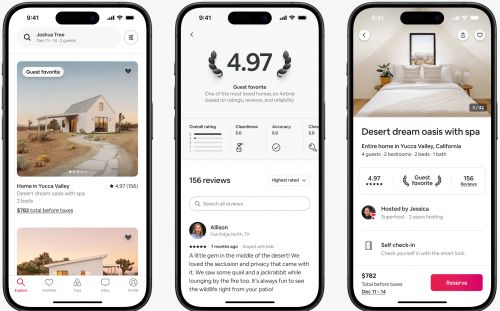
Good content is key to manage guest expectations. List all your amenities and make sure your descriptions are accurate so guests know what to expect. Add as many as possible great photos to your listings that show what guests will get.
Our tips apply to your direct booking page as well to all OTAs. For Airbnb, Booking.com, the Vrbo group and Hometogo you can manage the complete content directly from Beds24.
Hosts who applied tips have improved their conversion rate on leading OTAs by up to 140% in only 30 days.
Pictures
Pictures are the first impression that guests have. You should provide as many pictures as possible in high resolution.
Recommended are 20+ pictures. Make sure all have caption and make sure your first (key) picture and your headline work together.
Managing Pictures in Beds24
You can add and manage pictures in (SETTINGS) BOOKING ENGINE > PICTURES.
Make sure the pictures have the right order. Picture 1 will will the the top picture sent to the OTAs which they will use as hero or header picture.
Some OTAs support tags. f you add tags directly in Beds24 there is a dropdown with commonly used tags but you can also add other tags manually. Booking.com recommeds adding seasonal pictures and tag them with the season. They will then display the seson picture according to the season the guest want to travel.
Features and Amenities
Having the right amenities will ensure your listing is not excluded from filtered searches. Some channels also support "Location Type" and "Nearby" features to allow guests to narrow down search results.
Prioritise those amenities that match your property’s location and guest profile, such as children’s amenities for family destinations.
Each channel has their own set of features and amenities which are listed on the channels help page.
On Airbnb some amenities, such as pools, hot tubs and washer/dryers, can significantly improve listing performance. Allowing pets and providing a kitchen, WiFi and TV can have a more moderate but still noticeable effect on the performance on Airbnb.
Setting up Features and Amenities in Beds24
You can add them via a copy and paste. Beds24 supports both property features and room features:
Property features and amenities
Amenities which apply to the complete property and and Location Type can be set up for the property (SETTINGS) PROPERTIES > DESCRIPTION
Criteria which apply to all rooms in the property should be set up with the property. They will be automatically applied to all rooms in the property.
Room features and amenities
If you have multiple rooms criteria which only applies to one room should be entered in the room in {#fas:cog}} (SETTINGS) PROPERTIES > ROOMS > SET UP).
Example 1: All rentals or rooms have internet. In this case you can set up the Internet in {#fas:cog}} (SETTINGS) PROPERTIES > DESCRIPTION. The number will be applied to all room/units.
Example 2: You have one unit with Internet one and another unit without Internet. In this case set the Internet up in SETTING > PROPERTIES > ROOMS > SET UP.
How to add features and amenities.
- Click on the "Edit " button next to the "Features" field.
- In the pop up click on "Amenities".
- Tick the amenities you provide from the preset list. These features will show on your booking page if you have the "Features" module activated.
- If you have features and amenities which are not in the preset list copy and paste them from the "All Features" section on the channels help page
- Close the pop up and then press SAVE.
We aim to support all features the channels support If some features are not yet available, please reach out to us via a support ticket.
Rules and Policies
Travelers value the ability to get a refund if their plans change.
- Having a flexible cancellation policy can significantly increase the number of bookings.
- Listings where guests do not have to pay the full amount upfront tend to perform better.
Descriptive texts
Some channels allow for a "headline" rather than a property name. Choose your headline carefully and make sure your first (key) picture and your headline work together.
Make sure your descriptions are accurate so guests know what to expect. Guests who find what they expected are less likely to leave a bad review.
Communication
Successful hosting requires excellent communication between hosts and guests. Effective communication is essential for happy guests, 5-star reviews, and repeat bookings.
On our blog we provide additional information and an example messaging flow.
Communication via Beds24
Beds24 allows you to set up automated messages so you can provide your guests with all relevant information when they need it.
Direct integration with Airbnbs, Booking.coms, Expedias and Vrbos messaging system allow you to communicate with their guests directly and securely from Beds24 via the channels messaging system.
Reviews
Most travelers rely on reviews before booking.
Guest feedback helps you spot problems early and guests can offer perspectives you may not have considered.
If possible you should make it a habit to review all guests directly after departure because hosts who leave a review for their guests are likely to receive a review back from their guests.
Managing reviews in Beds24
Direct integration with Airbnbs, Expedias and Vrbos reviews allow you to manage your reviews directly from Beds24. You can view your reviews directly in Beds24, reply to them and review the guest.
We suggest you actively ask tor reviews via an Auto Action.
Check your listing regularly
To stay on top you should actively manage your listings. These are the key tasks you should perform on a regular basis:
Pricing Strategy
Implement competitive pricing that reflects market demand, seasonality, and local events. Consider using the Yield Optimizer (PRICES > YIELD OPTIMIZER) or dynamic pricing tools for real-time adjustments.
Guest Feedback
Proactively seek and review guest feedback to identify improvement areas. Update your listings to address common concerns and showcase enhancements.
Listing Audit
Regularly examine your listings to guarantee accuracy and completeness. Verify that no outdated information is present, all amenities are listed, and high-quality visuals are included.
SEO Optimization
Enhance search visibility on the channels and search engines by integrating relevant keywords into your titles and descriptions. Research popular search terms related to your location and property type.