Category:Booking.com: Difference between revisions
No edit summary |
No edit summary |
||
| Line 63: | Line 63: | ||
'''Beds24.com''' | '''Beds24.com''' | ||
Enter your Booking.com Hotel Id into SETTINGS -> CHANNEL MANAGER -> BOOKING.COM XML "Property Code" setting and then SAVE. | |||
[[Image:bookingcom1.png|350px|link=]] | [[Image:bookingcom1.png|350px|link=]] | ||
[[Media:bookingcom1.png|view large]] | [[Media:bookingcom1.png|view large]] | ||
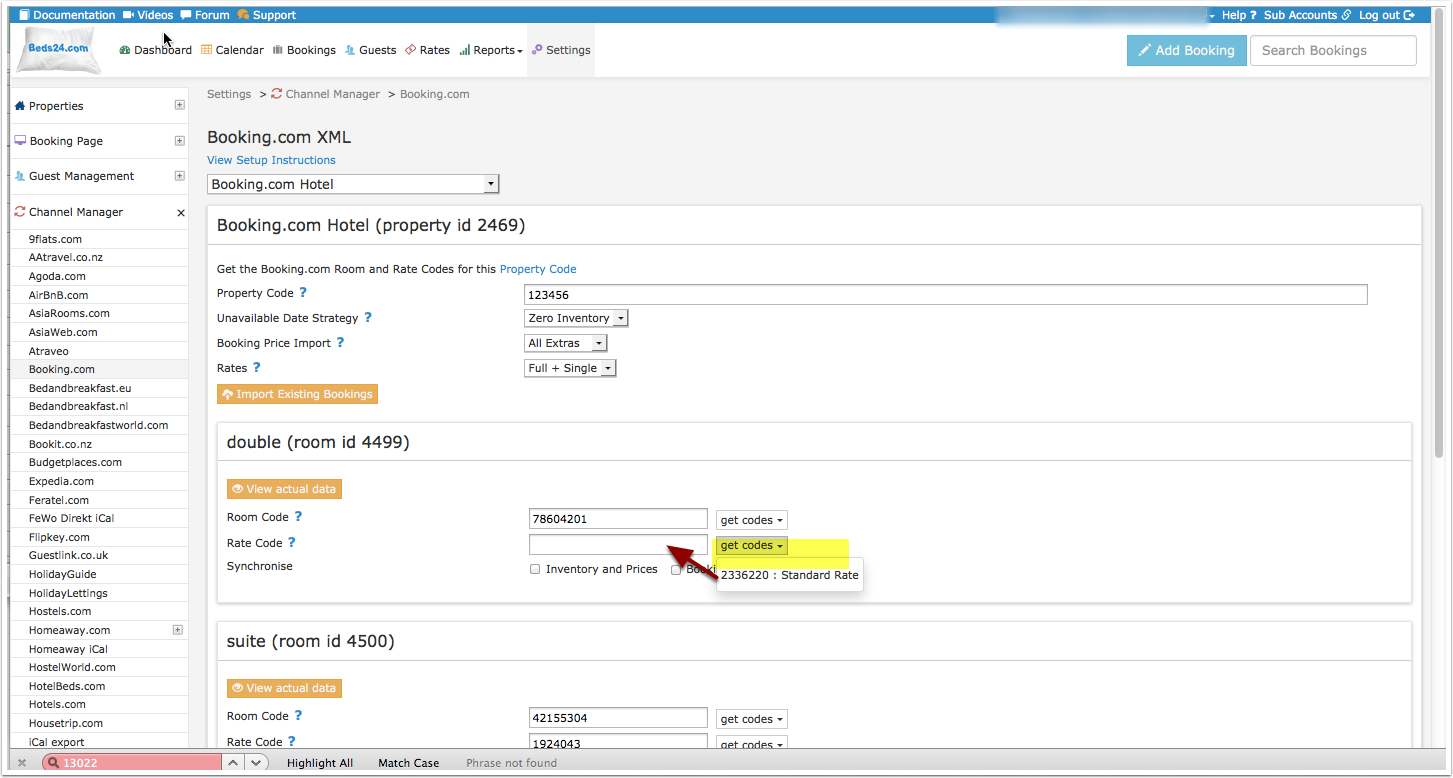
Map Rooms: | |||
*Click on the "Get Code" link and choose the Expedia room you want to map to this Beds24 room | |||
*Hit enter | |||
*Save | |||
[[Image: | [[Image:bookingcomrooms.png|350px|link=]] | ||
[[Media: | [[Media:bookingcomroomspng|view large]] | ||
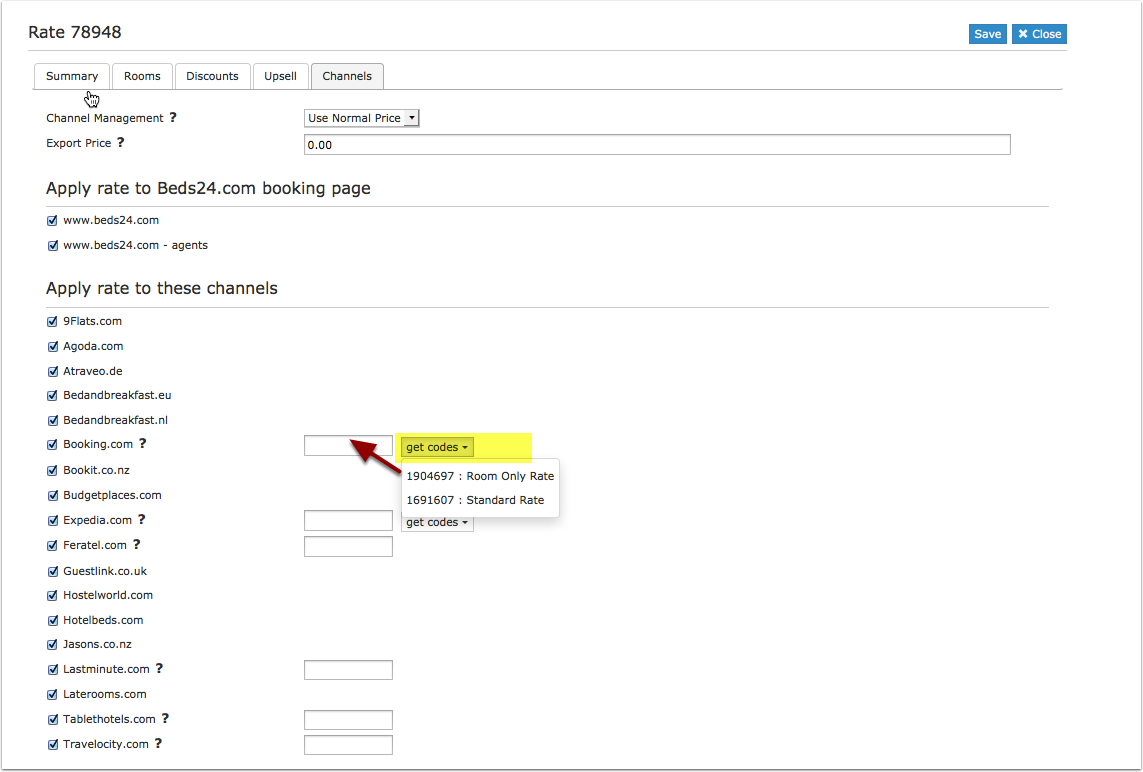
Map Rates: | |||
*Click on the "Get Code" link and choose the Expedia room you want to map to this Beds24 room | |||
*Hit enter | |||
*Save | |||
[[Image: | [[Image:bookingcomrates.png|350px|link=]] | ||
[[Media: | [[Media:bookingcomrates.png|view large]] | ||
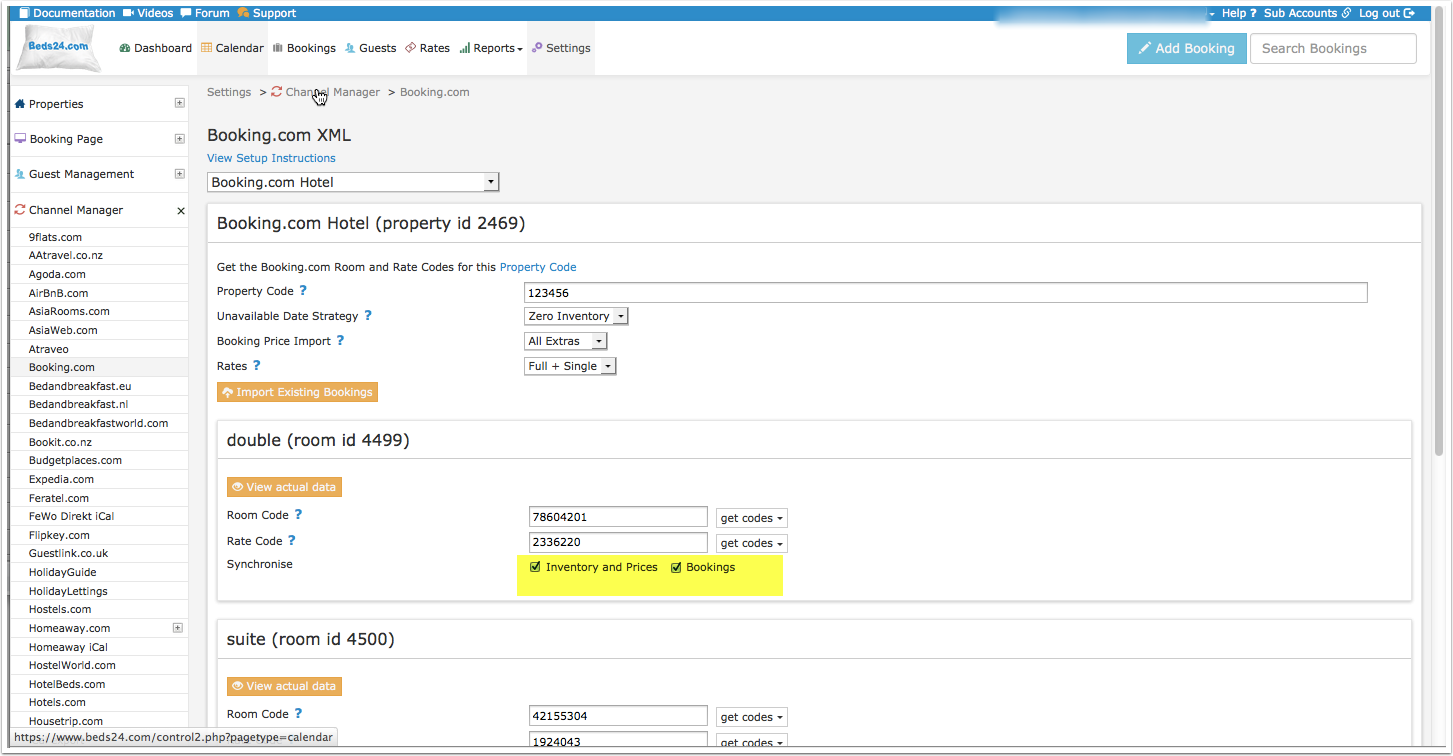
Activate: | |||
*Tick "Inventory and Prices" and "Bookings" | |||
*Save | |||
[[Image: | [[Image:bookingcomactivate.png|350px|link=]] | ||
[[Media: | [[Media:bookingcmactivate.png|view large]] | ||
==Multiple Rates== | |||
There are two options for multiple rates for example to send prices for different occupancies, meal options or refundable and non-refundable prices. | |||
==Multiple | |||
There are two options for multiple rates | |||
'''1. Derived Prices''' | '''1. Derived Prices''' | ||
| Line 118: | Line 104: | ||
'''2. Multiple Rate Codes''' | '''2. Multiple Rate Codes''' | ||
If you do not have the appropriate rate ids you need to request Booking.com to add them. | |||
'''Multiple Rate codes using Rates''' | |||
Booking.com can provide multiple rate codes per room. Each rate code can accept one price and optionally (if enabled by booking.com) a single occupancy price. | Booking.com can provide multiple rate codes per room. Each rate code can accept one price and optionally (if enabled by booking.com) a single occupancy price. | ||
Each unique rate code in booking.com will require at least one corresponding rate in Beds24. | Each unique rate code in booking.com will require at least one corresponding rate in Beds24. | ||
The default '''standard rate''' can be entered in the channel manager settings and this is used as as the default rate code when no other rate code is specified. | |||
Each individual Beds24 rate can override the default rate code by entering an alternative rate code directly in the rate's channel setting for booking.com. | Each individual Beds24 rate can override the default rate code by entering an alternative rate code directly in the rate's channel setting for booking.com. | ||
[[Image:bookingcomrate.png|350px|link=]] | |||
[[Media:bookingcomrate.png|view large]] | |||
'''Multiple Rate codes using Offers or Daily Prices''' | |||
Multiple rate codes can be entered in the channel manager settings rate code by separating them with colons ''':''' (i.e. 12345678:123456789:1234567810) | Multiple rate codes can be entered in the channel manager settings rate code by separating them with colons ''':''' (i.e. 12345678:123456789:1234567810) | ||
| Line 138: | Line 133: | ||
| Line 167: | Line 145: | ||
[[Media:Booking_com_11.png|view large]] | [[Media:Booking_com_11.png|view large]] | ||
==Price Multiplier= | |||
If you want to add a multiplier to your prices, for example because booking.com requires a different currency to your Beds24 currency, add a '''*''' followed by the multiplier number to your property code. (Hotel id) | If you want to add a multiplier to your prices, for example because booking.com requires a different currency to your Beds24 currency, add a '''*''' followed by the multiplier number to your property code. (Hotel id) | ||
Revision as of 18:52, 18 November 2015
Synchronising Beds24.com with Booking.com
Capabilities
- Beds24.com can export Inventory
- Beds24.com can export Minimum Stay
- Beds24.com can export Maximum Stay
- Beds24.com can export Closed to Arrival and Closed to Departure
- Beds24.com can export Multiple Rates
- Beds24.com can import Bookings
- Beds24.com can import Booking Modifications and Cancellations
- Beds24.com can add a multiplier to prices to convert to a different currency.
- Importing modifications or cancellations can be disabled for individual bookings.
For details please click here
Limitations
If you export inventory you will also need to export rates from Beds24.
Rates can not be set within the Booking.com extranet.
"Extra Person" prices cannot be exported to Booking.com
Booking.com may not send the Guest Email address to some accounts. Your Booking.com rep may be able to get this enabled in your account if it occurs.
Booking.com may not send the credit card number or CCV to some accunts. Your Booking.com rep may be able to get this enabled in your account if it occurs.
Set Up
Setting up the connection is a 4 step process:
1) You request a connection - nothing changes you are still bookable according to the prices and inventory you have set in the Booking.com extranet
2) Beds24 accepts your request - nothing changes you are still bookable according to the prices inventory you have set in the Booking.com extranet
Between step 2 and 3 you can map your rooms and rates, check everything and import existing bookings from Booking.com to block the booked dates.
3) You enable the connection in Booking.com - this is when Booking.com removes your inventory and rates and you are temporarily not bookable.
4) Beds24 sends prices and availability to Booking.com. You are bookable again. To send the update immediately click the "Update" buttons in the channel manager settings.
Bookings are not removed from the Booking.com extranet. Existing and new bookings are always visible in the Booking.com extranet.
Booking.com
Initiate the XML connection from the property menu within the booking.com extranet and then do the Beds24 setup.
1) Login to Booking.com and go to the Property Information section.
2) Select the Channel Manager menu. (left side of screen, if you cannot find it there use the help in booking.com or ask your booking.com rep)
3) Click the Start button and search for BEDS24.
4) Complete the rest of the on screen instructions.
5) When ready you will receive a notification from Booking.com, go to the Channel Manager menu again and activate the connection.
Beds24.com
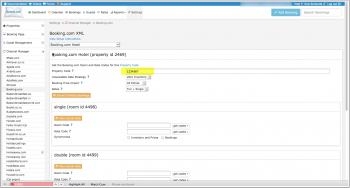
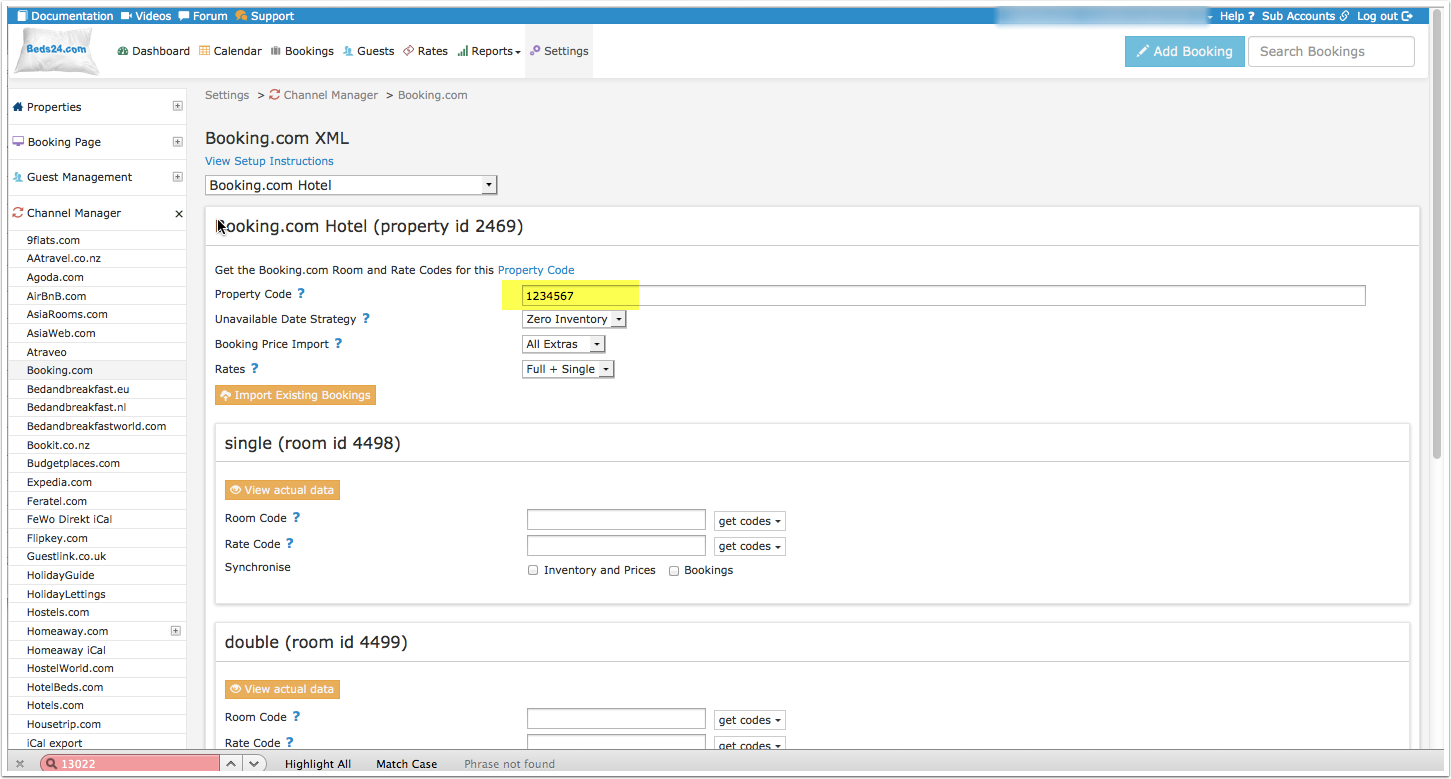
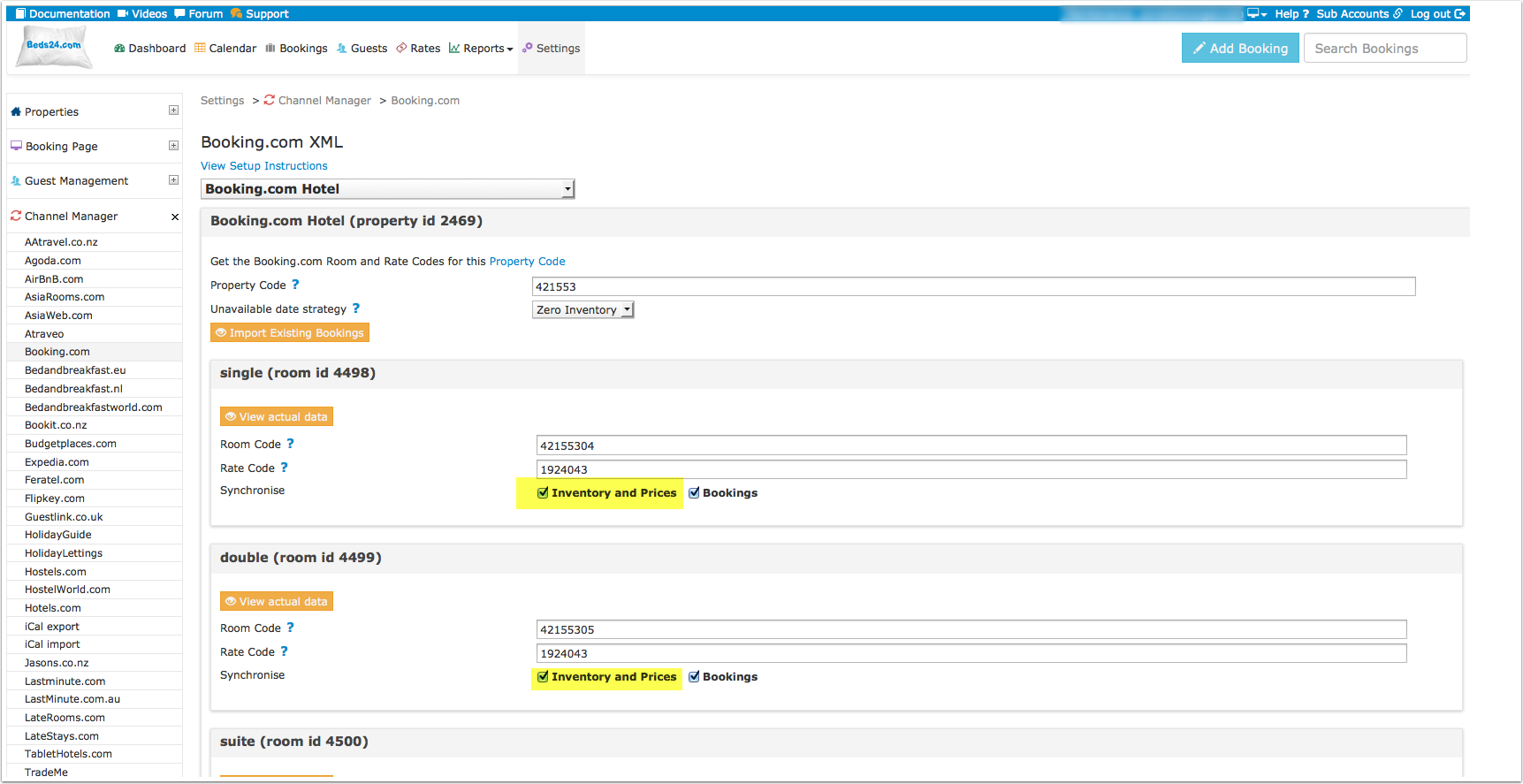
Enter your Booking.com Hotel Id into SETTINGS -> CHANNEL MANAGER -> BOOKING.COM XML "Property Code" setting and then SAVE.
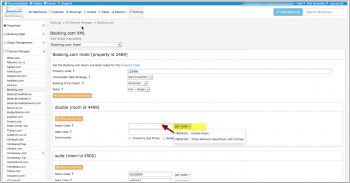
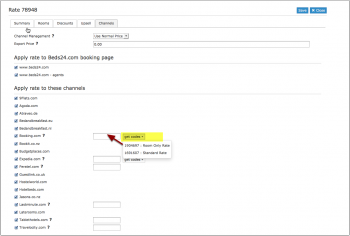
Map Rooms:
- Click on the "Get Code" link and choose the Expedia room you want to map to this Beds24 room
- Hit enter
- Save
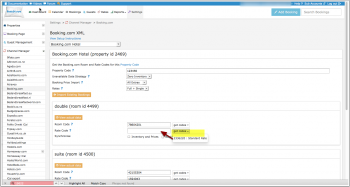
Map Rates:
- Click on the "Get Code" link and choose the Expedia room you want to map to this Beds24 room
- Hit enter
- Save
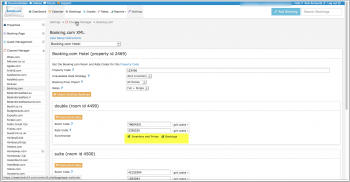
Activate:
- Tick "Inventory and Prices" and "Bookings"
- Save
Multiple Rates
There are two options for multiple rates for example to send prices for different occupancies, meal options or refundable and non-refundable prices.
1. Derived Prices
Booking.com can auto calculate different occupancies from one standard rate. Ask you Booking.com rep to set this up.
2. Multiple Rate Codes
If you do not have the appropriate rate ids you need to request Booking.com to add them.
Multiple Rate codes using Rates
Booking.com can provide multiple rate codes per room. Each rate code can accept one price and optionally (if enabled by booking.com) a single occupancy price.
Each unique rate code in booking.com will require at least one corresponding rate in Beds24.
The default standard rate can be entered in the channel manager settings and this is used as as the default rate code when no other rate code is specified.
Each individual Beds24 rate can override the default rate code by entering an alternative rate code directly in the rate's channel setting for booking.com.
Multiple Rate codes using Offers or Daily Prices
Multiple rate codes can be entered in the channel manager settings rate code by separating them with colons : (i.e. 12345678:123456789:1234567810) When multiple rate codes are specified, Beds24 prices attached to offers 1 through to 4 are applied to the rate codes respectively. This allows different offers in Beds24 to be mapped to different rates at booking.com. The offers may also optionally be shown on the Bes24 booking page or not.
If a single Beds24 rate or daily price should be sent to multiple booking.com rate codes, the multiple rate codes can be entered with a comma separating them. (i.e. 12345678,123456789,1234567810) A common use of this is when a daily price is set to "Do not allow lower prices" and should override multiple booking.com rate codes. All the rate codes should be listed comma separated in the channel manager rate code setting so the daily price can be sent to all of them. Each individual rate should contain only it's specific booking.com rate code so it is not sent to the correct rate code and not all of them.
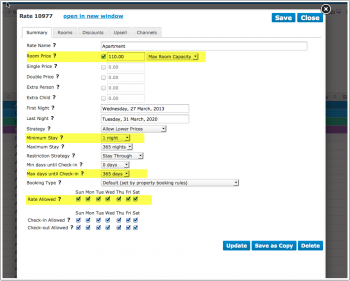
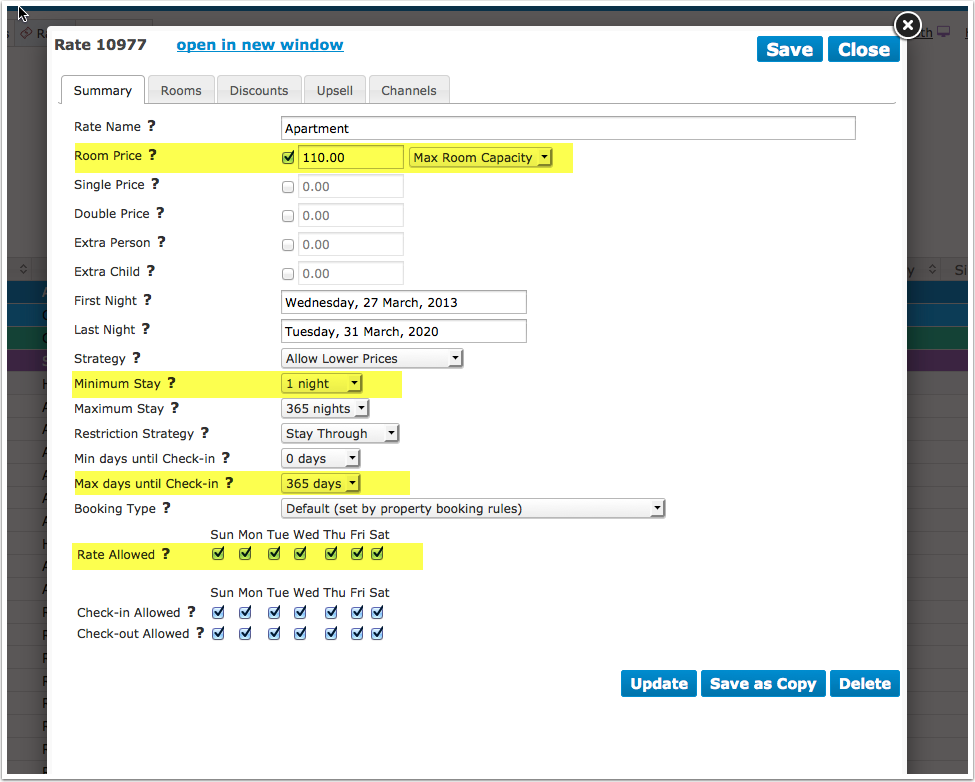
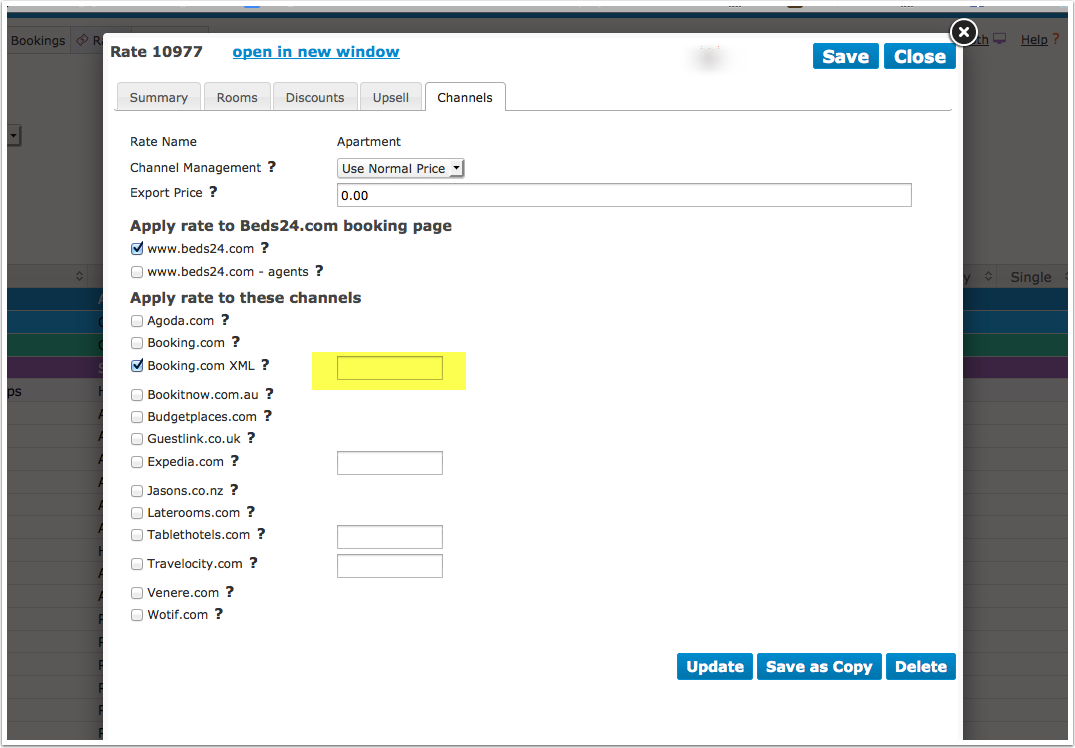
10) Set up your new rate with the prices and conditions you want to send to Booking.com. The highlighted items are some of the commonly used fields when setting alternate rates.
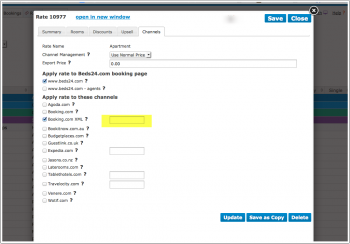
11) Enter the rate id directly in the Beds24 RATE >> CHANNEL settings. It will override the standard rate id entered in the CHANNEL MANAGER settings. Create as many Beds24 rates as you need and enter the appropriate Booking.com rate id's in each. All rates in which the rate id is left blank will use the standard rate id.
=Price Multiplier
If you want to add a multiplier to your prices, for example because booking.com requires a different currency to your Beds24 currency, add a * followed by the multiplier number to your property code. (Hotel id)
For example a property code setting 123456*12.34 will multiply all prices by 12.34 sent for hotel id 123456.
Activating
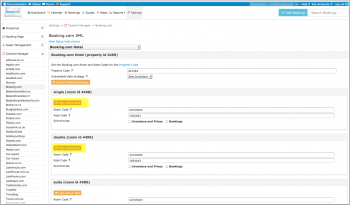
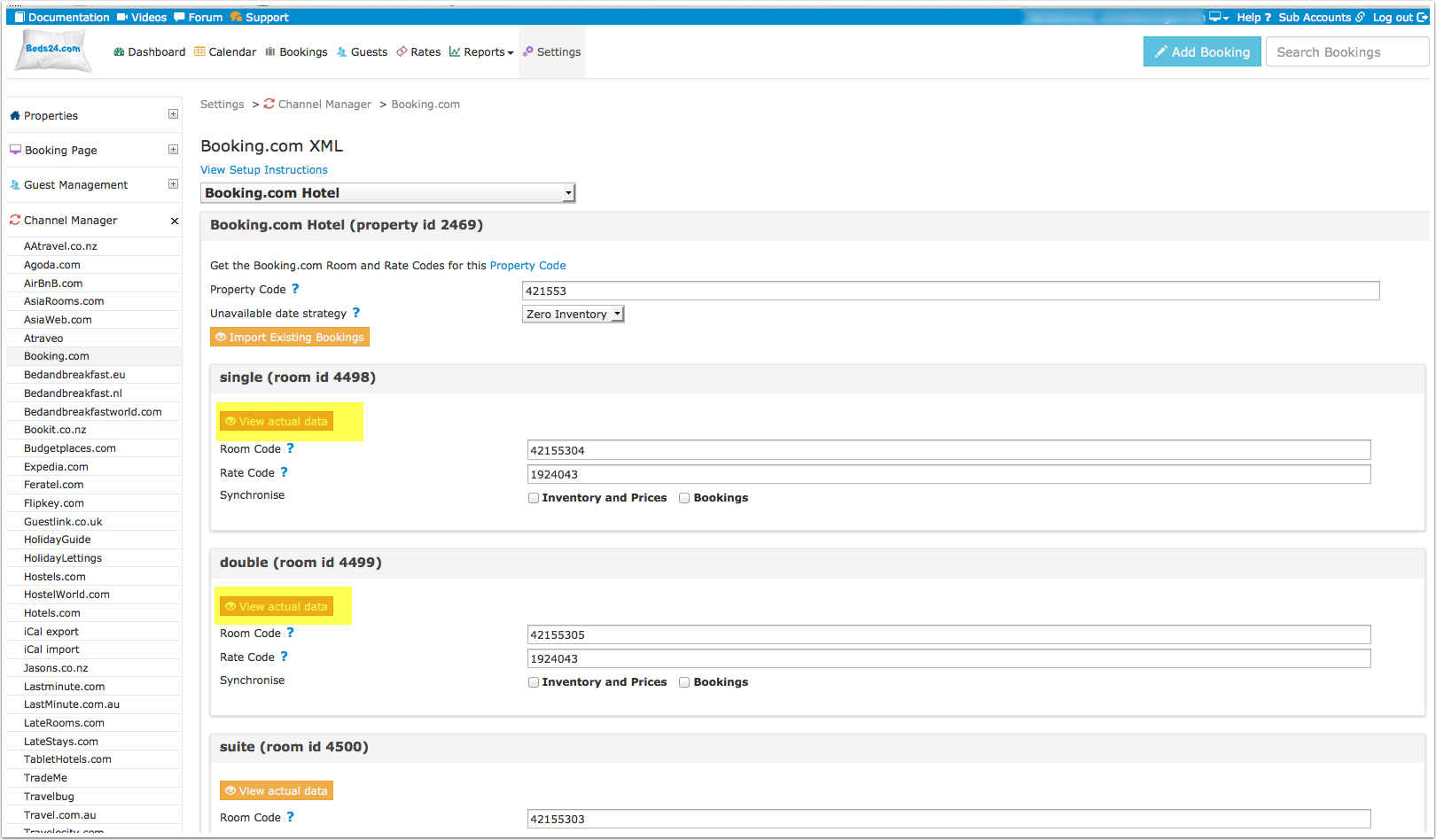
You can view the live availability and prices that will be sent to Booking.com before or after activating using the View data for this room link.
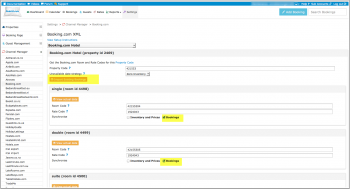
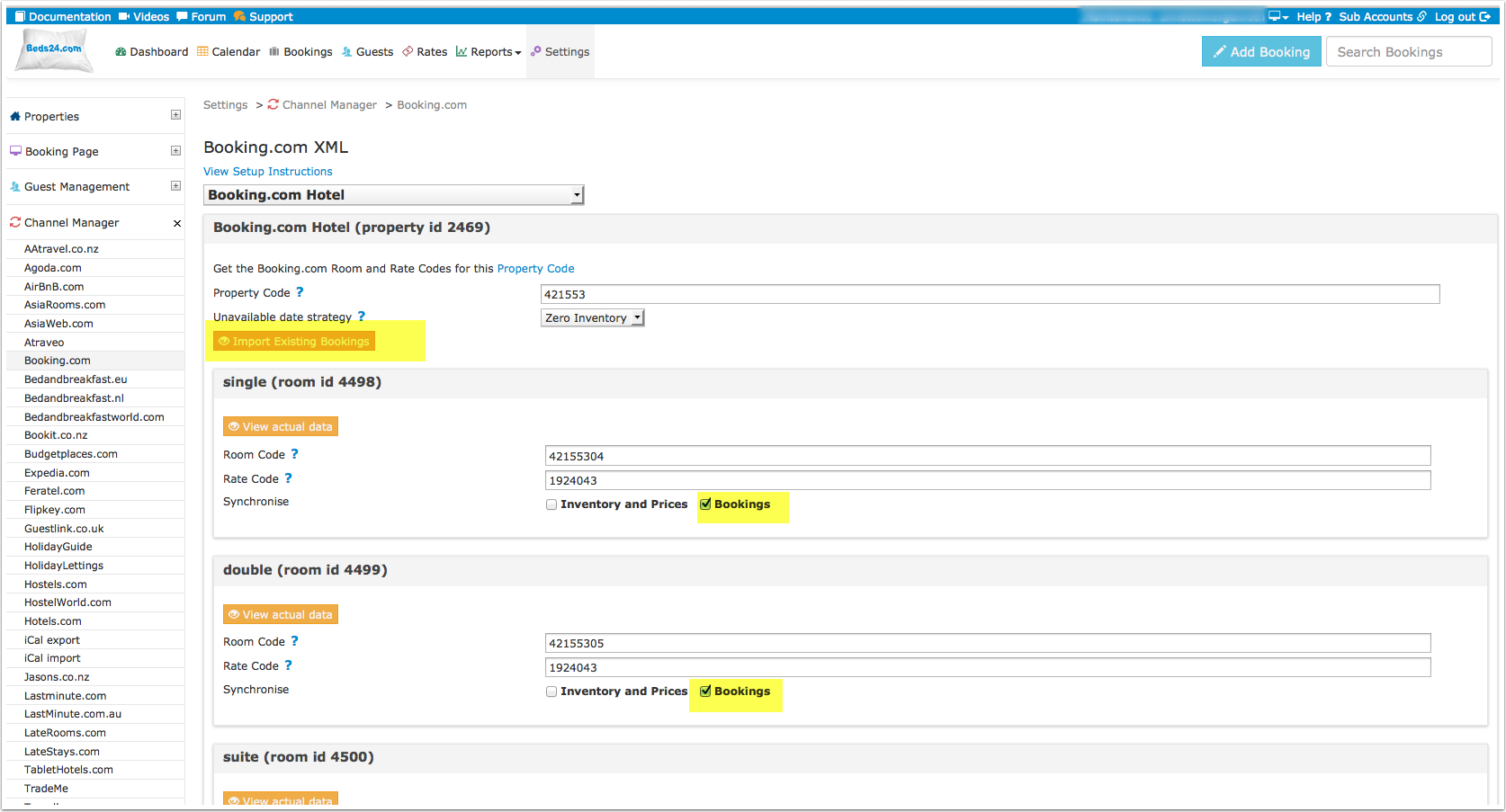
1) Import existing bookings from Booking.com
Tick "Bookings" for each room then click on "Import existing bookings"
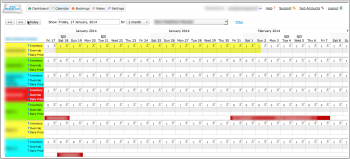
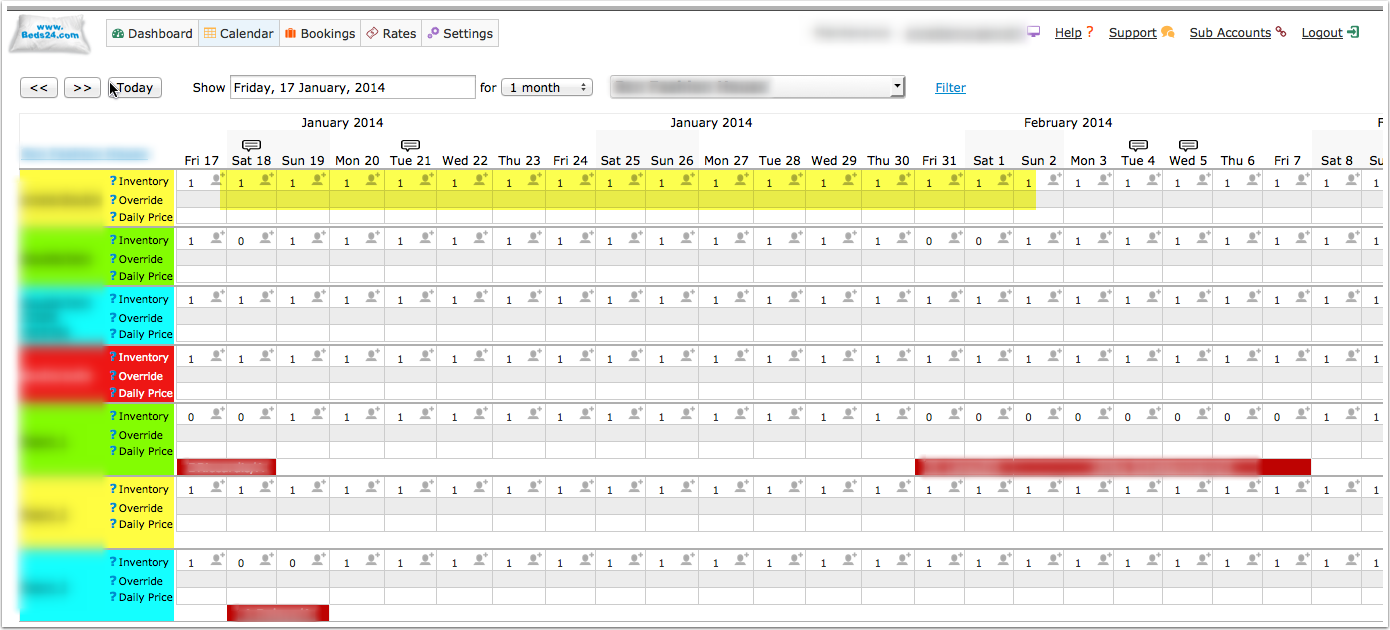
2) Make sure your inventory is correct in Beds24, it will be sent to Booking.com. Block any dates which are unavailable either by entering a booking manually for those dates or using the inventory and override functions on the control panel calendar. Failure to do this could allow new bookings on dates you are not available.
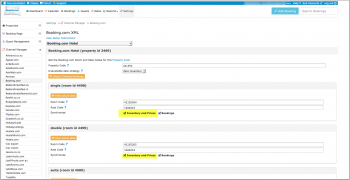
3) Enable the connection in Beds24 by ticking "Inventory and Rates"
4)When all set up in Beds24 is correct you will need to make the final step to enable the connection (go live) from the booking.com extranet.
5) When you go live your rates and inventory will be deleted from booking.com and a full reload will occur from Beds24. You can use the "Update" button to speed this up. Your bookings will not be deleted from Booking.com but make sure the dates are blocked in Beds24 before going live so they will not be reopened.
6) Once updated, check all your values in the booking.com extranet for correctness and if required make any adjustments to the settings to fix.
7) New bookings made after XML is enabled will import automatically.
Common Errors
Any errors occurring during updates will be emailed to you with the error message as returned by Booking.com. Below are common error messages and how to fix them.
Updating availability hasn't been enabled for hotel 0000
You have not activated the connection in the booking.com extranet. Please log into your booking.com extranet and activate the connection.
Not allowed to update Single Use Rate for Room
Booking.com have not activated a single occupancy price for the room.
Either ask Booking.com to allow a single price or set "Rates"= Full Only
Rooms to Sell were set below the Minimum Contracted rooms for these dates
You have agreed to supply a minimum number of rooms to Booking.com on the mentioned dates and Beds24 is trying to update them to a number lower than your agreed minimum. Booking.com have ignored the Beds24 values on those dates and used your agreed minimum instead.
*Make sure you have valid rates for the mentioned dates and no bookings from other sources
*Beds24: change your inventory to send the allotment you have guaranteed Booking.com
*Booking.com: Ask Booking.com to remove the guaranteed allotment
Rate is not active
You do not have a Booking.com rate id with this number. Please double check your rate codes and enter a valid Booking.com rate code.
Room is not active
Booking.com has not acitvated the room for selling. Please ask Booking.com to activate it.
xyz is not unique
Each Booking.com room ID is unique and can be mapped to only one rooms in Beds24. If you enter the same Booking.com room ID more than once the synchronisation will fail.
internal error (database error), please try again later: Could not connect to database dsn
The channel reported that at the time of the message they had a temporary internal connection problem. If these messages stopped the connection is working again.
Missing Credit Card Details
If Booking.com sends the credit card number we make it available in the "Payments and Charges" tab of the booking. The encrypted CCV code is in the booking notification email sent to the host.
*If the CCV number is showing as Not Available Booking.com did not send it. Please ask Booking.com to always send it to Beds24
*If credit card details are always missing please ask Booking.com to send credit card details to Beds24
*If Booking.com normally sends credit card details but did not do so for a specific booking please ask Booking.com to only accept bookings with a credit card number and if required ccv
Rate 123456 cannot be updated via XML
This rate has not been activated for channel management. Ask Booking.com to activate it.
Did not set Close Room 'XY for Rate Category 'ZZ' because of remaining Minimum Contracted Rooms on dates.....
You have guaranteed and to have a minimum number of rooms to sell on  Booking.com but the channel manager is sending a lower quantity than contracted.
*Make sure you have valid rates for the mentioned dates and no bookings from other sources
*Beds24: change your inventory to send the minimum contracted rooms you have guaranteed Booking.com
*Booking.com: Ask Booking.com to remove the minimum contracted rooms
Rate does not exist
You have added a number which is not a valid Booking.com rate code into the field in the "Channels" tab of a rate. Open your rates and make sure the correct booking.com rate codes are entered.
hotel 'xxxxx' not allowed for user 'Beds24ProductionServer'
Have you received a confirmation from Booking.com that the channel management connection for Booking.com is ready? If not please check in our booking.com extranet. If yes please check your hotel code and other codes are correctly entered.
internal error (database error), please try again later: User 'xmlsupp_bp' has exceeded the 'max_user_connections' resource
Booking.com had a temporary system error. If the error message stopped everything is back to normal.
Notes
1) Credit card details are imported and shown on the "INVOICE" tab of the booking. If not please refer to "Missing Credit Card Details" above.
2) Multiple Rates - if you want to send multiple prices for a room you must have a rate code for each rate in Booking.com and a matching rate with the price and rate code setup in Beds24. See the Beds24 section above for more details.
3) There are two ways to stop selling a room when available inventory becomes zero. A zero for availability is the normal way to stop selling, this means if there is a cancellation of an existing booking the room will immediately become re-available for booking at Booking.com. The alternative is to close the room, this means the room will not be automatically re-opened after a cancellation. The room will only be re-opened after the next inventory update from Beds24. This can reduce the chance of double bookings but means the room will be unavailable for booking for a short period.
4) Single occupancy prices must be activated within booking.com if you are sending them.
5) For bookings imported through the button "Import upcoming bookings" Booking.com will only send a summary.
Disconnect
- Unticking "Inventory and Prices" and "Bookings" will stop Beds24 sending data to Booking.com. Booking.com will still display the last data which was sent.
- To completely disconnect the channel manager please contact Booking.com and ask them to disconnect you.
Pages in category "Booking.com"
The following 10 pages are in this category, out of 10 total. download this selection of articles as a PDF book
B
- Booking.com: Create and update properties and rooms on Booking.com
- Booking.com: Create Booking.com Rate Plans in Beds24
- Booking.com: Import Properties from Booking.com to Beds24
- Booking.com: Mapping
- Booking.com: Opportunities
- Booking.com: Promotions
- Booking.com: Reviews
- Booking.com: Synchronise bookings prices availability
- Boost your listing's search ranking