Expedia.com: Difference between revisions
No edit summary |
No edit summary |
||
| Line 31: | Line 31: | ||
== Set Up== | == Set Up== | ||
===Expedia=== | |||
Log into ExpediaPartnerCentral and request a connection to Beds24. | Log into ExpediaPartnerCentral and request a connection to Beds24. | ||
=== How to Establish an EQC Connection === | |||
Login to www.expediapartnercentral.com, should you need help with this please reach out to [email protected] | |||
Once logged into EPC select your hotel | |||
i. Navigate to the the Rates and Inventory tab | |||
ii. Select Expedia Quick Connect Settings | |||
[[Image:eqc1.png|350px|link=]] | |||
[[Media:eqc1.png|view large]] | |||
iii. Select the Vendor System name from the dropdown, select the Connectivity Options (AR, BR) and click on Submit. | |||
[[Image:eqc2.png|350px|link=]] | |||
[[Media:eqc2.png|view large]] | |||
iv. Display after connection | |||
[[Image:eqc3.png|350px|link=]] | |||
[[Media:eqc3.png|view large]] | |||
2. How to Change the current EQC Setup | |||
Login to www.expediapartnercentral.com, should you need help with this please reach out to hothelp@expedia.com | |||
Once logged into EPC select your hotel | |||
i. Navigate to the the Rates and Inventory tab | |||
ii. Select Expedia Quick Connect Settings | |||
iii. Select the Edit Icon to modify connection. | |||
[[Image:eqc4.png|350px|link=]] | |||
[[Media:eqc4.png|view large]] | |||
iv Select new vendor system and connectivity options view | |||
[[Image:eqc5.png|350px|link=]] | |||
[[Media:eqc5.png|view large]] | |||
Expedia will send you an email with your EQC username and password and hotel id. Note your EQC username and password are not the same as your Expedia extranet login | Expedia will send you an email with your EQC username and password and hotel id. Note your EQC username and password are not the same as your Expedia extranet login | ||
Revision as of 18:32, 22 June 2016
This page is about the menu SETTINGS->CHANNEL MANAGER->EXPEDIA
This connection to Expedia EQC will also update other Expedia channels including Hotels.com, AirAsiaGo, Egencia, Venere, Travelocity, Trivago (via Expedia), Expedia Affiliate Network, Wotif Group, and Classic Vacations,
General
- Click here for general information on how the channel manager works.
- This tutorial explains how to set prices for channels.
Capabilities
- Beds24.com can export Inventory
- Beds24.com can export Minimum Stay
- Beds24.com can export Maximum Stay
- Beds24.com can export Closed to Arrival and Closed to Departure
- Beds24.com can export Multiple Rates
- Beds24.com can import Bookings
- Beds24.com can import Booking Modifications and Cancellations
- Beds24.com can add a multiplier to prices to convert to a different currency.
- Importing modifications or cancellations can be disabled for individual bookings.
Limitations
What you will need
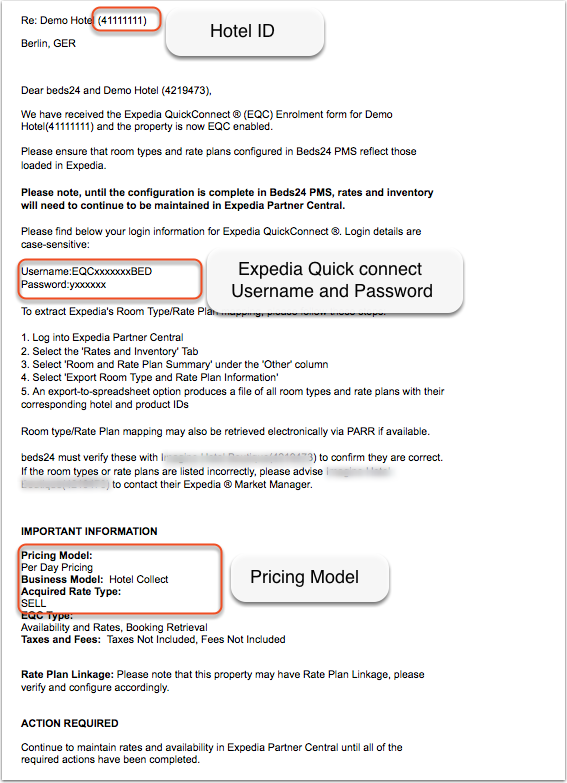
- Your Expedia Quick connect username and password
- Your Expedia hotel id
Set Up
Expedia
Log into ExpediaPartnerCentral and request a connection to Beds24.
How to Establish an EQC Connection
Login to www.expediapartnercentral.com, should you need help with this please reach out to [email protected]
Once logged into EPC select your hotel
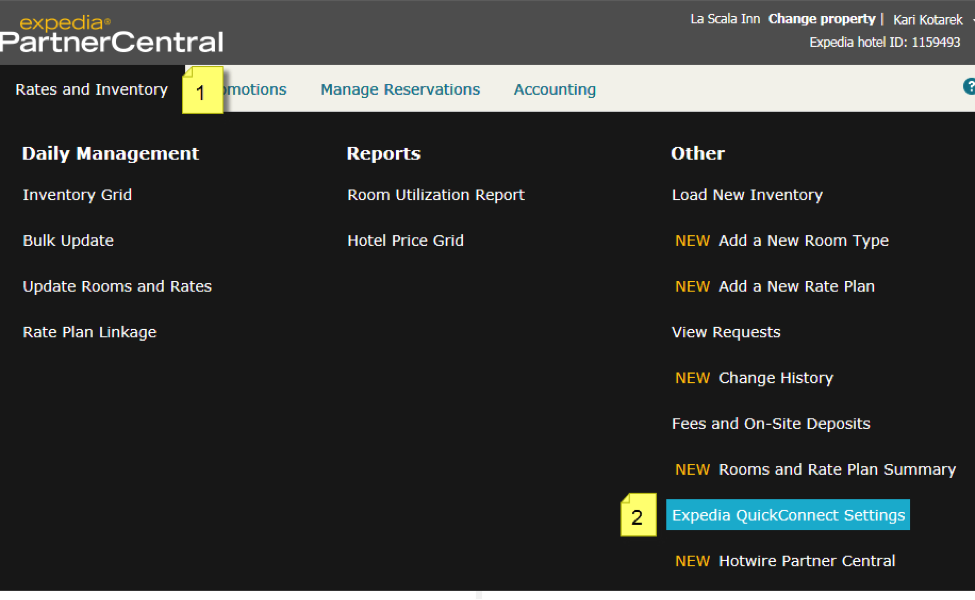
i. Navigate to the the Rates and Inventory tab
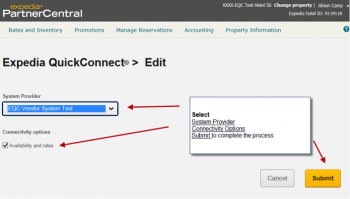
ii. Select Expedia Quick Connect Settings
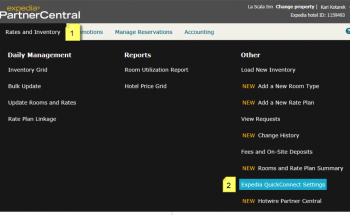
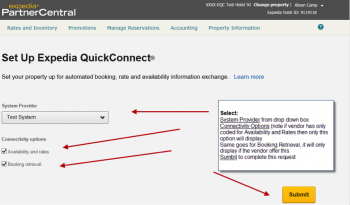
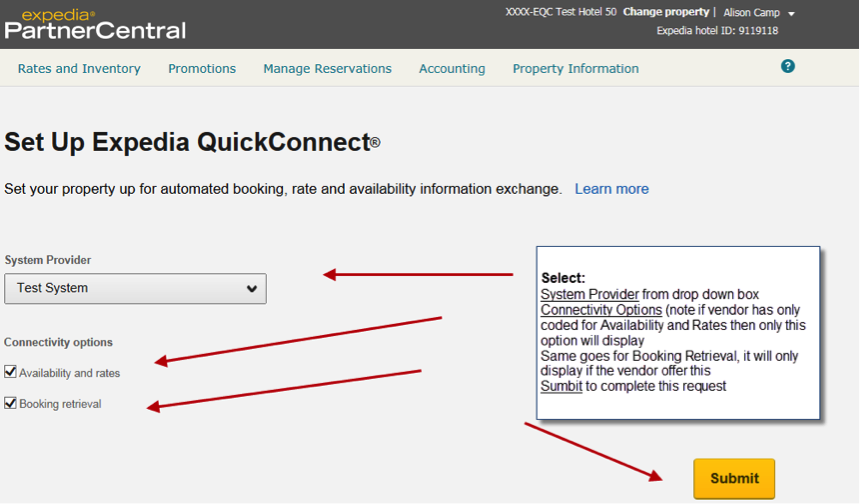
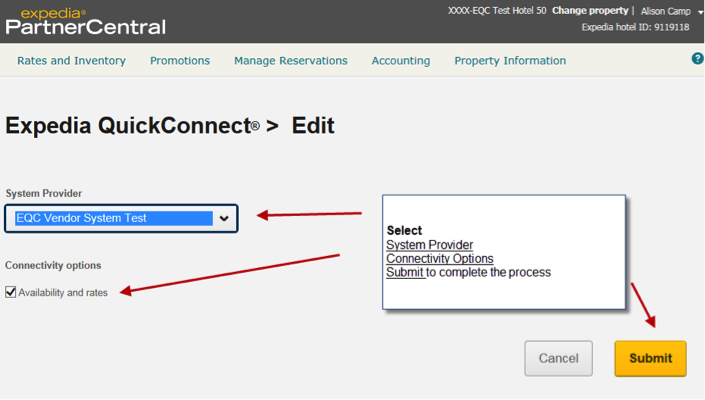
iii. Select the Vendor System name from the dropdown, select the Connectivity Options (AR, BR) and click on Submit.
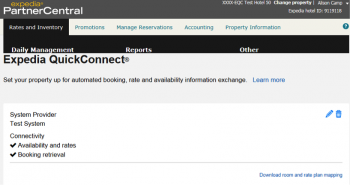
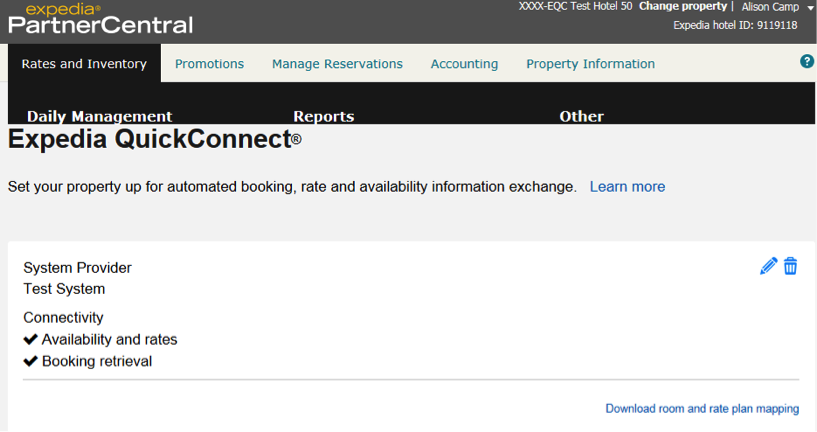
iv. Display after connection
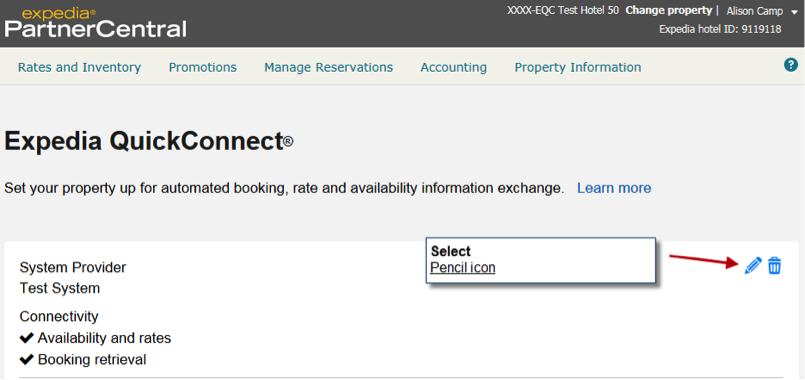
2. How to Change the current EQC Setup Login to www.expediapartnercentral.com, should you need help with this please reach out to [email protected] Once logged into EPC select your hotel i. Navigate to the the Rates and Inventory tab ii. Select Expedia Quick Connect Settings iii. Select the Edit Icon to modify connection.
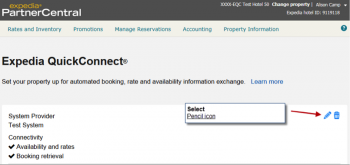
iv Select new vendor system and connectivity options view
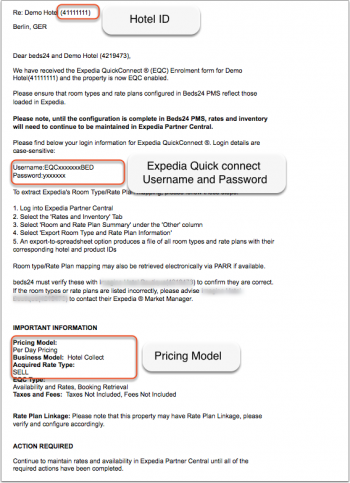
Expedia will send you an email with your EQC username and password and hotel id. Note your EQC username and password are not the same as your Expedia extranet login
Beds24.com
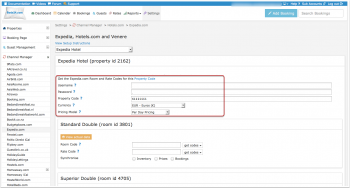
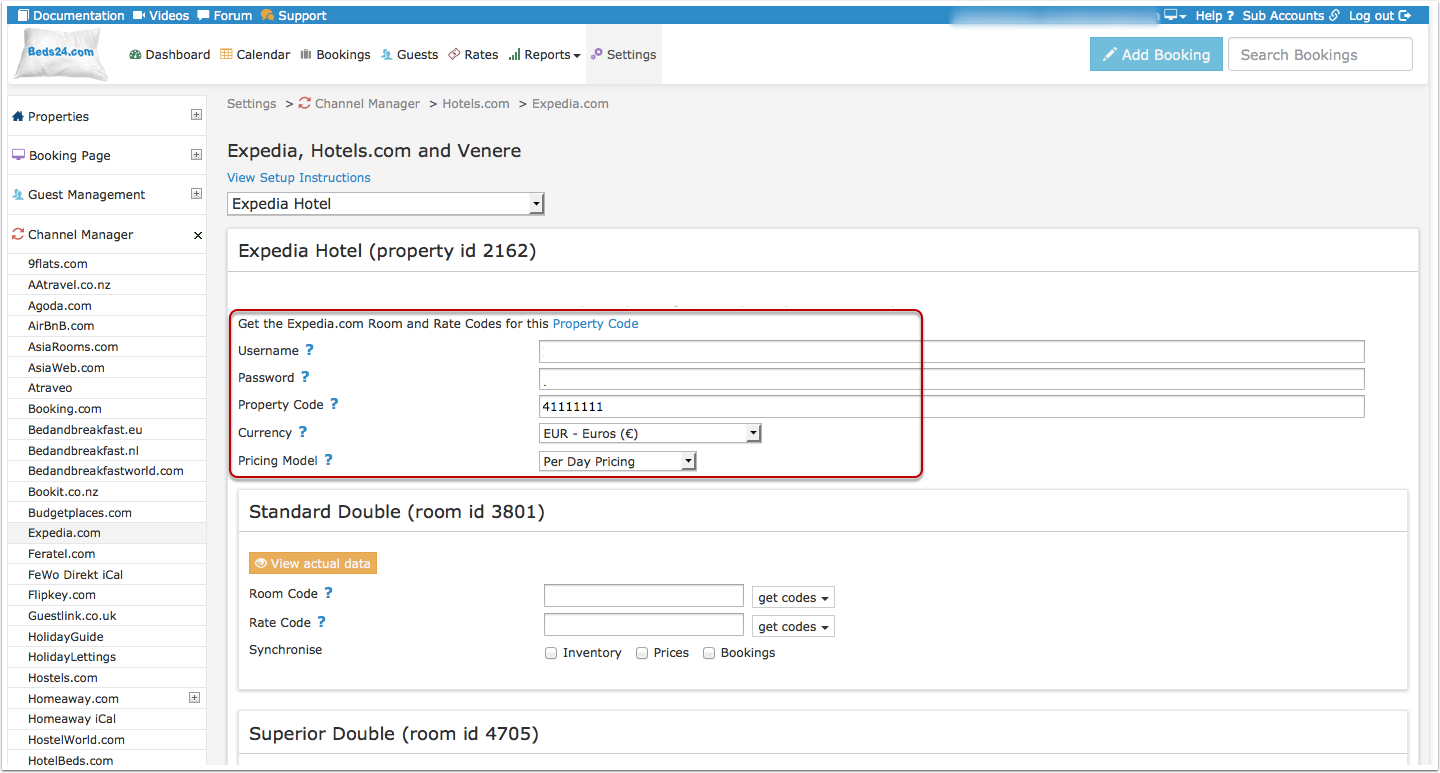
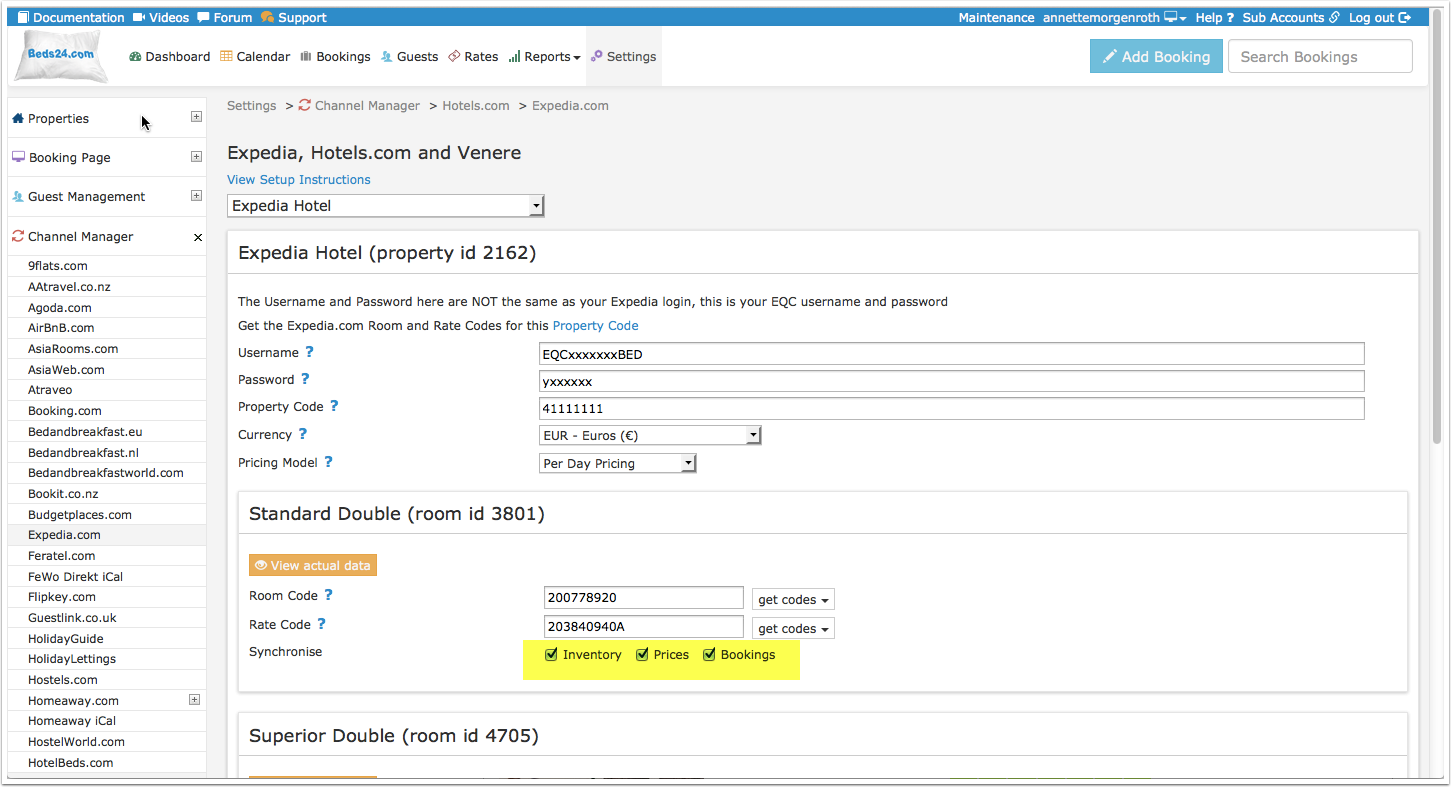
- Enter your EQC username and password, do not enter the username and password used to log into Expedia from a web browser.
- Enter your hotel id
- Save
- Select if your Expedia price model is "Per Day Pricing" or "Per Occupancy Pricing". You will find this information in the same Email as your username and password.
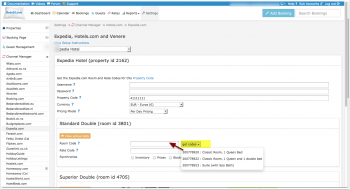
Map Rooms:
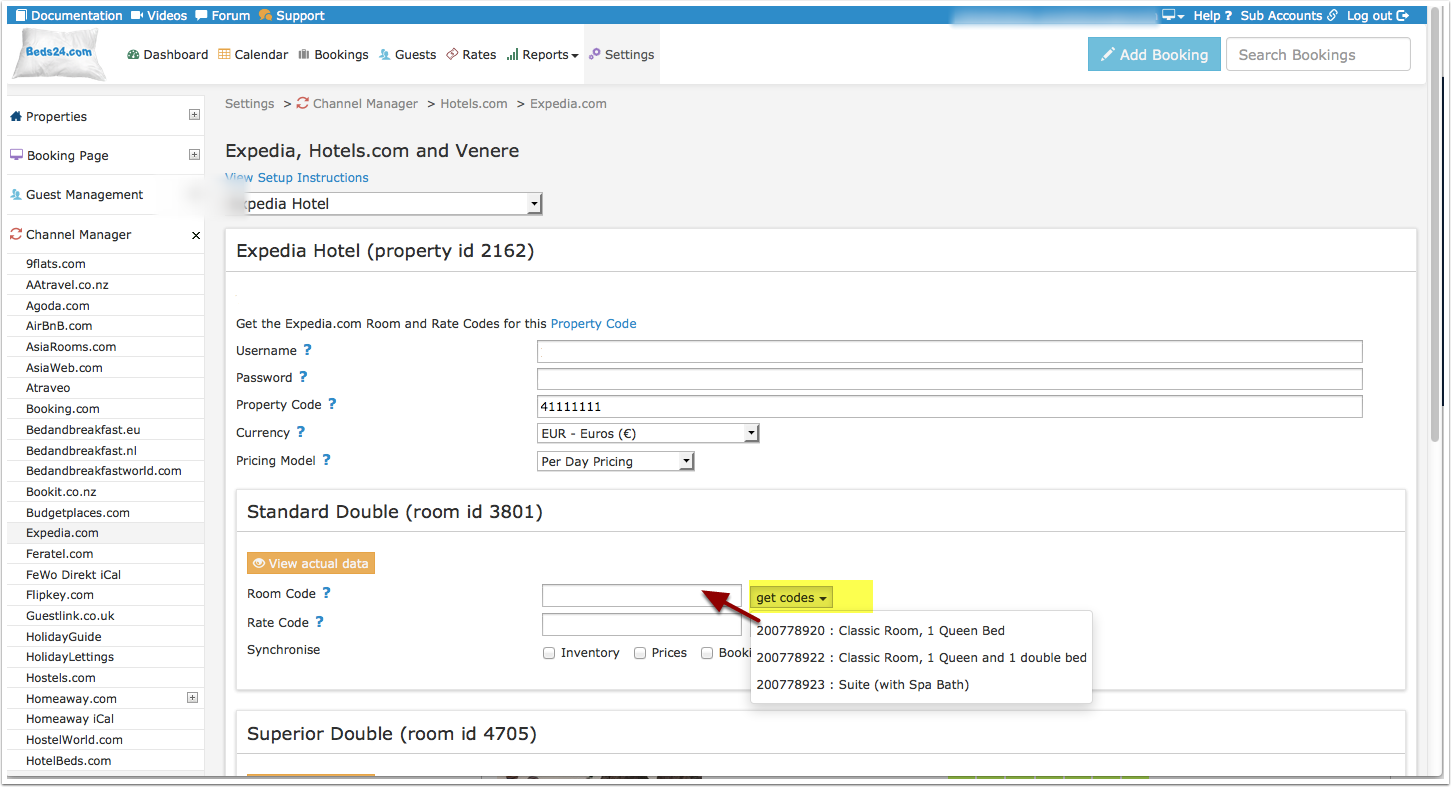
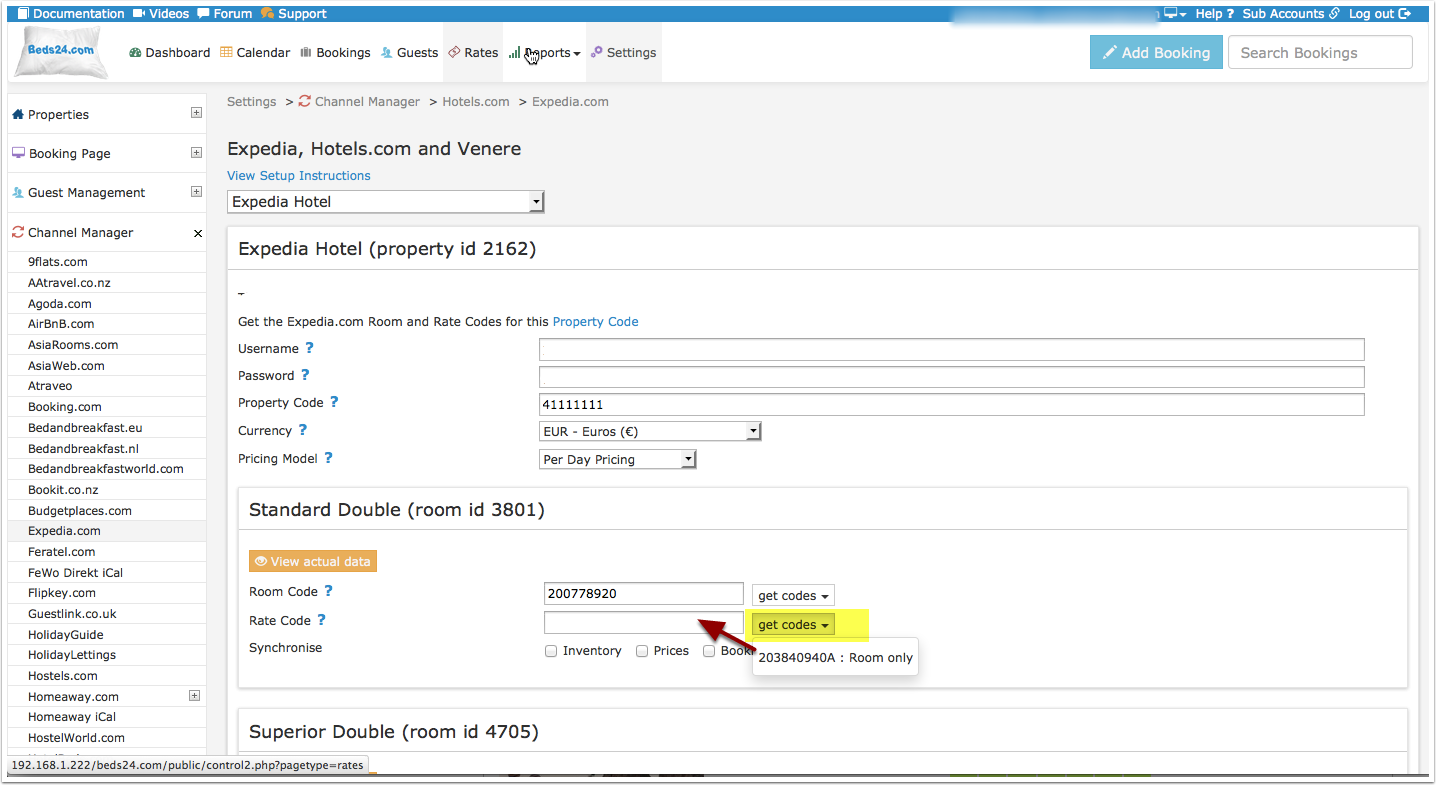
- Click on the "Get Code" link next to the room type id setting.
- Choose the Expedia room type id you want to map to each Beds24 room and click on it.
- When the correct room id has copied to the room type id setting, click Save.
Map Rates:
- Click on the "Get Code" link next to the rate plan id setting.
- Choose the Expedia standard rate for this room and click on it
- When the correct rate plan id has copied to the rate plan id setting, click Save.
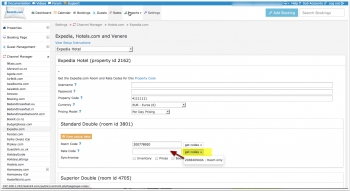
We can export up to 3 occupancy prices. They are the single price, the double price and one room price. The room price will be sent with an occupancy level of the maximum capacity allowed for that price.
If your pricing model is "Per Day Pricing" you will need a "Room Price" for all rooms which can accommodate 3 or more guests.
The end selling price on Expedia may be different to the price sent, please check if your Expedia account is set for "Sell Rate" or "Net Rate" type and adjust the prices accordingly.
Activate:
- Tick "Inventory", "Prices" and "Bookings"
- Save
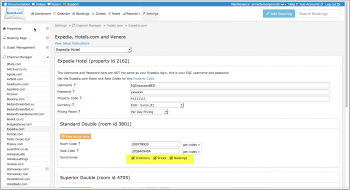
Bookings
New Bookings are imported. Modifications and cancellations to bookings are also imported.
Existing bookings are not automatically imported when the connection is established and should be entered into Beds24 manually.
Multiple Rates
Multiple rates can be created for each date, for example to send prices for different occupancies, minimum stays, meal options or refundable and non-refundable prices.
1. Derived Prices
Expedia.com can auto calculate, link and derive rate prices using preset rules. Ask your Expedia.com rep to set this up. This option means you only need to send one rate from Beds24 to Expedia.com and Expedia.com will auto-calculate the other rate options.
2. Multiple Rate Plan Ids
Expedia.com can set up multiple rate plan ids for each room, each with pre-defined booking conditions. Beds24 can map a different Beds24 rate or offer to each Expedia.com rate plan id. If you do not have the appropriate rate plan ids you need to request Expedia.com to add them.
- Click on the "Get the Expedia.com Room and Rate Codes for this Property Code" link to view all mapping codes for this property.
Multiple Rate Ids using Rates
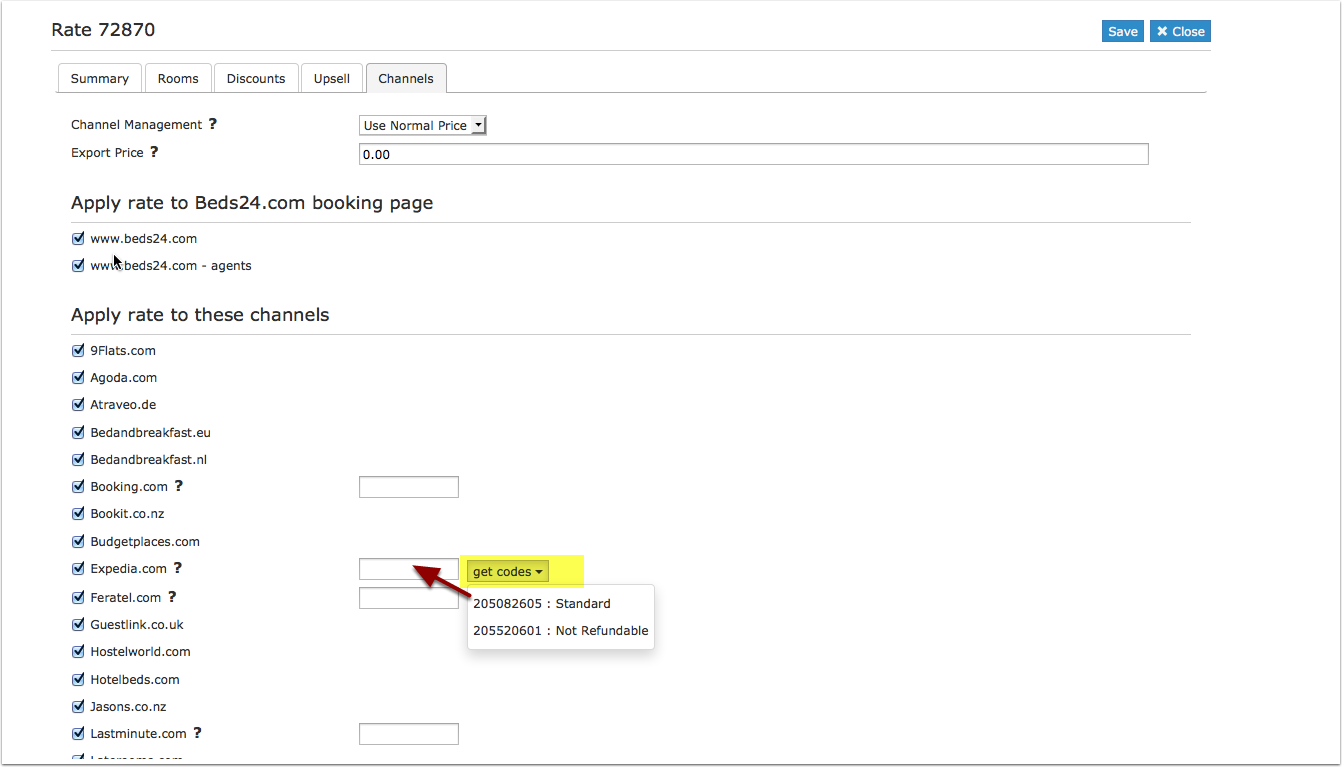
Each Beds24 rate can be mapped to any valid Expedia.com rate plan id that is active and not derived or linked. On the CHANNEL tab of each Beds24 rate is a setting to enter an Expedia.com rate plan id. If this setting is left blank, the rate plan id defined in the Beds24 channel manager settings for Expedia.com will be used. If the Beds24 rate should be mapped to an alternative Expedia.com rate plan id, enter the Expedia.com rate plan id here.
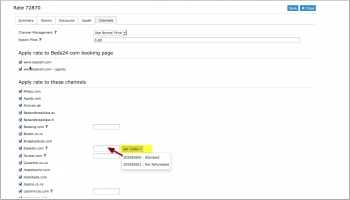
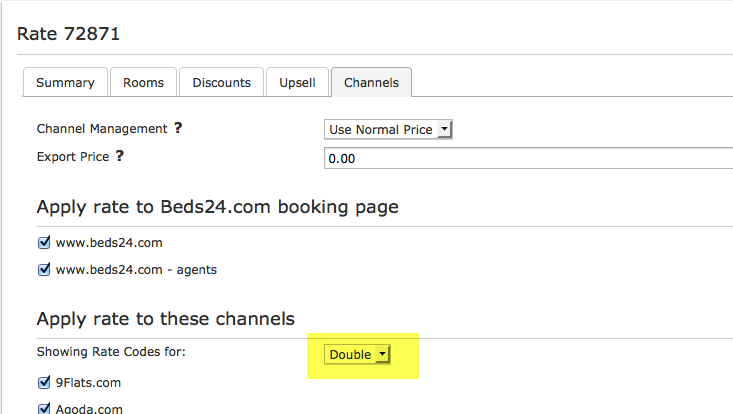
If you have linked a rate to be used for other offers or rooms use the selector to choose the room you want to map.
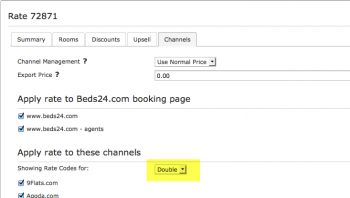
Multiple Rate Ids using Offers or Daily Prices
Beds24 supports up to four price "offers" for each room. Each of the four offers can be mapped to a different Expedia.com rate plan id. This is particularly useful when mapping daily prices to Expedia.com.
To define the Expedia.com rate plan id for each offer, separate the rate ids with colons. For example the following Beds24 rate id setting will map offer 1 to rate id 11111, offer 2 to rate id 22222, offer 3 to rate id 33333 and offer 4 to rate id 44444:
11111:22222:33333:4444
If offer 1 is used only for the Beds24 booking page and only offers 2,3 and 4 are used for Expedia.com leave the first rate id blank and start with a colon. For example :22222:33333:44444
The settings for daily prices allow each daily price row to be assigned to a specific offer and therefore mappable to different Expedia.com rate ids
Same Price to Multiple Rate Ids
If a Beds24 price should be sent to multiple Expedia.com rate plan ids, the multiple rate ids can be entered with a comma separating them. For example '12345678,123456789
This can be used to allow a daily price set to "Do not allow lower prices" to override multiple Expedia.com rate plan ids. If the comma separated rate ids are defined in the channel manager rate id setting and each individual Beds24 rate contains it's specific Expedia.com rate plan id, each rate will be mapped to it's rate id and daily prices will be mapped to all the specified rate ids, over-riding the rate price when appropriate.
Price Multiplier
If you want to add a multiplier to your prices, for example because of a different currency to your Beds24 currency, add a * followed by the multiplier number to your hotel Id.
For example a property code setting 123456*12.34 will multiply all prices by 12.34 sent for hotel id 123456.
Setup Problems
1) The room is being unexpectedly closed at Expedia The channel manager will close the room on all dates which do not have a valid price available for sending to Expedia. Make sure you have prices for the complete range of dates you are sending.
2) "Room code is not unique" warning when saving in Beds24. Each Expedia room type id is unique and can be mapped to only one room in Beds24. If you enter the same Expedia room type id more than once the room updates will overwrite each other causing inaccurate information being sent to Expedia.
3) "Extra Person" prices cannot be exported but can still be set manually in Expedia.
Common Errors
If there is an error on an update, the error message returned by Expedia will be emailed to you. Common errors and their solutions are:
Pricing models mismatch: you tried to update a price for OCCUPANCY_PRICING, but your property is not configured for this pricing.
* Your pricing model is most likely daily pricing so change the selector for "Price model" to  "Per Day Pricing"
Rate plan does not match the property acquisition type
* The rate codes are the wrong Sell or Net rate type. Check whether your rate codes should have an A at the end of the number or not.
Stop sell outside of Y with remaining base availability
and
Unable to set total inventory below the current base allocation value.
Base allocation (or contracted allotment) is a minimum number of rooms you have agreed to sell through Expedia.  When the availability the channel manger sends falls below the base allocation, Expedia will ignore availability sent from the channel manager.
A common cause of this error is not having a valid price for the room in Beds24 on the affected dates.
Any date without a price will be closed in Beds24 and we will send an inventory of zero to Expedia.
*Make sure you have valid rates for the mentioned dates and no bookings from other sources
*Beds24: change your inventory to send the allotment you have guaranteed Expedia (e.g. by removing bookings from other sources)
*Expedia: Ask Expedia to remove the guaranteed allotment
The value  of attribute 'password' on element 'Authentication' is not valid with respect to its type,
* The password is empty or contains invalid characters.
Check the username and password entered in the channel manager settings is correct.
Non-existent rate plan and rate level pair provided
You are sending a wrong rate plan id. Check your rate plan ids in SETTINGS->CHANNEL MANAGER->EXPEDIA and in the "Channels" tab of your rates.
MinLOS value (x) exceeds Extranet auto-approval threshold (y) for length of stay.
The minimum booking length you are sending is higher than Expedia allows. Contact Expedia and ask them to increase your minimum stay.
The value  of attribute 'username' on element 'Authentication' is not valid with respect to its type
 The username/and or password you entered are wrongEnter your Expedia Quick connect username and password which Expedia sent you by Email (NOT your normal Expedia username and password)
LOS restriction conflict - Min Nights Greater Than Max Nights.
Expedia is not accepting the minimum stay you are sending because you have a maximum stay in your Expedia extranet which is lower than the minimum stay you are sending. You have 2 options fix this:
1. Log into your Expedia extranet and raise or remove the maximum stay.
2. Set the "Maximum Stay" in the rates you are sending to Expedia to 28 or lower.
Internal system error, please try again in a few minutes
Expedia sends you this message to inform you that they are haveing problems with their system. If the error messages stopped Expedia fixed the problem.
Internal data base error, please try again in a few minutes
Expedia sends you this message to inform you that they are haveing problems with their system. If the error messages stopped Expedia fixed the problem.
Notes
Expedia supports two different methods to apply minimum and maximum length of stay restrictions. Arrival based restrictions or Stay Through based restrictions. This is a hotel-level setting in Expedia system, and any Expedia market managers can modify this setting. Please contact Expedia to perform this change.
Depending on the acquisition type, Expedia rate plan ids may need to end with an "A". Updates will not work unless the correct code is used.
For Expedia Occupancy price models, Beds24 can send a room price, a double occupancy price and a single occupancy price. If you would like to update 3 person, 4 person prices etc. you need to use the Expedia "Daily price model". You can then have multiple rate plan ids, each with the desired maximum occupancy set at Expedia. They can then be mapped to the appropriate Beds24 rate, offer or daily price.
Changes of inventory are pushed instantly. Price changes are sent with the next update. To push price changes immediately press the "Update" buttons.
Disconnect
- Unticking "Inventory" and "Prices" and "Bookings" will stop the synchronisation for a room.
- To completely disconnect the channel manager you might need to contact Expedia and ask them to disconnect you.
FAQ
Will I receive notifications on new bookings?
After you activate the channel manager the channel will stop sending notifications. You will receive them from Beds24 instead.
How do I modify or cancel a booking?
Bookings coming from a channel should be modified by the channel. Cancelling a booking in Beds24 will not cancel the booking in Expedia and can cause a double booking. Please ask Expedia or the guest to cancel the booking in Expedia and the cancellation will be sent to Beds24.
If for some reason you need to make a change in Beds24 and do not want the channel to override it, you can set "Allow Channel Modifications" = No ("Details" tab of the booking"). If you have changed the room you can set "Allow Channel Modifications" = All but not room changes.
How do can I access credit card details?
This is how you can view credit card details.
How do I add a promotion or special price?
You can set up promotions in the Expedia extranet.
Can I send different prices for different minimum stays or different numbers of guests?
Yes. You can do this either with "derived" prices or multiple rates ids. See the "Multiple rates" section of this page.
I have multiple Expedia hotel ids. How do I set this up?
The system can handle multiple properties in one account. Each Expedia hotel requires one property in Beds24.
What to do when I receive an overbooking?
- Check if you are receiving error messages by email or in the potential issues menu. Error messages need to be addressed immediately because they can mean the channel manger is able to make updates.
- Entering the same Expedia room code in multiple rooms in Beds24 can cause overbookings. Check your set up for warnings.
If you can not see a problem in your set up send us a support ticket with the booking numbers and dates.
Why did a booking not import?
- Check if the room for which you received the booking is properly mapped.
If you can not see a problem in your set up send us a support ticket with the booking number and the date the booking was made.
Why is the price for the booking wrong?
- A special offer set up in the channel may have reduced the price the channel manager sent.
- Your prices are not set up as you expect.
What is base allocation?
This is an agreement between you and the channel where you agree to provide a number of rooms exclusively to that channel. This means you will not be able to sell these rooms directly or on other channels.
What do I do when I have a no show?
To report a no show contact Expedia support.