Responsive Booking Page
This page explains how to use and customise the responsive version (beta) of the booking page.
The design of the responsive booking page is fully modular. This allows you to fully control the layout. We provide a set of default layouts which can be used as they are.
Change from adaptive to responsive booking Page
Go to SETTINGS->BOOKING PAGE and select "Booking Page Version" = Responsive. This setting will activate Layout 1.
When you change from adaptive to responsive you need to assign your pictures again. Go to SETTINGS->BOOKING PAGE->PICTURES. Set the selector to the room then choose "Offer 1" and activate the picture/pictures you want to display. If you are using more than one offer repeat for each.
NOTE: If you select "Booking Page Version" = Responsive your live web site will change to the new design. If you just want to have a look you can do this adding &version=3 to the URL of your booking page. To see the different layouts also add the layout number eg. &version=3&layout=2 will show you layout 2. Alternatively you can copy your property and use the copy for testing. If you do this make sure all channel manager connections are deactivated in the copy property. The normal monthly fee will apply for additional rooms so you might want to reduce the number of rooms in the copy property.
Set up and customise responsive booking page
Pictures
To upload pictures and assign them to modules go to SETTINGS->BOOKING PAGE->PICTURES
Choose a different layout
Go to SETTINGS->BOOKING PAGE->PAGE DESIGN->LAYOUT and set the selector to the layout you want to use as your standard layout.
-
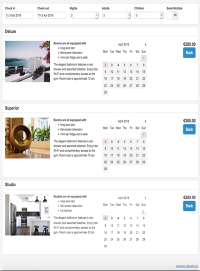
Layout 1
Modules:
Offer: Picture Slider, Description 1 , Calendar, Booking Button/Selector, Description 2
Property Bottom: Description 2 -
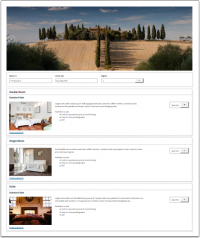
Layout 2
Modules:
Property Top: Picture Slider
Offer: Booking Button/Selector, Price Table
Property Bottom: Description 2 -
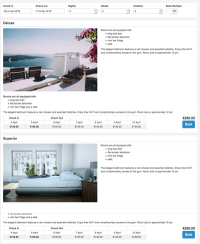
Layout 3
Modules:
Offer: Price Table, Booking Button/Selector, Picture Slider, Description 2
Property Bottom: Description 2


-
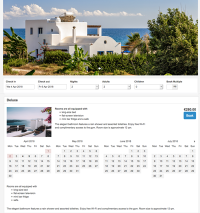
Layout 4
Modules:
Room Top: Picture Slider
Offer: Picture, Description 1 , Calendar, Booking Button/Selector, Description 2
Property Bottom: Description 2 -
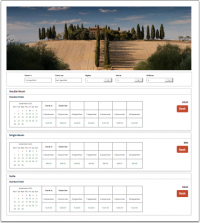
Layout 5
Modules:
Property Top: Picture Slider
Offer: Price Calendar, Booking Button/Selector
Property Bottom: Description 2 -
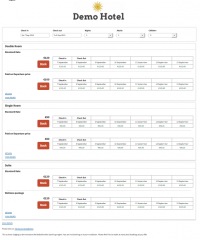
Layout 6
Modules:
Property Top: Description 1
Offer: Booking Button/Selector, Price Table
Room Bottom: Picture Slider, Description


Customise layouts
Go to SETTINGS->BOOKING PAGE->PAGE DESIGN->LAYOUT. Choose the layout you want to use and click on "Customise".
Choose what you want to show
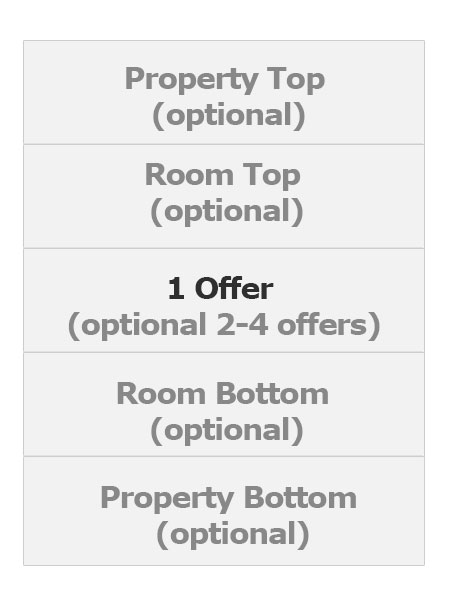
The responsive booking page consists of sections: "Offer" contains the standard offer for a room or unit.
- One offer will always be shown
- Additional offers (for example for alternative non refundable prices or packages) are optional
- All other sections are optional.
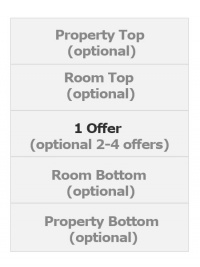
For each section you can choose from a set of modules.
Property modules
-
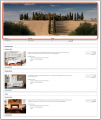
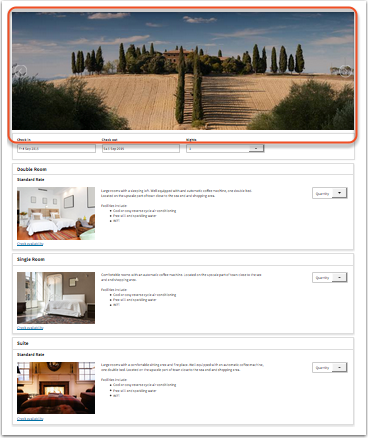
Property Slider
view large -
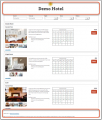
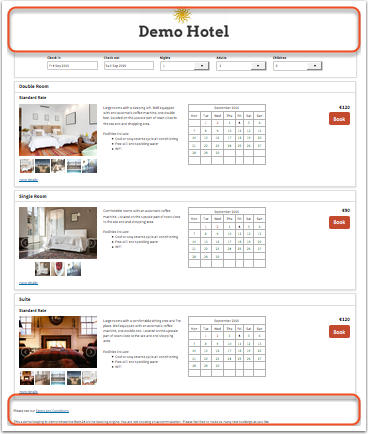
Property Description
view large


Room modules
-
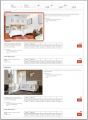
Room Slider
view large -
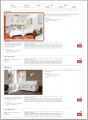
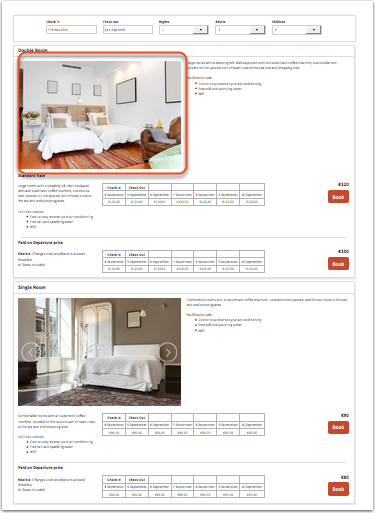
Room Picture
view large -
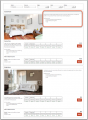
Room Description
view large


Offer modules
-
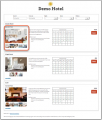
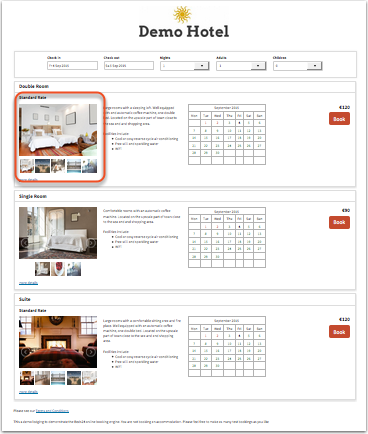
Offer Slider
view large -
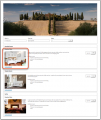
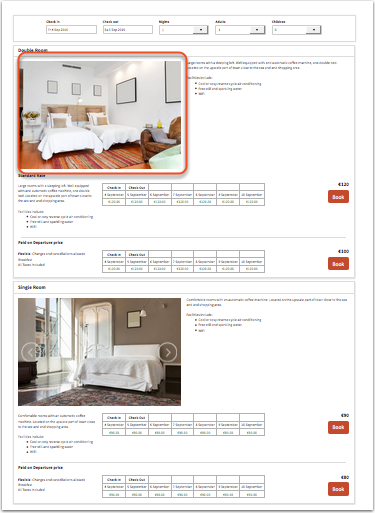
Offer Picture
view large -
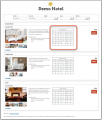
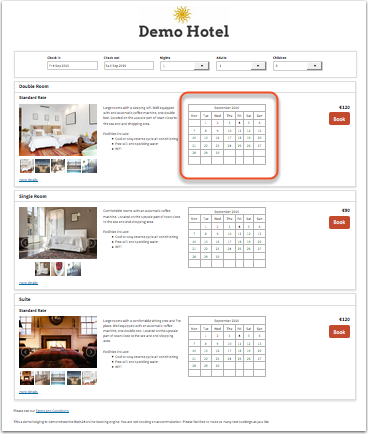
Offer Calendar
view large -
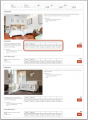
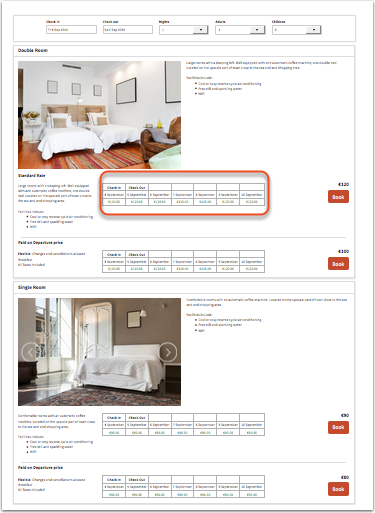
Price Table
prices will only display if booking of multiple rooms is not allowed
view large -
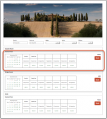
Price Calendar
prices will only display if booking of multiple rooms is not allowed
view large -
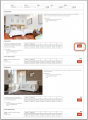
Button
view large -
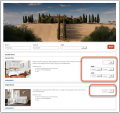
Select
(multi room booking)
view large -
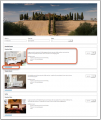
Offer Description
view large





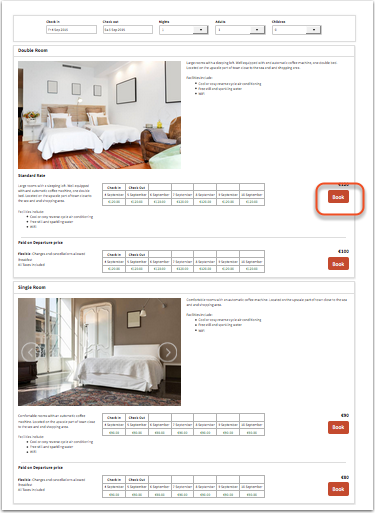

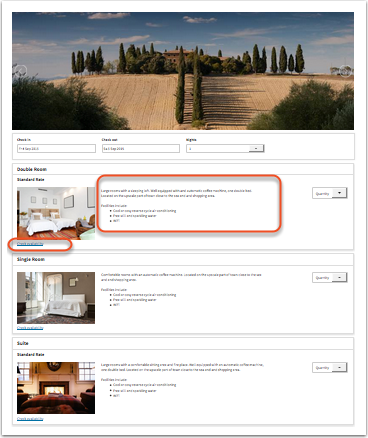
Note: Offer Calendars and Price Calendars can not be used in the same layout.
Position: Modules are placed in rows. Each section can have one or more rows.
Width on desktop and mobile: Each row which consists of 12 columns. The number of columns defines the width of the module.
 view large

All "Description" Modules allow to enter text or html content.
Click on "Manage" to customise the settings of a module. All modules can be set to always display or to be available via a link.
If you have activated one or more of these modules:
- Room Description 1 ("Room more Details" on the adaptive booking page)
- Offer Description 1 ("Offer Summary" on the adaptive booking page)
- Offer Description 2 ("Offer more Details" on the adaptive booking page)
- Marketing Column
Go to SETTINGS->BOOKING PAGE->ROOM CONTENT to enter the content for the modules.
If you have activated one or more of these modules:
- Property Description 1 ("Header" on the adaptive booking page)
- Property Description 2 ("Footer" on the adaptive booking page)
- Property Description - Booking Page 1 ("Property Summary Description " on the adaptive booking page)
- Property Description - Booking Page 3 ("Price Calendar Header " on the adaptive booking page)
Go to SETTINGS->BOOKING PAGE->PAGE DESIGN->CONTENT and enter the content of the module
You can save your changes to this layout or under a different layout. The "Restore Default" option will remove all changes.
Colors and fonts
To customise colors and fonts go to SETTINGS->BOOKING PAGE->PAGE DESIGN->STYLE
Behaviour
Changes on how the booking page opens and closes can be made in SETTINGS->BOOKING PAGE->PAGE DESIGN->BEHAVIOUR
Content
Additional messages can be added to the booking page in SETTINGS->BOOKING PAGE->PAGE DESIGN->CONTENT. This is also where you can change the default warning messages which show when a room is not available.
Additional Options
General settings which apply to all layouts like minimum/maximum number of guests, nights, type of price display etc. are in SETTINGS->BOOKING PAGE->PAGE DESIGN.
Multiple or single room booking
You can allow guests to book one room or unit, multiple rooms or units of give the the choice. The setting is available in SETTINGS->BOOKING PAGE->PAGE DESIGN.
Multiple languages
You can activate the languages you want to use in SETTINGS->ACCOUNT->LANGUAGES. Make sure you enter descriptive texts for all languages you want to use. The default language for your booking page is the one set in SETTINGS->ACCOUNT->LANGUAGES. If you are using an embedded booking page on a multilingual web site you can embed you booking page with a different default language for each language version. Click here for instructions
Allow enquiries when no price is found
If you are using rates you can set "Allow Enquiry" = yes. This will allow the guest to send an enquiry if you have availability but the system can not find a price. If you generally want to accept only "Requests" instead of confirmed bookings go to SETTINGS->PROPERTIES->RULES and set your "Booking Type" = Request
Developers
Advanced functions are available in SETTINGS->BOOKING PAGE->DEVELOPER
- If you are comfortable working with CSS you can apply your own styles
- Add scripts e.g. for Google Analytics
- Exchange any fixed text on the booking page
Here you can find more developer options.