Introduction: Difference between revisions
| (9 intermediate revisions by 3 users not shown) | |||
| Line 6: | Line 6: | ||
=Overview= | =Overview= | ||
Beds24 is a feature-packed all-in-one system | Beds24 is a feature-packed all-in-one property and channel management system. | ||
The wide range of functionalities is designed to be suitable for all types of properties and for all sizes of owners, property managers and property management companies. | |||
'''Properties''' | '''Properties''' | ||
| Line 25: | Line 26: | ||
=Using Beds24= | =Using Beds24= | ||
Beds24 is designed as a self-service system. | Beds24 is designed as a self-service system. Setup is free and you can do it yourself. | ||
These are the requirements to use Beds24: | |||
'''1. Technical Requirements''' | '''1. Technical Requirements''' | ||
| Line 39: | Line 42: | ||
If you log in from a mobile device you should see a special mobile dashboard which gives you an overview on key information linking to more special mobile pages and you will also have access to all Beds24 functions. | If you log in from a mobile device you should see a special mobile dashboard which gives you an overview on key information linking to more special mobile pages and you will also have access to all Beds24 functions. | ||
This allows you to perform all actions from your smart phone or tablet | This allows you to perform all actions from your smart phone or tablet if you need to. You have the option to set up a special dashboard to use from mobile devices. | ||
If you do not see the mobile dashboard click on the mobile icon in the top left corner. | If you do not see the mobile dashboard click on the mobile icon in the top left corner. | ||
| Line 45: | Line 48: | ||
If you use the CALENDAR page on a smartphone we recommend setting the view to one day. | If you use the CALENDAR page on a smartphone we recommend setting the view to one day. | ||
We do provide a mobile app for Android and | We do provide a mobile app for Android and iOS. By nature the functionality of the app is limited and does not have the flexibility and the power the Beds24 customers are used to. You can find more details when you go to {{#fas:cog}} (SETTINGS) MARKETPLACE > MOBILE APP | ||
==Help and Support== | ==Help and Support== | ||
| Line 59: | Line 62: | ||
=Automation= | =Automation= | ||
Beds24 | Beds24 has a strong focus on smart automation tools including: | ||
*Price and availability distribution | *Price and availability distribution | ||
* | *Messaging | ||
*Payment Collection | *Payment Collection | ||
*Automatic changes on bookings when defined conditions are met | *Automatic changes on bookings when defined conditions are met | ||
| Line 69: | Line 71: | ||
The channel manager updates every sales channel when you receive a new booking. You can enable channel management under {{#fas:cog}} (SETTINGS) CHANNEL MANAGER. | The channel manager updates every sales channel when you receive a new booking. You can enable channel management under {{#fas:cog}} (SETTINGS) CHANNEL MANAGER. | ||
For more information on how the channel | For more information on how the channel manager works go to {{#fas:cog}} (SETTINGS) CHANNEL MANAGER then click on HELP in the top right menu of this page. On this page you will also find links with detailed information on each channel. | ||
=Booking Engine= | =Booking Engine= | ||
| Line 78: | Line 80: | ||
For more information on how to customise your booking page go to {{#fas:cog}} (SETTINGS) BOOKING ENGINE then click on HELP in the top right menu of this page. | For more information on how to customise your booking page go to {{#fas:cog}} (SETTINGS) BOOKING ENGINE then click on HELP in the top right menu of this page. | ||
Booking widgets connect your website to your booking page. Options include booking buttons, booking boxes, booking strips, calendars. To install them you or your web designer | Booking widgets connect your website to your booking page. Options include booking buttons, booking boxes, booking strips, calendars. To install them, you or your web designer can copy and paste the code that we provide to your web site. If you want to do it yourself you will need the ability to edit the HTML of your page. | ||
You can customise the widgets and get the code in the control panel under {{#fas:cog}} (SETTINGS) BOOKING ENGINE->BOOKING WIDGETS. | You can customise the widgets and get the code in the control panel under {{#fas:cog}} (SETTINGS) BOOKING ENGINE->BOOKING WIDGETS. | ||
| Line 93: | Line 95: | ||
==CALENDAR == | ==CALENDAR == | ||
The CALENDAR gives a complete overview on your bookings, prices and inventory. You can | The CALENDAR gives a complete overview on your bookings, prices and inventory. You can adjust your prices, inventory, availability and add bookings. | ||
[[File:dynamic-calendar.mp4|640px]] | [[File:dynamic-calendar.mp4|640px]] | ||
For more information about what you can do | For more information about what you can do on the CALENDAR click on CALENDAR then click on HELP in the top right menu of this page. | ||
==BOOKINGS== | ==BOOKINGS== | ||
If you are using the Channel Manager, your bookings will be imported from the booking channels. | If you are using the Channel Manager, your bookings will be imported from the booking channels. On-line bookings from your booking page are automatically entered into the system. You can also manually enter off-line bookings. | ||
[[Image:BOOKINGS.png|700px|link=]] | [[Image:BOOKINGS.png|700px|link=]] | ||
| Line 113: | Line 115: | ||
==SETTINGS {{#fas:cog}} on the right== | ==SETTINGS {{#fas:cog}} on the right== | ||
The multitude of sophisticated settings makes | The multitude of sophisticated settings makes Beds24 very powerful. You do not need to enter information for settings you don't use. Select the ones you need to reflect your pricing, strategy and conditions. | ||
For more information click on HELP in the top right menu of each page. | For more information click on HELP in the top right menu of each page. | ||
| Line 127: | Line 129: | ||
'''Auto Action''' | '''Auto Action''' | ||
An Auto Action is an action which can be used manually or programmed to run automatically at a specific time relative to the time of the booking, to the check-in date or to the check-out date. | An Auto Action is an action which can be used manually or programmed to run automatically at a specific time relative to the time of the booking, to the check-in date or to the check-out date. | ||
Auto actions have one or more trigger conditions and one or more actions. They can be triggered on a number of different conditions, like property, time or booking related conditions. Auto Actions can | Auto actions have one or more trigger conditions and one or more actions. They can be triggered on a number of different conditions, like property, time or booking related conditions. Auto Actions can | ||
* | *Send pre-drafted Emails, messages or SMS | ||
* | *Change booking information | ||
* | *Change invoice information | ||
* | *Run webhooks | ||
* | *Trigger HTTP POST notifications | ||
You can create chains of actions to automate workflows. | You can create chains of actions to automate workflows. | ||
| Line 178: | Line 179: | ||
'''Inventory''' | '''Inventory''' | ||
Rooms/units available for booking. The number is defined by the rooms set up in the system ({{#fas:cog}} (SETTINGS) ROOMS | Rooms/units available for booking. The number is defined by the rooms set up in the system ({{#fas:cog}} (SETTINGS) PROPERTIES > ROOMS > SETUP) and the number of bookings. Inventory can be quickly changed in the CALENDAR. To show inventory the system need valid prices. If you have not set a Daily Price or a Fixed Prices the system will show 0 inventory for this date. | ||
The inventory can never be changed to a value which is higher than the total number of rooms minus the bookings you have. | The inventory can never be changed to a value which is higher than the total number of rooms minus the bookings you have. | ||
If "Overbooking Protection" is set to "Property" ({{#fas:cog}} (SETTINGS) ROOMS | If "Overbooking Protection" is set to "Property" ({{#fas:cog}} (SETTINGS) PROPERTIES > ROOMS > SETUP) the system will calculate the inventory on the total bookings in a room up to room quantity AND total bookings in the property up to total rooms in property. Meaning the room will be closed if the number of bookings in all rooms in the property is greater or equal to the total number of rooms in the property. This could occur because of an overbooking in a different room. Hidden rooms are not included in the calculation of property availability. | ||
'''Offer''' | '''Offer''' | ||
| Line 234: | Line 235: | ||
'''Upsell Item''' | '''Upsell Item''' | ||
Extra services a guest can add at the time of booking, like bicycle hire, a sightseeing trip, meal, parking or obligatory charges like additional tax or cleaning fee.[[Upsell Items|More information.]] | Extra services a guest can add at the time of booking, like bicycle hire, a sightseeing trip, meal, parking or obligatory charges like additional tax or cleaning fee. [[Upsell Items|More information.]] | ||
'''Widget''' | '''Widget''' | ||
Latest revision as of 08:14, 22 September 2025
This page explains how the system works.
Overview
Beds24 is a feature-packed all-in-one property and channel management system. The wide range of functionalities is designed to be suitable for all types of properties and for all sizes of owners, property managers and property management companies.
Properties
With Beds24 you can manage one or multiple properties. A property can be a vacation rental, a hotel, a hostel, a B&B, a holiday house, an apartment house, a campground, etc.
Rooms
Properties are divided into rooms, representing individually bookable units. Each property must have at least one room.
Even if you rent your property as a single unit, such as a vacation rental, you need to define one room to represent the entire property.
Beds24 supports multiple categories or room types within one property and multiple inventories.
Availability
Availability is calculated for each room based on bookings already in the system and prices that have been set. If you have no prices for a certain date the system will show no availability. For this reason it is important to keep the bookings and prices up-to-date.
Using Beds24
Beds24 is designed as a self-service system. Setup is free and you can do it yourself.
These are the requirements to use Beds24:
1. Technical Requirements
- a computer with internet access
2. You are comfortable working with computers
- use a browser to navigate web sites
- use online help and instructions to do your own set up
Use on Mobile Devices
The Control Panel is responsive and accessible via a browser from any mobile device and will adjust to the size of your screen.
If you log in from a mobile device you should see a special mobile dashboard which gives you an overview on key information linking to more special mobile pages and you will also have access to all Beds24 functions.
This allows you to perform all actions from your smart phone or tablet if you need to. You have the option to set up a special dashboard to use from mobile devices.
If you do not see the mobile dashboard click on the mobile icon in the top left corner.
If you use the CALENDAR page on a smartphone we recommend setting the view to one day.
We do provide a mobile app for Android and iOS. By nature the functionality of the app is limited and does not have the flexibility and the power the Beds24 customers are used to. You can find more details when you go to (SETTINGS) MARKETPLACE > MOBILE APP
Help and Support
- This Support Wiki will give you an overview and explain how to use the booking system in detail.
- You can use the seach function to find information.
- Watch tutorial Videos.
- Our Setup Wizards guide you through the setup process and are an easy way to get familiar with functionalities.
- The control panel has a context sensitive help system which explains each setting and help for each page.
- Browse the Beds24 Forumfor ideas and solutions.
- We do offer free support on technical issues. You can contact us via the SUPPORT area in the control panel.
Automation
Beds24 has a strong focus on smart automation tools including:
- Price and availability distribution
- Messaging
- Payment Collection
- Automatic changes on bookings when defined conditions are met
Channel Manager
The channel manager updates every sales channel when you receive a new booking. You can enable channel management under (SETTINGS) CHANNEL MANAGER.
For more information on how the channel manager works go to (SETTINGS) CHANNEL MANAGER then click on HELP in the top right menu of this page. On this page you will also find links with detailed information on each channel.
Booking Engine
The booking page displays availability and prices to guests and lets them book directly online. The booking page can be fully customised in (SETTINGS) BOOKING ENGINE.
The booking page shows your "Offers". An offer is the price combined with certain conditions. Each room/unit can have one or more offers. "Offer 1" is your standard offer to the guest which is always displayed.
For more information on how to customise your booking page go to (SETTINGS) BOOKING ENGINE then click on HELP in the top right menu of this page.
Booking widgets connect your website to your booking page. Options include booking buttons, booking boxes, booking strips, calendars. To install them, you or your web designer can copy and paste the code that we provide to your web site. If you want to do it yourself you will need the ability to edit the HTML of your page.
You can customise the widgets and get the code in the control panel under (SETTINGS) BOOKING ENGINE->BOOKING WIDGETS.
For more information click on on HELP in the top right menu of each page.
The Control Panel
DASHBOARD
The dashboard shows you the information which is most relevant to you at a glance. The content is fully customisable
CALENDAR
The CALENDAR gives a complete overview on your bookings, prices and inventory. You can adjust your prices, inventory, availability and add bookings.
For more information about what you can do on the CALENDAR click on CALENDAR then click on HELP in the top right menu of this page.
BOOKINGS
If you are using the Channel Manager, your bookings will be imported from the booking channels. On-line bookings from your booking page are automatically entered into the system. You can also manually enter off-line bookings.
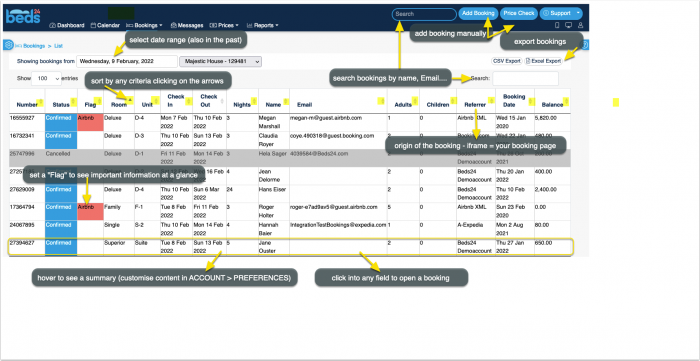
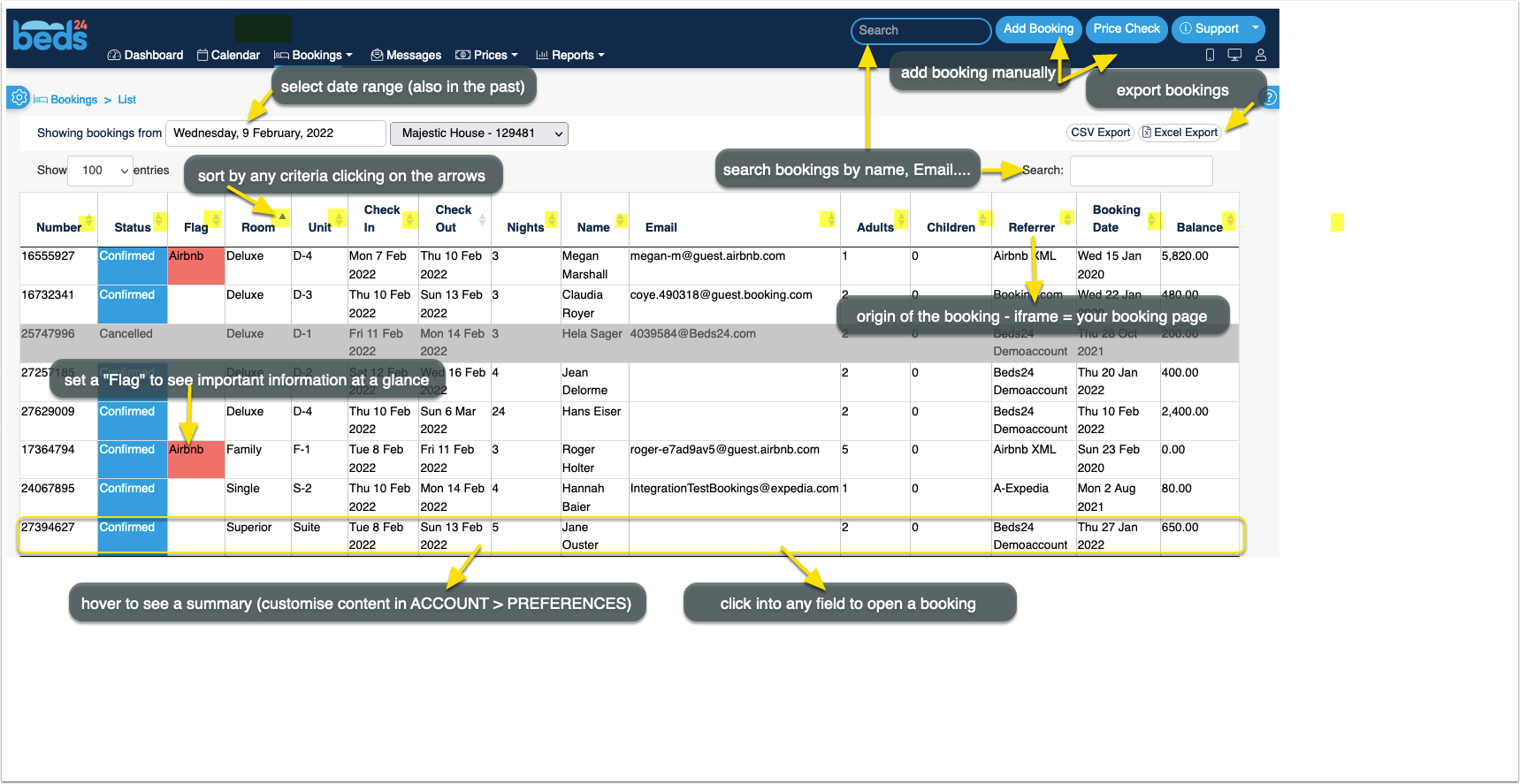
For more information click on BOOKINGS then click on HELP in the top right menu of this page.
PRICES
You can set almost unlimited price and discount combinations.
For more information click on PRICES then click on HELP in the top right menu of this page.
SETTINGS on the right
The multitude of sophisticated settings makes Beds24 very powerful. You do not need to enter information for settings you don't use. Select the ones you need to reflect your pricing, strategy and conditions.
For more information click on HELP in the top right menu of each page.
Glossary
Agent
Person or organisation who can book for different conditions. More information.
Agency
A group of properties. More information.
Auto Action
An Auto Action is an action which can be used manually or programmed to run automatically at a specific time relative to the time of the booking, to the check-in date or to the check-out date.
Auto actions have one or more trigger conditions and one or more actions. They can be triggered on a number of different conditions, like property, time or booking related conditions. Auto Actions can
- Send pre-drafted Emails, messages or SMS
- Change booking information
- Change invoice information
- Run webhooks
- Trigger HTTP POST notifications
You can create chains of actions to automate workflows.
Booking Channel
OTA´s like Booking.com, Expedia....
Booking Logs
Activity and information guests entered on your booking page.
Booking Widget
Button, calendars, booking boxes which connect your website to the booking system.
Confirmation Messages
Automatic Emails guests receive when they have completed a booking. More information.
Channel Manager Link
A connection between your room type and the same room type at a booking channel. More information.
Daily Prices
A price for one date. More information.
Guest
A set of information which can be attached to a booking. A repeat booking can be created using this information.
Host Notification
Automatic Email notification on new bookings. More information.
Integration
Interface with an external system which is not a booking channel.
Inventory
Rooms/units available for booking. The number is defined by the rooms set up in the system ( (SETTINGS) PROPERTIES > ROOMS > SETUP) and the number of bookings. Inventory can be quickly changed in the CALENDAR. To show inventory the system need valid prices. If you have not set a Daily Price or a Fixed Prices the system will show 0 inventory for this date.
The inventory can never be changed to a value which is higher than the total number of rooms minus the bookings you have.
If "Overbooking Protection" is set to "Property" ( (SETTINGS) PROPERTIES > ROOMS > SETUP) the system will calculate the inventory on the total bookings in a room up to room quantity AND total bookings in the property up to total rooms in property. Meaning the room will be closed if the number of bookings in all rooms in the property is greater or equal to the total number of rooms in the property. This could occur because of an overbooking in a different room. Hidden rooms are not included in the calculation of property availability.
Offer
An offer is the price combined with certain conditions. Each room/unit has one or more offers. "Offer 1" is your standard offer to the guest which is always displayed.
Owner
Holder of a user account.
Owner ID
Unique identification number of an account.
Property
Premises with one or more rooms/units for rent.
Property ID
Unique identification number of a property.
Rack Rate
The maximum price ever charged for a room.
Fixed Price
A price with start and end date so it applies to a range of dates More information.
Fixed Price ID
Unique identification number of a Fixed Prices.
Room
Rooms can but do not need to represent physical rooms, they are a way of splitting your property into separately bookable sections.
Room ID
Unique identification number of a room/rented unit.
Room Type
A room can have the quantity of 1 or more. If the quantity is >1 then the term room type is used.
Template Variable
Placeholder short codes which will be replaced by the relevant information from each booking. They can be used in text settings or messages. More information.
Upsell Item
Extra services a guest can add at the time of booking, like bicycle hire, a sightseeing trip, meal, parking or obligatory charges like additional tax or cleaning fee. More information.
Widget
see Booking Widget
Yield Optimiser
Tool to automatically adjust prices based on availability and time before check-in.