Jomres: Difference between revisions
No edit summary |
No edit summary |
||
| (21 intermediate revisions by 4 users not shown) | |||
| Line 1: | Line 1: | ||
[[Category: | [[Category:Marketplace]] | ||
[[Category:Troubleshooting]] | [[Category:Troubleshooting]] | ||
[[Category:PMS_Integrations]] | |||
[[Category:Booking_Engine]] | |||
<div class="heading">Jomres</div> | <div class="heading">Jomres</div> | ||
This page is about the menu This page is about the menu {{#fas:cog}} (SETTINGS) | This page is about the menu This page is about the menu {{#fas:cog}} (SETTINGS) MARKETPLACE > JOMRES and explains how to set up an integration with Jomres. For the Jomres plugin use [[Jomres_Plugin|these instructions]]. | ||
=Capabilities= | =Capabilities= | ||
| Line 15: | Line 13: | ||
=Limitations= | =Limitations= | ||
*Inventory exports are currently limited to single room properties. | *Inventory exports are currently limited to single room properties. | ||
*Only Jomres SRP properties can be connected, Jomres MRP properties are not yet supported. | |||
=Set Up= | =Set Up= | ||
==Jomres== | ==Jomres plugins== | ||
Your version of Jomres must be v9.22.0 or greater. | |||
You will need to install the following plugin, it can be found under the 'Core plugins' tab in your Jomres installation. | |||
*Channelmanagement Framework - v1.7 or greater. | |||
You will also need to install the following plugins which can be found under the 'Core API plugins' tab. | |||
*Api Feature Cmf - v0.9 or greater. | |||
*Api Feature Tariffs - v1.0 or greater. | |||
*Api Feature Webhooks - v0.6 or greater. | |||
==Jomres API keys== | |||
You will need to get two sets of credentials from Jomres: | You will need to get two sets of credentials from Jomres: | ||
*Jomres API Client ID/Secret | *Jomres API Client ID/Secret | ||
| Line 29: | Line 38: | ||
# Click the View button next to the API client you wish to use or click the New button to create a new client. | # Click the View button next to the API client you wish to use or click the New button to create a new client. | ||
# You will need the Client ID and Secret from this page to synchronise the inventory, prices and bookings of your Jomres properties with Beds24. | # You will need the Client ID and Secret from this page to synchronise the inventory, prices and bookings of your Jomres properties with Beds24. | ||
# Ensure that property permissions ('Get property', 'Set property', 'Channel Management' and 'Get data as part of a webhook communication') are ticked. | |||
[[Image:jomres_api_client_id.png|400px|link=]] | [[Image:jomres_api_client_id.png|400px|link=]] | ||
| Line 35: | Line 45: | ||
=== Jomres API System Client ID/Secret === | === Jomres API System Client ID/Secret === | ||
To get your Jomres API System Client ID and Secret: | To get your Jomres API System Client ID and Secret: | ||
# Log into | # Log into Jomres. | ||
# Click Tools then REST API test. | # Click Tools then REST API test. | ||
# You will need the System Client ID and Secret from this page to connect your Jomres properties to Beds24. | # You will need the System Client ID and Secret from this page to connect your Jomres properties to Beds24. | ||
| Line 64: | Line 74: | ||
The links in the More info column will retrieve additional information about the property from your Jomres installation. | The links in the More info column will retrieve additional information about the property from your Jomres installation. | ||
Return to the Jomres setup page in Beds24.com. | |||
Return to the Jomres setup page in Beds24.com | |||
# Enter the Property ID of the now connected Jomres property. | # Enter the Property ID of the now connected Jomres property. | ||
[[Image:jomres_api_setup.png|700px|link=]] | [[Image:jomres_api_setup.png|700px|link=]] | ||
[[Media:jomres_api_setup.png|view large]] | [[Media:jomres_api_setup.png|view large]] | ||
'''Step 4: Connect rooms''' | '''Step 4: Connect rooms and synchronise inventory, prices and bookings''' | ||
#Enter the Jomres room type ID into the Room ID field. Clicking the get codes button will display a list of room types for this property. | #Enter the Jomres room type ID into the Room ID field. Clicking the get codes button will display a list of room types for this property. | ||
#Enter the Jomres tariff type ID into the Tariff ID field. Clicking the get codes button will display a list of tariff types for this room. | #Enter the Jomres tariff type ID into the Tariff ID field. Clicking the get codes button will display a list of tariff types for this room. | ||
#Tick the inventory, prices and bookings boxes to synchronise them. | |||
[[Image:jomres_room_codes.png|700px|link=]] | [[Image:jomres_room_codes.png|700px|link=]] | ||
[[Media:jomres_room_codes.png|view large]] | [[Media:jomres_room_codes.png|view large]] | ||
=Viewing updated tariffs and availability in Jomres= | |||
#Navigate to the property page in Jomres. | |||
#Click Properties, then Preview. | |||
#Scroll down to the blue tabs and click the Availability or Accommodation Prices tab. | |||
[[Image:jomres_ui_prices.png|700px|link=]] | |||
[[Media:jomres_ui_prices.png|view large]] | |||
=Tariff Settings= | |||
The following tariff settings can be changed by logging into Jomres: | |||
*Tariff name/description | |||
*Max days (Maximum days of the visit) | |||
*Min/max people (Minimum/maximum number of people for a tariff to be valid) | |||
*Day of week (Check-in day of week allowed) | |||
*Ignore PPPN (charge per person per night) | |||
*Allow weekend (Allow bookings that span weekend days) | |||
*Min/max rooms already selected (room/tariff combinations that are only offered if the guest has already selected another room in the booking form) | |||
=Common Errors= | =Common Errors= | ||
*You will need two different API keys that can be found in different locations in your Jomres installation. | *You will need two different API keys that can be found in different locations in your Jomres installation. | ||
*Properties must have their tariff configuration set to 'micromanage'. Beds24 will automatically change this configuration if necessary when a property is connected. If the tariff configuration of a connected property is manually changed to something other than 'micromanage', prices will not be able to be synchronised. | *Properties must have their tariff configuration set to 'micromanage'. Beds24 will automatically change this configuration if necessary when a property is connected. If the tariff configuration of a connected property is manually changed to something other than 'micromanage', prices will not be able to be synchronised. | ||
*Bookings are not being imported - check the plugin 'Api Feature Webhooks' is installed and up to date. | |||
=Disconnect= | =Disconnect= | ||
To disconnect a property: | |||
#Click the View all listings button. | #Click the View all listings button. | ||
#In the status column, click the Disconnect button for the property you wish to disconnect. | #In the status column, click the Disconnect button for the property you wish to disconnect. | ||
Latest revision as of 18:36, 17 September 2025
This page is about the menu This page is about the menu (SETTINGS) MARKETPLACE > JOMRES and explains how to set up an integration with Jomres. For the Jomres plugin use these instructions.
Capabilities
- Beds24.com can export inventory.
- Beds24.com can export prices (tariffs).
- Beds24.com can import bookings.
Limitations
- Inventory exports are currently limited to single room properties.
- Only Jomres SRP properties can be connected, Jomres MRP properties are not yet supported.
Set Up
Jomres plugins
Your version of Jomres must be v9.22.0 or greater.
You will need to install the following plugin, it can be found under the 'Core plugins' tab in your Jomres installation.
- Channelmanagement Framework - v1.7 or greater.
You will also need to install the following plugins which can be found under the 'Core API plugins' tab.
- Api Feature Cmf - v0.9 or greater.
- Api Feature Tariffs - v1.0 or greater.
- Api Feature Webhooks - v0.6 or greater.
Jomres API keys
You will need to get two sets of credentials from Jomres:
- Jomres API Client ID/Secret
- Jomres API System Client ID/Secret
Jomres API Client ID/Secret
To get your Jomres API Client ID and Secret:
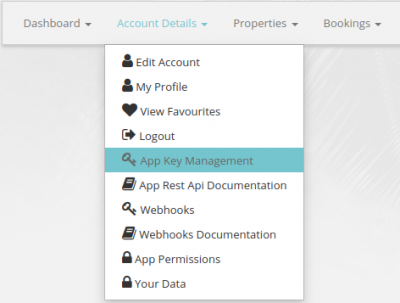
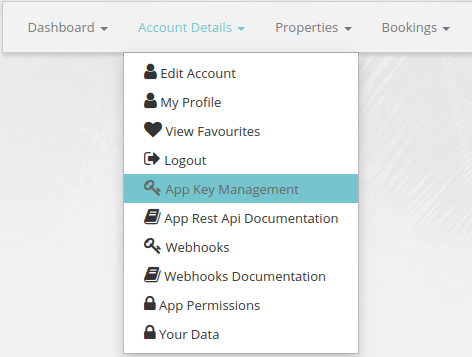
- Navigate to the Manage Properties section of your Jomres installation and click Account Details then App Key Management.
- Click the View button next to the API client you wish to use or click the New button to create a new client.
- You will need the Client ID and Secret from this page to synchronise the inventory, prices and bookings of your Jomres properties with Beds24.
- Ensure that property permissions ('Get property', 'Set property', 'Channel Management' and 'Get data as part of a webhook communication') are ticked.
Jomres API System Client ID/Secret
To get your Jomres API System Client ID and Secret:
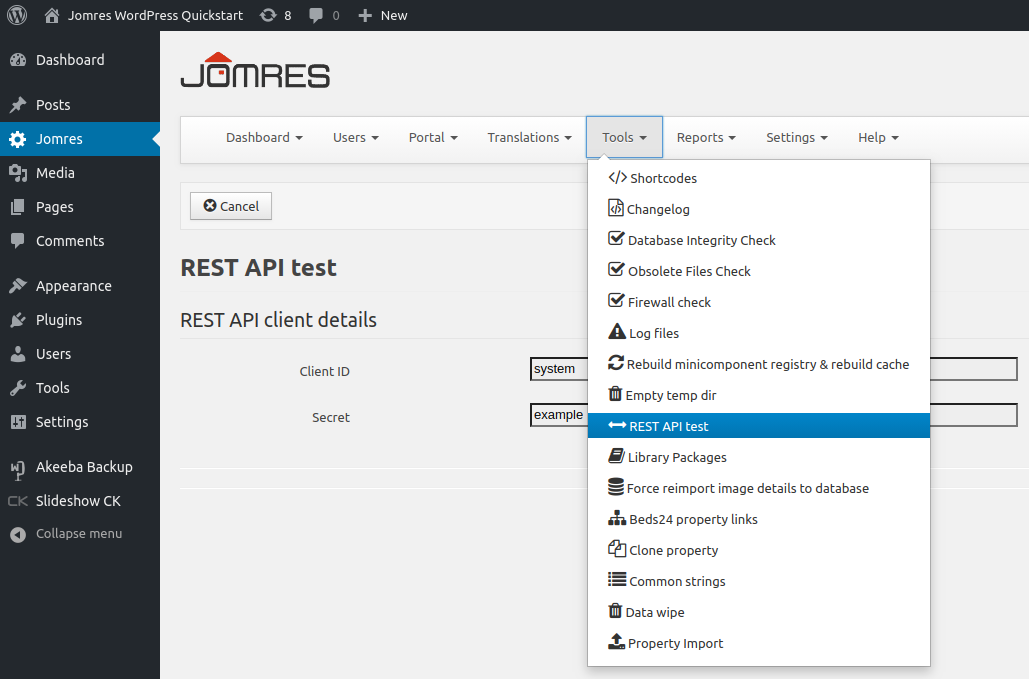
- Log into Jomres.
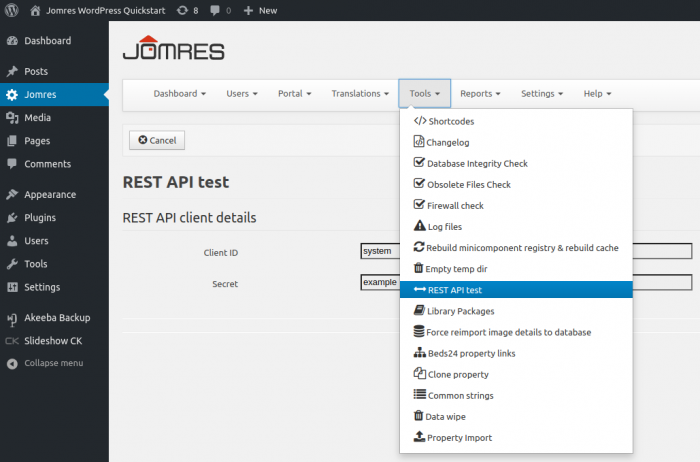
- Click Tools then REST API test.
- You will need the System Client ID and Secret from this page to connect your Jomres properties to Beds24.
Beds24
Step 1: Enter your Jomres credentials
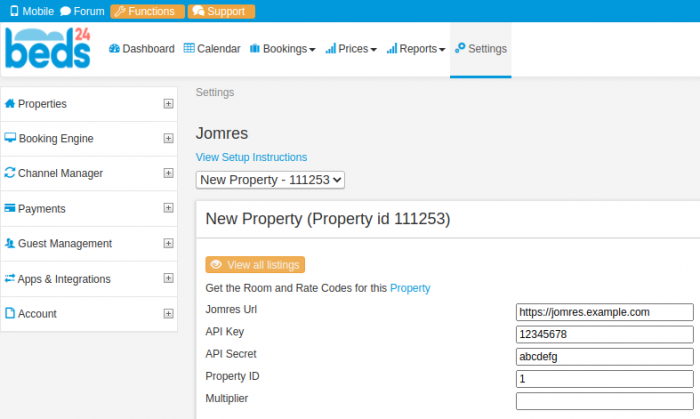
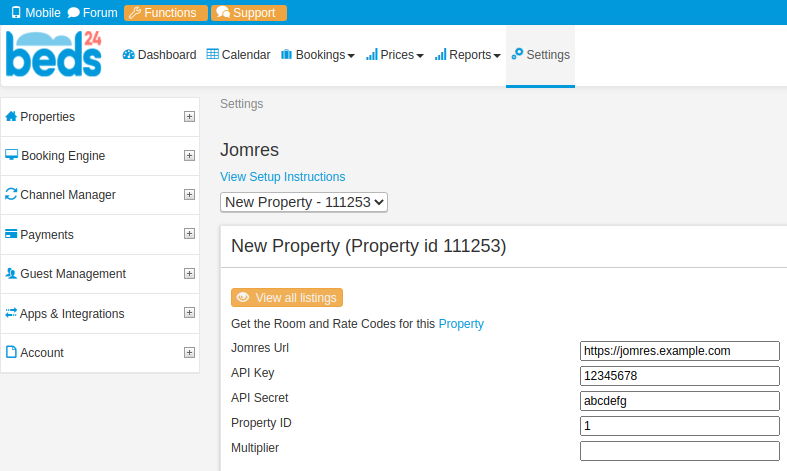
- Enter your Jomres URL.
- Enter your API Key (Jomres API Client ID).
- Enter your API Secret (Jomres API System Client ID
- Click the Save button
Step 2: Create channel
- Click the View all listings button.
- You will see a message stating "Channel does not exist".
- If you wish to simply connect all properties in your Jomres installation, enter your Jomres System Client ID and Secret and click the Create channel and connect all properties button. You may skip step 3.
- If you wish to select which properties to connect, click the Create channel button.
Step 3: Connect your Jomres properties
After your channel has been created, you will see a table of all properties in your Jomres installation.
- Enter your Jomres System Client ID and Secret.
- Click the Connect button in the Status column of properties you wish to connect.
You may also connect all properties at once by clicking the Connect all button. The links in the More info column will retrieve additional information about the property from your Jomres installation.
Return to the Jomres setup page in Beds24.com.
- Enter the Property ID of the now connected Jomres property.
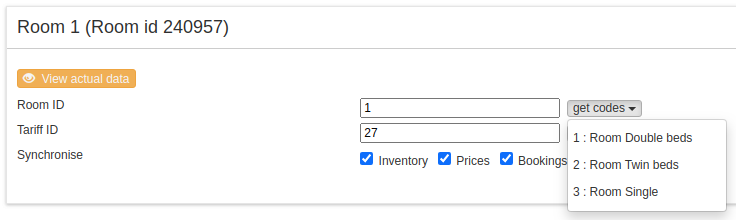
Step 4: Connect rooms and synchronise inventory, prices and bookings
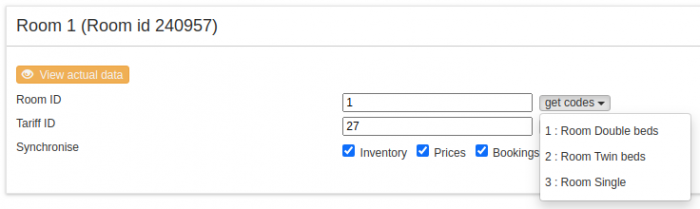
- Enter the Jomres room type ID into the Room ID field. Clicking the get codes button will display a list of room types for this property.
- Enter the Jomres tariff type ID into the Tariff ID field. Clicking the get codes button will display a list of tariff types for this room.
- Tick the inventory, prices and bookings boxes to synchronise them.
Viewing updated tariffs and availability in Jomres
- Navigate to the property page in Jomres.
- Click Properties, then Preview.
- Scroll down to the blue tabs and click the Availability or Accommodation Prices tab.


Tariff Settings
The following tariff settings can be changed by logging into Jomres:
- Tariff name/description
- Max days (Maximum days of the visit)
- Min/max people (Minimum/maximum number of people for a tariff to be valid)
- Day of week (Check-in day of week allowed)
- Ignore PPPN (charge per person per night)
- Allow weekend (Allow bookings that span weekend days)
- Min/max rooms already selected (room/tariff combinations that are only offered if the guest has already selected another room in the booking form)
Common Errors
- You will need two different API keys that can be found in different locations in your Jomres installation.
- Properties must have their tariff configuration set to 'micromanage'. Beds24 will automatically change this configuration if necessary when a property is connected. If the tariff configuration of a connected property is manually changed to something other than 'micromanage', prices will not be able to be synchronised.
- Bookings are not being imported - check the plugin 'Api Feature Webhooks' is installed and up to date.
Disconnect
To disconnect a property:
- Click the View all listings button.
- In the status column, click the Disconnect button for the property you wish to disconnect.