Sample page: Difference between revisions
No edit summary |
No edit summary |
||
| (67 intermediate revisions by 2 users not shown) | |||
| Line 1: | Line 1: | ||
=Formatting a wiki page = | |||
https://www.mediawiki.org/wiki/Help:Formatting | |||
Mediawiki automaticallly ceates a title from the name in the URL. | |||
'''1. First element on a wiki page''' are the categrories the page belongs into and if applicable redirects (see below= | |||
<nowiki>[[Category:xxx]]</nowiki> | |||
'''2. Second element''' is an explanation what the page is about. If it is a help page for a menu (opening from a ? icon on the top) the path is mentioned. | |||
This page is about the menu {{#fas:cog}} (SETTINGS) PAGENAME > PAGENAME XXX followed by explanation on what to find on this page. | |||
Diese Seite ist über das Menue {{#fas:cog}} (KONFIGURATION) PAGENAME | |||
'''3. Some pages have a summary box (used for slide out help) or important things to know'''. This section has a meaningful heading in a h1 = = | |||
Summary / Zusammenfassung heading in a h1 = = | |||
<div class="summarybox"> | |||
This is a summary | |||
<div class="warning alert alert-danger">{{#fas:exclamation-triangle}} Format of a warning if required. </div> | |||
</div> | |||
What you should know before you start / Was Sie wissen und tun sollten, bevor Sie loslegen heading in a h1 = = | |||
<div class="bluebox"> | |||
Introductory text if required | |||
</div> | |||
'' | '''4. Next element is a table of content '''<nowiki>__TOC__ </nowiki> which will be automatically generated from the headlines. | ||
'''5. Put the first heading after the table of content''' | |||
= = Heading 1 | |||
== == Heading 2 | |||
=== === Heading 3 | |||
==== ==== Heading 4 | |||
Put the heading text in the middle. All headings can be seen below. | |||
__TOC__ | |||
=Headline 1= | |||
==Headline 2== | |||
===How to format=== | |||
====Bold, italic, underline (not used)==== | |||
''italic'' | |||
'''bold''' | |||
'''''bold & italic''''' | |||
<u>Underline (not used)</u> | |||
====Lists==== | |||
Bulleted list: | |||
*:- definition | *:- definition | ||
*ul list | *ul list | ||
| Line 63: | Line 63: | ||
Numered list | |||
#:- definition | |||
#ol list | #ol list | ||
#ol list | #ol list | ||
| Line 69: | Line 71: | ||
<nowiki>no [[wiki]] ''markup''</nowiki> used for content which should not show in wiki format i.e. links which should not be clickable. | |||
Horizontal line Text before used on the news to separate the news (first before a line is shown in the news module on the Dashboard) | |||
---- | |||
Text after | |||
====Links==== | |||
[[Main_Page |internal link (pipe)]] | [[Main_Page |internal link (pipe)]] | ||
[[:Category:Dashboard|Link to category page]] | |||
[https://beds24.com external link (no pipe)] | [https://beds24.com external link (no pipe)] | ||
====Highlights, warnings, icons==== | |||
You can add FontAwesome 5 Icons: https://fontawesome.com/v5/search?o=r | |||
<span style="color:#fe746c;“ >{{#fas:exclamation-triangle}} </span> Warning used to point at information which is critical | <span style="color:#fe746c;“ >{{#fas:exclamation-triangle}} </span> Warning used to point at information which is critical | ||
| Line 82: | Line 96: | ||
<span style="color: #f3e504; font-size: 250%;" >{{#fas:lightbulb}} </span> '''Required Skills''': | <span style="color: #f3e504; font-size: 250%;" >{{#fas:lightbulb}} </span> '''Required Skills''': | ||
Use the context help <span style="color:# | <span style="color:#019cde; font-size: 150%;“ >{{#fas:info-circle}} </span> Info | ||
Use the context help<span style="color:#019cde;“ >{{#far:question-circle}} </span> for information on each setting. used for reference to the context help | |||
{{#fas:cog}} used for reference to the settings menu left | {{#fas:cog}} used for reference to the settings menu left | ||
{{#fas:user}} used for reference to the user menu top | |||
Click on the {{#fas:user}} 'User' icon on the top right and then on 'Account Management (in the old control panel SUB ACCOUNT in the top right) | |||
Klicken Sie auf das {{#fas:user}} 'User Icon' oben rechts und dann auf 'Account Management' (im alten Control Panel gehen Sie zu SUB ACCOUNTS im Menu oben rechts) | |||
Click on the <span style="color:#7bcbed;“ >{{#fas:copy}} </span> 'Copy con' to apply the value to other properties/rooms | |||
Klicken Sie auf das <span style="color:#7bcbed;“ >{{#fas:copy}} </span> 'Kopieren Icon' um die Eingabe auf andere Unterkünfte/Einheiten zu übertragen | |||
<span style="color:#7bcbed;“ >{{#fas:plus-square}} </span> Used for news about new feature | <span style="color:#7bcbed;“ >{{#fas:plus-square}} </span> Used for news about new feature | ||
| Line 98: | Line 124: | ||
<span style="color: #7aab0a;" >{{#fas:chalkboard-teacher}} </span> Used for news webinar | <span style="color: #7aab0a;" >{{#fas:chalkboard-teacher}} </span> Used for news webinar | ||
[https://fontawesome.com/v5.15/icons/external-link-alt?style=soli <span style="color:#007bff;“ >{{#fas:external-link-alt}} </span> website] | |||
====Specific CSS==== | |||
You can apply you own CSS. | |||
<span style="color: #fe746c">Inline style red text </span> used to apply individual css - only for temporary special formatting on the start pages. For other formats classes should be created. | <span style="color: #fe746c">Inline style red text </span> used to apply individual css - only for temporary special formatting on the start pages. For other formats classes should be created. | ||
| Line 110: | Line 133: | ||
<span style="color: #75d5ad">Inline style green text </span> | <span style="color: #75d5ad">Inline style green text </span> | ||
=Hide content which is being worked on = | ==Hide content which is being worked on == | ||
Hide a section NOTE: Hidden content can not have headlines because headlines are not hidden | Hide a section NOTE: Hidden content can not have headlines because headlines are not hidden | ||
| Line 117: | Line 140: | ||
</div> | </div> | ||
= | ====Code snippets==== | ||
Code (if you need to quote code snippets or examples): | |||
< | <code>Source code</code> -> used for code examples, on many pages pre (blue box) is used for code which should be replaced | ||
</ | |||
<div style="background-color: #f8f9fa !important; border: 1px solid #eaecf0;border-radius: 2px; padding: 1px 4px;"> | |||
</ | <script> | ||
<nowiki> | |||
var addUrlParamsToIframeSrcs = function () { | |||
const validParameters = ["checkin","checkout","numnight","numadult","numchild","ownerid","propid","roomid","referer","redirect","lang","group","nogroup","category1","category2","category3","category4", "customParameter"]; | |||
const iframeAttrIdentifier = "ourIframe"; | |||
const currentUrl = new URL(window.location.href); | |||
let parametersString = ""; | |||
validParameters.forEach(parameter => { | |||
const parameterValue = currentUrl.searchParams.get(parameter); | |||
if (parameterValue !== null) { | |||
parametersString += "&" + parameter + "=" + parameterValue; | |||
} | |||
}); | |||
const iframes = document.getElementsByTagName("iframe"); | |||
for (let iframe of iframes) { | |||
if (iframe.getAttribute(iframeAttrIdentifier) !== null) { | |||
let iframeSrc = iframe.getAttribute("data-src"); | |||
if (!iframeSrc.includes("?")) { | |||
iframeSrc += "?"; | |||
} | |||
iframeSrc += parametersString; | |||
iframe.setAttribute("src", iframeSrc) | |||
} | |||
} | |||
} | |||
addUrlParamsToIframeSrcs(); | |||
</nowiki> | |||
</script> | |||
</div> | </div> | ||
:{ | |||
::"authentication": | |||
::{ | |||
:::"apiKey": "my_very_secret_api_key", | |||
:::"propKey": "secret_key_for_prop_XXXXXX" | |||
::}, | |||
[ | ::"bookId": "[BOOKID]", | ||
::"invoice": | |||
::[ | |||
:::{ | |||
::::"description": "Booking.com Commission", | |||
::::"status": "", | |||
::::"qty": "1", | |||
::::"price": "-[COMMISSIONNUM]", | |||
::::"vatRate": "7.00", | |||
::::"type": "0", | |||
::::"invoiceeId": "" | |||
:::} | |||
::] | |||
:} | |||
====Tables==== | |||
https://www.mediawiki.org/wiki/Help:Tables | |||
ChatGpt can make wikimedia tables | |||
{| class="wikitable" | {| class="wikitable" | ||
| Line 200: | Line 234: | ||
|} | |} | ||
= | ====Examples==== | ||
==Examples== | |||
Example on individual page: https://wiki.beds24.com/index.php/Combine_individual_rooms_into_a_roomtype | Example on individual page: https://wiki.beds24.com/index.php/Combine_individual_rooms_into_a_roomtype | ||
Use "Collapsible" if there are many examples on the page or if examples are long. | Use "Collapsible" if there are many examples on the page or if examples are long. | ||
====Step by step instructions==== | |||
'''Step 1: Summary of what do do''' | |||
You need to..... | |||
*Do this | |||
*Do that | |||
'''Step 2: : Summary of what do do (optional)''' | |||
add optional if the step is not required | |||
'''Step 3: ''' | |||
'''Step 4: ''' | |||
'''Step 5: ''' | |||
<div class="mw-collapsible mw-collapsed"> | |||
<div class="headline-collapse" > | |||
Step 1: Collapible | |||
</div> | |||
<div class="mw-collapsible-content"> | |||
#do this | |||
#Press SAVE | |||
</div></div> | |||
</div> | |||
====Collapsible elements==== | |||
Used for FAQ, Examples | |||
<div class="mw-collapsible mw-collapsed"> | <div class="mw-collapsible mw-collapsed"> | ||
<div class="headline-collapse" > | <div class="headline-collapse" > | ||
Example: Headline for collapsible text | |||
</div> | </div> | ||
<div class="mw-collapsible-content"> | <div class="mw-collapsible-content"> | ||
| Line 217: | Line 282: | ||
</div> | </div> | ||
https://www.mediawiki.org/wiki/Manual:Collapsible_elements | |||
If there are many issues or the page is already long | |||
<div class="mw-collapsible mw-collapsed"> | |||
<div class="headline-collapse" >"Room code is not unique" warning when saving in Beds24. | |||
</div> | |||
<div class="mw-collapsible-content"> | |||
Each Booking.com room id is unique and can be mapped to only one room in Beds24. If you enter the same Booking.com room id more than once the room updates will overwrite each other causing inaccurate information being sent to Booking.com which will cause overbookings. | |||
</div></div> | |||
==Images and Files== | |||
Reference https://www.mediawiki.org/wiki/Help:Images | |||
Add image: http://recordit.co/Y6MG4bnTiR | |||
You can adjust the size by changing the number of px | |||
Images with a "view large link" - images can be animated gifs | |||
[[Image:wizard_calendar.gif|600px|link=]] | |||
[[Media:wizard_calendar.gif|view large]] | |||
linked image | |||
[[Image:wizard_calendar.gif|600px|link=https://go.expediagroup.com/spotlight-beds24.html]] | |||
Centered | |||
[[Image:wizard_calendar.gif|center|400px|link=]] | |||
<span style="color:#fe746c;“ >{{#fas:exclamation-triangle}} </span> You might need to do a couple of hard refreshes to see the uploaded image. Or try a different browser. Or change the size | |||
===pdf=== | |||
[[Media:Custom_Invoice.pdf|Download the tutorial]] | |||
===Youtube=== | |||
<embedvideo service="youtube">https://youtu.be/Ohhx1ZfPxNw</embedvideo> | |||
<embedvideo service="youtube" dimensions="200x120">https://youtu.be/6niW6UZoHOc</embedvideo> | |||
= | ===MP4 upload=== | ||
== | [[File:support.mp4|640px]] | ||
Centered | |||
[[File:recovering-Covid19.mp4|center|340px]] | |||
==Change | ===Change file=== | ||
If the file is already uploaded and you want to change it open it - if you know the filename you can replace the imagename, then uplaod new. | |||
https://wiki.beds24.com/index.php/file:IMAGENAME.png | https://wiki.beds24.com/index.php/file:IMAGENAME.png | ||
https://wiki.beds24.com/wikiDE/index.php/Datei:IMAGENAME.png | https://wiki.beds24.com/wikiDE/index.php/Datei:IMAGENAME.png | ||
==Make a redirect== | ==Make a redirect== | ||
<nowiki>#REDIRECT [[pagename]]</nowiki> | <nowiki>#REDIRECT [[pagename]]</nowiki> | ||
| Line 251: | Line 346: | ||
https://www.mediawiki.org/wiki/Help:Redirects | https://www.mediawiki.org/wiki/Help:Redirects | ||
=All | |||
Access a redirected page add &action=edit to the pagename of the redirected page | |||
==How to== | |||
===Add new user=== | |||
Access wiki | |||
https://wiki.beds24.com/index.php/Special:CreateAccount | |||
=All pages and categories= | |||
https://wiki.beds24.com/index.php/Special:AllPages | https://wiki.beds24.com/index.php/Special:AllPages | ||
https://wiki.beds24.com/index.php/Special:Categories | https://wiki.beds24.com/index.php/Special:Categories | ||
=CSS = | ==Change the general CSS == | ||
https://wiki.beds24.com/index.php/MediaWiki:Common.css | https://wiki.beds24.com/index.php/MediaWiki:Common.css | ||
https://wiki.beds24.com/wikiDE/index.php/MediaWiki:Common.css | https://wiki.beds24.com/wikiDE/index.php/MediaWiki:Common.css | ||
= | ==Change sidebar navigation== | ||
https://wiki.beds24.com/index.php?title=MediaWiki:Sidebar&action=edit | https://wiki.beds24.com/index.php?title=MediaWiki:Sidebar&action=edit | ||
=Sample context help= | https://wiki.beds24.com/wikiDE/index.php?title=MediaWiki:Sidebar&action=edit | ||
==Add new user== | |||
https://wiki.beds24.com/index.php/Special:CreateAccount | |||
https://wiki.beds24.com/wikiDE/index.php/Special:CreateAccount | |||
=References= | |||
==Sample context help== | |||
https://wiki.beds24.com/index.php/Setting/sample | https://wiki.beds24.com/index.php/Setting/sample | ||
=All | <div class="warning alert alert-danger">{{#fas:exclamation-triangle}} The context helps can not contain any reference to Beds24 as some reseller show them. Use neutral wording "the system". </div> | ||
==Recent Changes== | |||
https://wiki.beds24.com/index.php?hidebots=1&limit=50&days=7&enhanced=1&title=Special:RecentChanges&urlversion=2 | |||
==All special pages== | |||
https://wiki.beds24.com/index.php/Special:SpecialPages | https://wiki.beds24.com/index.php/Special:SpecialPages | ||
==Mediawiki help== | |||
https://www.mediawiki.org/wiki/Help:Contents | |||
Latest revision as of 11:45, 1 December 2025
Formatting a wiki page
https://www.mediawiki.org/wiki/Help:Formatting
Mediawiki automaticallly ceates a title from the name in the URL.
1. First element on a wiki page are the categrories the page belongs into and if applicable redirects (see below=
[[Category:xxx]]
2. Second element is an explanation what the page is about. If it is a help page for a menu (opening from a ? icon on the top) the path is mentioned.
This page is about the menu (SETTINGS) PAGENAME > PAGENAME XXX followed by explanation on what to find on this page.
Diese Seite ist über das Menue (KONFIGURATION) PAGENAME
3. Some pages have a summary box (used for slide out help) or important things to know. This section has a meaningful heading in a h1 = =
Summary / Zusammenfassung heading in a h1 = =
This is a summary
What you should know before you start / Was Sie wissen und tun sollten, bevor Sie loslegen heading in a h1 = =
Introductory text if required
4. Next element is a table of content __TOC__ which will be automatically generated from the headlines.
5. Put the first heading after the table of content
= = Heading 1
== == Heading 2
=== === Heading 3
==== ==== Heading 4
Put the heading text in the middle. All headings can be seen below.
Headline 1
Headline 2
How to format
Bold, italic, underline (not used)
italic
bold
bold & italic
Underline (not used)
Lists
Bulleted list:
- - definition
- ul list
- ul list
- ul list
- ul list
Numered list
- - definition
- ol list
- ol list
- ol list
- ol list
- ol list
no [[wiki]] ''markup'' used for content which should not show in wiki format i.e. links which should not be clickable.
Horizontal line Text before used on the news to separate the news (first before a line is shown in the news module on the Dashboard)
Text after
Links
Highlights, warnings, icons
You can add FontAwesome 5 Icons: https://fontawesome.com/v5/search?o=r
Warning used to point at information which is critical
Tip used for additional functions, references etc.
Required Skills:
Info
Use the context help for information on each setting. used for reference to the context help
used for reference to the settings menu left
used for reference to the user menu top
Click on the 'User' icon on the top right and then on 'Account Management (in the old control panel SUB ACCOUNT in the top right)
Klicken Sie auf das 'User Icon' oben rechts und dann auf 'Account Management' (im alten Control Panel gehen Sie zu SUB ACCOUNTS im Menu oben rechts)
Click on the 'Copy con' to apply the value to other properties/rooms
Klicken Sie auf das 'Kopieren Icon' um die Eingabe auf andere Unterkünfte/Einheiten zu übertragen
Used for news about new feature
Used for news about upgrade
Used for news important info
Used for news new partner
Used for news
Used for news webinar
Specific CSS
You can apply you own CSS.
Inline style red text used to apply individual css - only for temporary special formatting on the start pages. For other formats classes should be created.
Inline style green text
Hide content which is being worked on
Hide a section NOTE: Hidden content can not have headlines because headlines are not hidden
Code snippets
Code (if you need to quote code snippets or examples):
Source code -> used for code examples, on many pages pre (blue box) is used for code which should be replaced
<script> var addUrlParamsToIframeSrcs = function () { const validParameters = ["checkin","checkout","numnight","numadult","numchild","ownerid","propid","roomid","referer","redirect","lang","group","nogroup","category1","category2","category3","category4", "customParameter"]; const iframeAttrIdentifier = "ourIframe"; const currentUrl = new URL(window.location.href); let parametersString = ""; validParameters.forEach(parameter => { const parameterValue = currentUrl.searchParams.get(parameter); if (parameterValue !== null) { parametersString += "&" + parameter + "=" + parameterValue; } }); const iframes = document.getElementsByTagName("iframe"); for (let iframe of iframes) { if (iframe.getAttribute(iframeAttrIdentifier) !== null) { let iframeSrc = iframe.getAttribute("data-src"); if (!iframeSrc.includes("?")) { iframeSrc += "?"; } iframeSrc += parametersString; iframe.setAttribute("src", iframeSrc) } } } addUrlParamsToIframeSrcs(); </script>
- {
- "authentication":
- {
- "apiKey": "my_very_secret_api_key",
- "propKey": "secret_key_for_prop_XXXXXX"
- },
- "bookId": "[BOOKID]",
- "invoice":
- [
- {
- "description": "Booking.com Commission",
- "status": "",
- "qty": "1",
- "price": "-[COMMISSIONNUM]",
- "vatRate": "7.00",
- "type": "0",
- "invoiceeId": ""
- }
- {
- ]
- }
Tables
https://www.mediawiki.org/wiki/Help:Tables
ChatGpt can make wikimedia tables
| Item | Quantity |
|---|---|
| 0.3 kg | $0.65 |
| 0.125 kg | $1.25 |
| Table | ||
|---|---|---|
| Item | Quantity | Price |
| Bread | 0.3 kg | $0.65 |
| Butter | 0.125 kg | $1.25 |
| Total | $1.90 | |
Examples
Example on individual page: https://wiki.beds24.com/index.php/Combine_individual_rooms_into_a_roomtype
Use "Collapsible" if there are many examples on the page or if examples are long.
Step by step instructions
Step 1: Summary of what do do
You need to.....
- Do this
- Do that
Step 2: : Summary of what do do (optional)
add optional if the step is not required
Step 3:
Step 4:
Step 5:
Step 1: Collapible
- do this
- Press SAVE
Collapsible elements
Used for FAQ, Examples
Example: Headline for collapsible text
This is the collapsed text.
https://www.mediawiki.org/wiki/Manual:Collapsible_elements
If there are many issues or the page is already long
Each Booking.com room id is unique and can be mapped to only one room in Beds24. If you enter the same Booking.com room id more than once the room updates will overwrite each other causing inaccurate information being sent to Booking.com which will cause overbookings.
Images and Files
Reference https://www.mediawiki.org/wiki/Help:Images
Add image: http://recordit.co/Y6MG4bnTiR
You can adjust the size by changing the number of px
Images with a "view large link" - images can be animated gifs
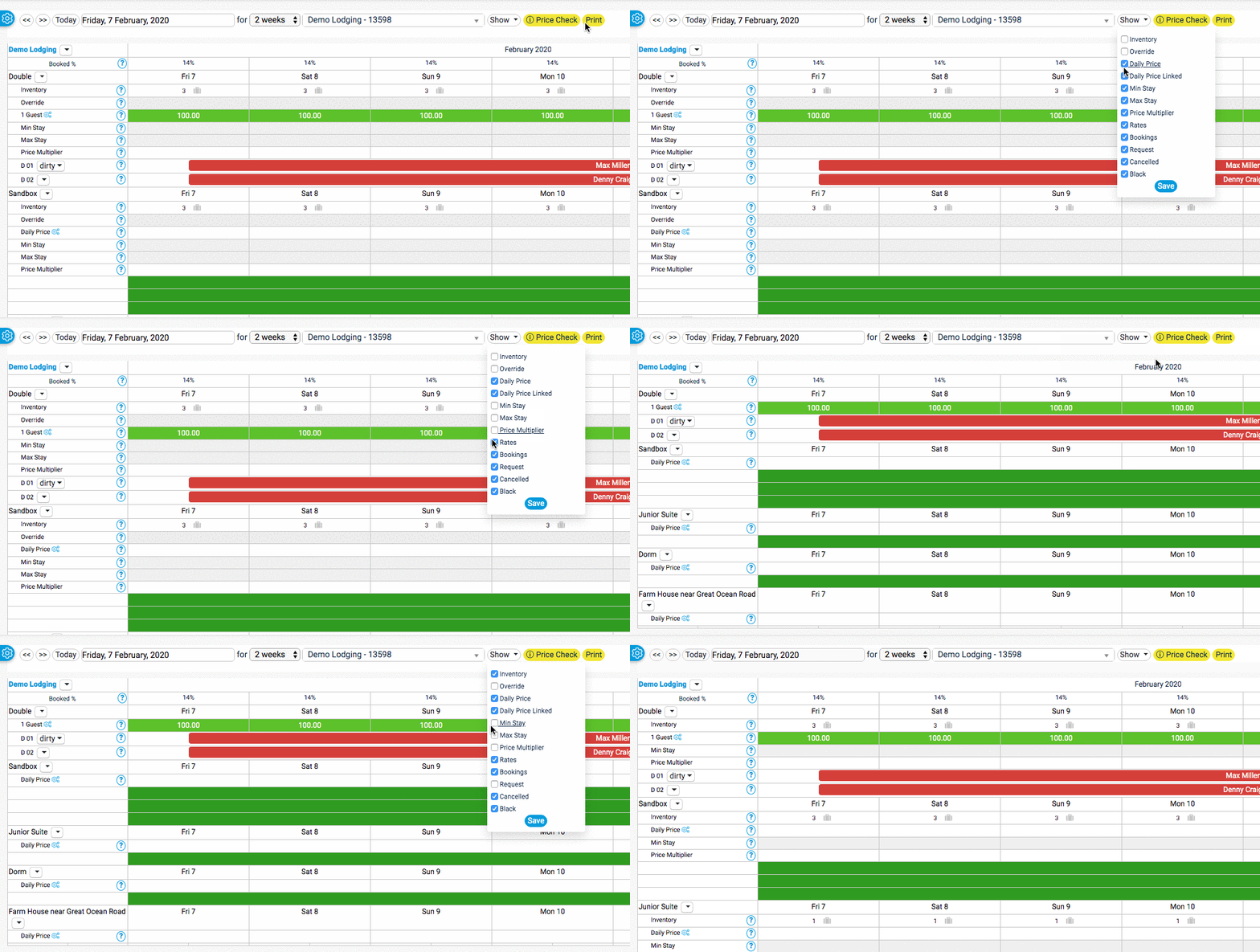
linked image
Centered
You might need to do a couple of hard refreshes to see the uploaded image. Or try a different browser. Or change the size
Youtube
MP4 upload
Centered
Change file
If the file is already uploaded and you want to change it open it - if you know the filename you can replace the imagename, then uplaod new.
https://wiki.beds24.com/index.php/file:IMAGENAME.png
https://wiki.beds24.com/wikiDE/index.php/Datei:IMAGENAME.png
Make a redirect
#REDIRECT [[pagename]]
#REDIRECT [[:Category:Glossary]]
https://www.mediawiki.org/wiki/Help:Redirects
Access a redirected page add &action=edit to the pagename of the redirected page
How to
Add new user
Access wiki https://wiki.beds24.com/index.php/Special:CreateAccount
All pages and categories
https://wiki.beds24.com/index.php/Special:AllPages
https://wiki.beds24.com/index.php/Special:Categories
Change the general CSS
https://wiki.beds24.com/index.php/MediaWiki:Common.css
https://wiki.beds24.com/wikiDE/index.php/MediaWiki:Common.css
https://wiki.beds24.com/index.php?title=MediaWiki:Sidebar&action=edit
https://wiki.beds24.com/wikiDE/index.php?title=MediaWiki:Sidebar&action=edit
Add new user
https://wiki.beds24.com/index.php/Special:CreateAccount
https://wiki.beds24.com/wikiDE/index.php/Special:CreateAccount
References
Sample context help
https://wiki.beds24.com/index.php/Setting/sample
Recent Changes
All special pages
https://wiki.beds24.com/index.php/Special:SpecialPages