Category:Booking Page: Difference between revisions
No edit summary |
|||
| (35 intermediate revisions by 3 users not shown) | |||
| Line 1: | Line 1: | ||
[[Category: | [[Category:How to]] | ||
[[Category:Getting_Started]] | |||
[[Category:Booking_Engine]] | |||
<div class="heading">Booking Engine</div> | |||
This page is about the menu {{#fas:cog}} (SETTINGS) > BOOKING ENGINE | |||
__TOC__ | |||
=How to install the booking engine= | |||
The booking engine allows to collect commission free direct bookings. | |||
<span class="" style="color: #f3e504; font-size: 250%;" >{{#fas:lightbulb}} </span> <span style="font-weight: bold;" >Tip</span> This [https://beds24.com/wizard/wizard4.php wizard] guides you though the options you can set for your booking engine. | |||
=The Booking Page= | |||
The booking page is were guests make their booking. The booking page can be embedded into any web site via a code snippet we provide. | |||
<span style="color: #f3e504; font-size: 250%;" >{{#fas:lightbulb}} </span> The current version of the booking page is "Responsive". Make sure both "Booking Page Version" and "Check-out Page Version" are set to "Responsive". | |||
The booking page is fully customizable and you have the option to set up multiple layouts if required. | |||
We provide 7 layouts which you can customize further. The layout which is set as "Default" will be used by default and if the Facebook App is used on Facebook. | |||
Current default: | |||
[[File:layout7.png|thumb|none|300px|<p style="font-weight: bold; text-align: center">Layout 7</p>]] | |||
More layouts to choose from: | |||
<div><ul> | |||
<li style="display: inline-block; vertical-align: top;"> [[File:layout1.png|thumb|none|160px|<p style="font-weight: bold; text-align: center">Layout 1</p>]] </li> | |||
<li style="display: inline-block; vertical-align: top;"> [[File:layout2.png|thumb|none|160px|<p style="font-weight: bold; text-align: center">Layout 2</p>]] </li> | |||
<li style="display: inline-block; vertical-align: top;"> [[File:layout3.png|thumb|none|160px|<p style="font-weight: bold; text-align: center">Layout 3</p>]] </li> | |||
<li style="display: inline-block; vertical-align: top;"> [[File:layout4.png|thumb|none|160px|<p style="font-weight: bold; text-align: center">Layout 4</p>]] </li> | |||
<li style="display: inline-block;vertical-align: top;"> [[File:layout5.png|thumb|none|160px|<p style="font-weight: bold; text-align: center">Layout 5</p>]] </li> | |||
<li style="display: inline-block; vertical-align: top;"> [[File:layout6.png|thumb|none|160px|<p style="font-weight: bold; text-align: center">Layout 6</p>]] </li> | |||
<li style="display: inline-block; vertical-align: top;"> [[File:layout7.png|thumb|none|160px|<p style="font-weight: bold; text-align: center">Layout 7</p>]] </li> | |||
</ul></div> | |||
<span class="" style="color: #f3e504; font-size: 250%;" >{{#fas:lightbulb}} </span> <span style="font-weight: bold;" >Tip</span> We recommend you let our [https://beds24.com/wizard/wizard2.php wizard] guide you through the set up process.''' | |||
=Deposit Collection Direct Bookings= | |||
Set the deposit amounts that can be used with Booking types. | |||
=Booking Types - Direct Bookings = | |||
Select the Booking type for 'Normal Bookings', 'Near Term Bookings' and 'Exceptional Period Bookings' | |||
=Allow Cancellation by Guest - Direct Bookings = | |||
Set if you allow the guest to cancel their bookings. | |||
=Booking Widgets= | |||
Our widget designer allows you to create your own custom widgets which you can add to your web site. | |||
Latest revision as of 13:28, 22 September 2025
This page is about the menu (SETTINGS) > BOOKING ENGINE
How to install the booking engine
The booking engine allows to collect commission free direct bookings.
Tip This wizard guides you though the options you can set for your booking engine.
The Booking Page
The booking page is were guests make their booking. The booking page can be embedded into any web site via a code snippet we provide.
The current version of the booking page is "Responsive". Make sure both "Booking Page Version" and "Check-out Page Version" are set to "Responsive".
The booking page is fully customizable and you have the option to set up multiple layouts if required.
We provide 7 layouts which you can customize further. The layout which is set as "Default" will be used by default and if the Facebook App is used on Facebook.
Current default:

Layout 7
More layouts to choose from:
-
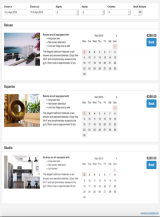
Layout 1
-
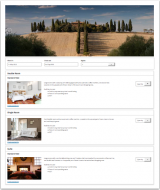
Layout 2
-
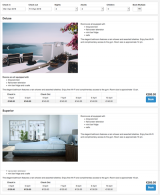
Layout 3
-
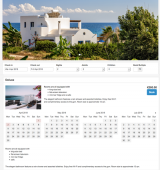
Layout 4
-
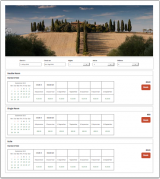
Layout 5
-
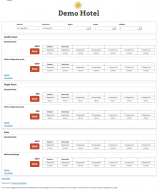
Layout 6
-
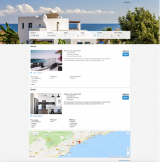
Layout 7


Tip We recommend you let our wizard guide you through the set up process.
Deposit Collection Direct Bookings
Set the deposit amounts that can be used with Booking types.
Booking Types - Direct Bookings
Select the Booking type for 'Normal Bookings', 'Near Term Bookings' and 'Exceptional Period Bookings'
Allow Cancellation by Guest - Direct Bookings
Set if you allow the guest to cancel their bookings.
Booking Widgets
Our widget designer allows you to create your own custom widgets which you can add to your web site.
Subcategories
This category has the following 4 subcategories, out of 4 total.
Pages in category "Booking Page"
The following 28 pages are in this category, out of 28 total. download this selection of articles as a PDF book