|
|
| Line 2: |
Line 2: |
| [[Category:Booking Page]] | | [[Category:Booking Page]] |
| ''This page explains how to customise the booking page'' | | ''This page explains how to customise the booking page'' |
| *Page Content - You can choose to display either a Room Availability Calendar or define a number of Price Columns (SETTINGS->BOOKING PAGE->PAGE DESIGN)
| |
|
| |
|
| | There are 2 booking page version available: |
|
| |
|
| [[File:example.jpg]]
| |
|
| |
|
| *LAYOUT - general layout
| | == Adaptive booking page == |
| SETTINGS -> BOOKING PAGE -> PAGE DESIGN ->LAYOUT
| | Examples: |
|
| |
|
| *Design - Customise Design, Colours and fonts
| | [[File:example.jpg]] |
| SETTINGS -> BOOKING PAGE -> PAGE DESIGN ->STYLE
| |
| | |
| [[File:ic_video.gif|link=]] '''[[http://youtu.be/lZvcUEajxjk Show Video]]'''' | |
| | |
| [[File:bookingpage1.png]]
| |
| | |
| | |
| | |
| * Offer multiple languages (1) SETTINGS -> ACCOUNT -> LANGUAGES
| |
| | |
| | |
| *Add a custom top (2) (eg. for your logo) and/or bottom (3) (eg. for contact info, directions, link to your terms and conditions) / SETTINGS -> BOOKING PAGE -> PAGE DESIGN -> CONTENT
| |
| | |
| | |
| | |
| *Show [[Discounts]] adding a [[Discounts|Marketing Column]] (4)
| |
| | |
| | |
| *Add pictures and information for rooms (5) in SETTINGS -> BOOKING PAGE -> ROOM CONTENT
| |
| | |
| Upload and setting (size, responsive behaviour) in SETTINGS -> BOOKING PAGE -> PICTURES
| |
| | |
| [[File:ic_video.gif|link=]] '''[[http://youtu.be/d6NH1UGXoeI Show Video]]''''
| |
| | |
| | |
| *Set different prices or packages for a room (5) in SETTINGS -> BOOKING PAGE -> ROOM CONTENT -> OFFER 2 (you can display up to four different offers)
| |
| | |
| [[File:bookingpage.png]]
| |
| | |
| | |
| *[[Let Guests View and Cancel Bookings]]
| |
| | |
| *Customise Information your guest enters when booking / SETTINGS -> PROPERTIES -> BOOKING QUESTIONS
| |
| | |
| *Customise Confirmation Messages / SETTINGS -> PROPERTIES -> CONFIRMATION MESSAGES
| |
| | |
| *Order in which rooms appear on your booking page / SETTINGS-> ROOMS -> SETUP -> "Availabitlity" and set the ''Sell Priority'' for each room.
| |
| | |
| | |
| There is contextual help with each setting to assist you with the setup.
| |
| | |
| == '''Further and Advanced Options''' ==
| |
| | |
| Developers please also refer [[developers|here]].
| |
| | |
| == Change Default Text==
| |
| | |
| 1. You can exchange any of the default text on the booking page in SETTINGS -> BOOKING PAGE -> DEVELOPERS -> "Custom Text"
| |
| | |
| | |
| 2. Stripe and Paymill insert their button and can not be changed. To change the text of any of the ofther payment buttons you can place this code snippet into SETTINGS -> DEVELOPERS -> "Advanced HTML Settings".
| |
| | |
| Custom Instruction:
| |
| <script type="text/javascript">
| |
| $(document).ready(function() { $("#buttoncustominstruction").val("the new text"); });
| |
| </script>
| |
| | |
| Authorize.Net:
| |
| <script type="text/javascript">
| |
| $(document).ready(function() { $("#buttonauthorizenet").val("the new text"); });
| |
| </script>
| |
| | |
| Paypal
| |
| <script type="text/javascript">
| |
| $(document).ready(function() { $("#buttonpaypal").val("the new text"); });
| |
| </script>
| |
| | |
| == Hide "Book Multiple" ==
| |
| | |
| Use the selector in SETTINGS-> BOOKING PAGE-> PAGE DESIGN->LAYOUT
| |
| | |
| == Hover Text ==
| |
| *To not show the number or rooms/units left place the following code in the SETTINGS->BOOKING PAGE-> DEVELOPERS "Custom CSS" setting.
| |
| .ptdaynumavail {display:none;}
| |
| | |
| *To disable the hover text place the following script in the SETTINGS->BOOKING PAGE-> DEVELOPERS "Advanced HTML Settings" setting.
| |
| | |
| <pre>
| |
| <script>
| |
| $(document).ready(function() {
| |
| var $title = $("td,div,span");
| |
| $.each($title, function(index, value) {
| |
| $(this).tooltip({
| |
| disabled:true
| |
| });
| |
| });
| |
| });
| |
| </script>
| |
| </pre>
| |
| | |
| == 'Change CSS' ==
| |
| | |
| Webdesigners use CSS to define the look and formatting of a website. Here a list of common adjustmens which can be done pasting the code provided below into SETTINGS -> BOOKING PAGE -> DEVELOPERS. Examples:
| |
| | |
| == Bigger Room Name ==
| |
| /*code for bigger room name*/
| |
| .at_roomnametext{
| |
| font-size: 14px /*if you want the text even bigger use a higher number*/
| |
| }
| |
| | |
| == Background Image ==
| |
| To use a background image upload it to SETTINGS -> BOOKING PAGE -> PICTURES. Replace https://www.beds24.com/pic/p0000/2049/04.jpg with the url of your uploaded picture.
| |
| | |
| /*code fo use an image as background*/
| |
| body {
| |
| background-image:url(https://www.beds24.com/pic/p0000/2049/04.jpg);
| |
| }
| |
| | |
| == Shadow Arround your Booking Page ==
| |
| | |
| Add code in SETTINGS-> BOOKING PAGE -> DEVELOPERS "Custom CSS"
| |
|
| |
|
| /*code for a shadow arround your booking page*/
| | [[Adaptive Booking Page|Here]] you can find information on how to customise the adaptive booking page |
|
| |
|
| <nowiki>#</nowiki>bookingpage {
| | == Responsive booking page == |
| -webkit-box-shadow:0 1px 2px rgba(0, 10, 10, 0.38);
| | Examples: |
| -moz-box-shadow:0 1px 2px rgba(0, 10, 10, 0.38);
| |
| box-shadow: 1px 1px 2px 1px rgba(0, 0, 0, 0.1);
| |
| box-shadow: 0 1px 2px rgba(0, 10, 10, 0.38);
| |
| margin-bottom: 20px;
| |
| }
| |
|
| |
|
| == Booking Page with Rounded Corners == | | <div><ul> |
| Add code in SETTINGS-> BOOKING PAGE -> DEVELOPERS "Custom CSS"
| | <li style="display: inline-block; vertical-align: top;"> [[File:layout1.png|thumb|none|160px]] </li> |
| | <li style="display: inline-block; vertical-align: top;"> [[File:layout2.png|thumb|none|160p|]] </li> |
| | <li style="display: inline-block; vertical-align: top;"> [[File:layout3.png|thumb|none|160px]] </li> |
| | <li style="display: inline-block; vertical-align: top;"> [[File:layout4.png|thumb|none|160px]] </li> |
| | <li style="display: inline-block;vertical-align: top;"> [[File:layout5.png|thumb|none|160px]] </li> |
| | <li style="display: inline-block; vertical-align: top;"> [[File:layout6.png|thumb|none|160px]] </li> |
| | </ul></div> |
|
| |
|
| /*code for rounded corners*/
| |
| <nowiki>#</nowiki>bookingpage {
| |
| border-radius: 7px;
| |
| -webkit-border-radius: 7px;
| |
| -moz-border-radius: 7px;
| |
| }
| |
|
| |
|
| == Show prices with cents even if cents are zero ==
| |
|
| |
|
| .bookingpagecentshide {display:inline;}
| | [[Responsive Booking Page|Here]] you can find information on how to customise the responsive booking page |
This page explains how to customise the booking page
There are 2 booking page version available:
Adaptive booking page
Examples:
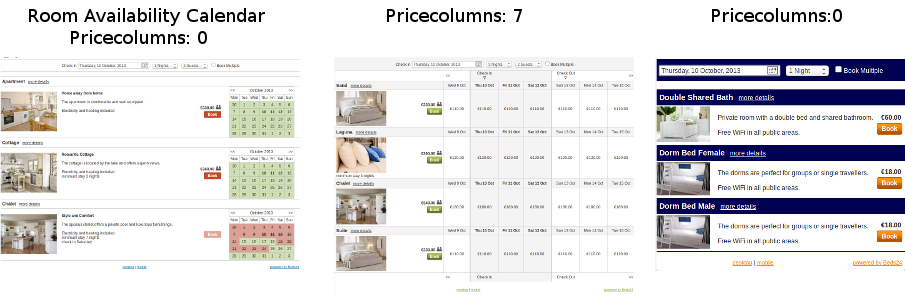
Here you can find information on how to customise the adaptive booking page
Responsive booking page
Examples:
Here you can find information on how to customise the responsive booking page


