Cardcollectpayment: Difference between revisions
Jump to navigation
Jump to search
No edit summary |
No edit summary |
||
| Line 1: | Line 1: | ||
[[Category:Payments]] | [[Category:Payments]] | ||
<div class="heading">Collection of credit card details without charging as one of several payment options </div> | <div class="heading">Collection of credit card details without charging as one of several payment options </div> | ||
This page is about the menu {{#fas:cog}} (SETTINGS) PAYMENTS > PAYMENT GATEWAYS > CREDIT CARD | This page is about the menu {{#fas:cog}} (SETTINGS) PAYMENTS > PAYMENT GATEWAYS > CREDIT CARD COLLECTION | ||
If you want to give your guests the option to pay a deposit or leave their credit card details you can activate this option. | If you want to give your guests the option to pay a deposit or leave their credit card details you can activate this option. | ||
| Line 8: | Line 8: | ||
[[Media:card_deposit.png|view large]] | [[Media:card_deposit.png|view large]] | ||
Go to {{#fas:cog}} (SETTINGS) > PAYMENT GATEWAYS > CREDIT CARD COLLECTION | |||
*Activate this option setting the Enable / Priority selector to a number. | *Activate this option setting the Enable / Priority selector to a number. | ||
*Enter the information how their card will be used in the "Instructions" settings. This message will also be shown to the guest as part of the confirmation message on the screen and will be included in the Email confirmation message to the guest. | *Enter the information how their card will be used in the "Instructions" settings. This message will also be shown to the guest as part of the confirmation message on the screen and will be included in the Email confirmation message to the guest. | ||
*Enable the cards you accept in Credit Card Rules. | |||
If you use this method Beds24 will not charge the card. If required your can charge the card manually through your bank or merchant account and enter the payments manually in the "Charges and Payments" tab of the booking. | If you use this method Beds24 will not charge the card. If required your can charge the card manually through your bank or merchant account and enter the payments manually in the "Charges and Payments" tab of the booking. | ||
If leaving credit card details is the only option you want to give to your guests go to SETTINGS | If leaving credit card details is the only option you want to give to your guests go to {{#fas:cog}} (SETTINGS) PAYMENT GATEWAYS > CREDIT CARD COLLECTION and use the [[Card_Number_Collection|Credit Card Collection help page]]. | ||
We do not charge a deposit collection fee for this option. | We do not charge a deposit collection fee for this option. | ||
Revision as of 10:01, 19 September 2025
Collection of credit card details without charging as one of several payment options
This page is about the menu (SETTINGS) PAYMENTS > PAYMENT GATEWAYS > CREDIT CARD COLLECTION
If you want to give your guests the option to pay a deposit or leave their credit card details you can activate this option.
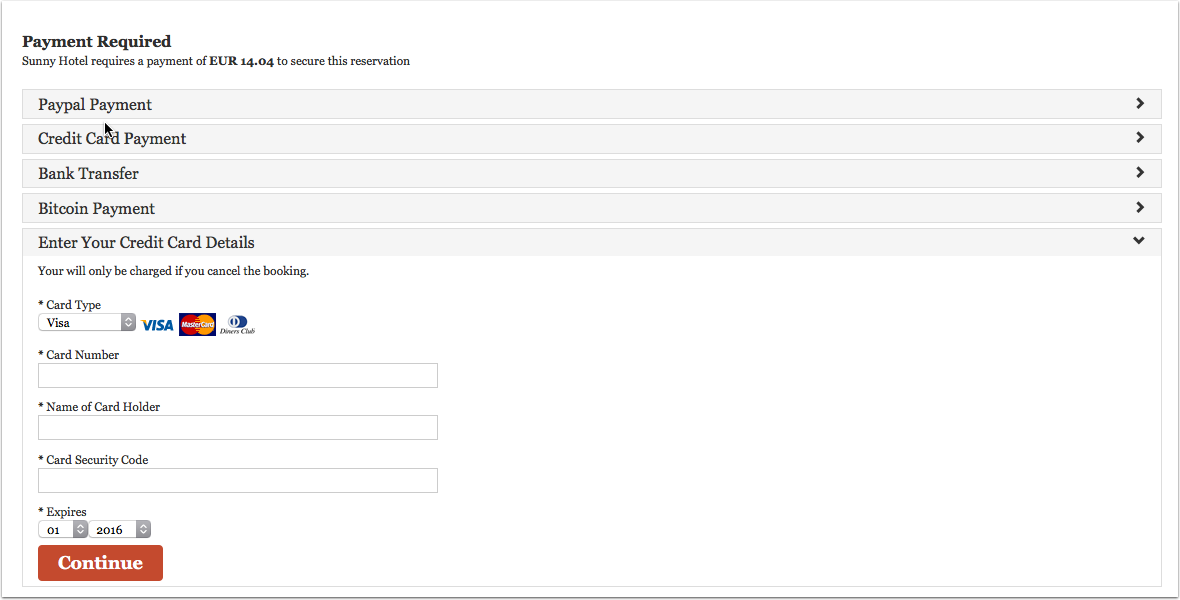
Go to (SETTINGS) > PAYMENT GATEWAYS > CREDIT CARD COLLECTION
- Activate this option setting the Enable / Priority selector to a number.
- Enter the information how their card will be used in the "Instructions" settings. This message will also be shown to the guest as part of the confirmation message on the screen and will be included in the Email confirmation message to the guest.
- Enable the cards you accept in Credit Card Rules.
If you use this method Beds24 will not charge the card. If required your can charge the card manually through your bank or merchant account and enter the payments manually in the "Charges and Payments" tab of the booking.
If leaving credit card details is the only option you want to give to your guests go to (SETTINGS) PAYMENT GATEWAYS > CREDIT CARD COLLECTION and use the Credit Card Collection help page.
We do not charge a deposit collection fee for this option.