Stripe: Difference between revisions
| (30 intermediate revisions by 4 users not shown) | |||
| Line 1: | Line 1: | ||
[[Category: | [[Category:Marketplace]] | ||
[[Category:Payments]] | [[Category:Payments]] | ||
[[Category:Payment_Gateways]] | [[Category:Payment_Gateways]] | ||
| Line 5: | Line 5: | ||
This page is about the menu {{#fas:cog}} (SETTINGS) > PAYMENTS > PAYMENT GATEWAYS > STRIPE | This page is about the menu {{#fas:cog}} (SETTINGS) > PAYMENTS > PAYMENT GATEWAYS > STRIPE | ||
__TOC__ | __TOC__ | ||
== Setup | =Summary= | ||
<div class="summarybox"> | |||
Beds24 integrates with several payment providers through which you can | |||
*collect payments for direct bookings | |||
*send payment requests which works for all bookings including bookings made on OTAs | |||
'''Beds24's partner Stripe is a reliable payment processor that offers the best and widest range of functionalities'''. With Stripe you can also '''auto charge guest credit cards and virtual cards from OTAs''' when the payments are due. | |||
Beds24 and Stripe together help to automate all your payment processing needs. | |||
</div> | |||
= Setup = | |||
To use this payment option you will need an account with Stripe. | To use this payment option you will need an account with Stripe. | ||
| Line 20: | Line 31: | ||
If you set "Save all cards to Stripe" = Yes all credit cards including cards supplied by all channels will be sent directly to Stripe and not stored at Beds24. | If you set "Save all cards to Stripe" = Yes all credit cards including cards supplied by all channels will be sent directly to Stripe and not stored at Beds24. | ||
Credit card details can also be sent manually to Stripe using the send to Stripe button. | |||
Credit card details can also be sent manually to Stripe using the send to Stripe button. '''(Depreciated)''' | |||
[[Image:stripe2.png|600px|link=]] | [[Image:stripe2.png|600px|link=]] | ||
| Line 56: | Line 68: | ||
|STRIPEAUTHORIZE | |STRIPEAUTHORIZE | ||
| payment has been authorised by Stripe | | payment has been authorised by Stripe | ||
|- | |||
|STRIPEREFUND | |||
| refund has been processed at Stripe | |||
|- | |- | ||
| Line 63: | Line 79: | ||
|} | |} | ||
<span style="color: #f3e504;" >{{#fas:lightbulb}} </span> You can use an Auto Action to mark bookings where the charging failed. A template is available which you can further customize. Use the context help (?Icons) in the Auto Action and on the help page (click on HELP in the top right menu) for further instructions. | |||
=== Collect deposit for direct bookings at time of the booking === | === Collect deposit for direct bookings at time of the booking === | ||
| Line 125: | Line 143: | ||
Possible reasons: | Possible reasons: | ||
*'''Merchant Code''': The merchant code reflects your type of business (hotel, restaurant, grocery shop etc.). You can only charge a virtual card for a booking if | *'''Merchant Code''': The merchant code reflects your type of business (hotel, restaurant, grocery shop etc.). You can only charge a virtual card for a booking if your merchant code category (MCC) is relating to accommodation – 7011. Contact Stripe support and ask them to set your MCC code to 7011. | ||
*'''Missing CVC''': Booking.com and Expedia do not always send a CVC for virtual cards. Ask the channel to provide a CVC for the virtual card and manually reenter it. For Expedia virtual cards you can try to add the generic CVC codes: | *'''Missing CVC''': Booking.com and Expedia do not always send a CVC for virtual cards. Ask the channel to provide a CVC for the virtual card and manually reenter it. For Expedia virtual cards you can try to add the generic CVC codes: | ||
| Line 134: | Line 152: | ||
== Local Payment Methods == | == Local Payment Methods == | ||
Stripe allows payment via many local payment methods based on the payers location. | Stripe allows payment via many local payment methods based on the payers location. | ||
'''Step 1: In Stripe''' | |||
Local payment options can be enabled when available at the following Stripe menu: | |||
https://dashboard.stripe.com/settings/payment_methods | https://dashboard.stripe.com/settings/payment_methods | ||
| Line 144: | Line 165: | ||
You can enable and disable each method as you wish. Note each payment method can have different fees and conditions and not all methods are instantly confirmed meaning the payment is not completed until some time after the booking is made. | You can enable and disable each method as you wish. Note each payment method can have different fees and conditions and not all methods are instantly confirmed meaning the payment is not completed until some time after the booking is made. | ||
'''Step 2: In Beds24''' | |||
Set "Stripe Checkout Version" = Hosted | |||
The guest will be redirected from the check-out page to a Stripe payment page where they can select with payment method they want to use. | |||
If a payment method is selected where you do not receive payment immediately, the info code STRIPEPENDING is added to the booking. When the payment is made, this is deleted and replaced by STRIPEPAYMENT. | |||
Apple pay is whitelisted for the beds24.com domain, it will not work on other domains so please do not use it if you have your booking page on a white label domain | <span style="color:#fe746c;“ >{{#fas:exclamation-triangle}} </span> Google wallet will not work in an iFrame, if activating Google wallet please make sure your payment page is not within an iFrame. | ||
<span style="color:#fe746c;“ >{{#fas:exclamation-triangle}} </span>Apple pay is whitelisted for the beds24.com domain, it will not work on other domains so please do not use it if you have your booking page on a white label domain. | |||
<span style="color:#fe746c;“ >{{#fas:exclamation-triangle}} </span>Bancontact, if you activate this, there can be delays and it can take a few weeks before it is made available in your Stripe account. | |||
== Refund of Payments in Stripe == | == Refund of Payments in Stripe == | ||
| Line 169: | Line 198: | ||
<span style=color:#fe746c;“ >{{#fas:exclamation-triangle}} </span> '''You must be disconnected from Stripe to begin.''' | <span style=color:#fe746c;“ >{{#fas:exclamation-triangle}} </span> '''You must be disconnected from Stripe to begin.''' | ||
Open the Stripe menu at {{#fas:cog}} (SETTINGS) | Open the Stripe menu at {{#fas:cog}} (SETTINGS) PAYMENTS > PAYMENT GATEWAYS > STRIPE | ||
Add the following to the end of the URL '''&showkeys''' | Add the following to the end of the URL '''&showkeys''' | ||
| Line 185: | Line 214: | ||
<span style="color:#fe746c;“ >{{#fas:exclamation-triangle}} </span> Do not use API keys to connect in live mode, Stripe considers this insecure and will limit functionality. | <span style="color:#fe746c;“ >{{#fas:exclamation-triangle}} </span> Do not use API keys to connect in live mode, Stripe considers this insecure and will limit functionality. | ||
==Disputes== | |||
When account holders dispute a payment with their bank, they must provide evidence and substantiate their claim. In many cases, the bank's aim is to protect its customers from having to pay for something that they did not authorise or that they believe has been misrepresented or damaged. | |||
As the seller, you have the right to dispute the account holder's claim and provide evidence to support your argument. Stripe has no control over the bank's decision, but our goal is to help you protect yourself from payment disputes. Our best practices provided here are based on our experience in resolving payment disputes. | |||
Here Stripe provides guidance on how to deal with disputes: | |||
*[https://docs.stripe.com/disputes General Information about disputes] | |||
*[https://docs.stripe.com/disputes/best-practices Best practices for disputes] | |||
*[https://docs.stripe.com/disputes/responding How to react to disputes (accept or dispute)] | |||
== Change of Stripe Account == | == Change of Stripe Account == | ||
If you have had to change your Stripe account and have Bookings with Credit Cards already stored/authorised, you will need to clear the initial authorisation so you can send a new card to Stripe. | If you have had to change your Stripe account and have Bookings with Credit Cards already stored/authorised, you will need to clear the initial authorisation so you can send a new card to Stripe. | ||
| Line 205: | Line 242: | ||
==Examples and Use Cases== | ==Examples and Use Cases== | ||
{| class="wikitable" | {| class="wikitable" | ||
! scope="col"| Use Case | ! scope="col"| Use Case | ||
| Line 255: | Line 290: | ||
|[[Stripe_Payment_Schedule |Collect payments with payment schedule]] | |[[Stripe_Payment_Schedule |Collect payments with payment schedule]] | ||
|- | |- | ||
|} | |} | ||
| Line 261: | Line 295: | ||
== Troubleshooting and Issues == | == Troubleshooting and Issues == | ||
'''Pending payment did not trigger''' | |||
Pending payments will not work with the Stripe ApiKey connection method (i.e. test mode). | Pending payments will not work with the Stripe ApiKey connection method (i.e. test mode). | ||
'''Stripe payment form does not show" | |||
It has been reported that Browser IE 11 does not show the Stripe payment form when the booking page (and Stripe form) is in an iFrame unless the following Meta tag is included on the parent page. | It has been reported that Browser IE 11 does not show the Stripe payment form when the booking page (and Stripe form) is in an iFrame unless the following Meta tag is included on the parent page. | ||
<meta http-equiv="x-ua-compatible" content="IE=edge"> | <meta http-equiv="x-ua-compatible" content="IE=edge"> | ||
| Line 276: | Line 310: | ||
Tick the appropriate bookings, this will remove the authorisation from the initial account and allow new cards to be sent to the new Stripe Account. | Tick the appropriate bookings, this will remove the authorisation from the initial account and allow new cards to be sent to the new Stripe Account. | ||
<span style="color:#fe746c;“ >{{#fas:exclamation-triangle}} </span> '''Please ensure you select only the bookings you need to have the credit card details cleared, it is NOT possible to restore if you erase by mistake.''' | <span style="color:#fe746c;“ >{{#fas:exclamation-triangle}} </span> '''Please ensure you select only the bookings you need to have the credit card details cleared, it is NOT possible to restore if you erase by mistake.''' | ||
'''Virtual cards not accepted''': The merchant code reflects your type of business (hotel, restaurant, grocery shop etc.). You can only charge a virtual card for a booking if your merchant code category (MCC) is relating to accommodation – 7011. Contact Stripe support and ask them to set your MCC code to 7011. | |||
Latest revision as of 09:16, 15 October 2025
This page is about the menu (SETTINGS) > PAYMENTS > PAYMENT GATEWAYS > STRIPE
Summary
Beds24 integrates with several payment providers through which you can
- collect payments for direct bookings
- send payment requests which works for all bookings including bookings made on OTAs
Beds24's partner Stripe is a reliable payment processor that offers the best and widest range of functionalities. With Stripe you can also auto charge guest credit cards and virtual cards from OTAs when the payments are due.
Beds24 and Stripe together help to automate all your payment processing needs.
Setup
To use this payment option you will need an account with Stripe.
To connect your Stripe Account click on the "Connect to Stripe" button, you will be prompted to log into Stripe and accept the connection for Stripe Payment Processing.
If you do not already have a Stripe account, click on the "Connect to Stripe" button and follow the on screen instructions to create one.
Stripe supports strong customer authentication and complies with the PSD2 regulations. You have security settings in your Stripe account. Please refer there for further information on 3D secure, PSD2 and other security matters.
To use Stripe to collect Channel payments ONLY and not show on your Beds24 Booking page, then use Enable = 'Internal Only'
Functionality
Send credit card details to Stripe
If you set "Save all cards to Stripe" = Yes all credit cards including cards supplied by all channels will be sent directly to Stripe and not stored at Beds24.
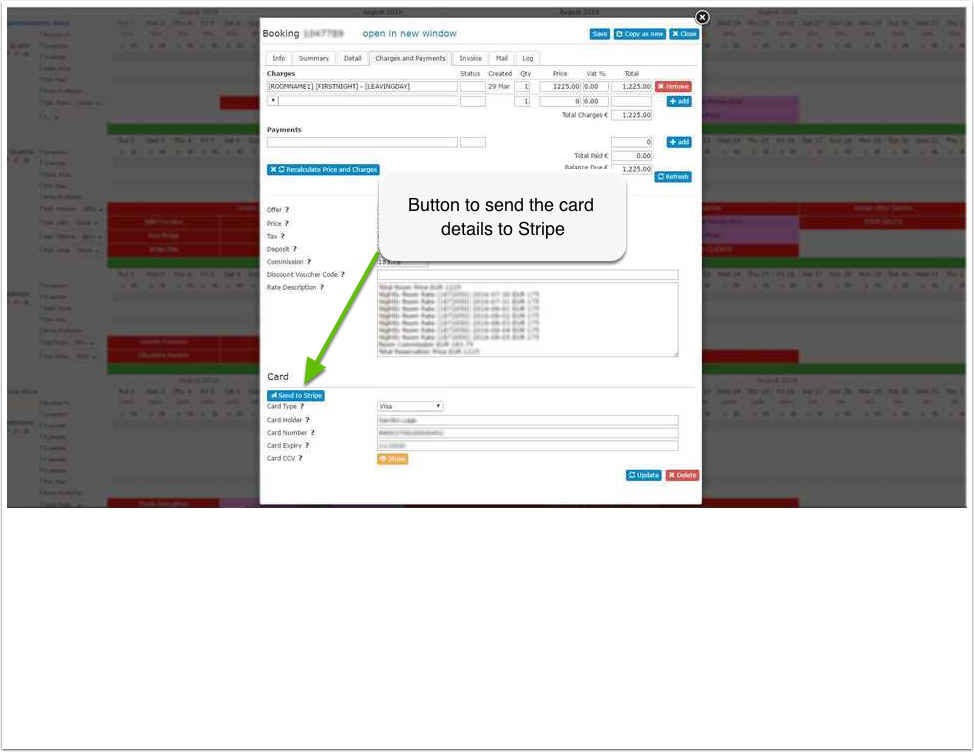
Credit card details can also be sent manually to Stripe using the send to Stripe button. (Depreciated)
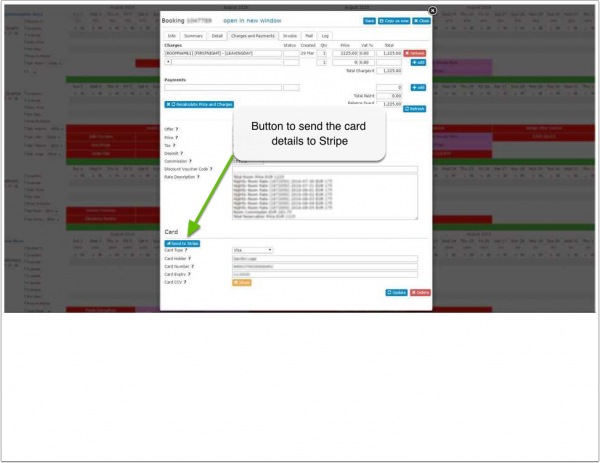
The card will be saved as a new customer in Stripe with the booking number as a reference. Once the new customer is created in Stripe the card can be charged.
Multiple cards can be sent for each Stripe customer and a specific one selected when charging.
Stripe will only accept valid cards. If Stripe reject the card, it's details will still be visible at Beds24.
Info Codes in the "Info" tab of the booking show you which action was performed.
| Code | Use |
|---|---|
| CARDTOSTRIPE | card details were sent to Stripe |
| STRIPEPAYMENT | payment imported from Stripe |
| STRIPEFAIL | card could not be sent to Stripe |
| CARDEXPIRES | added when the card expires before check-in |
| STRIPEAUTHORIZE | payment has been authorised by Stripe |
| STRIPEREFUND | refund has been processed at Stripe |
| CARDFAILSTRIPE | card has failed at Stripe, see the note for reason |
You can use an Auto Action to mark bookings where the charging failed. A template is available which you can further customize. Use the context help (?Icons) in the Auto Action and on the help page (click on HELP in the top right menu) for further instructions.
Collect deposit for direct bookings at time of the booking
Use this instruction to set up deposit collection from your booking page.
Payments for bookings with deposit collection on the Beds24 booking page will be automatically collected and/or captured.
The card is stored at Stripe and can be charged manually or automatically again at a later date.
Send payment request
Use this instruction to create payment requests.
Payments for bookings with payment request will be automatically collected and/or captured.
The card is stored at Stripe and can be charged manually or automatically again at a later date.
Collect authorization manually
To authorize the card for later capture set "Capture" = No
The maximum holding period depends on the the card type and the country the card is from:
- Visa 31 days (Japan 7 days)
- Mastercard 30 days
- Discover 30 days
- American Express 7 days
The template variable [AUTHORIZEUNTIL] returns the date until which a card is authorized.
The extended authorization period beyond 7 days may only be available if your Stripe account business type is for a "hotel" or "lodging", other business types may be limited to 7 days.
For more information please contact Stripe support.
Collect payment manually
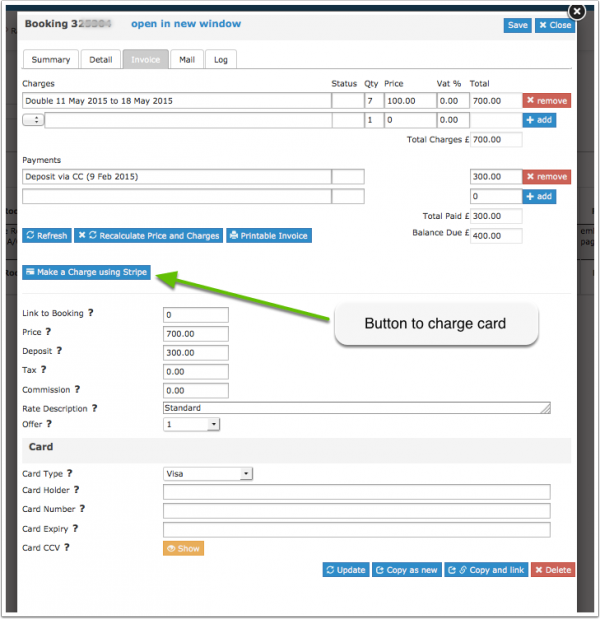
You can choose if the card is
- immediately charged and funds transferred to your Stripe account (Capture=Yes)
- no funds transferred now but the amount is available for later capture up to an expiry date (Capture=No) .
If the customer has multiple cards stored at Stripe you will be able to select the card you want to charge.
Manage payments manually
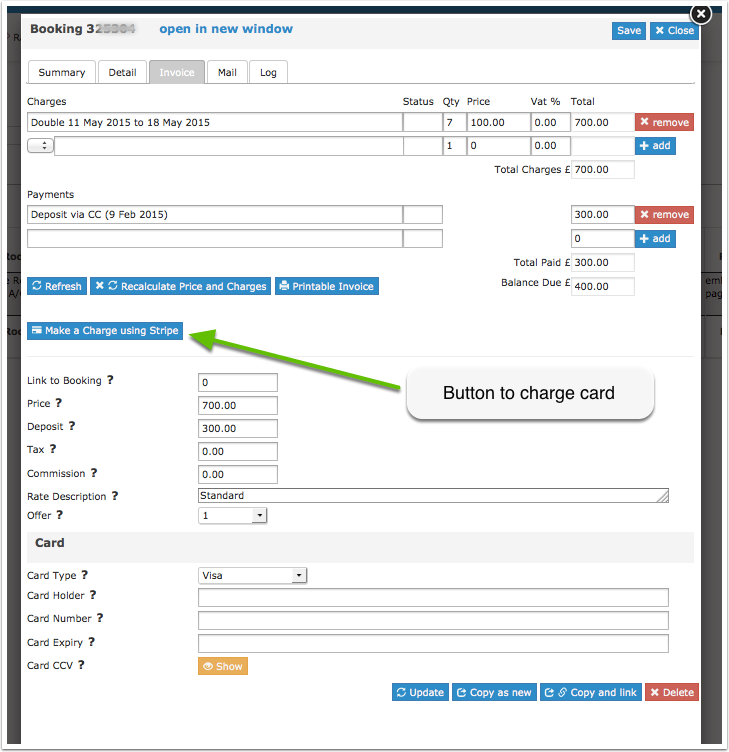
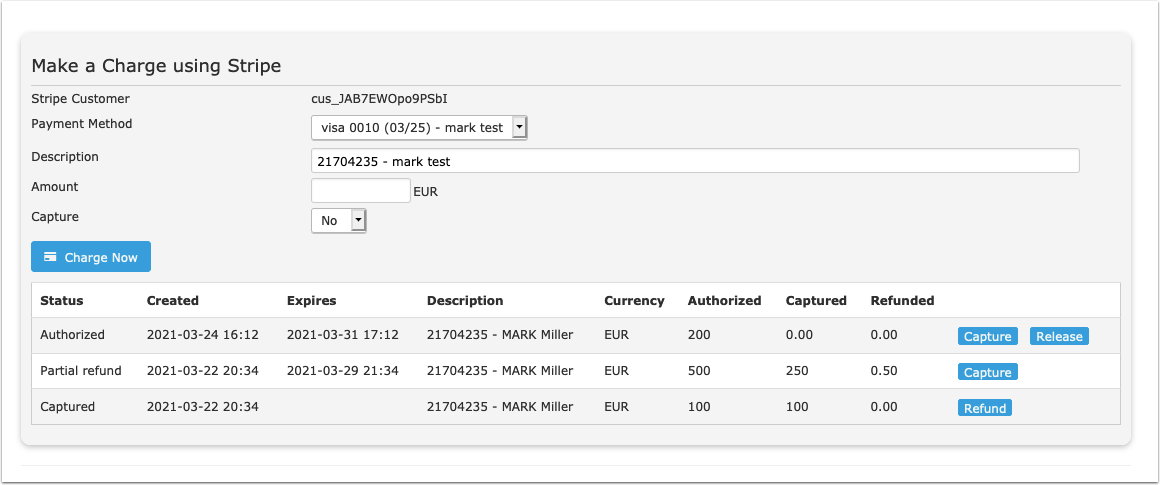
You can see the status of all payments stored at Stripe for the booking and have options as appropriate to capture an amount or the full payment, refund an amount or the full payment and release an authorization.
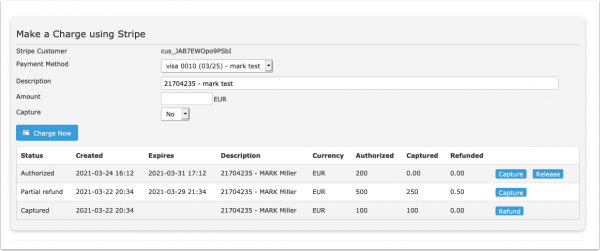
Collect payment automatically
Setting up pending payments to auto charge a card at a specific date is explained here.
Auto Charge Virtual Cards from OTAs
Some channels send virtual cards which are often only valid for a certain period. Virtual cards can be charged automatically when they become valid. This is how you activate this option:
- Go to (SETTINGS)->CHANNEL MANAGER and set "Channel Collect Invoice" = Charges and Pending Payments
- Go to the channel settings (for example (SETTINGS)->CHANNEL MANAGER->BOOKING.COM) and set "Virtual Cards" = Yes
Error when charging Booking.com and Expedia Virtual Cards
When charging Booking.com and Expedia Virtual Cards with Stripe you may receive this this error: An error occurred while processing this card
Possible reasons:
- Merchant Code: The merchant code reflects your type of business (hotel, restaurant, grocery shop etc.). You can only charge a virtual card for a booking if your merchant code category (MCC) is relating to accommodation – 7011. Contact Stripe support and ask them to set your MCC code to 7011.
- Missing CVC: Booking.com and Expedia do not always send a CVC for virtual cards. Ask the channel to provide a CVC for the virtual card and manually reenter it. For Expedia virtual cards you can try to add the generic CVC codes:
- Visa/Mastercard: 469
- American Express: 2469
- Incorrect amount: Double-check you charge the exact amount sent by the channel from the booking.
Local Payment Methods
Stripe allows payment via many local payment methods based on the payers location.
Step 1: In Stripe
Local payment options can be enabled when available at the following Stripe menu:
https://dashboard.stripe.com/settings/payment_methods
Select the platform called "Payment Gateway" and you will see the payment methods available to you, these can be shown on your booking page and payment request page.
You can enable and disable each method as you wish. Note each payment method can have different fees and conditions and not all methods are instantly confirmed meaning the payment is not completed until some time after the booking is made.
Step 2: In Beds24
Set "Stripe Checkout Version" = Hosted
The guest will be redirected from the check-out page to a Stripe payment page where they can select with payment method they want to use.
If a payment method is selected where you do not receive payment immediately, the info code STRIPEPENDING is added to the booking. When the payment is made, this is deleted and replaced by STRIPEPAYMENT.
Google wallet will not work in an iFrame, if activating Google wallet please make sure your payment page is not within an iFrame.
Apple pay is whitelisted for the beds24.com domain, it will not work on other domains so please do not use it if you have your booking page on a white label domain.
Bancontact, if you activate this, there can be delays and it can take a few weeks before it is made available in your Stripe account.
Refund of Payments in Stripe
Payments can be fully or partially refunded from within the booking which will also update the invoice. If you refund from within the Stripe account you will also need to enter them manually into the booking if you wish to keep the booking invoice updated.
Stripe Test Mode
The easiest way to test is in live mode and either do not capture the charges or make small test payments and refund them from within Stripe when finished testing.
Stripe also has a test mode but not all functionality is enabled in this mode.
To connect to Stripe in testing mode, you can use your Stripe test publishable key and test secret key.
Pending payments will not work with the Stripe ApiKey connection method (i.e. test mode).
You must be disconnected from Stripe to begin.
Open the Stripe menu at (SETTINGS) PAYMENTS > PAYMENT GATEWAYS > STRIPE
Add the following to the end of the URL &showkeys
So the URL in the browser looks something like this:
https://beds24.com/control2.php?pagetype=propertydepositstripe&showkeys
Press the Enter key.
You will now have access to two additional settings where your Test Keys can be saved.
When you are finished testing, delete the two test keys and connect in live mode with the "Connect to Stripe" button.
Do not use API keys to connect in live mode, Stripe considers this insecure and will limit functionality.
Disputes
When account holders dispute a payment with their bank, they must provide evidence and substantiate their claim. In many cases, the bank's aim is to protect its customers from having to pay for something that they did not authorise or that they believe has been misrepresented or damaged.
As the seller, you have the right to dispute the account holder's claim and provide evidence to support your argument. Stripe has no control over the bank's decision, but our goal is to help you protect yourself from payment disputes. Our best practices provided here are based on our experience in resolving payment disputes.
Here Stripe provides guidance on how to deal with disputes:
- General Information about disputes
- Best practices for disputes
- How to react to disputes (accept or dispute)
Change of Stripe Account
If you have had to change your Stripe account and have Bookings with Credit Cards already stored/authorised, you will need to clear the initial authorisation so you can send a new card to Stripe.
ONLY USE THIS IF YOU HAVE CHANGED YOUR STRIPE ACCOUNT
In Beds24 -
- Go to ACCOUNT MANAGEMENT > MANAGE ACCOUNT > MANAGE PROPERTY > MANAGE ROOM > BOOKINGS.
- Tick the appropriate bookings,
- Select from the drop down box - 'Modify All Selected Bookings'
- Select 'Remove Payment Auth'
this will remove the authorisation from the initial account and allow new cards to be sent to the new Stripe Account.
Please ensure you select only the bookings you need to have the credit card details cleared, it is NOT possible to restore if you erase by mistake.
Examples and Use Cases
| Use Case | Link to help page |
|---|---|
| You want to collect a deposit at time of booking and the balance via Stripe prior to the Guest arriving. | Deposit collected at time of booking and balance before Checkin |
| For bookings made within 14 days of arrival, you want to collect the full amount at the time of booking. | Full payment collected at time of booking |
| You want to collect the full amount at the time of booking. | Full payment collected at time of booking |
| You want to collect a refundable security deposit from the guest before arrival. | Capture a refundable security deposit |
| You want to send a payment request to your guest so they can make the payment directly to Stripe. | Send a payment request |
| You have received a telephone booking and need to send a payment request to your guest so they can make the payment. | Send a payment request |
| Your property/guests need to comply with EU 3DSecure rules. The guest needs to make the payment. | Send a payment request |
| You want to collect the guest credit card details at the time of booking to be charged later. | Collect Credit card details to be charged later |
| Refundable bookings, you do not want to collect the payment/balance of the booking if the booking is cancelled during the cancellation period. | Refundable bookings, payment not collected if cancelled |
| You receive Virtual cards from the channels and you want to auto process the payments. | Auto Process Virtual Cards from the Channels |
| You have set up a payment schedule with VRBO and want to collect the payments when due. | Collect payments with payment schedule |
Troubleshooting and Issues
Pending payment did not trigger
Pending payments will not work with the Stripe ApiKey connection method (i.e. test mode).
Stripe payment form does not show"
It has been reported that Browser IE 11 does not show the Stripe payment form when the booking page (and Stripe form) is in an iFrame unless the following Meta tag is included on the parent page.
<meta http-equiv="x-ua-compatible" content="IE=edge">
Accept Cards without CVC
Log into your Stripe account and go to "Radar". You should be able to process charges without the CVC once you turn off that requirement in Radar.
Change of Stripe Account - Unable to collect payments
   ONLY USE THIS IF YOU HAVE CHANGED YOUR STRIPE ACCOUNT DUE TO STRIPE ACCOUNT BEING BLOCKED
In Beds24 - Go to ACCOUNT MANAGEMENT > MANAGE ACCOUNT > MANAGE PROPERTY > MANAGE ROOM > BOOKINGS.
Tick the appropriate bookings, this will remove the authorisation from the initial account and allow new cards to be sent to the new Stripe Account.
   Please ensure you select only the bookings you need to have the credit card details cleared, it is NOT possible to restore if you erase by mistake.
Virtual cards not accepted: The merchant code reflects your type of business (hotel, restaurant, grocery shop etc.). You can only charge a virtual card for a booking if your merchant code category (MCC) is relating to accommodation – 7011. Contact Stripe support and ask them to set your MCC code to 7011.