Do the initial Setup: Difference between revisions
No edit summary |
No edit summary |
||
| Line 11: | Line 11: | ||
<span class="" style="color: #f3e504; font-size: 250%;" >{{#fas:lightbulb}} </span> <span style="font-weight: bold;" >Tip</span> ''Where you see this {{#fas:clone}} icon you can click and then copy the value of this setting to other rooms or properties.'' | |||
<span class="" style="color: #f3e504; font-size: 250%;" >{{#fas:lightbulb}} </span> <span style="font-weight: bold;" >Tip</span> We recommend you let our [http://www.beds24.com/wizard/index.php Setup Wizards] guide you through the set up process.''' | |||
== Terminology == | == Terminology == | ||
| Line 90: | Line 90: | ||
*Rates | *Rates | ||
<span class="" style="color: #f3e504; font-size: 250%;" >{{#fas:lightbulb}} </span> <span style="font-weight: bold;" >Tip</span> ''Click on the "Price Check" button on the CALENDAR or SUPPORT page then on "Calculate" to find our why you have not price or how a price is calculated'' | |||
Note: If you use rates you do not need to set up Daily Prices for every day. If required you can use a Daily Price to adjust the prices for an individual date or date range. | Note: If you use rates you do not need to set up Daily Prices for every day. If required you can use a Daily Price to adjust the prices for an individual date or date range. | ||
Revision as of 10:18, 24 February 2020
This page explains how to set up your account
Set Up help
You're now only a few steps away from accepting on-line bookings.
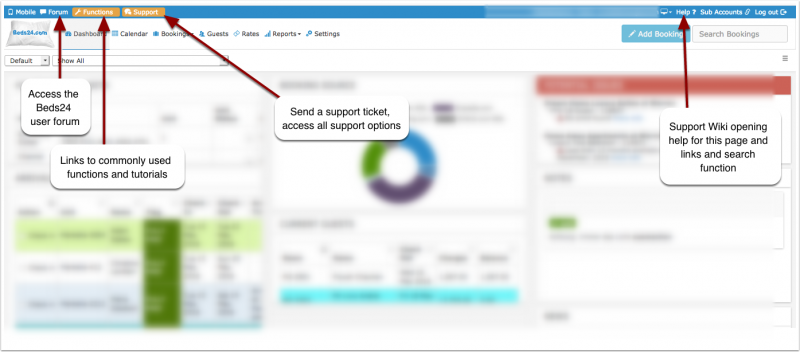
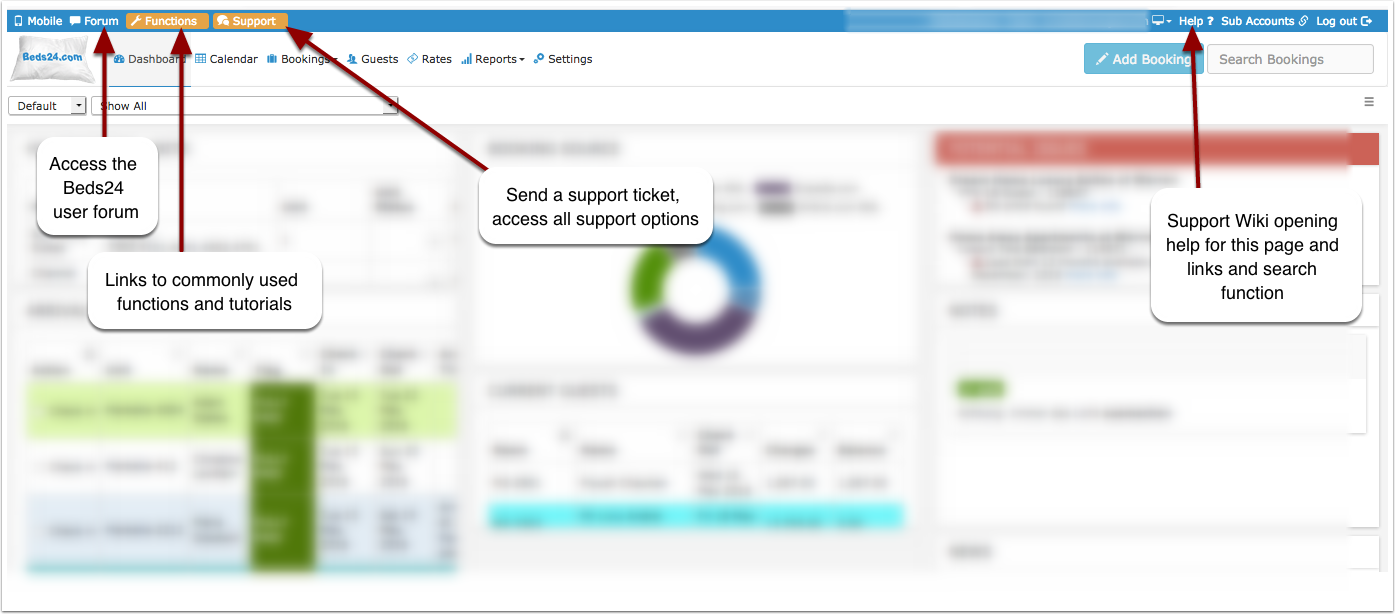
There is context sensitive help throughout our system. If you are stuck, click on the ? icons. You can also use this Wiki for help.
We provide a range of video tutorials.
Tip Where you see this icon you can click and then copy the value of this setting to other rooms or properties.
Tip We recommend you let our Setup Wizards guide you through the set up process.
Terminology
Properties can be Hotels, Hostels, B&B´s, holiday houses, vacation rentals, apartment houses, camp sites. You can have one properties or multiple properties of different types.
A property can have only one or very many different rooms.
Rooms are a way of splitting your property into separately bookable units. Rooms can, but do not need to, represent physical rooms.
They are rented units i.e. bedrooms in a hotel or B&B, vacation rentals, holiday homes, beds in hostel dormitories, camp sites, houseboats, cabins, tours, classes or cars etc.
An Offer is the price combined with certain conditions. Each room/unit has one or more offers. "Offer 1" is your standard offer to the guest which is always displayed.
Multiple Properties or Rooms
Hotels, B&B´s and inns are usually set up as one property with a number of rooms. If you have several independent lodgings e.g. apartments or villas you can still set them up as rooms if it suits your marketing strategy. Each room (which can also be an apartment, house etc) can have its own pricing and booking rules.
Making different properties means each can have it's own property booking page (if required with individual design). You can also use a multiple property booking page with advanced search functions (e.g. facilities, location) showing all properties.
If you're renting your property as a whole, you still need to define one "Room" which in your case represents your complete property.
If you are using the channel manager we advise to set the booking system up as similar as your booking channels. If your lodgings have different hotel/property codes for booking.com etc. then they must be setup as different properties in the system.
For further information see here.
Step 1 - General Account Settings
Click on SETTINGS in the top menu bar.
- Go to ACCOUNT and complete your details
- If you want to use a language other than English on your booking page, go to SETTINGS -> BOOKING ENGINE-> INTERNATIONALIZATION and tick the ones you want to use. If you enable more than one language you will see tabs for each language in your descriptions, information on your booking page and notifications. Descriptions have to be entered in each language tab.
Step 2 - Property and Room Set Up
By default each Beds24 account has one property with a room and a price.
You can import additional properties and rooms or create them manually.
Import from Airbnb
If you have a listing on Airbnb you can import it and create a new property with a new room or add a room in a property you already have in Beds24. Click here for instructions.
Import from Booking.com
You can import your property from Booking.com to Beds24.
Import via Beds24 API
The functions are documented directly in the API.
Manual creation
Go to PROPERTIES -> DESCRIPTION and complete your property information
Step 2 - Rooms and Offers
- To set rooms up go to PROPERTIES -> ROOMS. A click on EDIT will open a field where you can set the name and quantity of "Rooms" of that type available.
Don't forget to SAVE!
If you sell dorms for which you sell indivudual beds and not private rooms please also see how to setup dorms.
- Go to PROPERTIES -> ROOMS -> OFFERS.
An offer is the price combined with certain conditions. Each room/unit has one or more offers. "Offer 1" is your standard offer to the guest which is always displayed.
You have the option to sell a room at up to four different prices eg. packages, promotions or discounted conditional rates. Each offer can have its own "Booking Type".
If you copy a room all settings will be automatically applied to the copy. If you want to link prices between different rooms remove the prices before you copy the rooms.
Step 3 - Set your Prices
Without prices the system can not show availability.
If you have several rooms with a similar pricing structure you can "link" prices with or without offsets to multiple rooms.
The system has two types of prices:
- Daily Prices
- Rates
Tip Click on the "Price Check" button on the CALENDAR or SUPPORT page then on "Calculate" to find our why you have not price or how a price is calculated
Note: If you use rates you do not need to set up Daily Prices for every day. If required you can use a Daily Price to adjust the prices for an individual date or date range.
Which type you use depends on your pricing structure:
Daily Prices
Daily Prices are prices for one date. Up to four prices per date can be defined for example for different occupancies.
Daily Prices can be used:
- If you want to fine tune prices on a daily basis
- if you do not use Last Minute or Early Bird pricing
Go to CALENDAR in the top menu. This is a table giving you a complete overview of your bookings, rates and inventory. By ticking the boxes you can select what you want to display.
Activate DAILY PRICES. You can set your room prices here. Click in the DAILY PRICE row and set price and date range and click SAVE. You may modify individual dates as required. Rules for daily prices can be set in SETTINGS->PROPERTIES->ROOMS->DAILY PRICES.
Rates
Rates have a start and end date so they apply to a range of dates. Rates contain many rules about the conditions which must apply to make them available. Multiple rates can be used to create complex pricing structures. If multiple rates are available for the same dates the rules of each rate will determine which rate is offered.
Rates can be used:
- for different weekend/weekday prices
- for prices for extra guests or extra children apply
- If you require the guest to book more than one day before Check-in
- If you want a price to be available only certain days in advance (e.g. Last Minute or Early Bird)
- if you want to allow guests to enquire if no price can be found but the room is not fully booked
- for special pricing for channel management
Go to RATES in the top menu. Multiple rates and discounts may be defined for each room. When multiple rates exist for a given date the system default will calculate and offer the lowest price that matches your criteria.
When creating multiple rates you would generally set your highest price to always be available and create discounted price rates for longer stays, specific days of the week or date ranges as you require. This way you can create sophisticated rate models.
Adding Rates and Discounts: To add a new rate click on the button ADD RATE
Link a Rate: One rate can be used for multiple rooms. For which room a rate is used is defined in the "Rooms" tab of the rate.
Copy a Rate: If you want to use the same rate for another room click on SAVE AS A COPY
Changing Rates and Discounts: Click on the rate you want to change and enter your changes. You can delete rate setting and add new ones. You may re-use old rates that are still in the system by changing their start and end dates.
Combination of Daily Prices and Rates
It is not necessary to use both daily prices and rates but a combination of daily prices and rates can be used to fine tune pricing structures.
- For example Daily Prices can be used to override the price and conditions of a rate for individual dates.
- The booking rules for your rates and daily prices will determine which daily price or rate will be used.
Step 4 - Enter existing Bookings
To avoid double bookings it is advisable to enter the bookings you already have. You have different options:
- For Booking.com and Expedia we have the option to automatically import all upcoming bookings. We recommend to use this method because for bookings imported directly from Booking.com we will then be able to automatically import changes. You can use this function when the channel manager is set up but not activated. The button is available in SETTINGS->CHANNEL MANAGER->BOOKING.COM/EXPEDIA.
- For Airbnb you can use our iCal import to import upcoming bookings. You can set this up in SETTINGS->CHANNEL MANAGER->AIRBNB ICAL. After you have imported bookings you deactivate the iCal and set the XML connection up.
- In CALENDAR you will find a row INVENTORY. The number shows rooms remaining to sell. They can be edited to quickly change your availability. Doubleclick to open a popup and save the changes. (it is only possible to lower the number based on the value in Settings > Properties > Rooms > Setup > Quantity of this type and any existing bookings)
- To Add Bookings manually click on the suitcase icon in the CALENDAR or on the "Add Booking" link in the BOOKINGS menu.
- If you are comfortable working with .csv you can upload bookings into Beds24 using our API (https://www.beds24.com/api/). Bookings must have a checkin between 1 year in the past and 5 years in the future. You will see the instructions when you click on putBookingCSV (https://www.beds24.com/api/csv/putbookingscsv.php). To use the API you need to allow API access in SETTINGS -> ACCOUNT -> ACCOUNT ACCESS
- Upcoming bookings from booking.com can be automatically imported.
Step 5 - Connect Payment Processor (optional)
Connect a payment processor to automatically connect payments in SETTINGS->PAYMENTS->PAYMENT COLLECTION. Stripe is our preferred partner who offers the best functionality.
Step 6 - Set up the Channel Manager (optional)
Set up the channel manager to synchronise your sales channels.
Step 7 - Use your own E-mail address (optional)
Set the system use your own Email address for sending in SETTINGS->ACCOUNT->OUTGOING EMAIL.
Using your own E-mail address is mandatory if you want to use Auto Actions to automate work flows.
Step 8 - Check and Customise your Booking Page
Go to SETTINGS->BOOKING ENGINE.
You have the option to fully customise the look and the content of your booking page. For an overview of your options please go to Customise Booking Page.
Step 9 - Install your Booking Button, Box, Strip, Calendar or one of our other Booking Widgets
Booking widgets connect your website to your booking page. There is a choice including booking buttons, booking boxes, booking strips, calendars. Go to SETTINGS->BOOKING ENGINE->BOOKING WIDGETS. Choose the widget you want to use. If required you can customise the appearance. If you need help please click on the HELP button on the top rights of the widgets page.
Copy your widget to your website. To install the booking widgets on your web site you will need the ability to edit the HTML of your page. This may involve knowing the passwords for your web server and the ability to transfer your files. Your web hosting service should be able to provide information and assist you with this.
Step 10 - Do some test bookings to check everything is working.
This is how you can check everything is working:
1. Your own web site Click on the screen icon in the top right menu of the control panel or go to SETTINGS->BOOKING ENGINE to view your booking page and make a couple of test bookings.
The 'Price Check' tool shows you which prices and rules apply for specific dates//selections and why a certain price or rule was applied or not applied. Just enter your booking condition then click on 'Calculate'. You can find links to the 'Price Check' tool on the RATES, CALENDAR and SUPPORT pages.
2. Channels Channels which receive prices from Beds24: Go to SETTINGS->CHANNEL MANAGER->BOOKING.COM (for example) and click on 'View Actual Data' to check what we are sending. If you are not seeing and are not receiving error messages and the display on channels page is correct the connection is working.
Channels which only receive inventory from Beds24: Check if the availability on the channels website is the same as on the CALENDAR page in Beds24.
Congratulations! You are now receiving on-line bookings. New on-line bookings will be added automatically. You can also enter new bookings manually clicking on "Add Booking" on the BOOKINGS page.
More customisation options
- customise the look of your booking page to suit your web site in SETTINGS->BOOKING ENGINE.
- customise the booking confirmations to guests in SETTINGS->GUEST MANAGEMENT->CONFIRMATION MESSAGES.
- customise the display of the control panel CALENDAR page in SETTINGS->ACCOUNT->PREFERENCES.
- customise the display of the control panel in SETTINGS->ACCOUNT->PREFERENCES.
Other Features and Functions
When you click on FUNCTIONS in the top left menu you will see links to the menu pages of key features and functions.