Category:Payments: Difference between revisions
| Line 429: | Line 429: | ||
*Set "Non Payment Booking Status". Failed or non payments can be set to leave the booking in either cancelled or request status. | *Set "Non Payment Booking Status". Failed or non payments can be set to leave the booking in either cancelled or request status. | ||
**'''Request''': When the guest clicks "Confirm Booking" the room gets reserved for the guest and will not be available for other guests to book. When they make a successful payment the status of the booking will automatically change to confirmed. If the payment is aborted or not successful the status of the room will still be blocked with the request status. You will then either need to change the status manually to cancelled or use an auto action to automatically change the status of Request bookings to Cancelled after a preset time. Auto Actions can be set up in {{#fas:cog}} (SETTINGS) > GUEST MANAGEMENT > AUTO ACTIONS. | **'''Request''': When the guest clicks "Confirm Booking" the room gets reserved for the guest and will not be available for other guests to book. When they make a successful payment the status of the booking will automatically change to confirmed. If the payment is aborted or not successful the status of the room will still be blocked with the request status. You will then either need to change the status manually to cancelled or use an auto action to automatically change the status of Request bookings to Cancelled after a preset time. Auto Actions can be set up in {{#fas:cog}} (SETTINGS) > GUEST MANAGEMENT > AUTO ACTIONS. | ||
NOTE : {{#fas:cog}} (SETTINGS) | NOTE : {{#fas:cog}} (SETTINGS) BOOKING ENGINE > REQUEST BOOKINGS - Do not block the room - this has been depreciated with the introduction of Inquiry status. | ||
**'''Inquiry''': When the guest clicks "Confirm Booking" the booking is entered in to the calendar, but will not block the room. The dates will be available for other guests to book. When they make a successful payment the status of the booking will automatically change to confirmed. If the payment is aborted or not successful the room will not be blocked. You will then either need to change the status manually to cancelled or use an auto action to automatically change the status of Request bookings to Cancelled after a preset time. Auto Actions can be set up in {{#fas:cog}} (SETTINGS) > GUEST MANAGEMENT > AUTO ACTIONS. | **'''Inquiry''': When the guest clicks "Confirm Booking" the booking is entered in to the calendar, but will not block the room. The dates will be available for other guests to book. When they make a successful payment the status of the booking will automatically change to confirmed. If the payment is aborted or not successful the room will not be blocked. You will then either need to change the status manually to cancelled or use an auto action to automatically change the status of Request bookings to Cancelled after a preset time. Auto Actions can be set up in {{#fas:cog}} (SETTINGS) > GUEST MANAGEMENT > AUTO ACTIONS. | ||
**'''Cancelled''': When the guest clicks "Confirm Booking" the room will not be reserved until the payment has completed. Other guests can still book the room until a successful payment has been made leaving a small risk of double bookings. | **'''Cancelled''': When the guest clicks "Confirm Booking" the room will not be reserved until the payment has completed. Other guests can still book the room until a successful payment has been made leaving a small risk of double bookings. | ||
*Set the required amount. It can be a fixed amount, a percentage of the total or the value of the first nights accommodation. | *Set the required amount. It can be a fixed amount, a percentage of the total or the value of the first nights accommodation. | ||
*The currency used by will be the currency you have set in the '''PROPERTY | *The currency used by will be the currency you have set in the '''PROPERTY > DESCRIPTION''' currency to receive payments setting. | ||
[[File:Payment2.png]] | [[File:Payment2.png]] | ||
| Line 466: | Line 466: | ||
<span style="color:#fe746c;“ >{{#fas:exclamation-triangle}} </span> Note that booking rules for rates will override rules for rooms and booking rules for offers will override property booking rules. | <span style="color:#fe746c;“ >{{#fas:exclamation-triangle}} </span> Note that booking rules for rates will override rules for rooms and booking rules for offers will override property booking rules. | ||
<span style="color: #f3e504; font-size: 150%;" >{{#fas:lightbulb}} </span> If you set "Booking Type" in = "Collect CC - auto confirmed with Credit Card" or "Request CC - Request only with credit card number" in {{#fas:cog}}(SETTINGS) | <span style="color: #f3e504; font-size: 150%;" >{{#fas:lightbulb}} </span> If you set "Booking Type" in = "Collect CC - auto confirmed with Credit Card" or "Request CC - Request only with credit card number" in {{#fas:cog}}(SETTINGS) > BOOKING ENGINE the guest will submit their credit card detail but the card will NOT be charged. | ||
==Reports == | ==Reports == | ||
Revision as of 09:07, 18 September 2025
This page is about the menu (SETTINGS) PAYMENTS
Summary
You can collect payments for direct bookings at the time of the booking or send payment requests for completed bookings. To do so you need to activate at least one of these payment options:
- Connect one of the integrated payment processors: Stripe, Paypal, Authorize.Net, globalpayments, asiapay, pesopay, siampay, paydollar, Borgun, Bitpay. Payments collected via an integrated payment processor will be listed in the booking.
- Credit Card Collection to only collect credit card details but not charge the card. You charge the card manually using our own service. Payments need to be entered manually to the booking.
- Offline Payments (Custom Instruction) if you require a bank transfer. Payments need to be entered manually to the booking.
Stripe is recommended and offers the best functionality. If you use Stripe you can automatically charge guest credit cards or virtual cards submitted from OTAs"'.
Payment Options
Integrated Payment Gateways
The funds are deposited directly to your account. Beds24 will be notified about the payment and you will see the amount in the "Charges and Payments" tab of the booking.
You will need an account at the payment gateway you want to use. Please contact the payment gateway of your choice for details of their fees and charges.
Integrated Payment gateways are:
- Stripe- credit card payments. Stripe offers the best functionality including the option to automatically charge pending payments, automatically charge virtual cards from OTAs and manually charge a card directly from the booking. Register here for a Stripe account.
- Paymill - credit cards payments. Register here for a PAYMILL account.
- Authorize.Net - credit cards payments. Register here for an Authorize.Net account.
- Realex - credit card payments. Register here for a Realex account.
- Bitpay - bitcoin payments. Register here for a Bitpay account.
- Paypal - Paypal and credit card payments.
To connect your payment gateway go to (SETTINGS) PAYMENTS > PAYMENT GATEWAYS > STRIPE/PAYPAL...
Custom Gateway
If you do not want to use one of the integrated payment gateways you have the option to set up a connection to an external payment gateway. To set a connection up you will need HTML and programming skills or hire a developer.
Credit Card Collection
This option will allow you to securely collect credit card details without the card being charged. If you want to charge the card you can do this via your bank or merchant account. Beds24 will not be notified about the payment so you will need to enter it manually into the "Charges and Payments" tab of the booking.
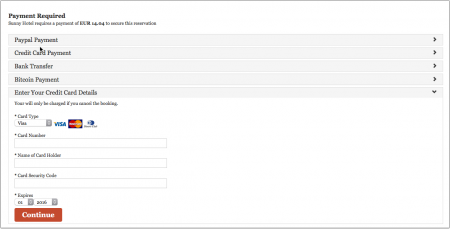
If leaving credit card details is the only option you want to give to your guests go to (SETTINGS) PAYMENTS > PAYMENT GATEWAYS > CREDIT CARD and use the Credit Card Collection help page.
Offline Payments (Custom Instruction)
You can ask your guests to make a bank transfer or send a cheque. Beds24 will not be notified about the payment so you will need to enter it manually into the "Charges and Payments" tab of the booking.
If you use this method you will need to enter the payments manually in the "Charges and Payments" tab of the booking.
Payments for Bookings from OTAs
Some channels send credit card details. If you use Stripe as payment gateway you can choose to send credit cards supplied by all channels directly to Stripe. You will then be able to
- automatically charge virtual cards from OTAs when they become valid. To enable this option go to (SETTINGS) CHANNEL MANAGER and set "Channel Collect Payments" = Charges and Pending Payments. Then
go to the channel settings (for example (SETTINGS) CHANNEL MANAGER -> BOOKING.COM) and set "Auto Process Virtual Cards" = Yes and select the "Virtual Card Payment Rule", either Auto or if you have created a Payment Rule, then select your payment rule.
- charge a card manually from within the booking or in the Stripe extranet.
For details please see Stripe help page.
To collect payments from channels which do not provide credit card details or if you do not use Stripe you can send payment requests (see below).
Create and manage pending payments
Create pending payments
Pending payments can either be
- added via an Auto Action. The auto action will create the pending payment for the bookings which meet the trigger conditions.
- added manually on the "Charges and Payments" tab of the booking. For manually added pending payments you can choose to collect the payment automatically or manually.
- imported as virtual cards from an OTA. To import pending payments go to (SETTINGS) CHANNEL MANAGER and set "Channel Collect Payments" = Charges and Pending Payments. Then go to the channel settings (for example (SETTINGS) CHANNEL MANAGER > BOOKING.COM) and set "Virtual Cards" = Yes
Rules for pending payments
In (SETTINGS) PAYMENTS > PAYMENT RULES you can create rules and info codes for pending payments.
When the payment is due, the system checks whether the selected rule applies. If this is the case, the payment is triggered and then the selected info code is added to the "Info" tab of the booking.
For Booking.com virtual cards you can set to adjust the charge automatically to the amount on the card. To do so create a rule with these settings:
- Funds Source: Virtual Card
- Payment value adjustment = choose any except for "None"
Manage pending payments
Using Stripe
Under "Pending Payments" on the "Charges and Payments tab of the booking you can:
- Schedule outstanding payments. Pending payments can be collected manually or automatically.
- For automatic charging set the "pending payment" to "auto" OR the Payment Rule you have created and enter a due date in the future. The option to automatically collect pending payments is only available for customers who use Stripe via Stripe Connect ("Connect to Stripe" button).
- Manually collect a pending payment if the credit card has been sent to Stripe by clicking on the ... menu and then clicking on "charge now".
Successful collections will be moved from "Pending Payments" to "Payments".
After the payment was collected you will see a status information on the "Info" tab.
Stripe and Auto payment collections via Stripe - 30% deposit at booking OR 100% if check-in less than 30 Days
You need to setup STRIPE Payment Gateway to use the details below.
Step 1 - Setup Booking Rules
Go to (SETTINGS) BOOKING ENGINE
- Normal Bookings - Booking Type = Confirmed with Deposit Payment 1- via payment gateway.
- Near term Bookings
- Days in Advance = 30
- Booking Type = Confirmed with Deposit Payment 2- via payment gateway
Step 2 - Setup Payment Collection
Go to (SETTINGS) PAYMENTS -> PAYMENT COLLECTION
- Non Payment Booking Status = Request
- Deposit Payment 1 Percentage = 30%
- Deposit Payment 2 Percentage - 100%
Step 3 - Create Payment Rule
(SETTINGS) PAYMENTS -> PAYMENT RULE
Create a Payment Rule to collect payments if bookings are not cancelled.
Payment Rule :
- Name = Enter your title - Not Cancelled (for example)
- Action = Auto
Payment Trigger :
- Booking Status = All not cancelled
- Any Booking Info Code = optional
- All Booking Info Codes = optional
- Exclude Booking Info Code = optional (can exclude Virtual Credit cards, find the Booking info code in the booking)
Payment Action :
- Funds Source = All
- Payment value adjustment = Default
- Capture = Yes - immediately charged (Capture=Yes)
- Add info code on success = add a Booking Info item to the booking on success
- Add info code on failure = add a Booking Info item to the booking on failure
Prevent Auto Payment :
- Prevent payment if booking status : Cancelled
- Prevent payment action : Set Manual (or Delete)
Step 4 - Create Auto Actions
(Suggest 2 auto actions created, 1- add pending payment and 2 - send email to guest on successful collection of payment)
Add Pending payment to the booking to collect payment 30 days before arrival
(SETTINGS) GUEST MANAGEMENT> AUTO ACTIONS
Auto Action #1- collect balance 30 days before check-in (This auto action will add a pending payment to your bookings with the payment date 30 days before check-in)
Trigger tab:
Time :
- Trigger Event = Booking
- Trigger Time = immediate
Booking Source:
- Booking Source =All (for example, you can also set different rules for different channels)
Booking Conditions:
- Invoice Balance = Not Zero
Invoice tab:
Add a Pending Payment to the booking
- Payment Type = Percent of balance due
- Description = the text you will see in the "Charges and Payments" tab (Payment Balance)
- Status = if you use the status function add the status you want to apply to the pending payment (optional)
- Amount = 100 (balance is full price so 100% of the balance)
- Payment Rule = Not Cancelled (setup in Step 3 above)
- Payment Due = check in -30
Auto Action #2 - Send email to guest to confirm receipt of payment
Trigger tab:
Time:
- Trigger Event = Booking
- Trigger Time = Immediate
- Trigger Window = 365 day
Booking Conditions:
- Booking Status = All not cancelled
- Invoice Balance = Any Payment made OR Invoice Balance = Zero (payment in full)
Message tab: For channels using the Message API, then enter the text in the Plain text box, for emails enter the text in the HTML box.
- Send Message = Booking API/Smart Email
If the "Mail & Actions" tab contains a "real" Email address the message is sent to the guests Email address. If only a masked Email address is available the message sends via the channels API messaging systems if possible.
If no connection to a messaging system is available the message will send to the Email address from the "Mail & Actions" tab of the Email.
- Email Subject - enter the subject for your Guests
- Plain text box - will send to channels using Message API
Message text :- Enter the text you wish to send to your guests include URL. Template variables can be used see here
You can use Invoice Template variables showing the booking charges/payments. [INVOICETABLE] will show all of the Charges/Payments.
- HTML box - Email will be sent
Email Text :- It is possible to use the same details (URL) as in the Plain Text box above. Template variables can be used see here
You can use Invoice Template variables showing the booking charges/payments. [INVOICETABLE] will show all of the Charges/Payments.
If you are using deposit collection make sure you set (SETTINGS) PAYMENTS->PAYMENT COLLECTION "Non Payment Booking Status" = Request.
Without Stripe
If you do not use Stripe you can use a pending payment
- As a reminder for yourself
- For reporting
- To send a payment request (see below)
Use an Auto Action to add a 'Manual' Pending Payment to the bookings based on your payment timetable. The Pending payment details can be used as a reminder with the Pending Payment Report in 'Bookings'.
The manual pending payment can be used as a reminder and if you use Bank Transfers as your payment option, then you can use the Pending Payment list (Bookings) to see the list of payments due, and set the Pending Payment as 'Paid' within the booking.
Cancellations
If you want to cancel a pending payment if the booking is cancelled you can use a payment rule which does not apply to cancelled bookings.
Payment Request
A payment request can be sent to a guest at any time after booking either manually or automatically. The guest receives a link to a secure page where they can make their payment.
The link URL is in this format with at least the booking number specified https://beds24.com/bookpay.php?bookid=123456. Additional parameters can be supplied in the URL to manage the options and amount for payment.
If you have activated Private Domain, you can use in the Payment link :- change https://beds24.com/bookpay.php?bookid=[BOOKID] to https://mydomain.com/bookpay.php?bookid=[BOOKID]
You can set up an Auto Action with a payment request. The guest can then make a payment through the payment option(s) you support. If you use one of the integrated payment gateways Beds24 will be notified about the payment and it will show in the "Charges and Payments" tab of the booking.
To use this option you need to activate at least one payment option (SETTINGS) PAYMENTS> PAYPAL/STRIPE...
You can show a custom message in header section of the payment request and in the confirmation which the guest sees after they have completed the payment. The settings are (SETTINGS) PAYMENTS " Payment Request Header" and "Payment Request Confirmation".
- Go to (SETTINGS) GUEST MANAGEMENT > AUTO ACTIONS and create an Auto Action. A template is available which you can further customize. Use the context help (?Icons) in the Auto Action and on the help page (click on HELP in the top right menu) for further instructions.
In the "Messaging" tab click on "Edit" and enter your text.
You can use either template variables for a pre canned link (recommended) or create your own custom URL.
Payment links expire 28 days after check-out.
Using Template Variables
- The template variable [PAYLINK] creates a payment link (HTML A tag) for the payment request for the amount in the booking deposit field if non zero, otherwise the outstanding balance.
- [PAYLINK:25%] -Creates a payment link (HTML A tag) for the payment request for a percentage of the outstanding balance. Use 100% to specify the full outstanding balance.You can also use a percentage over 100% if you want to charge extra for example for credit card payments.
- [PAYLINK:200] - Creates a payment link (HTML A tag) for the payment request) for a fixed amount.
[PAYLINK] will not work with your own URL. Use a link instead if you have activated the private lablel option and want the link to use your own domain.
- The template variable [PAYBUTTON] creates a payment button for the payment request for the amount in the booking deposit field if non zero, otherwise the outstanding balance.
- [PAYBUTTON:25%] - Creates a payment button for the payment request for a percentage of the outstanding balance. Use 100% to specify the full outstanding balance. You can also use a percentage over 100% if you want to charge extra for example for credit card payments.
- [PAYBUTTON:200] - Creates a payment button for the payment request for a fixed amount.
- The template variable [PAYURL] creates a payment url for the payment request for the amount in the booking deposit field if non zero, otherwise the outstanding balance.
- [PAYURL:25%] - Creates a payment url for the payment request for a percentage of the outstanding balance. Use 100% to specify the full outstanding balance. You can also use a percentage over 100% if you want to charge extra for example for credit card payments.
- [PAYURL:200] - Creates a payment url for the payment request url for a fixed amount.
- Add a H to exclude a gateway from displaying. Example: [PAYURL:200:HST] will hide Stripe
Using Request URL Parameters
You can also use a direct link. The link uses the booking number and the requested amount.
For Auto Actions you can use the [BOOKID] template variable to automatically populate the bookid URL parameter:
https://beds24.com/bookpay.php?bookid=[BOOKID]
For custom Emails you can type the booking number in directly:
https://beds24.com/bookpay.php?bookid=1234567
The parameters below can be added to the URL to customize the behaviour of the payment request.
These are the parameters for the different payment options:
Parameters for different payment options
By default all payment gateways enabled for your booking page will show on the payment request page.
You can override which gateways are shown on the booking request page using the URL &g= and &h= parameters. You can specify multiple payment gateways comma separated for both the &g= and the &h= parameter.
The &g= parameter forces the gateway to be shown, the &h= forces the gateway to be hidden.
an AuthoizeNet
bg Borgun
bp Bitpay
cc credit card collection
cg Custom Gateway
op Offline Payment
pm Paymill
pp Paypal
ra Realex A
rb Realex B:
st - Stripe
Capture for Stripe:
capture=0 do not capture payment
capture=1 capture payment
Examples:
https://beds24.com/bookpay.php?bookid=[BOOKID]&g=an creates a payment link for Authorize.Net
https://beds24.com/bookpay.php?bookid=1234567&g=st,pp creates a payment link showing Stripe and Paypal
https://beds24.com/bookpay.php?bookid=[BOOKID]&g=st&capture=0 creates a payment link for Stripe without capturing
https://beds24.com/bookpay.php?bookid=1234567&h=cc creates a payment link hiding credit card collection
Parameters to specify the amount to pay
If you do not specify an amount parameter the amount requested for individual booking is the outstanding balance. For group booking the outstanding balance of the group invoice will be requested.
&pay=deposit for a payment request collecting the amount from the "Deposit" field in the booking
&pay=100 for a payment request for the specified amount (in this example 100)
&pay=bookbalance for a payment request collecting the outstanding balance for this booking If the booking is part of a group booking and there is no outstanding balance in this booking the value of the group balance will be requested.
&pay=groupbalance for a payment request collecting the outstanding balance for the group booking (the default)
&pay=groupbalance&pc=25 pc can be used to specify a percentage of the pay amount, for example here 25% of the groupbalance will be collected.
&pay=na for a request to collect credit card details without showing an amount
Examples:
https://beds24.com/bookpay.php?bookid=[BOOKID]&pay=70 creates a payment link requesting a payment of 70
Payment Request without Payment Options Activated
If you do not use one of the payment options you can set up an Auto Action with a Paypal payment request. Click here for instructions how to set this up.
Request Guests to Submit Credit Card Details
You can set up an Auto Action with a request to sub mit credit card details. Guests will be able to submit their card details on a secure form.
To use this option you need to
- activate credit card collection in (SETTINGS) PAYMENTS > PAYMENT GATEWAYS > CREDIT CARD
- set which credit cards you accept (SETTINGS) PAYMENTS > CREDIT CARD COLLECTION
- Go to (SETTINGS) GUEST MANAGEMENT > AUTO ACTIONS and create an Auto Action. Use the context help (?Icons) and the help page (click on HELP in the top right menu) for general instructions.
Template variables are used to link to the form.
In the "Email" tab click on "Edit" and enter your text. Template variables are used to specify the requested amount:
- The template variable [PAYLINK:NA:CC] creates link to the form where guest can securely enter their credit card details.
- The template variable [PAYURL:NA:CC] creates URL for the form where guest can securely enter their credit card details.
- The template variable [PAYBUTTON:NA:CC] creates button with a link to the form where guest can securely enter their credit card details.
- If you want to use custom text you can use an a link <a https://beds24.com/bookpay.php?bookid=[BOOKID]&g=cc&pay=na>Your text</a>
You can show a custom message in header section of the payment request and in the confirmation which the guest sees after they have entered their details. The settings are (SETTINGS) -> PAYMENTS " Payment Request Header" and "Payment Request Confirmation".
You can also use a direct link. The link uses the booking number plus the parameter &g=cc&pay=na
https://beds24.com/bookpay.php?bookid=1234567&g=cc&pay=na
https://beds24.com/bookpay.php?bookid=[BOOKID]&g=cc&pay=na
Collect only Credit Card Details for Web Site Bookings
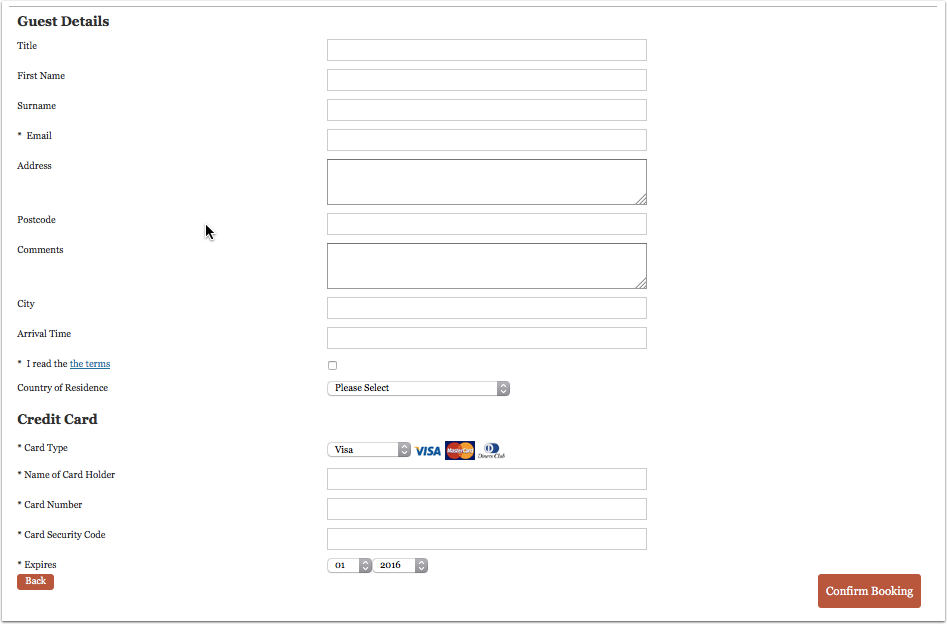
If you only want to securely collect credit card details without charging them go to (SETTINGS) PAYMENTS > CREDIT CARD COLLECTION. The guest will only be able to complete the booking if they leave their credit card details. The card processing must be handled manually by your bank or merchant account. You can find more information on the Credit Card Collection help page.
Guests will be asked to enter their credit card details with their details.
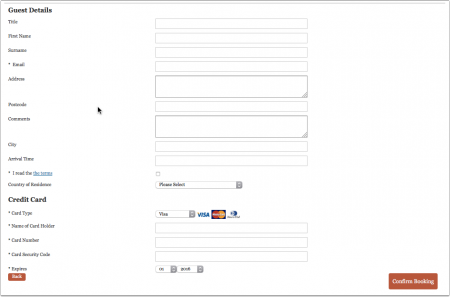
- Go to (SETTINGS) ->PAYMENTS and use these instructions if you want to
- automatically collect a deposit/payment though an integrated payment gateway.
- require guests to make an offline payment (i.e. bank transfer).
- connect your own payment gateway.
- want to give guests the option to choose from two or more options (online deposit payment, offline payment, leave their credit card details)
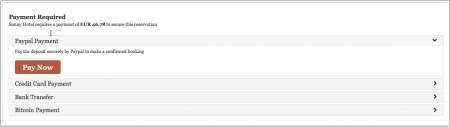
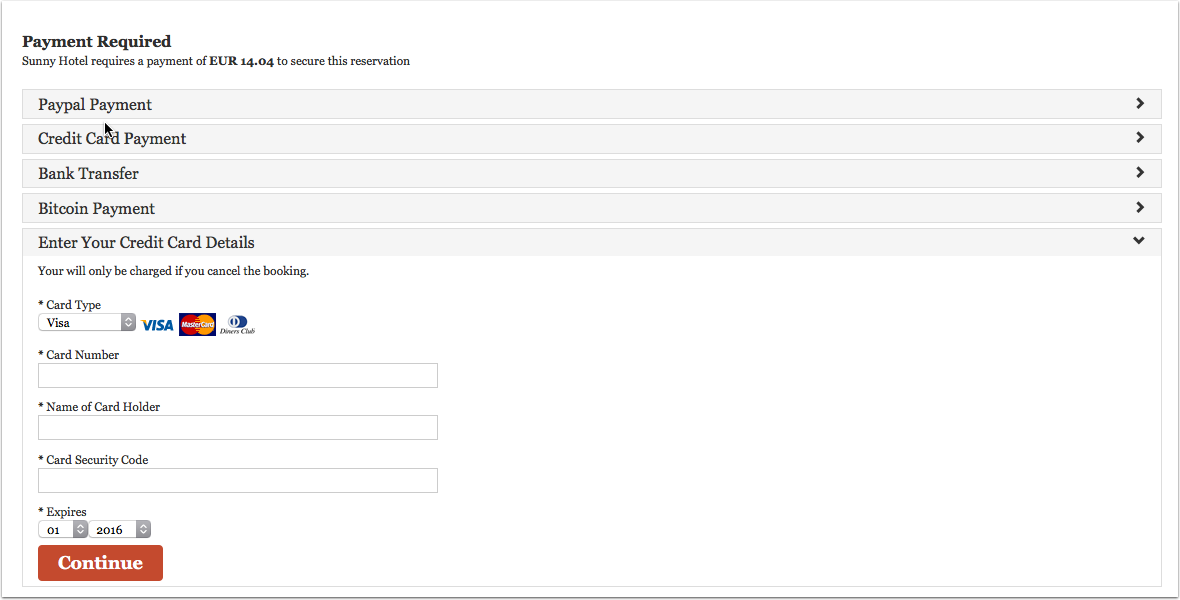
After the guest clicked "Confirm Booking" they are directed to the payment screen.

Collect Deposits for Web Site Bookings
If you use this method the guest will not be able to complete the booking without making a payment.
Setup
Step 1. Go to (SETTINGS) PAYMENTS > PAYMENT COLLECTION
- Set "Non Payment Booking Status". Failed or non payments can be set to leave the booking in either cancelled or request status.
- Request: When the guest clicks "Confirm Booking" the room gets reserved for the guest and will not be available for other guests to book. When they make a successful payment the status of the booking will automatically change to confirmed. If the payment is aborted or not successful the status of the room will still be blocked with the request status. You will then either need to change the status manually to cancelled or use an auto action to automatically change the status of Request bookings to Cancelled after a preset time. Auto Actions can be set up in (SETTINGS) > GUEST MANAGEMENT > AUTO ACTIONS.
NOTE : (SETTINGS) BOOKING ENGINE > REQUEST BOOKINGS - Do not block the room - this has been depreciated with the introduction of Inquiry status.
- Inquiry: When the guest clicks "Confirm Booking" the booking is entered in to the calendar, but will not block the room. The dates will be available for other guests to book. When they make a successful payment the status of the booking will automatically change to confirmed. If the payment is aborted or not successful the room will not be blocked. You will then either need to change the status manually to cancelled or use an auto action to automatically change the status of Request bookings to Cancelled after a preset time. Auto Actions can be set up in (SETTINGS) > GUEST MANAGEMENT > AUTO ACTIONS.
- Cancelled: When the guest clicks "Confirm Booking" the room will not be reserved until the payment has completed. Other guests can still book the room until a successful payment has been made leaving a small risk of double bookings.
- Set the required amount. It can be a fixed amount, a percentage of the total or the value of the first nights accommodation.
- The currency used by will be the currency you have set in the PROPERTY > DESCRIPTION currency to receive payments setting.

Step 2. To add general information to the header section of the payment screen go to (SETTINGS) PAYMENTS-> and click on "Deposit Payment Header"
Step 3. Enable one or more payment options.
- Choose the gateway and or method(s) you want to use ( (SETTINGS) PAYMENTS > PAYMENT GATEWAYS > PAYPAL/STRIPE..... and enter the required account information to connect your payment system to your account. Use the context help (? icons) and the page help (top right menu of each page) for instructions.

If you want to offer your guests a choice between different options you can select in which order the options display.
To override the default title which the guest sees enter your custom text in the "Title" field.
- In "Instruction" you can enter a custom information to display under the payment button.
For detailed instruction for each gateway/method when you click on the context help (? icons) and on HELP in the top right corner of the payment method help page.
Step 4. Go to (SETTINGS) PROPERTIES >BOOKING RULES
- Set "Booking Type" to either the Deposit Collection 1 or Deposit Collection 2.
Each of Deposit Collection 1 and Deposit Collection 2 can collect different deposit amounts.
Individual rules can be set for Normal, Near term and Exceptional period bookings. Individual rules can also be set directly within rates or offers.
This allows you for example to take a different deposit in high and low season or for normal and last minute bookings.

Note that booking rules for rates will override rules for rooms and booking rules for offers will override property booking rules.
If you set "Booking Type" in = "Collect CC - auto confirmed with Credit Card" or "Request CC - Request only with credit card number" in (SETTINGS) > BOOKING ENGINE the guest will submit their credit card detail but the card will NOT be charged.
Reports
You can set up an Auto Action ( (SETTINGS) -> GUESTMANAGEMENT -> AUTO ACTIONS) to flag bookings for which a payment and set up a custome report for these bookings (REPORTS-> CUSTOM REPORTS) which you show on the dashboard.
In REPORTS-> STANDARD REPORTS you can choose from a wide range of financial reports.
Frequently asked questions
How do I receive the payments?
Beds24 never handles any payments from guests. All payments go directly into your account with the payment gateway you use.
How can I collect payments from guests booking through an OTA?
Beds24 is not involved in deposit collections for bookings from booking channels. Each booking channels handles them according to their rules/your account settings. If you use Stripe you can send cards sent from OTAs to Stripe to charge them.
How can I collect outstanding payments from guests booking through my website (Direct)?
If you have activated Stripe and have collected the guest credit card details then you can create a Pending Payment in the booking to collect the outstanding payment at a specified date/time. See the section on Pending Payments above.
If you do not have the guest credit card details, then you can send a Payment Request link in an email so they can make a payment via the activated payment gateways. See section on Payment requests above.
Can I use a payment gateway to which Beds24 does not integrate?
In (SETTINGS) PAYMENTS > CUSTOM GATEWAY you can connect to your own payment gateway. If you do not have the required programming skills you can hire a developer to set this up for you. If you do not work with a developer you can hire one of our partners. Have a look here: http://shop.beds24.com/category/api-connections/
Pages in category "Payments"
The following 26 pages are in this category, out of 26 total. download this selection of articles as a PDF book